



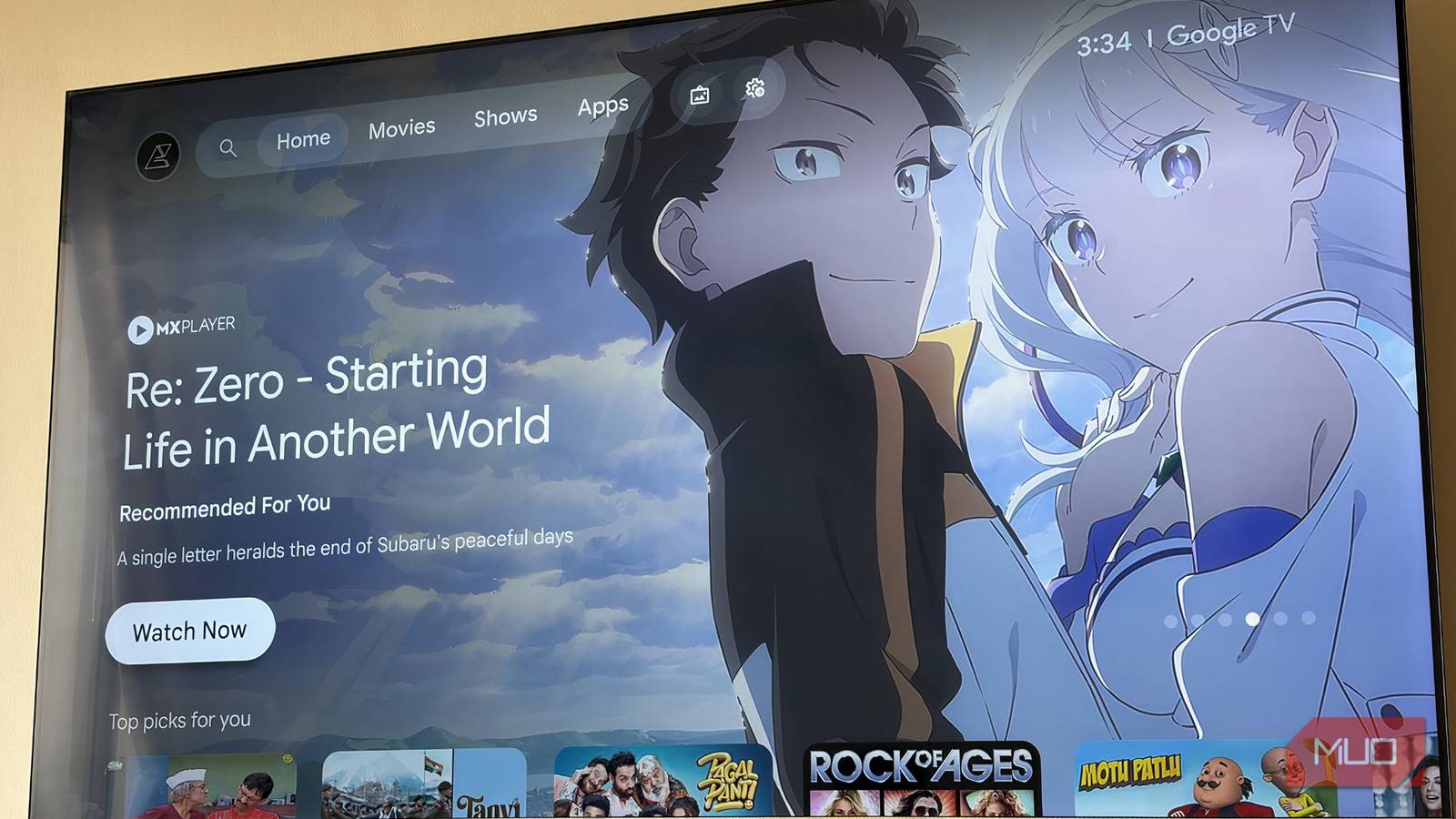
My smart TV has been with me for four years now, and lately it has been showing its age in the worst possible way. Apps take forever to load, searches feel sluggish, and navigating menus has turned into a test of patience I did not sign up for. All I want to do is sit down, relax, and watch something without wanting to throw the remote across the room. So I did what any frustrated person would do and started poking around in the settings to see if there was something I was missing. Turns out there was, and it made a bigger difference than I expected.
It took 10 minutes to make my Google TV less annoying
A few quick tweaks can turn your Google TV from frustrating to fabulous.
The hidden switch that speeds everything up
Your TV is finally picking up the pace

This tweak lives behind Android TV’s hidden settings, so you’ll first need to unlock Developer Options. Follow these steps to enable it:
- Start by opening the Settings app on your smart TV.
- From there, head into System.
- Then scroll down to About.
- Look for the Android TV OS build entry and click it repeatedly, about seven times.
- After a few taps, a small message will pop up confirming that Developer Options have been enabled.
Now go back to the System menu, and you’ll notice a new section called Developer options. This is where all the advanced settings live. Once you’re inside, scroll until you find the Drawing section. Here, you’ll see three animation-related controls: Window animation scale, Transition animation scale, and Animator duration scale. By default, each of these is set to 1x. Open each one and change the value to 0.5x. You’re essentially telling the TV to speed up its animations. That’s it. Everything feels quicker and more responsive — menus open faster, and transitions feel snappier.
Changing these settings won’t improve your TV’s hardware performance or make apps load any faster in a technical sense. What it does instead is remove some of the visual delay built into the interface. So, your TV isn’t doing things faster; it’s just showing them faster. By shortening or speeding up animations, the gap between your action and what you see on screen becomes smaller. The result is a system that feels quicker and more responsive, even though the underlying performance remains the same.
The dials that decide how snappy your TV feels
It’s all about how long your TV lingers before getting to the point

These three settings might sound technical, but they really just control how fast things move on your screen. Every time your TV opens a menu and switches between apps, it uses animations. These options decide how long those animations take.
- Window animation scale: This controls how quickly small elements such as pop-ups, menus, and dialog boxes appear and disappear. If this is set higher, those boxes take longer to slide in. Lower it, and they show up almost instantly.
- Transition animation scale: This comes into play when you move from one screen to another. Opening an app, going back to the home screen, or switching between menus all fall under this. Reducing this makes navigation feel much quicker and more fluid.
- Animator duration scale: This one controls the overall timing of smaller, subtle animations within the interface. Things like button feedback, loading movements, or the way the notification panel drops down are all affected here.
When set at the right speed, these tweaks make the animations on your smart TV feel noticeably snappier.

How I Gave My Google TV a Serious Speed Boost
Bring back that out-of-the-box feel.
The art of making your TV feel faster without upgrading it
Faster where it matters, without losing the finesse

Setting the animation speed to 0.5x doesn’t boost your TV’s raw performance, but it changes how quickly everything appears to happen. Every time you open a menu, switch apps, or go back to the home screen, there’s a short animation playing in the background. By cutting that animation time in half, your TV spends less time showing the transition and gets to the result faster.
In day-to-day use, menus pop up more quickly, apps open faster, and moving around the interface feels more immediate. That slight delay you usually don’t notice starts to disappear, and the whole system feels more responsive as a result. This is why 0.5x is often considered the ideal middle ground. It speeds things up enough to make a noticeable difference, while still keeping animations smooth and visually consistent. The interface just feels more efficient.

You could go a step further and turn animations off entirely, but that’s where things can feel a bit off. Without any transitions, screens change abruptly, which can feel harsh or even slightly glitchy. It might be faster on paper, but in practice, it often feels less natural than simply speeding things up.
The fix that doesn’t change your TV, but changes everything
At some point, every smart TV starts to feel a little slow. And while it’s easy to assume that the only solution is an upgrade, tweaks like this remind you that sometimes, the problem isn’t power, it’s pacing. By simply dialing down how long your TV spends animating every action, you’re cutting out the unnecessary wait between what you do and what you see. It certainly won’t turn your TV into a brand-new one. But it will make it feel a lot less like it’s holding you back. And when all you want to do is sit back and watch something without friction, that’s more than enough.