





Our smart TVs are typically the centerpiece of our home entertainment setup and the focal point of our living spaces. I remember a rare piece of amusing dialogue in “Friends” where Joey Tribbiani exclaims: “You don’t have a TV? Then what is all your furniture pointed at!?” It’s funny because it’s true. However, right out of the box, our TVs are set up for eye-catching showroom modes rather than optimized home viewing, with default settings that prioritize convenience over performance or security.
With a few small setup adjustments, it’s easy to make your TV sharper, faster, safer, and more user-friendly, and you don’t need to be tech-savvy to do it. These tweaks dramatically improved streaming quality and my interaction with my TV, elevating my everyday viewing experience almost instantly.
Gaming on a Smart TV Is So Much Better With These Settings Tweaks
Your smart TV has a heap of features that make gaming much better—you just need to know where to look.
Adjust picture calibration for better visuals
Get the most accurate colors and brightness at home

One of the quickest ways to improve your streaming experience is by adjusting your TV’s picture settings. Most smart TVs are set to preset modes like “Vivid” or “Dynamic” by default. While these may look impressive in stores, they often over-saturate colors and unnaturally boost brightness. Switching to a user preset like “Movie” or “Cinema” mode is usually the best starting point for more accurate colors and balanced contrast.
From there, you can fine-tune your brightness, contrast, and sharpness settings to suit the ambiance of your living space. Lowering sharpness can reduce artificial edge enhancement, while adjusting brightness helps reveal details in darker scenes. If your TV includes advanced settings like white balance or color temperature, choose a “Warm” setting for a more natural look. These changes, while small, can make movies and shows appear less saturated and closer to what their creators intended.
Reduce buffering for smoother streaming
Improve your connection without upgrading your plan
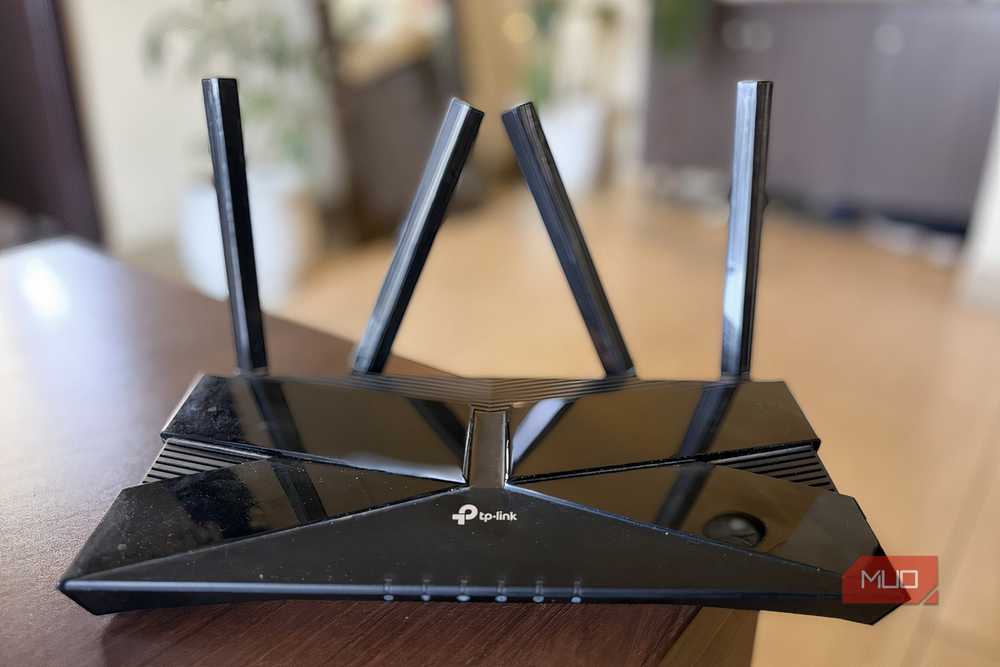
We’ve all been there, sitting watching the dreaded spinning vortex of doom that interrupts a crucial point in the movie. Buffering is one of the most frustrating issues when streaming, but there are a couple of fixes to try before upgrading your internet connection. Start by checking your Wi-Fi signal strength. If your TV is far from the router, consider moving the router closer or using a Wi-Fi extender. Even better, connect your TV directly via Ethernet cable for a more stable connection.
You can also reduce buffering by closing background apps on your TV, as they may consume bandwidth. Lowering streaming resolution (from 4K to HD, for example) can also help if your connection struggles to keep up. If all else fails, there’s always the “turn-it-off-and-on-again” final resort: occasionally restarting your router can clear network congestion and improve performance. These steps can significantly reduce interruptions and keep your content playing smoothly.
Review privacy settings for better control
Protect your data while using smart features
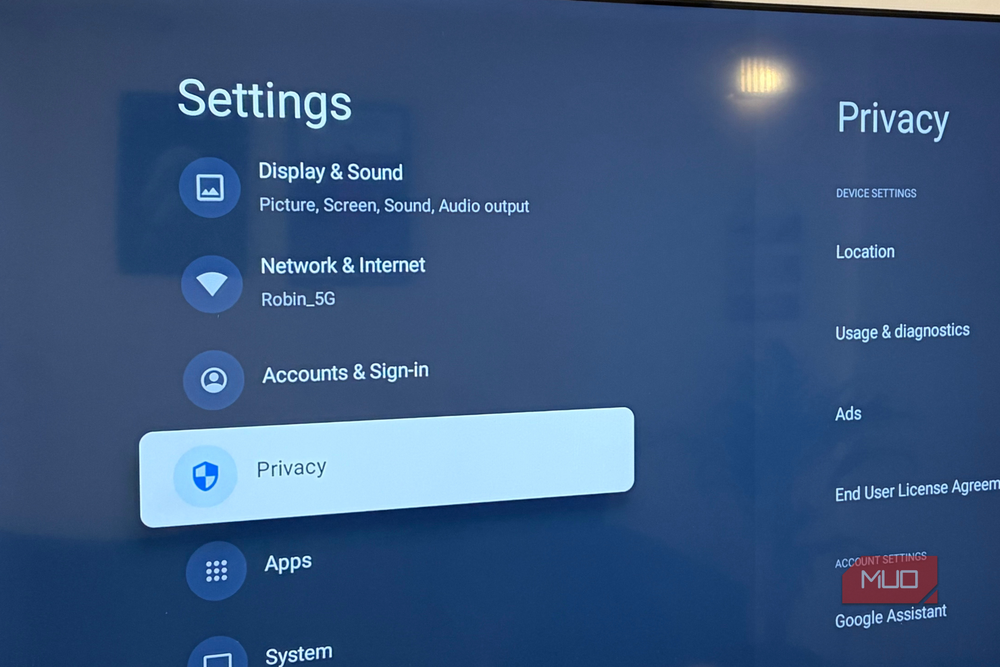
Like all smart devices, our smart TVs collect data to improve their recommendations and performance. However, this doesn’t mean we should unthinkingly accept this tracking as a necessary feature. It’s never a bad idea to take a few minutes to review privacy settings and regain control of your data.
Look for options related to viewing data, ad personalization, and voice recognition. By disabling features like automatic content recognition (ACR), you can limit how much your TV tracks what you watch. You can also turn off microphone access if you don’t use voice commands. While these features can be convenient, you can adjust them to align with your personal comfort level regarding privacy.
Cast from phones for convenient viewing
Turn your smartphone into a powerful remote and media hub

Casting lets you stream content directly from your phone or tablet to your TV, making your streaming experience more flexible. Most smart TVs support casting technologies like screen mirroring or built-in casting, so you can play videos, display photos, or even mirror apps that aren’t natively available on your TV. It’s also a handy way to scroll through content while a movie or show plays in the background.
To get started, ensure your phone and TV are connected to the same Wi-Fi network. Then use your device’s casting feature, which is usually in quick settings or within supported apps. Casting is especially useful for quickly sharing content or navigating apps more easily on your phone’s interface. It effectively turns your mobile device into a powerful remote and library companion for your TV.
Explore free streaming apps for more content
Expand your entertainment options with no extra cost
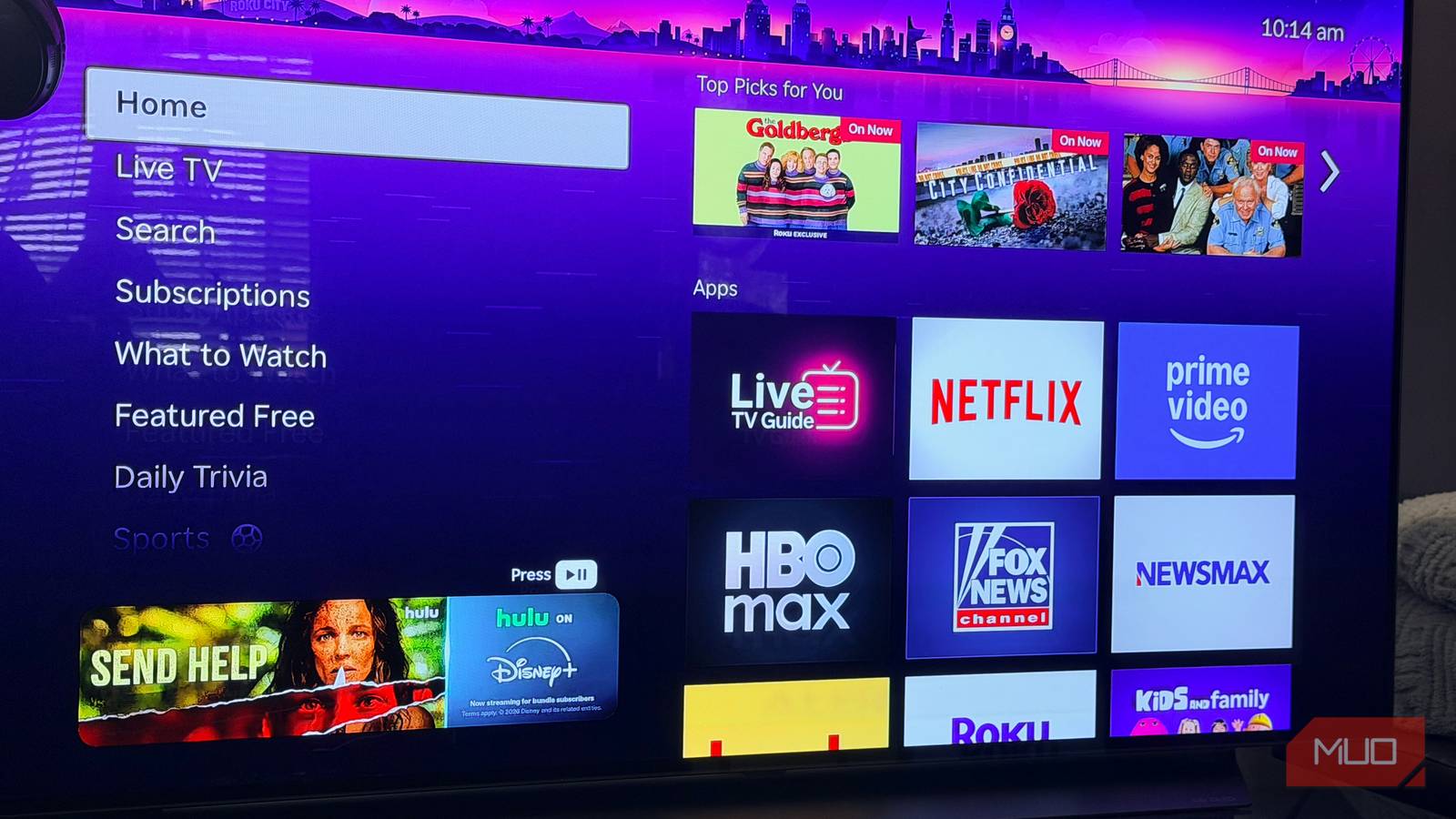
This is a feature that I only tried for myself relatively recently. For years, I had stuck to paid subscriptions without paying any attention to the wide range of free streaming apps available on my TV and devices. These platforms typically offer movies, TV shows, and even live channels supported by ads. And while they may not have the latest blockbusters, they provide a surprising amount of quality content.
Browse your TV or streaming device’s app store to discover what’s available. You might find niche channels, classic film libraries, or curated content, like that found on Tubi or Pluto TV, that you wouldn’t encounter elsewhere. Adding a few of these apps to your library can diversify your viewing options and reduce reliance on paid services, all without spending a cent.
Get the most out of your smart TV experience
Smart TVs and streaming services offer unparalleled convenience compared to the boxy units and scheduled programming of yesteryear, but that doesn’t mean that they are optimized right out of the box. By taking a little time to adjust picture calibration, improve your network setup, explore casting, review privacy controls, and try free streaming apps, you will enjoy significantly better performance and value.
None of these adjustments requires much technical expertise, and experimenting with these options is a fun way to get to know your TV better. It’s a win-win, and the result is clearer visuals, smoother playback, and a more personalized experience. All that’s left to do is save up for that La-Z-Boy armchair.