





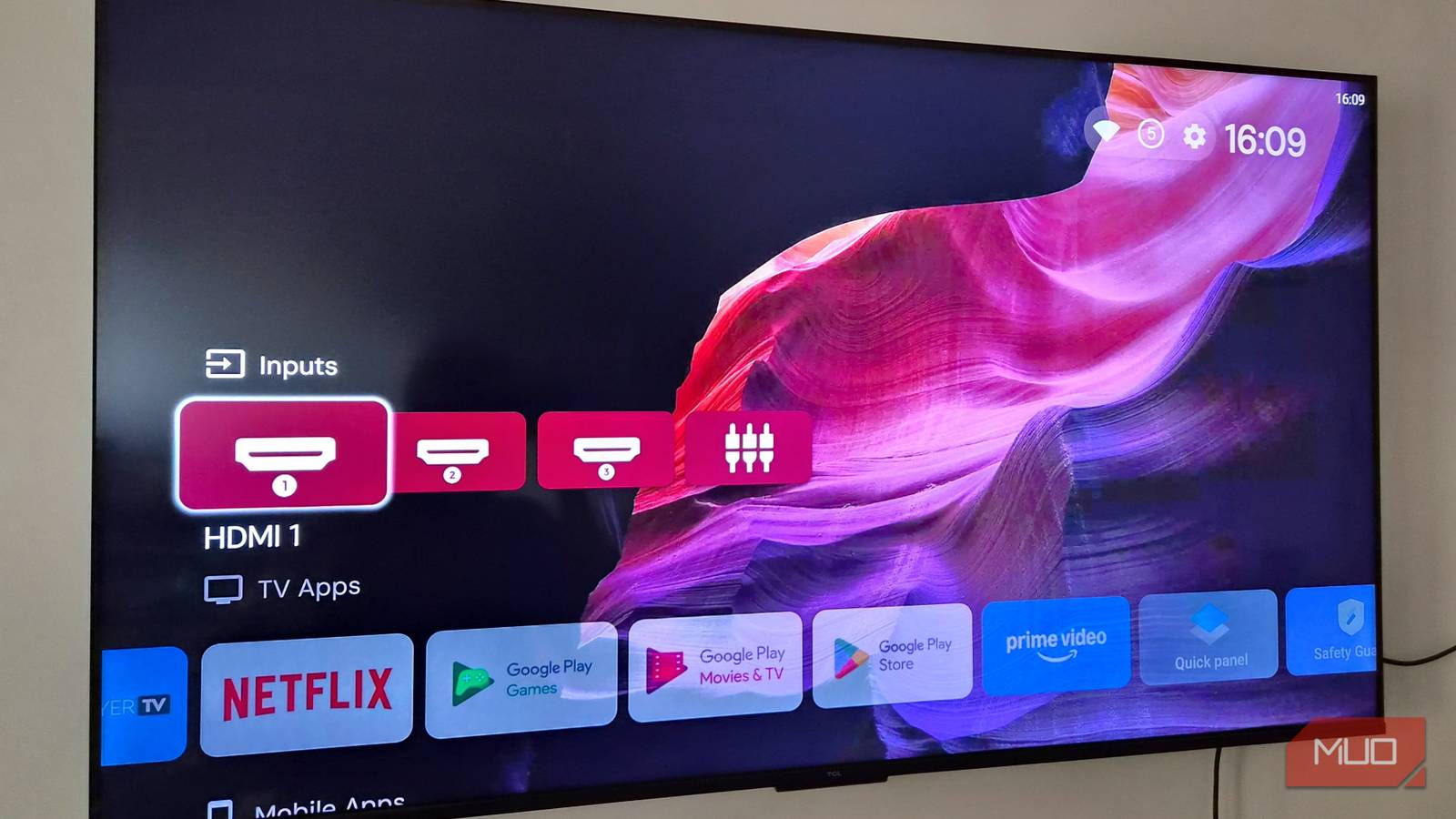
It doesn’t matter if you spend $30 and buy a cheaper, Walmart-branded streaming box or Google’s own streaming devices. Google TV can be bloated, unresponsive, and somewhat nasty to try to muck through. And this is coming from one of their biggest fans, as I switched from Fire TV to Google TV and haven’t looked back once.
But if you’re hoping to get the most out of your streaming box, I can’t blame you. There are a few great ways you can bypass the bloat and get what you paid for, without having to invest in a different streaming box altogether. Sure, running a Raspberry Pi as your media server can be fun, but it can be expensive and a lot of hassle, instead of a few software tweaks that can be done in moments.
Google TV Got 10x Better After I Enabled This Setting
Your TV, your apps, no distractions.
ADB TV: App Manager
The easiest way to take back your Google TV
Google TV comes with a lot of apps preinstalled. Some you can remove. Others are seemingly permanent additions to your streaming library. If you’re buying something and want complete and total control over what goes on it, ADB TV may be the solution that you’re searching for. By granting this app access to your Developer Options, it’ll go through and clear out all the garbage while keeping that stock look that is oh, so nice. While Google TV may not be as sleek and slick as Apple TV, it’s still a very attractive interface that is held back by a lack of customization.
Enabling Developer Mode on your Google TV is rather similar to doing so on Android phones. You’ll need to head to Settings > System > About and press the OK button on your remote seven times. Once this has been done, you’ll have access to Developer Options, which is under the System Menu. Download ADB TV on your device, and head into Settings > Apps > Special app access > Usage Access, and also turn on USB Debugging from the Developer Options menu to let this app get to work on clearing out the garbage. This also works for manufacturer bloat from brands like TCL, Hisense, Sony, and Samsung.
Projectivy
For those who want even more customization and a new launcher
If you want to keep the heart and soul of Google TV alive, get rid of all the extra bloat from the main screen, including ads? That’s where something like Projectivy comes into play, replacing the stock Google TV launcher with one that is far more lightweight and customizable. The set-up process is a little more in-depth than something like ADB TV, as you’ll need to use a specific trick to “fool” your Google TV into consistently launching into Projectivy. Google has stepped up its game when it comes to accessibility workarounds, but Projectivy has been working without flaw for a little over two weeks for me now. Seeing as it uses an Accessibility Service Override, it allows Projectivy to launch at start or from a reboot, rather than Google TV.
By pairing both ADB TV and Projectivy together, you can also try to disable the Google TV launcher entirely. However, this could lead to the loss of specific features like Google Gemini/Assistant on your device, so keep that in mind if you decide to try this. You can run ADB TV and use a command such as:
adb shell cmd shortcut get-default-launcherAfter doing that, you’ll have the option to set Projectivy as your main launcher by running this command:
adb shell cmd package set-home-activity com.spocky.projengmenu/com.spocky.projengmenu.ui.home.MainActivityThis puts Projectivy at the front of the list for any time you turn off your TV if the Accessibility Service Override option isn’t working. You can go one step further by disabling the Google TV launcher and the Setup Wizard, which will ensure that you’re always running Projectivy instead of Google TV trying to peek back in.
DNS Ad-Blocking
It’ll help with ads, and maybe app launching

If you have a reasonably good Google TV streaming box, you may not be extremely disappointed with the performance overall. But you may still be struggling to bypass the ads that are shown on the main screen, or you may find that some apps are slower to load than others. This is likely due to the fact that they’re trying to fetch video previews, ads, and more to show you before you log in. If you don’t want to mess with your Google TV settings, trying out a DNS service to block out the number of ads that are shown could help you enjoy your Google TV setup a bit more.
Running AdGuard or any other DNS service should help in a number of different ways. It’ll work on trying to reduce the number of ads that show on the main screen, but it’s a little inconsistent. Some days, it seems like it’ll work great, and other days, it’ll feel like there isn’t anything there at all. DNS Ad Blocking, as a system-wide effort, on the other hand, can help with ads that appear on your Smart TV. To get rid of ads on things like YouTube, you’ll need SmartTube, which can be sideloaded via ADB TV.
ADB TV can break things
If you’re not careful, you can disable something that shouldn’t be
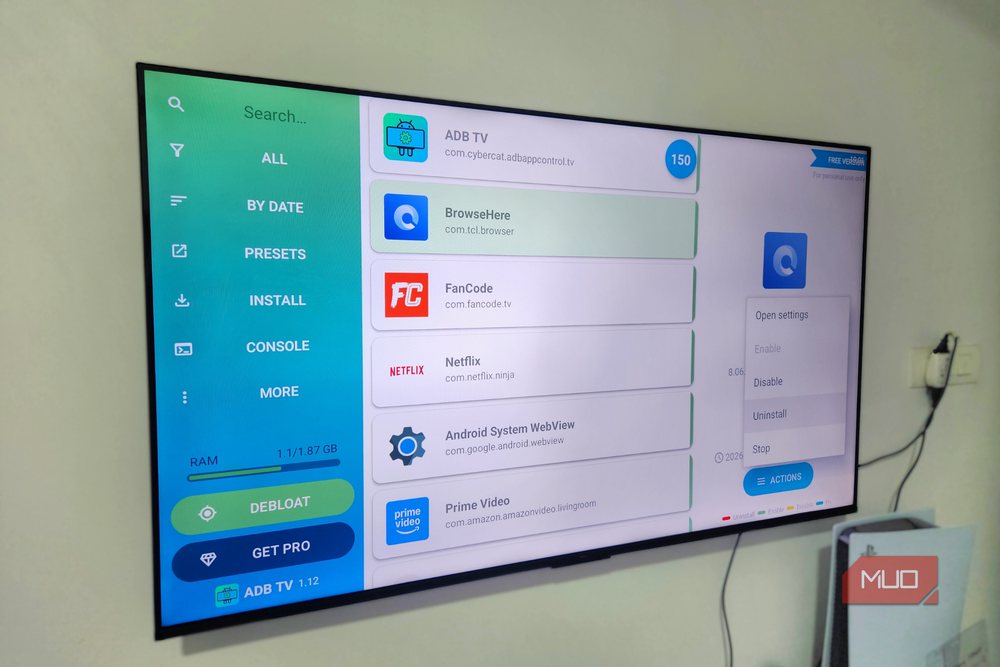
When it comes to tweaking things on a system-wide level, you’ll want to ensure that you’re keeping a close eye on what you’re disabling, enabling, and removing. Some specific parts of the Google TV experience can be toggled on and off via ADB TV, and if you remove them, it can damage your device. We don’t want that. Firstly, disable instead of uninstall when possible, since re-enabling this is easier than having to do a full restoration on your Google TV.
Secondly, keep an eye out for any of these specific options. You do not want to toggle them off, regardless of what you think they may do to improve your Google TV services. They’re fundamental items needed to run the system, ADB TV or not:
# Google Play Services
com.google.android.gms

# Play Store
com.android.vending

# Google Services Framework
com.google.android.gsf

# System UI
com.android.systemui

# Base Android OS
android

# Wi-Fi Stack
com.android.wifi

# Network Stack
com.android.networkstack

# Account Sync
com.google.android.syncadapters.*

# Input/Keyboard
com.android.inputmethod.*

- OS
-
Android TV OS
- Price model
-
Free, Pro version available
Some simple tweaks to make your TV sing again
After spending a ton of money on a new device, the last thing you want is for it to be slow and laggy. By trying these out for yourself, you may find that Google TV becomes usable again and that these performance boosts let you get to your favorite content in no time. It may take a little bit of time to get everything exactly to your specifications, but once you have? It’ll be impossible to go back to that original Google TV experience again.