



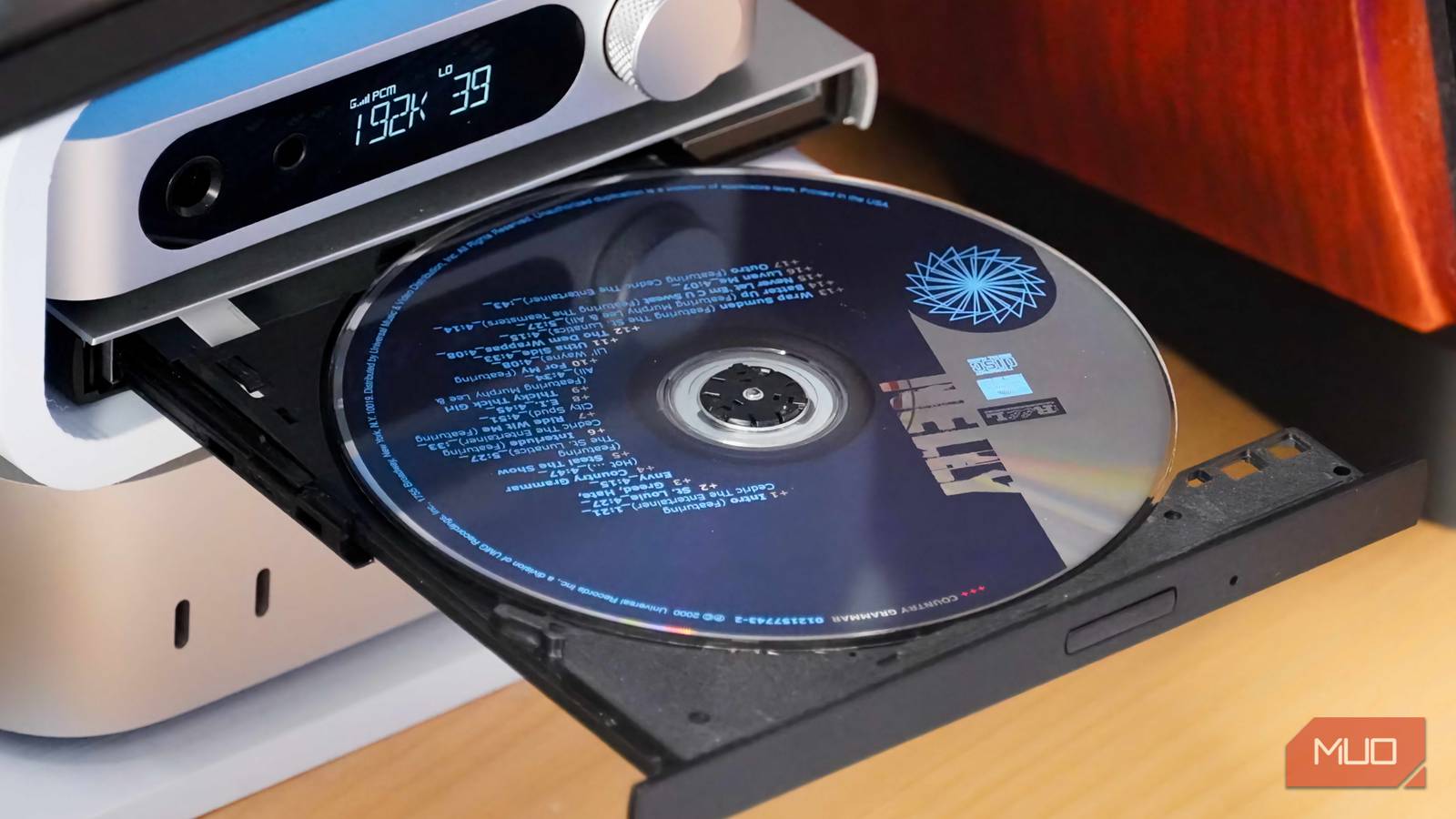
It’s 2026, and CDs are anything but dead. No, really — compact discs are the best bang for your buck medium for starting a physical music collection. Admittedly, I’m a vinyl head, but you won’t beat CDs if your goal is to own digital and physical copies of your favorite albums. While vinyl surges and LP prices climb higher and higher, people are practically giving away their CD collections. You can build up a solid CD collection without spending much, and it’s easy to rip digital copies of your discs with free programs like iTunes, Apple Music, or Windows Media Player.
So, maybe you’ve hit up your local thrift store and grabbed a few CDs. Or, you’ve dug your old collection of discs out of your attic. What’s the best way to rip accurate lossless files from those physical CDs? If your goal is to get high-quality rips, there’s no better tool than Exact Audio Copy, and it’s a free download for Windows users. I thought the basic error correction features were good enough, but I couldn’t have been more wrong. Exact Audio Copy uses a crowdsourced database called AccurateRip to verify that your digital copy is a perfect match to the physical CD.
Without using Exact Audio Copy, there’s no guarantee you’re creating an accurate representation of your physical disc. In that case, what’s the point? This dilemma is why I started using the free EAC tool for my media preservation efforts, and I can’t go back.
Nero burned millions of CDs in the 2000s — what happened to it when optical drives disappeared?
Optical drives are all but extinct, but Nero is still around. Albeit in a smaller fashion, the tool is still burning CDs and DVDs today.
Your casual CD rips aren’t perfect
If you want lossless rips, Apple Music and Media Player won’t cut it

You might think your computer’s operating system, your optical drive, or CD ripping software is identifying and correcting errors during copies. This is generally true, but it’s very limited. For example, programs like iTunes (or now, Apple Music) and the Windows Media Player don’t actually double-check the accuracy of your CD rip. These casual tools only support jitter correction, which is a way of fixing timing errors in the digital signal. For an accurate CD rip, you want software that checks the accuracy of the data in addition to correcting the jitters that could impact playback.
Essentially, if your CD is scratched or otherwise damaged, these scratches can cause distortion or spikes during the ripping process. The result is an audio file that doesn’t match the physical copy, and could offer worse sound quality or include painful audio spikes (that can hurt your ears and your audio gear). Since a lot of us digitize physical media collection in bulk, this is alarming. Imagine ripping a bunch of CDs at once and only discovering some of them have distortion errors months or years down the line.
Without detailed error correction software and validated CD rips, your files will still be lossless, but the data won’t be accurate. If your goal is sound quality, preservation, or both, this isn’t acceptable. That’s where Exact Audio Copy comes into play.

Exact Audio Copy uses crowdsourced databases, namely AccurateRip, to validate your copies. AccurateRip has data for extracted audio files from 5.2 million unique CD releases, which is nothing short of stunning. It has helped users create over 522 million accurate rips using the database. The idea is simple: AccurateRip knows what a perfect copy of your CD contains, and by comparing your rip to the database entries, it can spot errors and automatically correct them.

I still use iTunes to rip CDs in 2026 for these 3 reasons
iTunes isn’t the most accurate or most powerful CD ripper, but it’s the best for most people with demanding digitizing needs.
Exact Audio Copy validates your CD rips
Compare your CD rips to others using AccurateRip for a perfect copy
Exact Audio Copy and AccurateRip take CD ripping to a new level by specifically addressing the performance gaps of common alternatives. These programs, like iTunes or Windows Media Player, can’t spot all errors and might silence errors rather than actually correcting them. Instead, Exact Audio Copy helps pinpoint the exact location of the error or distortion.
Many errors can be fixed automatically, and others might require physical intervention by cleaning or replacing a damaging disc. This is preferred to using iTunes or Windows Media Player — it might be frustrating to learn your disc is scratched beyond repair, but it’s better than thinking your rip was successful when it was inaccurate.

Exact Audio Copy offers a “secure mode” that prioritizes accuracy over everything else, including speed. This copy mode is incredibly slow, but that’s because it reads every audio sector multiple times to detect non-identical sectors across at least two readings. This suggests an error, and to solve the issue, EAC will keep reading the audio CD until it finds enough sector matches. Here’s how the developer behind EAC describes the technology in action on the app’s website:
If an error occurs (read or sync error), the program keeps on reading this sector, until eight of 16 retries are identical, but at maximum one, three or five times (according to the selected error recovery quality) these 16 retries are read. So, in the worst case, bad sectors are read up to 82 times! But this effort will help the program to obtain the best result by comparing all of the retries.
This process, occurring behind the scenes, is an attempt to obtain a perfect rip. Usually, between the automatic jitter correction and the multiple sector reads, this is achievable. However, if Exact Audio Copy can’t guarantee the rip is accurate with about 99.5% certainty, it lets you know. This way, you can investigate exactly where the potential error is located and try troubleshooting steps, like cleaning a scratched CD.

The easiest way to rip lossless audio from CDs isn’t software — it’s this accessory
Forget iTunes or Exact Audio Copy, this portable CD player handles ripping by itself.
EAC is a highly customizable, all-in-one solution
You can use automatic ID3 tagging to add metadata to your audio files

I ripped CDs using Exact Audio Copy, creating lossless copies of my favorite albums saved as FLAC files. After each rip, the app showed that my disc was copied with 100% accuracy using the AccurateRip database. It took the guesswork out of digitizing CDs. I didn’t have to listen to every single rip to confirm the lack of errors or distortion. Exact Audio Copy did the hard work for me, double-checking the validity of my copy, so I know it is a perfect match to the physical CD.
The program is highly customizable for experts that know what they’re doing, and even supports running multiple instances of the Windows app. This makes it possible to accurately rip as many CDs at once as you have optical drives connected, which is great for bulk digitizing. Additionally, using the app’s WAV editor, you can compare the newly ripped WAV file recorded with Exact Audio Copy to another you already have stored on your PC. This allows you to not only check rips based on crowdsourced data, but also against your own data.
Best of all, you can add ID3 tags to your files with album artwork and metadata included, and everything can be added without leaving the EAC app. Now that I’ve learned everything Exact Audio Copy can do compared to common alternatives, I won’t use anything else. I can store perfect CD rips saved as lossless FLACs with this free tool, and use them forever.

- OS
-
Windows
- Key highlights
-
Audio extractor, CD writer, audio editor
- What’s included?
-
Error correction, music metadata, etc.
Exact Audio Copy is an audio CD extractor that ensures accurate rips with error correction features. The program works with AccurateRip to compare your CD rip with others, ensuring accuracy. It can store gaps, track attributes, ISRC, and CD-Text in created cue sheets. EAC allows users to manually fix ripping errors by reporting the exact location an error was reported in an audio CD.