


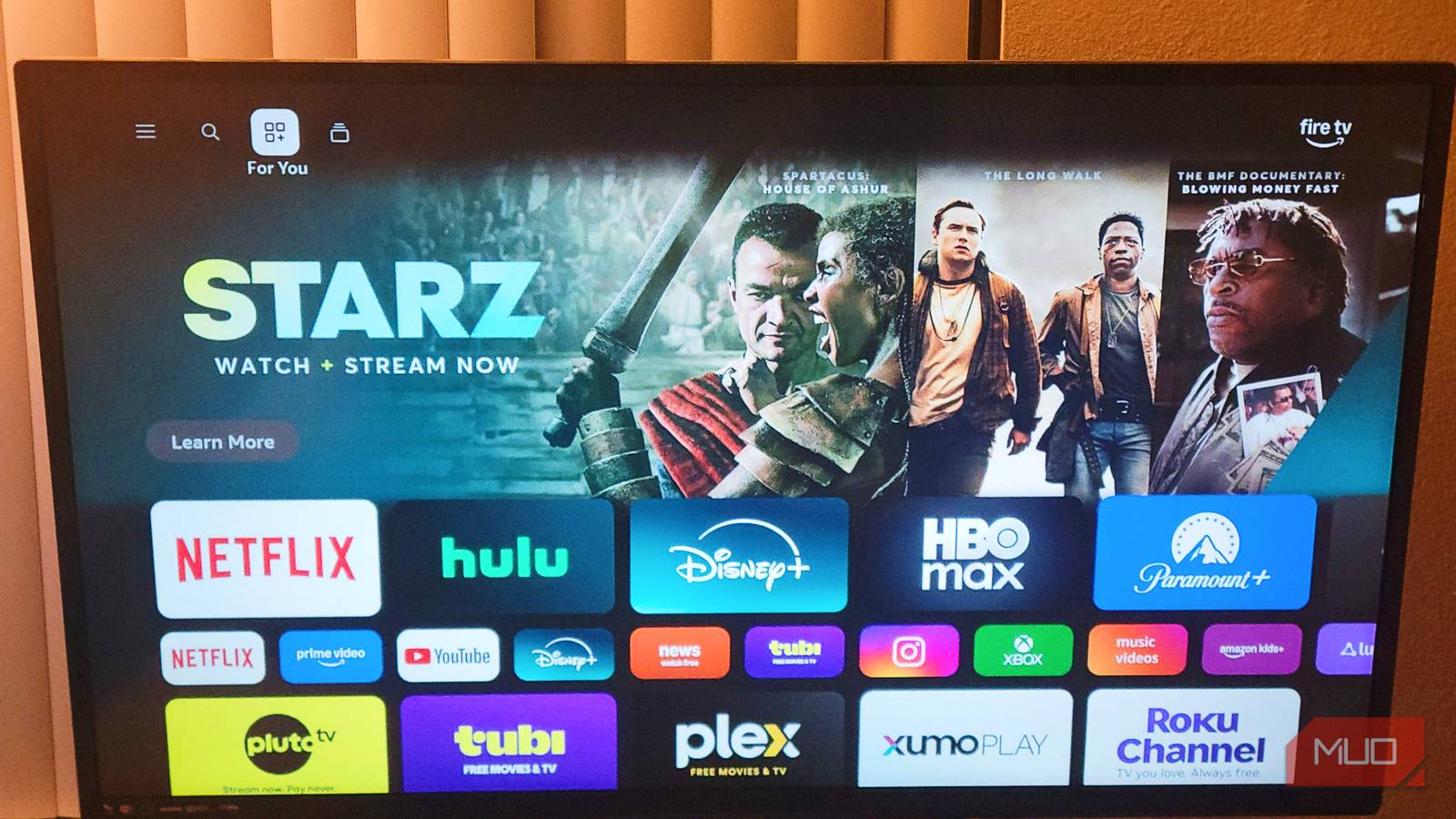
Some TVs take far too long for their menus to load. Even if you can find a good budget television that looks fine when playing a movie, you should know the low-end hardware inside will struggle to keep up with the demands of a modern OS. There are a few specific system adjustments you can make right now to get more performance without spending a single dollar.
Background apps and processes hurt budget TV hardware
Don’t let unclosed apps choke your television’s weak processor

Budget smart TVs are essentially built around low-end System-on-a-Chip architectures that are designed for high-efficiency media decoding instead of the complex background orchestration needed by modern operating systems. These budget sets use older processors that have lower clock speeds and instructions-per-clock efficiency compared to flagship models.
These sets usually come with 1.5GB to 2GB of RAM. This means cheap television processors have trouble with multitasking.
When you think about how operating systems like Android TV and Google TV handle app lifecycles, it gets even worse. When I exit a resource-intensive streaming app like Netflix or YouTube to get back to the home screen, the system does not actually close the app. Instead, it tries to keep the app state cached in the television’s background memory for a near-instant relaunch later. That’s not even mentioning the tracking it does.
While keeping apps open is a good idea on premium hardware, it doesn’t pair so well with TVs that don’t reach that quality. A single streaming app can use between 40MB and 120MB of RAM just for video playback. When you have multiple idle apps staying in memory and eating up processing power, the hardware gets stretched too far. This leads to UI lag, stuttering animations, and delayed remote responses.
You should limit your background processes to at most two. By changing the operating system’s standard limit, you can stop multiple idle streaming platforms from eating up all your memory. This strict limit forces the operating system to quit any excess apps in the background. I noticed a massive difference in speed the moment I changed this setting on my cheap bedroom TV.
Don’t worry about other things. Operating system tasks, like system updates and core platform broadcasts, are platform-signed and can’t be changed this way. So you’ll still get your updates and notifications.
You don’t need all those animations
You can get back the lost performance on your television by adjusting the window and transition animation scales in the system settings. By default, your television’s OS applies animations and transition effects every time you navigate through menus, launch apps, or press a button on your remote.
This helps it look new and polished, but these transitions take up precious graphics cycles on low-end sets. You’re not actually gaining anything by keeping these active. I think keeping them on is a waste of resources.
Budget and older televisions don’t have the graphical processing power needed to render complex fade and zoom effects smoothly at sixty frames per second. These heavy transitions force the television’s hardware to struggle, which causes the UI to suffer from stuttering, dropped frames, and severe menu lag. Since these visual transitions place such a heavy burden on limited hardware, disabling window and transition animations makes the UI feel instantaneous.
To fix this issue, go to Developer Options and change how the operating system handles these visual effects by reducing the scale of the window animation, transition animation, and animator duration settings. By default, these graphical settings are set to a 1.0x scale, but lower them to 0.5x, so the menu is responsive instead of floaty. That way, there is no wait time between button presses.
For televisions that are severely bogged down, you can turn these animations off entirely by reducing the scale to 0.0x. When you disable window and transition animations entirely, the operating system jumps straight to the final screen without any intermediate visual rendering, removing the graphical strain.
I use a cheap bedroom television that used to take seconds just to open settings, and dropping the scales down made it much faster.
Make sure to clear your cache partition
You can wipe out accumulated system junk without losing your login details

Over time, as your smart TV downloads new system software and app patches, old and obsolete files are left behind in a dedicated storage area known as the cache partition. This partition is like a digital scratchpad for the operating system, meant to hold temporary data to speed up app loading times.
As time goes on, this junk slows down the storage and creates temporary files that lead to app crashes, freezing screens, and severe UI lag. TVs typically have very limited internal storage and minimal RAM compared to modern smartphones. So, this accumulation of corrupted or outdated temporary files forces the processor to work inefficiently. This causes the slow performance that ruins the experience. I noticed my own streaming apps started closing randomly until I went in and cleared this partition out.
It sounds like you could lose your personalized setup this way, but wiping the cache partition doesn’t delete user data as a factory reset does. Wiping the cache partition is more like a maintenance task. It only goes after the hidden temporary system files, so your downloaded apps, media, and logins are safe.
In this case, you’ll need to go into recovery mode. Unplug the TV for two minutes, then press and hold the physical power and volume down buttons on the TV frame while plugging it back in to access the hidden recovery menu.
Once you’re in the menu, use the physical volume buttons to select “wipe cache partition,” confirm with the power button, and then select “reboot system now” to finish. This removes the temporary files that slow your TV down instead of erasing your data or apps.
I do this every few months when my own TV starts acting up, and it fixes the lag every time.
Make your TV fast again
Limiting background processes and turning off animations will not transform a budget television into a premium streaming machine. Since you are working with limited memory and a weak processor, these steps are the best way to speed up the interface. The adjustments take less than five minutes; they don’t cost anything, and once they are active, you get an interface that responds instantly to your remote.