



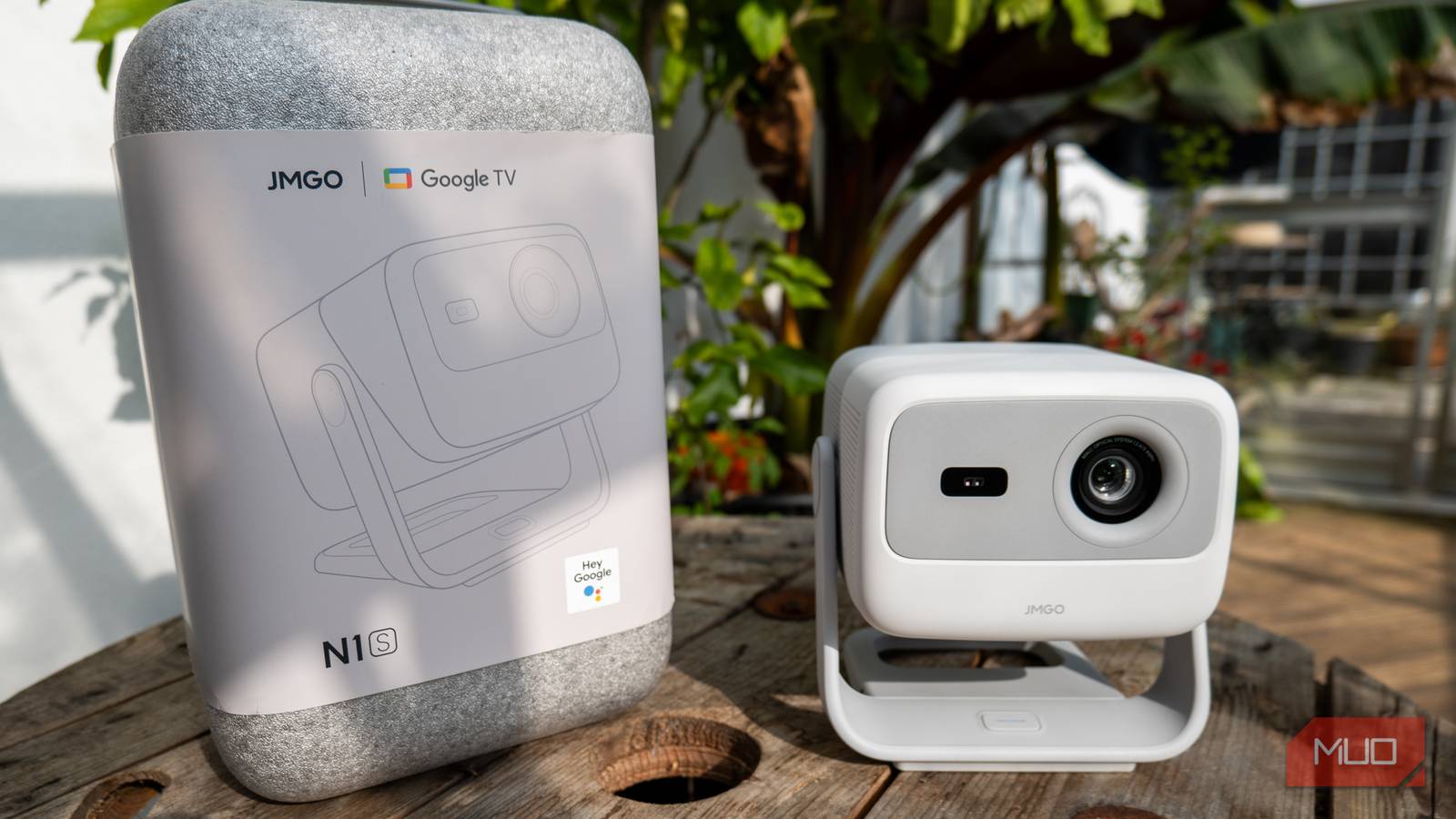
A projector is a great alternative to a traditional TV. This may seem like a bit of an exaggeration, but there are a lot of reasons why a projector works as a TV substitute in this day and age. Obviously, there is the light issue where it can be difficult to use a projector at times of the day when the sun is up. But, if you’re using your projector indoors, you can circumvent this.
For anyone who is interested in the versatility that a projector offers, there are a lot of benefits. You can pick it up and move it around your home, letting you view shows and movies both inside and out. Many of them have their own smart capabilities with operating systems and apps built in, so you can use your favorite streaming platforms. Plus, many can project to sizes much larger than a TV ever could. So, if you’re using a projector and want to get the most out of yours, there are some things you need to know about maximizing your HDMI settings to get the best picture possible.
Did You Know You Can Plug These 10 Devices Into Your Smart TV’s HDMI Port?
The HDMI port on your smart TV has so many uses.
Use the proper HDMI port
This may seem simple but it can be tricky

Before you go using HDMI ports on your projector, you should look at what is actually offered on your machine. There’s probably a USB port that gives you access to a number of devices that you can plug in.
You may very well see a headphone jack that gives you access to your own private listening session. If you have a projector like the ones I’ve used in the past, the audio quality is horrible and it’s much better to either plug in headphones or connect Bluetooth speakers to it. I frequently use my Bose SoundFlex with my projector, even when I have a good projector.
Your projector may have multiple HDMI ports. If this is the case, you’re probably looking for the right one for the right devices. In order to get the most out of your projector, you should understand that certain HDMI ports affect the audio more than the video.
That’s the case with an eARC port or one that’s non-ARC. These can actually minimize how well the video plays because they are focused on the audio.
If you want to have your gaming consoles, streaming sticks, and any other gadgets streaming as best as they possibly can, don’t plug them into the eARC port.
There aren’t too many projectors that actually come with more than two HDMI ports. You should be able to decipher which port is which and plug your devices in accordingly.
Make sure your enhanced setting is on
This is important for gaming as well
Your HDMI ports can connect many devices to your projector. You can plug in streaming devices, such as a Roku Streaming Stick or an Amazon Fire TV Stick, so you can watch shows and movies and utilize apps from them. You can also plug in external speakers to boost the sound and audio quality.
One of the top reasons you might plug an HDMI cable into a projector is to plug in a gaming console. If you don’t have a TV, you can use your projector to stream and cast your games, allowing you to pick up and play your console just about anywhere you can plug it in.
If you’re going to bring your gaming console with you and use your projector, you have to know which settings to use for the optimal gaming experience. Many projectors can detect that a gaming console has been connected and they will automatically switch their settings to accommodate the system. For newer systems like a PlayStation 5 or an Xbox Series X, the projector will likely adjust and ensure that it is projecting in HDMI 2.0.
For those able to match it, the projector will maximize the possible bandwidth. But ensuring that a setting, such as one that says “Enhanced” or “Input Signal Plus”, is toggled on will broadcast the gaming in the best resolution the projector can. If it’s not on, it might only sit at HDMI 1.4b standards. This means no 4K or HDR at all.
Mess around with the color settings
You want to make sure your device and projector line up

If you’re using a streaming device in the HDMI port, it is going to force the projector to adapt. As mentioned above, it will adjust its settings to accommodate what is plugged in. But that is the case for mid to high-tier projectors.
For those who can’t afford premium projectors, there are plenty of affordable options on the market. These will likely skimp on some of the settings and features that you’re looking for, such as keystone correction and higher resolution. However, as someone who has used a projector that cost me $30 when I purchased it, I can tell you that they still deliver quality entertainment. But you do need to adjust the settings because they might not be able to match what you want.
It’s possible the HDMI will expect the projector to have better settings than it does, so it calibrates them incorrectly. Plugging in a streaming device lets you open up the menus on the projector and go through how that device will work with the projector screen.
If you have the option, take a look at changing the color depth to 8bit because that’s what the screens within the projector can actually utilize. You can also adjust the color format to YCbCr and stop the HDR from trying to turn on by disabling the adaptive option. HDR won’t look good on a cheap projector anyway, so you might as well disable it.
This will give your projector a more realistic color match what the streaming device wants. You’ll get better colors while you’re streaming.
Take a look at that dynamic range
Get more with less work

While you’re focusing on your colors, you might as well also take a look at the total package. Those are also going to be in the settings for your HDMI source as well.
If you’re watching your projector and something looks incredibly dark and not sharp enough, you can try adjusting the brightness and contrast on your device. These are common issues and can be fixed with simple, manual changes.
But for the wide spectrum of colors, you can look at the HDMI range. This might be listed as dynamic range on your projector. If you toggle on HDMI range, you’ll be able to adjust the blacks and whites of your picture.
There might be times when your picture looks washed out. Toggling HDMI range will fix that, as it blends the brights and darks more to provide a more even look.
This should be tested when the light in your room is roughly at the brightness when you’re going to be using your projector the most. You don’t want to calibrate this at a time that isn’t when you normally watch the projector because you might need to do it all over again each time you use the device.
Your HDMI settings have a lot to do with enjoyment
Whether you’re watching your projector and want to stream or game, you should consider what your HDMI settings are doing. Depending on what the HDMI source is, your projector might automatically make changes to the settings. If they aren’t the settings that you want, you might have to go into the HDMI menus to get your projector looking right.