


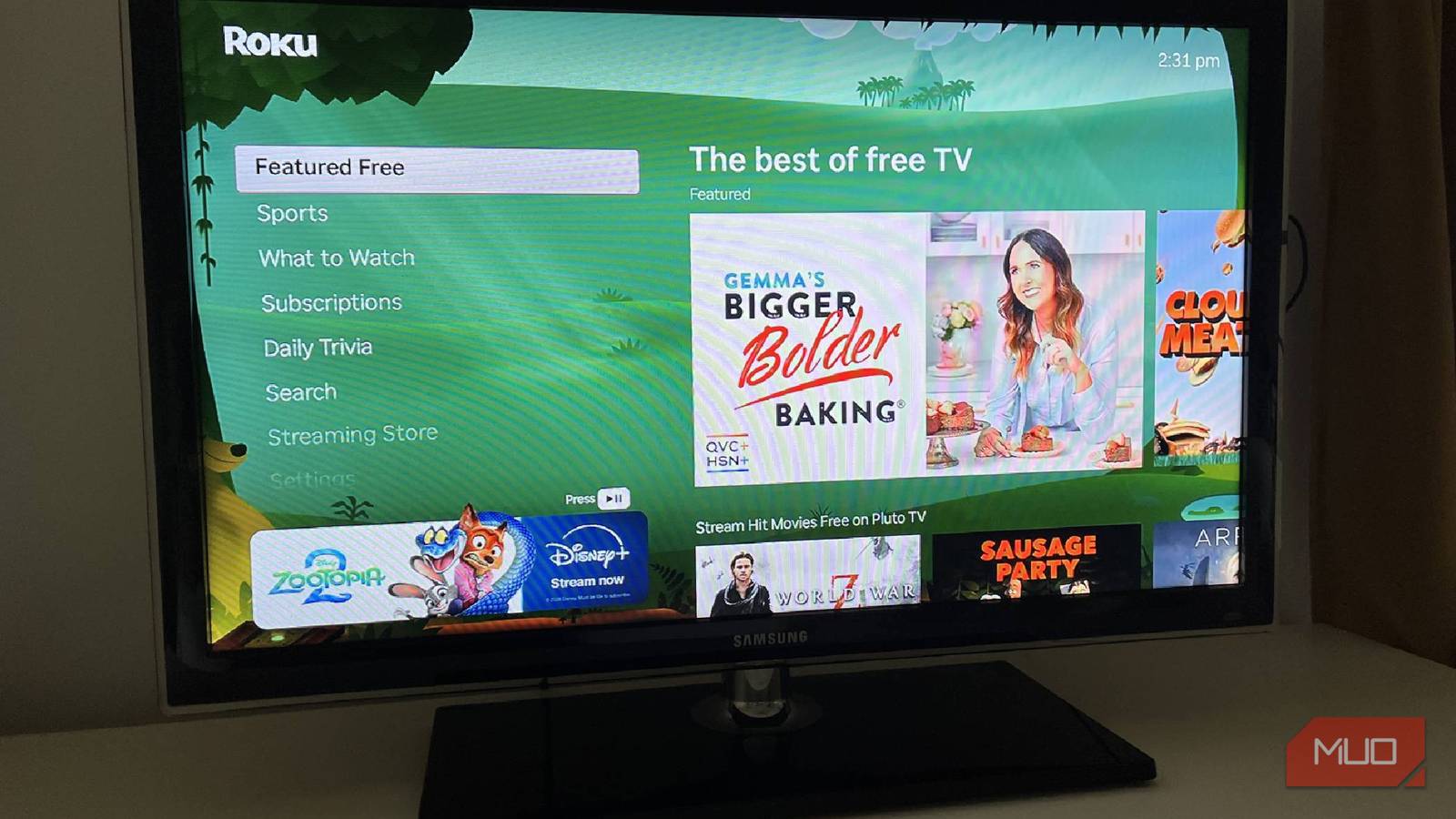
Your TV can do much more than you think. This might be an oversimplification, because I’m assuming that you’re reading this and don’t have a TV that relies on rabbit ears. Even if it does, you might be able to rig up a VHS player or an older video game system and turn that TV into something more. Nowadays, there are TVs that have incredible abilities as the landscape has focused on future technology, incorporating AI to give you a better TV-going experience.
If you aren’t interested in going that far, you can still get more out of your TV than you might realize. This also goes for your streaming devices, like a Roku Streaming Stick. Roku OS has enough going for it that it can fit in easily into any home ecosystem. This includes working well with other devices.
Check Out These 5 Alternative Ways I Use My Roku Streaming Device
Who knew my Roku could do that?
Roku OS is user-friendly
It is easy to get around in
Anyone who has used Roku knows that its grid-shaped format is easy to use. You can add new channels and apps to your grid at the bottom with the + button where you’ll search in a search bar for the one that you want.
You’re able to find almost any streaming app that you want to download and there are plenty that come with the OS when you boot it up for the first time. There is also a section for free TV that is good enough to make people switch away from cable. It offers channels with 24/7 news, as well as practically endless shows and movies for your entertainment.
Roku makes it easy to find what you want, as the main menu has options on the left side that help you navigate to settings menus and more. These separate menus help you customize your Roku experience and keep it standard at the same time by giving you the option to adjust the features.
This is also where you can find the ability to add other devices and sync them up with your Roku. By doing this, you can expand how well your streaming experience works.
Add a Bluetooth device to your Roku
This builds out your opportunities for streaming

Whether you’re pairing a remote or you want to add headphones to enjoy your streaming possibilities more, you can do so through the Roku settings menu. For some of the Roku remotes, you can even plug wired headphones directly into the headphone jack to change your listening. But you can also pair Bluetooth earbuds or headphones, allowing you to hear what’s going on and no one else.
You can add Bluetooth devices to the following Roku products:
This changes if you want to pair a smartphone and tablet. See the Roku support link for products that allow Bluetooth pairing for those devices.
On any of these devices, you can add a pair of headphones via Bluetooth by going to Home > Settings > Remotes & devices > Wireless headphones > Add new wireless headphones. From there, you need to put your headphones into pairing mode and your Roku will search for them. Once they show up as an option on the Roku device, select them to pair.
The main difference between adding a smartphone or tablet is by selecting Smartphones & tablets in the Remotes & devices settings menu and then clicking on Add a new smartphone or tablet. This then allows you to screen mirror or send media from your phone to your Roku. It also lets you control the Roku via the Roku app, which is so helpful in case you lose your remote.
Adding headphones or a separate Bluetooth device to your Roku can enhance your streaming device because it gives you the ability to extend your control. But adding devices to the Roku isn’t the only way to expand it. You can integrate your Roku into your smart home as well.
Add Roku to your smart home ecosystem
Tell your smart speaker to turn on a show

I love my Amazon Echo Show 8 as I basically run my smart home through it. For the most part, I can’t complain about my Amazon Alexa smart home ecosystem and how well things run. Sure, there are ups and sometimes downs with voice commands and smart home routines. But all in all, things work rather well.
I have used my Echo Show 8, as well as my Echo Show 5 and my Echo Spot, to communicate with people all over the house and control my smart home devices. One of the best integrations I’ve made is with the Roku.
You can connect your Roku and Alexa by opening up the Alexa app and tapping Menu > Settings > TV & Video and selecting Roku. Selecting Enable lets you sign in to your Roku account and then you can choose the Amazon devices you want to control your Roku from. Then you tap Link Devices to connect them.
With this set up, you can ask Alexa to control playback as well as search for entertainment. Saying “Alexa, play Stranger Things on Netflix on Roku” will bring up the adventures in Hawkins, Indiana on your TV.
If you have multiple Rokus, you can also specify which Roku you want it to search for or play on. Just use the words that you’ve named your Roku device as part of the command. For those with a Roku TV, you can even use Alexa to change inputs, lower the volume, and more. It eliminates your need to use your TV or Roku remote.
Roku can connect with many devices around your home
Using Roku means that you can use it with other devices in your home. The ability to sync, connect, and run other devices through Roku and Roku through other devices gives you flexibility in how you use it. There isn’t a set way to watch TV any longer.

- Connective Technology
-
HDMI
- Brand
-
Roku
- Wi-Fi
-
Yes
- Ethernet
-
No
The Roku Streaming Stick HD is a super handy way to transform any HDMI-enabled TV into your next entertainment hub, providing near instant access to more than 500 free TV channels in Full HD (1080p). The package also includes a handy remote you can use to control the Roku Streaming Stick, along with voice remote functionality.