




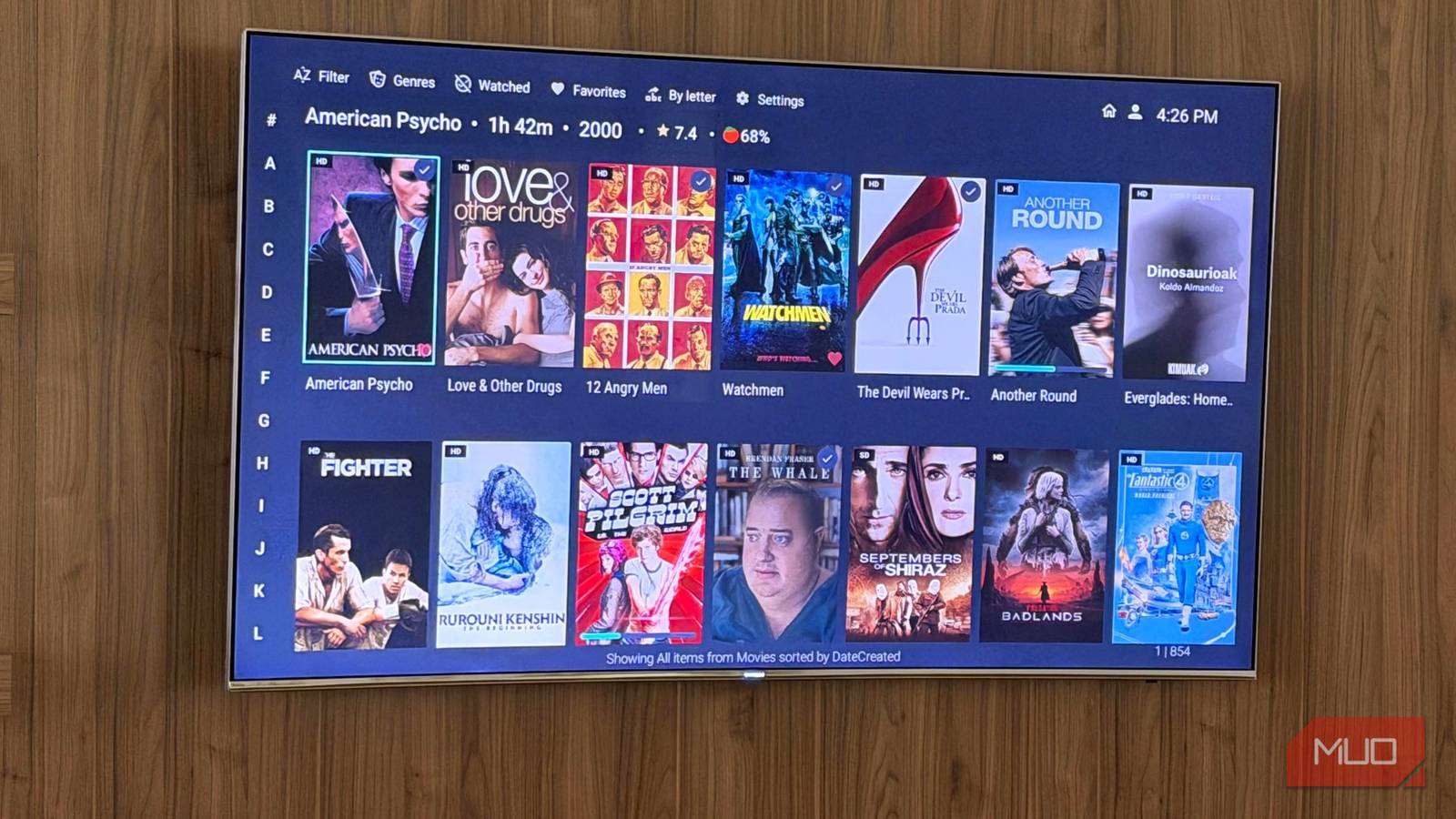
I get it if your smart TV has started testing your patience. Mine’s been doing the same for the past few months, and somehow, it just kept getting slower. The strange part is that physically, my TV still feels as good as new. But the moment I start using it, the lag, delays, and occasional stutter creep in.
For a while, I thought this was just something I had to live with, or worse, a sign that it was time for an upgrade. But that never quite made sense. The hardware was still perfectly capable, so why replace it? Turns out, I didn’t need to. Once I figured out what was actually slowing things down, fixing it felt like taking back control.
7 Ways to Improve the Performance of Your Android TV
If your Android TV slows down, there are ways you can speed it up again.
Your TV isn’t aging — it’s drowning in cached junk
A quick cache cleanse you didn’t know your TV needed so badly
On my smart TV, I started noticing these little things — apps wouldn’t open instantly, YouTube thumbnails took their sweet time to appear, and even Netflix posters and trailer snippets, the ones you usually recognize in a split second, showed up with a noticeable delay.
At first, I blamed my Wi-Fi because that’s usually the easiest explanation. But everything else in the house was working perfectly fine, which made me even more curious. So I decided to check out my smart TV’s settings, specifically the apps and usage section. That’s when things started to make sense — every app had been collecting cached data over time.

On its own, the data didn’t look like much. Just a few megabytes here and there. But when you add it all up across multiple apps, it becomes noticeable clutter. And this is what starts affecting the performance. So much so, that apps sometimes even open to a black screen, or behave unpredictably for no clear reason. Once I figured this out, the fix turned out to be quite simple, and honestly, something I wish I had done earlier. Here’s exactly what I did, and you should too if you’ve been facing the same issue:
- Head to Quick Settings, then open All Settings.
- Go to Apps or All Apps.
- You’ll see a full list of installed apps.
- Open each app in turn, then tap Clear Cache.
It does take a few minutes since you have to go app by app, but it is worth the effort. It’s like a quick clean-up that your TV has probably been waiting for.
While I was at it, I also checked app permissions. This is not directly tied to performance, but it is still a good habit. I removed permissions from apps I no longer use, since there is no reason for them to keep accessing data in the background.
After doing this, my TV feels noticeably snappier — the overall experience feels lighter and more responsive. This is easily the most noticeable change. Moving between apps or switching through settings now feels absolutely seamless, without those frustrating little delays slowing you down.

It took 10 minutes to make my Google TV less annoying
A few quick tweaks can turn your Google TV from frustrating to fabulous.
A smarter power play for your TV
Let the important apps breathe, and politely bench the rest

While I was in the apps section, I followed this simple energy optimization rule, and it made an even bigger difference than I expected. Before getting into what to turn on or off, here’s what energy optimization actually means on a TV. It’s basically the system trying to manage power and performance in the background. It doesn’t run every app at full speed all the time. The TV decides which apps deserve priority and which ones can be slowed down, paused, or even closed to save resources.
So, when energy optimization is turned off, the app gets full access to the TV’s power. It runs freely, stays active in the background, and isn’t put to sleep or shut down. This is what you want for apps you use often or expect to respond instantly. For me, that included apps like YouTube and Netflix, because I don’t want to wait for them to reload every time I switch back.

When energy optimization is turned on, the TV takes a more conservative approach. The app is not prioritized, so it may run a bit slower, get put to sleep in the background, or even be closed if it’s not actively in use. That’s why some apps take a moment to reload or feel like they’ve restarted when you open them again. So what I did was pretty straightforward — I turned off energy optimization for apps I use regularly, like streaming apps and anything I jump in and out of often. For everything else, apps I rarely open or don’t really need running in the background, I left energy optimization on.
When this change is combined with clearing the cache, your TV feels much more responsive. The apps you care about stay quick and ready, while the rest quietly take a backseat without slowing things down.
Proof that your slow TV might just be misunderstood
After making these changes to my smart TV and enabling that one hidden setting, the difference is hard to ignore. It feels quicker, smoother, and less frustrating to use. I’m glad I trusted my instinct here, because my TV didn’t need replacing; it just needed a bit of attention. Spending time in the settings also helped me understand how the TV actually manages apps and performance, which is something we rarely think about. And once you get the hang of it, these small tweaks can add months, if not years, to how comfortably you can keep using your current setup.
So, if your smart TV has been unusually sluggish lately, it’s worth setting aside a few minutes and digging through these settings. You might be surprised at how much better it can feel without spending a single rupee.