


Using an old Fire TV Stick, without any manual tweaking, feels like using one of those old “productivity” laptops with 4GB of memory. Yes, it works, but with a ton of caveats and, well, “clunkiness.” I own a third-generation Fire TV Stick that I got for my entertainment setup back in 2019. It gave me hundreds (if not thousands) of hours of entertainment over the years, but lately it’s finally started showing its age.
I tried some settings and tweaks to get my old Fire TV Stick running like new. However, those changes can only do so much for the aging streaming stick.
I was ready to replace my old Fire TV Stick, but I decided to hold off for one big reason: Fire OS.
The ability to sideload apps keeps old Fire TV Sticks relevant
But not for everyone
Fire OS, which shipped with the older-gen Fire TV Sticks, was based on Google’s Android. And much like with any other Android device, you could just enable developer options within the streaming stick, allowing you to sideload third-party apps. Now, the best use for sideloading is installing custom lightweight launchers like Projectivy, which offers an excellent alternative to Fire TV Stick’s default launcher.
Additionally, you can also install custom browsers and media players like Kodi. In fact, you can even install apps like Send Files to TV, which allow you to wirelessly transfer APK, MKV, and MP4 files to your Fire TV Stick.
Still, I understand that sideloading apps won’t appeal to everyone who owns a Fire TV Stick. I was never too keen on tinkering with my streaming device, let alone installing third-party apps. My Fire TV served as a media center device, and I never really thought about it as anything more than that.

I can imagine that’s true for many others who just want the latest Fire TV Stick to keep their streaming and media center experience as seamless as possible.
If you don’t want to tinker with your Fire TV Stick, get into the guts of the Fire OS, and install custom software on it, I think you’re better off replacing your old streaming stick with a new one. However, if you’re even remotely curious about sideloading, I highly encourage you to try custom launchers on your Fire TV Stick before you grab the latest Vega OS device.
You never know; a new launcher might be just the thing to give your old Fire TV Stick new life.
Sideloading apps on the Fire TV Stick is easier than you might think
Although there are some risks to doing so

Now, sideloading apps on a Fire TV Stick can sound incredibly daunting, especially if you’re not too keen on tinkering with your devices. However, it’s actually quite easy to install third-party apps on Fire OS devices. You essentially need to turn on ADB connections on your Fire TV Stick via the Developer Options. This setting lets you install third-party applications outside of Amazon’s own app store and even send and receive APK files wirelessly.
Now, to enable ADB connections on the Fire TV Stick:
- From the Fire TV’s dashboard, head to Settings.
- Under Settings, navigate to My Fire TV.
- Within My Fire TV settings, navigate to About, and under it, you will find Developer Options.
- Enable Developer Options, and you’re all set to start sideloading apps on your Fire TV Stick.
ADB connections essentially let you connect your Fire TV Stick to your computer. This is primarily meant to transfer files like screenshots and images from your Fire TV to your PC.
However, the same option can be used to “jailbreak” the device and install third-party apps. That said, jailbreaking a device always comes with the risk of breaking it. Although you can technically install any Android app that supports the Fire TV Stick’s specifications, it’s not always going to work the way you would expect.

- Brand
-
Amazon
- Operating System
-
Fire OS
- Downloadable Apps
-
Yes
- Resolution
-
4K
As such, if you’re planning to sideload apps on your Fire TV Stick, make sure to do your research before installing.
You can still get years’ worth of entertainment out of your old Fire TV Stick
Even without sideloading apps
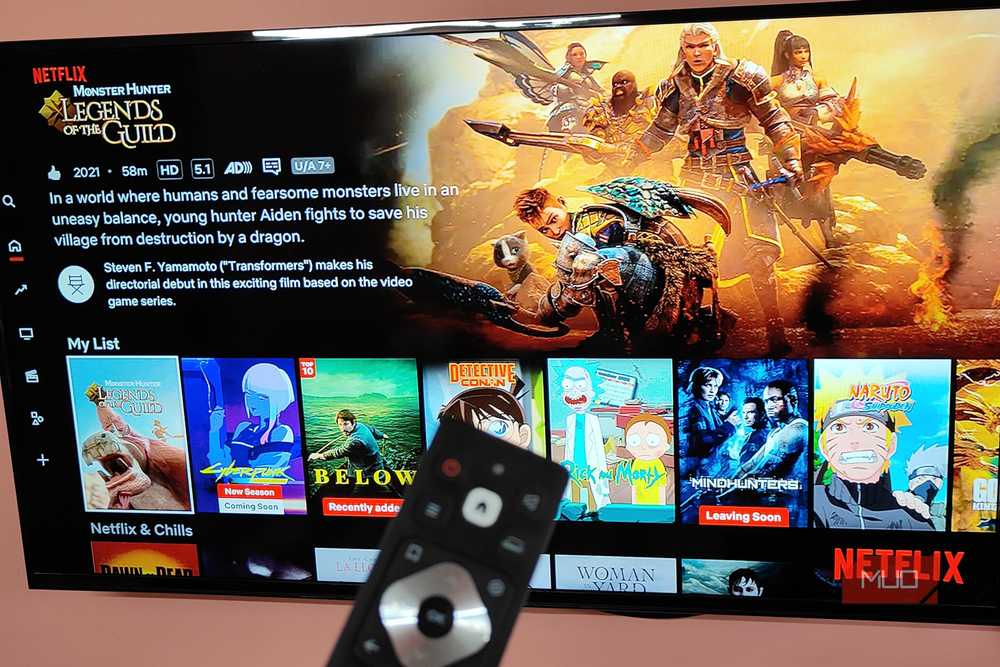
While sideloading is a great way to prolong the life of an old Fire TV Stick, it’s not the only way to do so. You can still get a lot more hours out of your Fire OS streaming device without having to sideload apps or meddle with the Developer Options. First things first, if you’re using a third-gen or older Fire TV Stick, I highly recommend disabling Autoplay of video and audio content on your device. Furthermore, you also want to clear the app cache on your device.
Both of these changes will have a profound impact on the performance of your old Fire TV Stick, making it way more “usable” than before. Additionally, while you’re at it, I highly recommend trying out a custom DNS on your Fire TV.
Manually configuring a custom DNS won’t make your Fire TV more performant, but it certainly helps increase network stability on your device.