


The simplest and cheapest way to upgrade your TV setup at home is to add a streaming box or stick. There are options available at all price points, from budget Google TV sticks to premium boxes like the Nvidia Shield TV Pro and Apple TV 4K. They serve a valuable purpose, replacing the slow and clunky OS that came with your smart TV. However, streaming is just one of many jobs these boxes and sticks can handle.
I own an older Apple TV 4K box and a Chromecast with Google TV HD dongle. Neither streaming device is particularly new nor expensive, but running tvOS and Google TV, they’re surprisingly capable. I use them to run my Dolby Atmos home theater, but also manage my smart home, extend my computer’s display, and play the occasional video game.
Manage your smart home
Your streaming box is the invisible link connecting your gadgets
A streaming box is the hidden link between your smart home gadgets, providing utility users never notice. The Apple TV 4K and Google TV Streamer can both serve as a smart home hub, as each streaming box includes a Thread border router. With both Matter and Thread support, Apple and Google streaming boxes create a low-latency mesh network for your smart home gadgets. In particular, the Apple TV 4K (2026) has Wi-Fi 7 and Bluetooth 6, enabling fast wireless connections.
While both streaming boxes handle smart home connectivity in the background, they can also actively control your gadgets. Unfortunately, the Apple TV 4K doesn’t have a native Apple Home app, but don’t fret. You can manage your HomeKit ecosystem via the control center in tvOS, which is accessible from anywhere with a quick press of the Siri Remote’s power button. You can also set up real-time notifications for HomeKit cameras and video doorbells.
Using the Siri Remote with older models or the inbuilt microphones on the Apple TV 4K (2026), your smart home accessories can be controlled by your Apple TV using your voice. There are third-party apps that allow you to use your Apple TV as a more traditional smart home dashboard, like Itsyhome for HomeKit.
I’ve used an Apple TV 4K to manage my HomeKit ecosystem for years
While the Google TV Streamer lacks the Apple TV 4K’s fancy connectivity hardware, it arguably has better smart home software. Google TV has an optional Home Panel that offers quick access to all your smart gadgets, including your favorites. Unlike the tvOS equivalent, you don’t have to go through the quick settings panel on Google TV to access it. Simply long-press the home button on your Google TV remote, and meet your Home Panel dashboard.
I’ve used an Apple TV 4K to manage my HomeKit ecosystem for years, and sometimes, its smart home capabilities outshine its streaming functionality.
Extend or mirror your screen
Don’t stop at casting video — share your phone and PC screen

AirPlay and Google Cast are well-known perks of using an Apple TV or Google TV streaming device, but most people stop at casting music and media to their displays. AirPlay and Google Cast can also be used to mirror — and in some cases, extend — your computer’s screen to any display connected to your Apple TV 4K, or a Google TV box or dongle.
If you’re using a Google TV streaming device, the Chrome browser can mirror your desktop over Google Cast. It works on macOS, Windows, and ChromeOS, making it a versatile option for mirroring desktops to Google TV hardware. Open the Chrome browser, click the three-dot menu, select Save and Share, and hit Cast. Find your Google TV streaming box or stick, and click Cast screen. It’s that easy.
Chrome doesn’t support casting an extended desktop using this method natively. However, there are workarounds. I’ve used an open-source app called Virtual Display Driver to create extra desktops, which can then be “mirrored” with Chrome and Google Cast. This extends your PC’s desktop to your Google TV device, while working within Chrome’s casting limitations. Alternatively, third-party apps like AirParrot can help bridge the gap with less hassle.
Those with a Mac and Apple TV will have a bit easier of a time mirroring or extending their desktop. In the AirPlay menu on macOS, you’ll see your Apple TV appear, and it only takes a few clicks to extend or mirror your Mac screen to a TV wirelessly. If you’re using a Windows PC and an Apple TV, apps like AirParrot can help bridge the connection, too.
Regardless of how you create the wireless connection between your streaming box and computer, you’ll end up with a bigger screen than your laptop without any cables.
Play video games
Hook a controller up to your streaming box

With a more powerful streaming box, gaming is a real possibility. The Apple TV 4K (2026) has an A19 chip inside — the same system-on-a-chip that powered the iPhone 17 and iPhone 17e. In other words, it’s powerful enough to run games on-device, and this is the only way to take full advantage of the Apple TV 4K’s 128GB of storage. You’ll still be dealing with a limited library of available games, though.
Older Apple TV 4K models, as well as the Google TV Streamer, might not have enough processing power to run modern titles well. Luckily, there’s an option many users forget about: game streaming. The Steam Link app is available on the tvOS App Store, allowing you to stream games from your PC or Mac to the big screen. In addition to Steam Link, Google TV boxes also natively support Nvidia GeForce Now via the Google Play Store.
If you’re not a big gamer, putting the streaming box you already own to work can be a better solution than buying a dedicated console.
Why your streaming box should do more than stream
Streaming boxes are getting expensive — too expensive, if you ask me. The new Apple TV 4K and the stalwart Nvidia Shield TV Pro are both $300, while the Google TV Streamer is $150. Nvidia’s Shield TV Pro and Google’s TV Streamer both received a 50% price hike, making them a tougher sell. And while the new Apple TV 4K is refreshed for 2026, it’s going for double what I paid for my 2021 streaming box.
Whether you already own a streaming box or are in the market for one, it’s important to make the most of your hardware. Dropping upwards of $300 on a dedicated streaming device doesn’t make much sense, but your streaming box can do more in your home with these three use cases.
-
- What’s Included
-
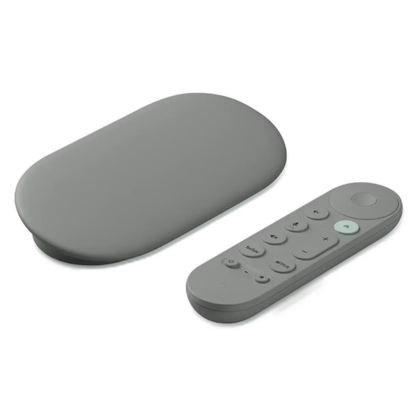
Google TV Streamer device, Voice Remote (with 2 included AAA batteries), Power adapter, Power cable (1.8m), Quick start guide, Safety & warranty document
- Audio outputs
-
Dolby Digital, Dolby Digital Plus, Dolby Atmos
- Integrations
-
Dolby Vision, HDR 10, HDR 10+, Hybrid Log-Gamma (HLG)
- Ethernet
-
Gigabit
The Google TV Streamer is a 4K streaming box with a fast processor, 32GB of storage, and Gigabit Ethernet. It runs Android TV OS, and you get access to a large app library.
