




Portable PCs are the absolute best. Forget the Nintendo Switch 2 and its disappointing LCD screen. For me, it doesn’t get any finer than the Steam Deck OLED. The ultimate version of the most accessible and best-designed handheld PC on the market, I can’t get enough of Valve’s breakout device.
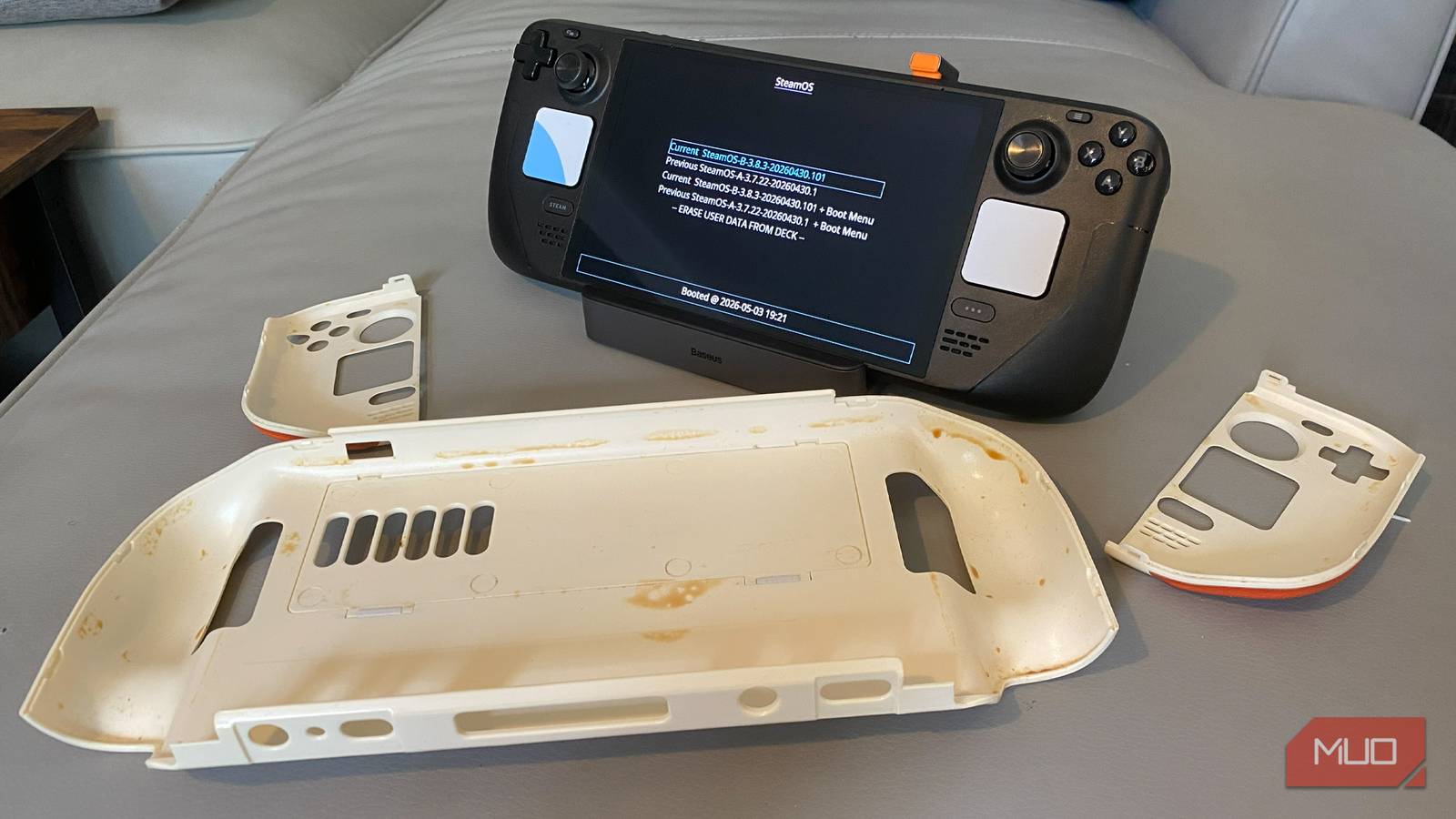
Annoyingly, I’ve been having a nightmare with my Deck as of late. After two years of flawless service, one day, my OLED model stopped functioning as it should. Enter an unskippable, desktop-like boot menu, and far more importantly, the major issue is that most of the buttons on my Steam Deck no longer operate as Valve intended.
What’s caused my handheld issues? I’m fairly certain the blame centers around a third-party case I bought for Valve’s device. Let’s get into why a cheap accessory may have wrecked my Steam Deck, and how you can avoid the same hardware heartache.
I made the switch to Steam OS on my ROG Ally X and haven’t looked back
Being reunited with SteamOS has never felt better, especially on the ROG Ally X
Cases can damage the Steam Deck
I initially loved my third-party case until…
I first fell in love with the Steam Deck in early 2023, when the awesome handheld was less than a year old. Back then, you could only pick up the OG LCD version, and thanks to a third-party site, I got my hands on a mighty fine-looking, customized white Steam Deck. It wasn’t long before I was using an app to turn my Steam Deck into a portable PS5.
Skip forward six months, and I was in the privileged position of being able to obtain a Steam Deck OLED on day one thanks to my profession. The trouble is, as slick as the default black version is, I craved a white Steam Deck (and this was before Valve officially released a vanilla-tone limited-edition model).
Say hello to the UYIYE Steam Deck OLED case. For the first year I owned this accessory, I absolutely loved it. Not only did I fall for its Starfield aesthetic, but I also massively appreciated its built-in kickstand. Providing style and easy-to-appreciate functionality, this unofficial case was well worth the $30 I paid.
It was only up until recently that using this hard-grip shell case, which really does clasp onto the Deck oh-so-tight, seemed to start causing my little machine real issues. Those problems are now so severe that a handheld that is more valuable than ever due to RAM shortages is all but unusable for me unless I plug it into an external docking station and a gamepad with a 2.4GHz dongle.
Signs your Steam Deck is damaged
Residue leakage can cause major problems

I can’t definitively blame my current Steam Deck woes on my third-party case, but it’s absolutely the prime suspect. After a little research, I’m confident this accessory is to blame.
One day, out of the blue, my Steam Deck OLED’s buttons stopped working in the manner that they should. Not only would my handheld’s face buttons not respond, but holding the left stick down would decrease the display brightness rather than let me navigate SteamOS menus, while R2 would also, bizarrely, act as a screenshot shortcut.
After many failed hard reset attempts and some deep-dive Reddit snooping, I was convinced my Deck was suffering from a hardware issue (potentially related to its internal sound card). Yet after prying my handheld from the vice-like grip of its third-party case, I was fairly certain what the problem was: battery leakage-related issues.
One of the main signs that electrolytes are leaking from the lithium-ion battery in your Deck is the build-up of a greasy residue around your handheld’s rear vents. And wouldn’t you know? The backside of my case (where the Deck’s fans are located) was covered in a horrible, sticky substance. Said goo had also built up on the front of my Deck case, especially near the handheld PC’s face buttons.
Residue build-up on a Steam Deck can point to a number of factors, but in my case, the consistency and color of the residue lead me to believe battery issues are involved, which can subsequently progress to button problems. Please note that I’ve taken extremely good care of my Steam Deck OLED since the day I picked it up. I never spilled liquid on it, and I regularly cleaned the handheld. As soon as I got Valve’s system into its current case, I assumed it would be protected from outside threats. Looking back, maybe I was too complacent.
Ways to fix a broken Steam Deck
A couple of tips to get your Deck back in the game

Find yourself facing consistent problems while trying to boot your Steam Deck, as I have? Your first port of call to remedy issues is to hard reset Valve’s handheld. This is a simple process that can be completed in a relative flash. All you need to do is press and hold your Deck’s power button for around 10–12 seconds, wait an additional 15 secs, then hit the power button again. For minor issues, this should hopefully get your Steam Deck running smoothly again.
The next step, if the previous one didn’t fix things, is to factory reset the Steam Deck. First up, press the Steam button, scroll to Settings -> System, navigate to Reset to Factory State. You’ll then be asked if you want to keep your data or wipe and reinstall SteamOS. As cloud saving is so prevalent on Valve’s ecosystem, deleting save data isn’t as big an issue as you might be sweating over. Hit confirm and wait for your Deck to wipe itself, then restart.
If you find yourself in the sort of dire situation that has befallen my Deck, the most dramatic Steam Deck safety measure might well be required. For those in my shoes, where hard resets and factory restarts don’t cut the mustard, you may be forced to reimage SteamOS. Here are the steps to take…
- Using a PC or laptop, download the SteamOS Recovery Image.
- Deploy a flash tool such as Rufus to create a bootable image.
- Transfer the bootable drive to a USB stick.
- Connect your Steam Deck to a docking station, then connect the USB drive.
- Launch the Steam Deck into Boot Manager by holding Volume Down, then press the Power button.
- Take your finger off Volume Down until you hear a chime.
- Use the touchpads/connected mouse to select EFI USB Device from boot options.
- Your Steam Deck will boot into Desktop Mode, then double-click the Reimage Steam Deck icon to start the OS-rebuilding process that will take around 30 or so minutes.
Once you complete the above steps, reconnect to your Wi-Fi, log back into your Steam account, and hopefully, your handheld hardware issues should be a thing of the past.
A $30 case may have broken my Steam Deck for good
Each day my Steam Deck continues to malfunction, I get a little sadder. Even though I’ve treated Valve’s handheld with the utmost respect, battery/heat issues seem to have irreversibly ruined my handheld PC’s face buttons. While my Deck still works well with a dock and an external gamepad, its malfunctioning inputs mean I can no longer use it as a proper handheld. If a $30 third-party accessory has truly ruined my Steam Deck’s portability, that would have been a seriously steep price to pay.