




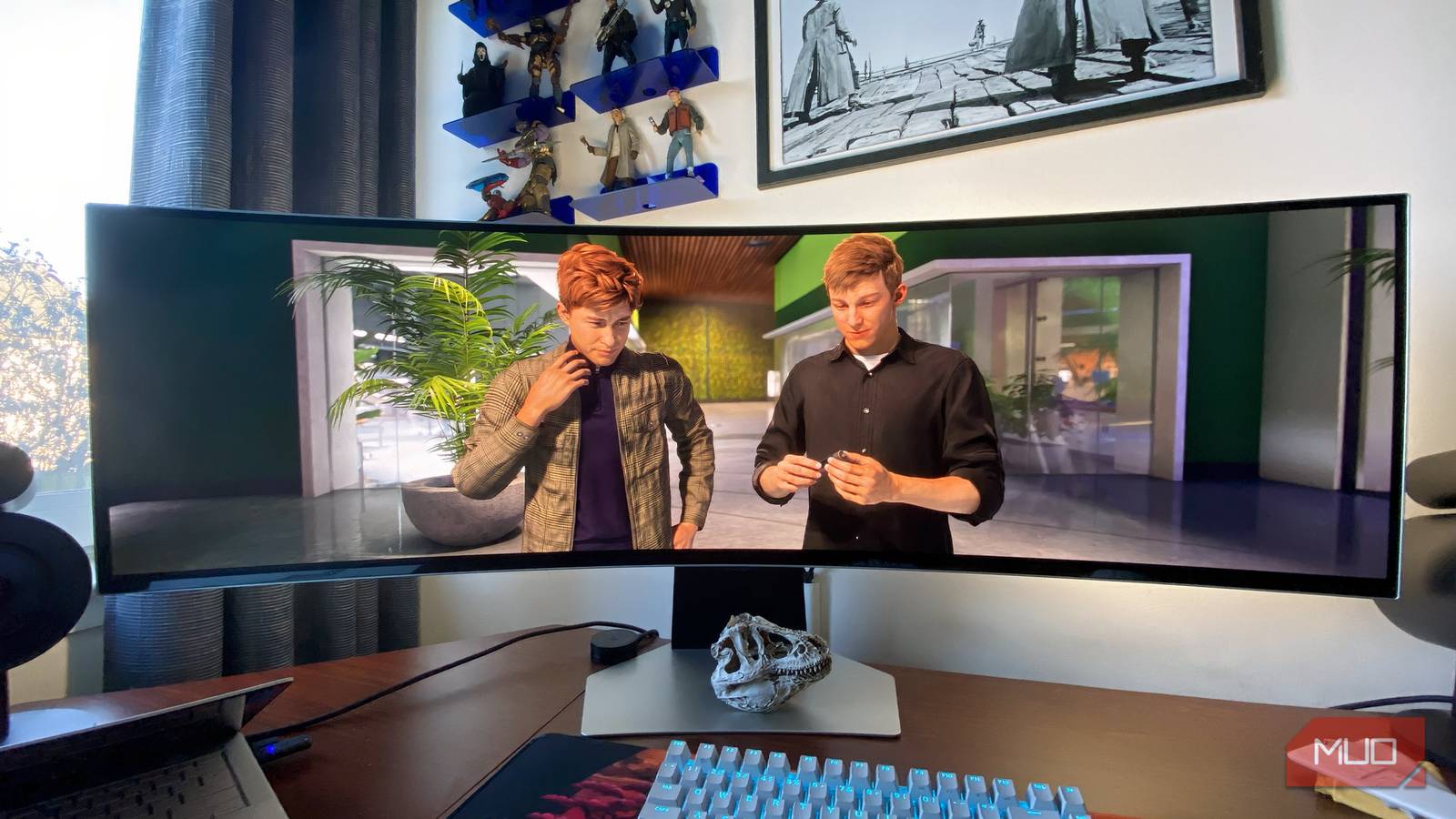
In the biggest “spoiler” since the Titanic hit a big block of ice, HDR gaming on Windows devices remains a colossal clustermuck. Microsoft integrated support for the display format into its OS later than modern consoles did. As such, this tardy shift in embracing HDR is still being felt. Although I think these 5 Windows 11 settings matter more than HDR, there’s no question that even the best Steam games can struggle to convert High Dynamic Range signals properly.
There are reasons why Microsoft systems can’t cope with HDR. Having to juggle between the HDR10 format, Windows’ built-in Auto HDR feature, and Nvidia’s RTX HDR implementation has created chaos, leaving many developers unsure which master to serve first. Though there’s currently no steadfast way to truly “fix” HDR gaming performance on PC, a couple of pieces of software have improved how my favorite titles handle the format … mostly.
Just Bought a Smart TV? Do This to Make HDR Look Its Best
Your smart TV’s HDR could look so much better.
This free software can totally change your PC experience

HDR was supposed to make everything look better, but with Windows 11 systems, that’s simply not the case. Because of this, there’s no app I use more on my RTX 5080 gaming laptop than the Windows HDR Calibration app. This free calibration software allows you to tweak brightness settings to ensure you’re not losing crucial details in the brightest and darkest parts of any HDR content you’re consuming. With simple-to-adjust sliders and a final test that helps ensure colors aren’t oversaturated on my laptop’s OLED display, it’s a tool I use on a weekly basis.
Perhaps my favorite feature of Microsoft’s calibration app is that it allows me to save a bunch of unique profiles. Though these are timestamped by default, renaming them so that a specific profile has been tweaked for a certain PC game is super-useful.
When booting up a new HDR-compatible title for the first time, I normally Alt-Tab to bring up Microsoft’s screen-tweaking software. Because I’m looking to avoid black crush and blown-out highlights during particularly vivid scenes, I normally fiddle with my sliders in a dark room (wow, did that ever come out wrong). Anyway… tweaking presets in the dark allows me to correctly set the black level settings for a game, and I’m continually surprised at just how many HDR-compatible Steam titles continue to sport washed-out blacks until I correct them using Windows’ calibration app.
To navigate to your custom HDR profiles on a Windows 11 system, simply go to Settings > System > Display > Color profile. Unless you go through life seeing everything in Matrix code, it’s best to give these profiles memorable names so that you can swap between in-game HDR presets without having to remember specific timestamps.
What games support Microsoft’s HDR API, and which don’t?
Examining the titles that work better with Windows HDR pipeline than others
Unsurprisingly, a bunch of first-party Microsoft games play ball with Windows HDR API, including Forza Horizon 5, Halo Infinite, Microsoft Flight Simulator, and Sea of Thieves. This means said titles also get along nicely when you set custom Windows HDR Calibration profiles for them.
While many games continue to ignore the Windows HDR pipeline in favor of hit-and-miss in-game sliders, the selection of titles above can look a lot better on an HDR display if you tweak specific profiles for them using the Big M’s free app.
Games that historically don’t work well when it comes to HDR implementation on Windows include Cyberpunk 2077, Red Dead Redemption 2, and 2019’s Resident Evil 2, which I’ll touch on again shortly. There are sadly many, many more games that don’t look right when HDR is enabled on PC, and it’s common that tone mapping will look off, and brightness levels might be overly raised, even after using Microsoft’s display calibration app.
You can improve PC games’ HDR with ReShade
The open-source injector is great for tweaking in-game HDR

I absolutely love ReShade. This open-source software is easy to install and is compatible with a colossal number of PC games, both old and new. With Windows Auto HDR providing about as stable an experience as a tandem bike powered by Dr. Jekyll and Mr. Hyde’s quads, this open-source solution comes in clutch.
With so many PC titles struggling to adapt to Windows 11’s HDR API, ReShade can offer visual results that are instantly appreciable. Take that aforementioned Resident Evil 2 remake. Though it’s one of my favorite games of all time, this masterful redux’s contrast levels look wrong on both my gaming laptop and a PC that cost more than my car.
Enabling HDR in Claire and Leon’s zombie-slaying jaunt through Raccoon City serves up horribly washed-out results, where even the best OLED TV will make the darkest parts of Capcom’s remake look gray, rather than truly black.
Tweak HDR-relevant sliders in ReShade, though, and the contrast levels of Resi 2 suddenly look a whole lot more convincing. Considering this software is free to download, there’s absolutely no reason not to give ReShade a try if you’re fretting over inadequate HDR performance in your go-to PC games. ReShade is also great for decreasing color banding in games such as Reanimal or Resident Evil 7.
PC gaming has problems with HDR, but they can be addressed
Even though HDR gaming on Windows devices still isn’t in a great spot, using the software giant’s free calibration software can correct display issues. I can certainly attest that creating individual color profiles has made some of my favorite PC games with known HDR issues look easier on my eyes. ReShade also provides an alternative (occasionally excellent) solution to fixing subpar HDR implementation.
- Resolution
-
5120×1440
- Screen Size
-
49-inch
- Brand
-
Samsung
- Connectivity
-
1x HDMI 2.1, 1x DisplayPort 1.4, 2x USB-A 3.0, 1x Headphone Jack
- Max. Refresh Rate
-
240Hz
- Response Time
-
0.03ms
The Samsung Odyssey OLED G9 is a 49-inch super ultrawide gaming monitor with a 240Hz refresh rate.