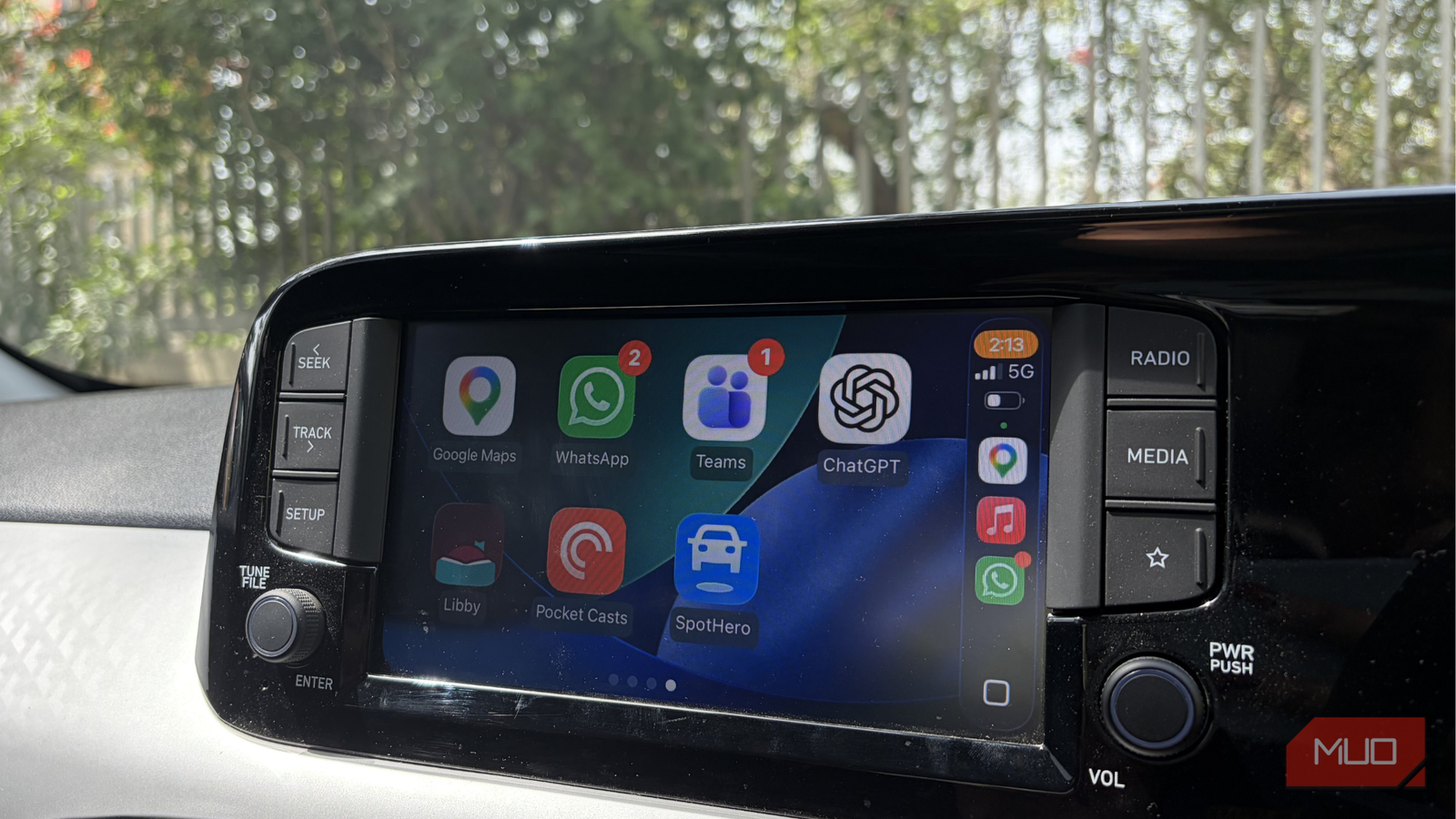




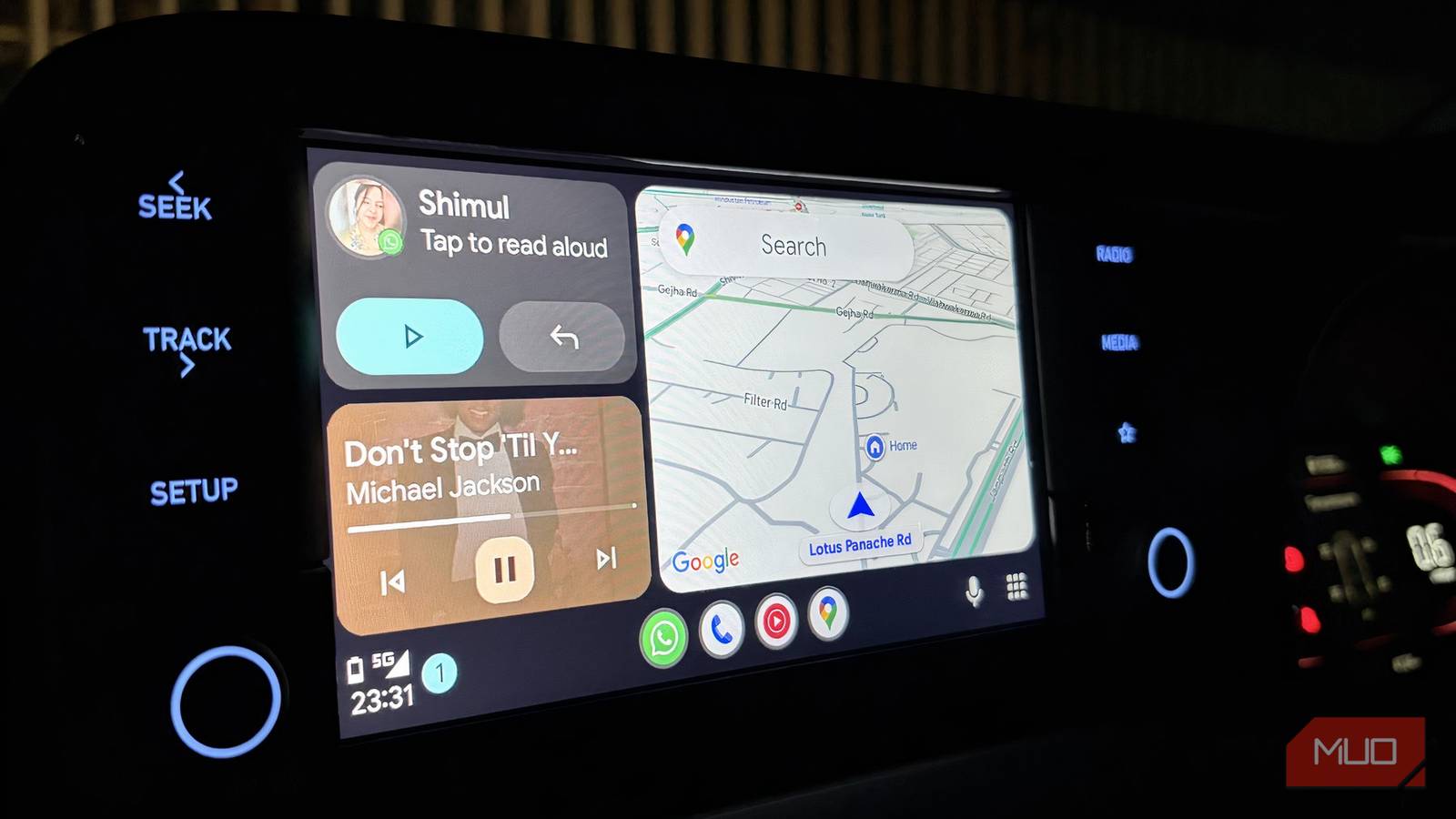
I enjoy using Apple CarPlay, but there are a few things it still doesn’t handle as neatly as Android Auto. One of the biggest differences becomes obvious when you think about how distracting notifications can be while driving. When you’re on the road, your attention should stay firmly on what’s ahead of you. Even small interruptions like a message alert or a notification pop-up can pull your attention away for longer than you realize. In an ideal world, the car’s dashboard exists primarily for navigation. Its main job is to guide you to your destination. Everything else, whether it’s calls, messages, or changes in music, should remain secondary and never demand immediate attention.
Android Auto has a feature that helps maintain that balance. Once enabled, it reduces unnecessary interruptions and lets you control which notifications appear while you’re driving. You can decide what deserves your attention and what can wait until the drive is over.
This one app every Android Auto user needs to install
The app that turns your ride’s interface into a complete cost-management dashboard.
How this setting changes the experience
A smarter way to keep your eyes on the road

Android Driving Mode is designed to make using your phone while driving less distracting. It transforms your phone and Android Auto into a simpler, driving-friendly interface that focuses on voice commands and essential information. Once enabled, you can easily navigate the interface at a glance. It gives you large controls, minimal visual clutter, and a strong focus on voice interaction. Most of the things you want to do while driving can be done via speaking. For instance, you can ask Google Assistant to call a contact, send or read messages, start navigation, or play music. A quick “Hey Google” is enough to reply to texts, check incoming messages, or place a call, which means your hands stay on the wheel and your eyes stay on the road.
And if you want an even quieter driving experience, you can take things a step further. Android Driving Mode can automatically limit all distractions by muting notifications or enabling Do Not Disturb mode while you’re driving. This way, only the most important alerts come through if any, while everything else waits until you’re done with the trip.
You still remain reachable for important calls or messages, but the constant stream of notifications no longer competes for your attention while you’re on the road.
Getting this feature up and running
Choose what speaks up while you’re on the road
To start using this feature on your Android phone, you’ll first need to set it up from the system settings. The process takes only a minute, but it gives you a lot of control over how your phone behaves while you’re driving. Follow these steps to enable it:
- Open the Settings app on your Android phone.
- Scroll down and tap Modes.
- Select Driving.
- Tap Set Up Driving at the bottom of the screen.
Once you’re inside the setup page, you’ll notice two key sections: when the mode should turn on automatically and notification filters. Both play an important role in shaping how distraction-free your driving experience will be.
Under the When to turn on Automatically option, you’ll see two triggers:
- Use Bluetooth: Driving mode activates when your phone connects to your car’s Bluetooth system.
- Use motion and Bluetooth: The phone turns the feature on when it detects movement consistent with being a vehicle, or when it connects to your car’s Bluetooth.
Both options aim to reduce distractions by automatically silencing calls, texts, or other notifications when your phone connects to your own vehicle, rather than randomly activating while you’re riding with someone else. This setting definitely avoids unnecessary interruptions.
The second section, notification filters, is where things get interesting. Android lets you decide exactly who and what can still reach you while driving. You can choose:
- Which contacts are allowed to interrupt?
- Which apps can send notifications?
- Whether alarms or media can bypass the restriction.
This level of control ensures that important things get through while everything else stays silent. For instance, you might allow calls from your mum or dad or notifications from navigation and music apps, while everything else remains blocked.
Even if messaging or calling apps are muted, the people you specifically allow here can still reach you through those apps. In short, this feature filters out the noise without cutting you off from the conversations that are important to you.
Turning on this feature on Android Auto
Your phone’s signal that the journey has begun

Connect your Android phone to your car’s system via a wired connection or wirelessly via Android Auto. Once the phone is paired and the connection is active, you can activate the interface using a voice command. Just say, “Hey Google, let’s drive.” This prompts Google Assistant to switch your phone into driving mode. Because your phone is already linked to the car through Bluetooth, the system recognizes that you’re in a vehicle and adjusts the interface accordingly.
From that moment on, your phone switches to a driving-friendly setup. This way, you stay connected to the essentials without constantly reaching for your phone or getting distracted by unnecessary alerts.

These Built-in Android Features Help Me Stay Productive
Android devices are packed full of features to boost your productivity.
Tell your notifications to ride in the back seat
Safe driving should always come first, and this is where Android Auto proves its worth. You can take full control of how your phone behaves when you’re behind the wheel. Once it’s set up, nothing is as intrusive when you’re driving. The result is a cleaner dashboard experience that keeps distractions at bay without cutting you off from important updates.