


I’m always tweaking my smart TV setup to squeeze a little more out of it. These adjustments often make the whole experience smoother. For instance, I recently made a few changes that noticeably sped up my smart TV. That naturally pushed me to start exploring my Fire TV as well. While digging through the settings, I stumbled upon some lesser-known tricks that most users probably never come across.
Now, looking out for useful features has become a habit for me, and it always pays off. This time was no different, either. I found a handful of Fire TV tricks that made my streaming setup 10 times better and faster. They may seem like small changes, but together they make the entire Fire TV experience far more useful.
The streaming marathon never ends
The art of the silent binge

My partner and I have a funny little problem when it comes to watching shows together at night. Whenever I’m in the mood to start a movie or binge a series, he’s already half asleep. And on the nights he wants to watch something, I’m the one who’s either dozing off or already asleep. It’s the classic case of two people sharing a screen but rarely sharing the same energy levels.
But that doesn’t mean one person has to give up their late-night streaming plans. If someone is wide awake and ready to watch ‘just one more episode,’ the night shouldn’t end because the other person needs quiet. Thankfully, our Fire TV sits right in the bedroom, and there’s a simple trick that saves both our sleep schedules. You can connect Bluetooth audio devices directly to it. Setting it up barely takes a minute, too. Go to Settings, open Remotes & Bluetooth Devices, then select Other Bluetooth Devices to pair your headphones or AirPods.
Watching with headphones also makes the experience feel more immersive. Dialogues sound clearer, background details are easier to notice, and the whole thing ends up feeling like a personal late-night theater session without disturbing anyone else in the room.
The magical power of turning it on and off again
When in doubt, give the TV a tiny nap and try again

Smart TVs may not look anything like smartphones and laptops, but behind the scenes, they work a lot like them. And just like those gadgets, they sometimes need a quick restart to sort themselves out. I ran into this recently while trying to watch Too Much on Plex. Every time I pressed play, an error popped up, and it refused to go away. It derailed my carefully planned binge session. To make matters slightly more annoying, I was also having dinner at the time and just wanted the show to start without turning the moment into a troubleshooting exercise. Instead of digging through settings or reinstalling the app, I did the simplest thing possible: I restarted my Fire TV.
Sure enough, the moment it powered back on, everything worked perfectly. The show started playing without any errors, and the whole problem vanished as if nothing had happened.
It may sound almost too basic, but restarting your Fire TV can solve a surprising number of issues. It refreshes the system, clears temporary glitches, and resets background processes that may be causing apps or streams to misbehave. So if your evening binge session suddenly hits a wall, a quick reboot might be all it takes to get things back on track.
Put an end to autoplay videos for good
Let your TV greet you quietly for once

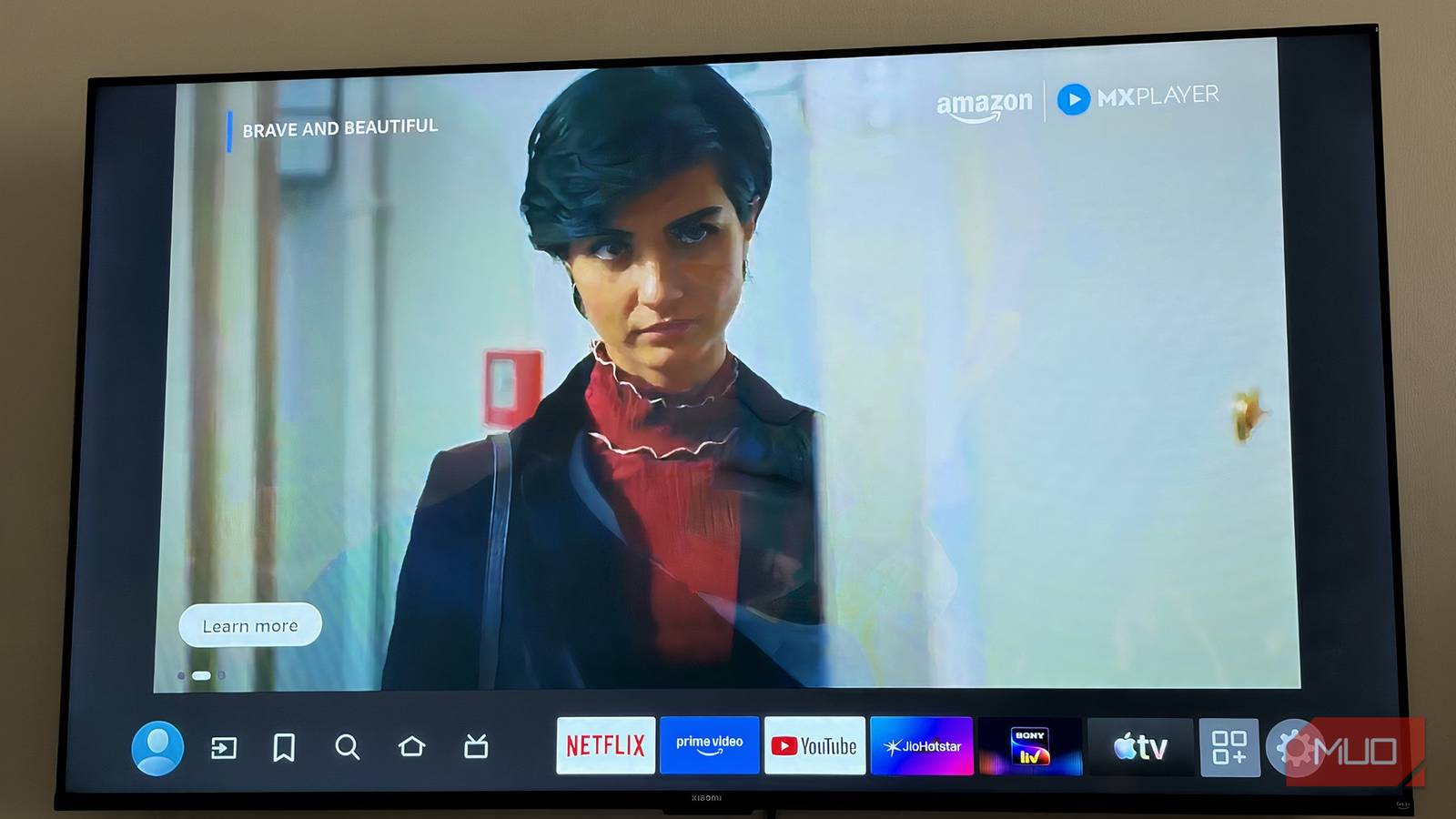
Autoplay videos on Fire TV can be really irritating. The moment you turn on the TV and pause on the home screen to decide what you want to watch, full-screen trailers and promotional videos suddenly start blasting from the screen. I have had a genuine few jumpscare moments because of this, and it’s hardly the calm start you want before settling in to watch something.
Thankfully, Amazon offers a way to tone things down. You can disable these autoplay videos in just a few steps. Open Settings, go to Preferences, and then scroll down to Featured Content. Inside this menu, you’ll see an option called Allow Video Autoplay. Turning this off stops those trailers from automatically playing on the home screen.
If you don’t mind the visuals but want to avoid the sudden burst of sound, there’s a middle ground. Simply disable Allow Audio Autoplay instead. The preview videos will still appear, but they’ll remain silent, making browsing the home screen less chaotic.
Sometimes, your TV just needs a quick cleanup to behave again

Over time, apps quietly pile up temporary files in the background. These files, also known as cache, help apps load faster at first, but when they start accumulating, they can slow things down. I noticed this on my Fire TV while scrolling through the home screen. The interface would occasionally lag or pause when scrolling. A little slowdown here and there is understandable, but when it happens almost every day, it becomes really frustrating.
In many cases, this happens because the device’s cache has grown too large and hasn’t been cleared in a while. Thankfully, Fire TV makes it fairly easy to clean things up. To do this, open Settings, go to Applications, and scroll down to Clear All Application Caches. When you select it, the system will ask you to confirm the action and show how much storage space will be freed. After reviewing the pop-up, simply select Confirm. Once this is done, your Fire TV should feel noticeably smoother and the overall streaming improves.
It’s a good idea to do this once a month to keep your Fire TV running smoothly and responsive.
This setting could limit how you stream
Turn off the data meter and just enjoy the show

Many people don’t realize that Fire TV has a built-in data usage monitoring feature running in the background. Its job is to track how much data each app consumes. However, constantly monitoring data usage means the system is always working behind the scenes. As a result, this feature can really affect the overall performance. It uses a small amount of processing power and memory to keep track of app activity, and it may also influence how streaming apps manage video quality to control data usage. In some cases, this can contribute to buffering, slower navigation, or streams dropping to a lower resolution than expected.
To disable it, open Settings, go to Preferences, and scroll down to Data Usage Monitoring. Select the option and switch it off. Once it’s disabled, your Fire TV no longer tracks data usage in the background, which can create a smoother, more consistent streaming experience.

Just Bought a Fire TV Stick? Change These Settings Immediately
These tiny tweaks can give your device a nice little performance boost.
These changes can turn your Fire TV into a much better streaming companion
There’s a lot more you can do on your Fire TV than Amazon openly highlights. While most users install their favorite apps and start streaming, the Settings menu actually hides several adjustments that can make the experience so much better. So, if you rely on Fire TV for regular movie nights and weekend binges like me, it’s worth taking a moment to customize a few settings yourself.