



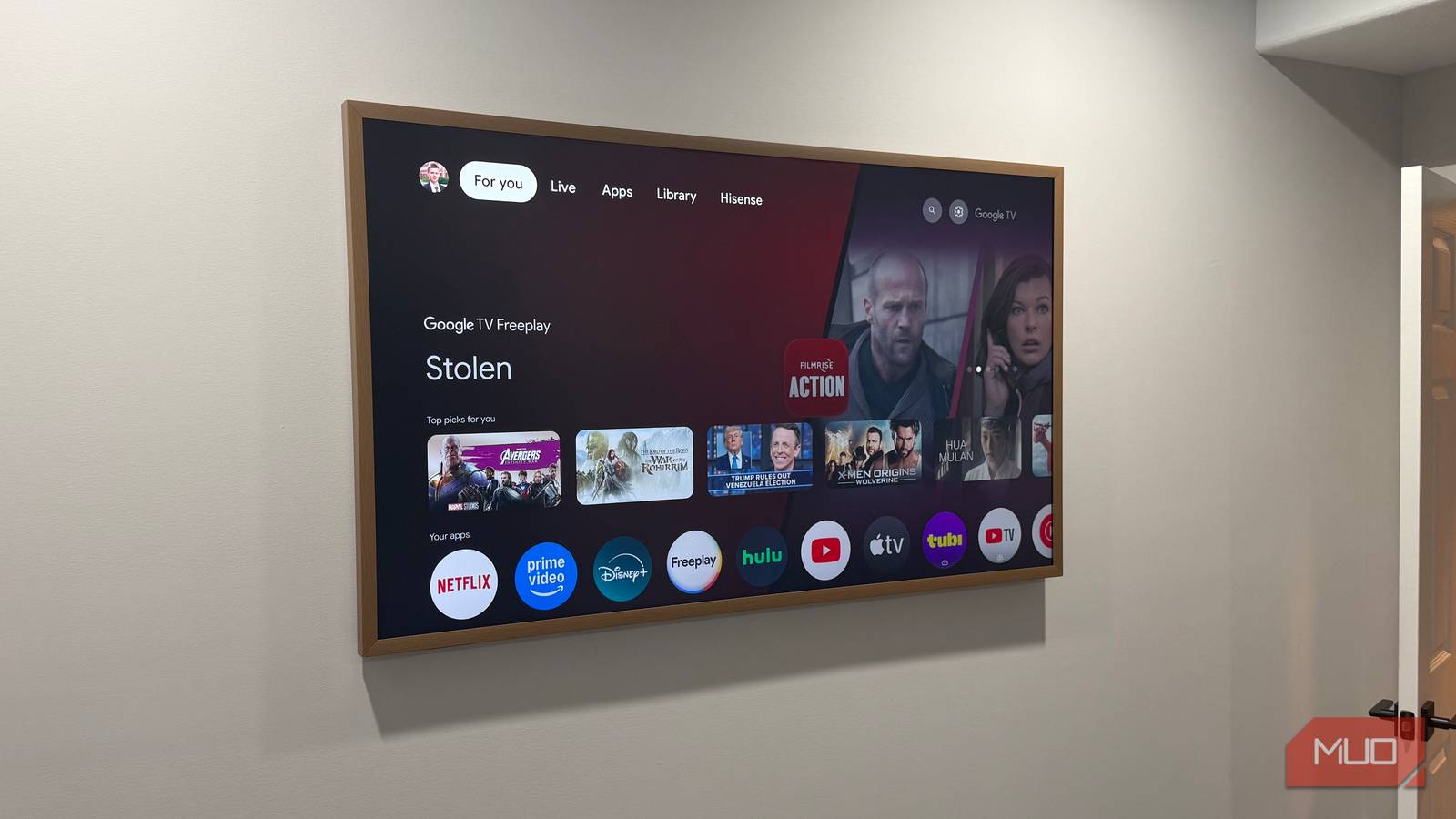
I had an Ethernet cable plugged into my Hisense Canvas TV for months, convinced a wired connection was the smarter setup. Then I actually ran a speed test. The TV was hitting 89Mbps — while my phone, sitting in the same room on Wi-Fi, was pulling nearly 600Mbps. Unplugging that Cat6 Ethernet cable was the fix. If your smart TV has an Ethernet port, there’s a real chance it’s quietly throttling your speeds right now, and the solution takes about three seconds.
Most smart TV Ethernet ports have a speed limit you probably don’t know about
Why wired doesn’t always mean faster
Most smart TV Ethernet ports are Fast Ethernet (FE), not Gigabit (GbE) — a distinction that barely mattered when home internet plans topped out around 50Mbps. Now that 500Mbps and gigabit plans are common, that 100Mbps cap is a real problem. Your router can deliver ten times that speed, and the Ethernet port on the back of your TV will ignore all of it.
Wi-Fi hardware in modern smart TVs has moved well past that. The wireless cards in newer sets support Wi-Fi 5 or Wi-Fi 6, with real-world throughput that can comfortably exceed 300–600Mbps under good conditions — and in some cases approach gigabit territory entirely. The Ethernet port that looks like the more serious option is often the slower one. I went down a rabbit hole troubleshooting picture quality on my Samsung monitors before realizing the cable was throttling performance the whole time. The same logic applies here — the obvious choice isn’t always the right one.
How to check which port your TV actually has
Gigabit vs. Fast Ethernet — and why it matters
The spec sheet for your TV model will list the LAN spec — search the model number and look for a 100BASE-T or 100Mbps designation under connectivity. That’s Fast Ethernet. 1000BASE-T or 1Gbps means Gigabit. One of those has a ceiling your Wi-Fi will clear easily; the other doesn’t.
My Hisense Canvas TV spec sheet confirmed Fast Ethernet on my unit. The speed test was almost unnecessary at that point — the specs had already told the story. 89Mbps on Ethernet and over twice as fast on Wi-Fi, exactly as the hardware dictated. For any TV with a verified Gigabit Ethernet port, the wired connection remains the better call for raw speed. But for the majority of budget and mid-range sets, Wi-Fi is genuinely the faster option.
What happened when I unplugged the cable on my Hisense Canvas TV
What the speed test actually showed
I unplugged the Ethernet cable, let the TV reconnect to Wi-Fi, and ran the same speed test. The number that came back was over 200Mbps — the same router, the same room, just a different connection. The Google TV interface felt maybe a little more responsive. Perhaps my streaming apps opened a second or two faster. However, 4K HDR content was locked into full resolution from the first frame on both Ethernet and Wi-Fi. All steaming services are designed to work well under 100Mbps. So, you might not even notice a difference speed-wise.
That said, Gigabit Ethernet is genuinely better than Wi-Fi for consistency and latency — that’s not up for debate. Fast Ethernet is a different story. At 100Mbps, it’s a stable, wired connection but also a speed limiter with a cable attached. Removing it sounds like the right call on paper, but there are other factors you need to consider. Primarily network congestion, interference, and stability.
If your smart TV is getting close to 100Mbps on speed tests, you probably don’t need to switch over to Wi-Fi. That’s plenty of bandwidth for 4k on Netflix, Disney+, HBO Max, Apple TV, etc. On the flip side, if your smart TV apps keep buffering or stuttering on Ethernet, switch over to Wi-Fi to see if it improves.

Please stop using the wrong Ethernet cables
Using the wrong Ethernet cables can throttle the speed from your ISP.
When Ethernet is still worth using on a TV
The cases where a cable genuinely makes sense

Not every TV situation calls for Wi-Fi. If your set has a confirmed Gigabit Ethernet port, wired is still the stronger choice — lower latency, zero interference, and a connection that doesn’t care what else is happening on your network. Older homes with thick walls, multiple floors, or spotty wireless coverage are another case where a cable solves a problem Wi-Fi simply can’t. The signal is either there or it isn’t, and no amount of router repositioning fixes a wall that wireless doesn’t penetrate well.
There’s also a network-wide argument for wiring TVs when the port supports it. Every device you move off Wi-Fi frees up bandwidth for everything else — phones, tablets, smart home devices. So, I’m keeping my Hisense connected to Ethernet. There’s a negligible performance difference, plus I ran and crimped the Ethernet cable for it myself (so I have to use it).
Plus, the knock-on effect for the rest of the network is real. Philips Hue lights, Echo speakers, and other low-bandwidth devices all get a cleaner share of the wireless network when the heavy streaming isn’t competing alongside them. The Hisense was a specific case where the port itself was the bottleneck. That’s not true across the board, and the case for Ethernet still holds for the TVs where the hardware can back it up.
Check your TV’s Ethernet spec before assuming wired is better
Unplug the cable, wait for the TV to reconnect on Wi-Fi, and run a speed test. If the number climbs, the Ethernet port was the problem the whole time. For everything else about keeping cables tidy when you do need them, these cable management approaches cover the full range of options. Wired isn’t automatically better — it depends entirely on what the port is rated for. That’s worth knowing before you run a cable across the room.