




I remember having audio issues when I bought my first flat-panel TV, which I attributed to hardware limitations, such as its thin speakers, weak bass, or a lack of proper surround sound. Yet, even after adding a soundbar and subwoofer, I have experienced dialogue being lost in the mix, inconsistent levels that exaggerate effects while muddying detail, and even latency or syncing issues.
As I came to realize, many of these problems could be attributed to the settings and configuration of my TV. Modern TVs are packed with layers of audio processing designed to “enhance” what you hear, but these can have the opposite effect, with sound that feels throttled, compressed, or oddly unbalanced. Before you consider changing your hardware, it’s worth taking a closer look at your settings, as the underlying issue may be fixable in minutes.
5 ways to make your soundbar sound better instantly
Unlock the full potential of your soundbar with these simple tweaks.
Auto volume and EQ presets
Are your dynamics being affected by domineering settings?

Features like Auto Volume, Volume Leveling, or Night Mode are designed to reduce sudden jumps in loudness by compressing your audio’s dynamic range. Audio compression works by making the volume trail off once it hits a specific threshold. At the same time, EQ presets such as Movie, Music, or Sports aggressively reshape the sound profile, often by boosting bass and treble while scooping out the midrange.
Each of these features can be very useful within a certain context, but if left active during regular viewing, they can flatten nuances and exaggerate extremes. To fix this, turn off Auto Volume or Dynamic Compression for regular viewing, and ensure your sound mode is set to Standard or Flat. If you can fine-tune your EQ manually, it is often better to make smaller adjustments, as presets are generally more aggressive.
Incorrect audio output and surround sound settings
Are your output format and virtualizer settings working for you, or against you?
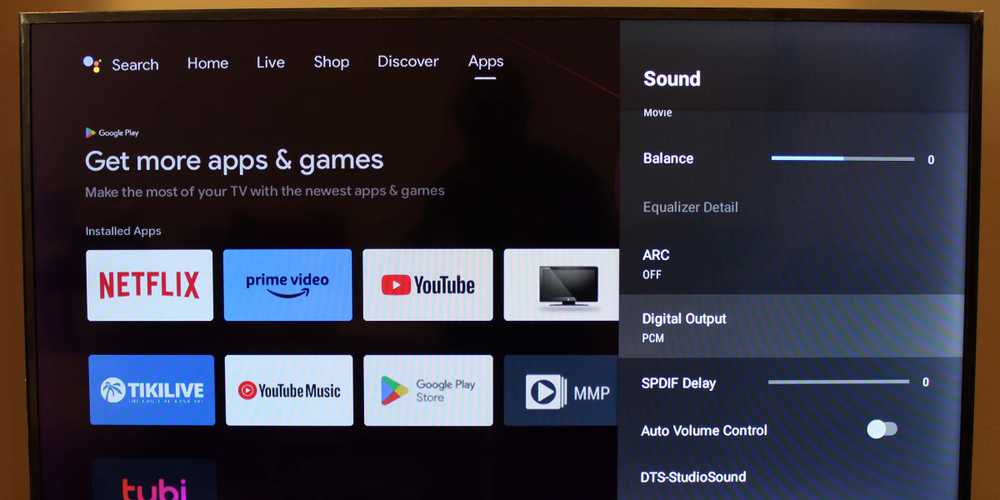
Modern TVs use various formats for outputting sound, including compressed surround formats like Dolby Digital or uncompressed PCM. Problems can arise when your TV sends a signal that your audio hardware can’t properly decode. In my experience, my basic soundbar struggled with multi-channel formats, resulting in missing elements in the mix, faint dialogue, and a general feeling that the sound was thin and underpowered.
Additionally, surround sound virtualizers that use digital processing trickery to emulate true surround sound often fall short when coupled with limited hardware, resulting in smeared audio imaging, reduced clarity, and dialogue that feels distant or echoey. To address these issues, try using PCM as your audio output setting if you use TV speakers or basic audio gear, and match the output to your sound system on advanced setups. It’s also worth experimenting with virtual surround to see if it genuinely improves your overall audio experience.
Dialogue enhancement and lip sync issues
Are speech settings and latency affecting the bigger picture?
Dialogue enhancement can be a useful tool in your audio arsenal by boosting midrange frequencies to help speech stand out. However, this can often lead to overcompensation, resulting in strange-sounding voices that are sharp, tinny, or artificial. This extra processing can also create delays between the audio and visual signals, resulting in that frustrating effect where lips move just before or after the sound arrives.
Together, these issues make conversations look unnatural, creating a distracting viewing experience, but thankfully, the solution to fixing unclear dialogue is often simple. Try using dialogue enhancement sparingly, or turning it off altogether if voices sound harsh or abnormal. If dialogue is still hard to distinguish, boost your midrange frequencies in your EQ instead. If it’s available, try fine-tuning your TV’s audio delay settings to fix syncing issues.
TV speakers that are still enabled with external audio
One of the biggest culprits is often the easiest to resolve
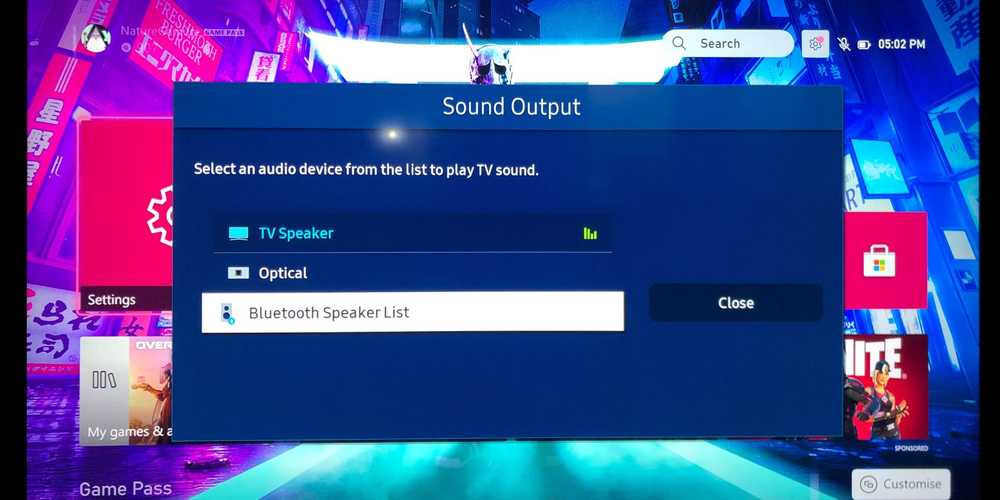
You could be forgiven for thinking that having your TV speakers work alongside an external sound system enhances the overall experience. After all, the more speakers, the better, right? In reality, having your TV speakers working at the same time as your other hardware (such as a soundbar) means the sound reaches your ears from slightly different sources and at different timings. Even barely recognizable delays can cause phase issues, where certain frequencies cancel each other out, while others overlap awkwardly.
The result is often hollow, echoey, or unfocused audio, especially with dialogue, which should be accurate and centered. The solution here is to simply disable your TV’s internal speakers when using external audio equipment. By letting one system handle the sound rather than both, you remove any conflict between internal and external systems.
HDMI ARC or eARC issues
Have you considered which audio return format to use?
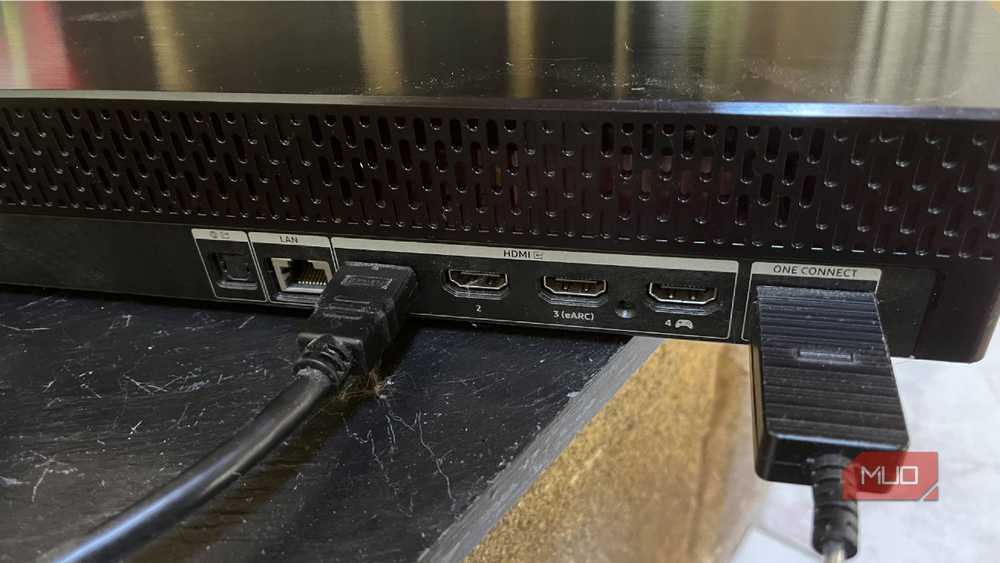
While all HDMI connectors and outputs look much the same, this is not the case with audio return channels on modern TVs. HDMI ARC (Audio Return Channel) and its newer version, eARC, are designed to send high-quality audio from your TV to external devices. However, if you haven’t configured these settings correctly, or if your cable doesn’t support the correct format, your audio could be compromised without giving you any warning.
This can lead to dropouts, inconsistent performance, and you might lose access to high-quality formats entirely. To fix audio return issues, ensure that eARC is enabled if both your TV and sound system (home theater setup or soundbar) support it, use a reliable, compatible HDMI cable, and make sure your TV’s input/output settings match your setup.

- Connectivity
-
Wi-Fi, Bluetooth 4.2
- Ports
-
x1 Optical, HDMI, eARC, x1 USB, x1 Ethernet
- Audio Format
-
Dolby Atmos
- Speaker Arrangement
-
5.0.2
- Dimensions
-
19.3 x 17.3 x 15.6 inches
A better setup might be the only obstacle between you and better sound
Great sound isn’t always a case of having the best hardware. Many of the issues people attribute to bad speakers stem from overprocessing, incorrect settings, and conflicting features working against each other. If you also experience dissatisfaction with your TV’s audio, try simplifying your setup by turning off enhancements to allow the original mix to shine through—you might notice an improvement immediately.
However, if this doesn’t work, check your settings, outputs, and connectors to make sure everything is working in concert. It’s often the case that, with a handful of small adjustments, you will unlock clearer dialogue and a more immersive experience without having to spring for an upgrade.