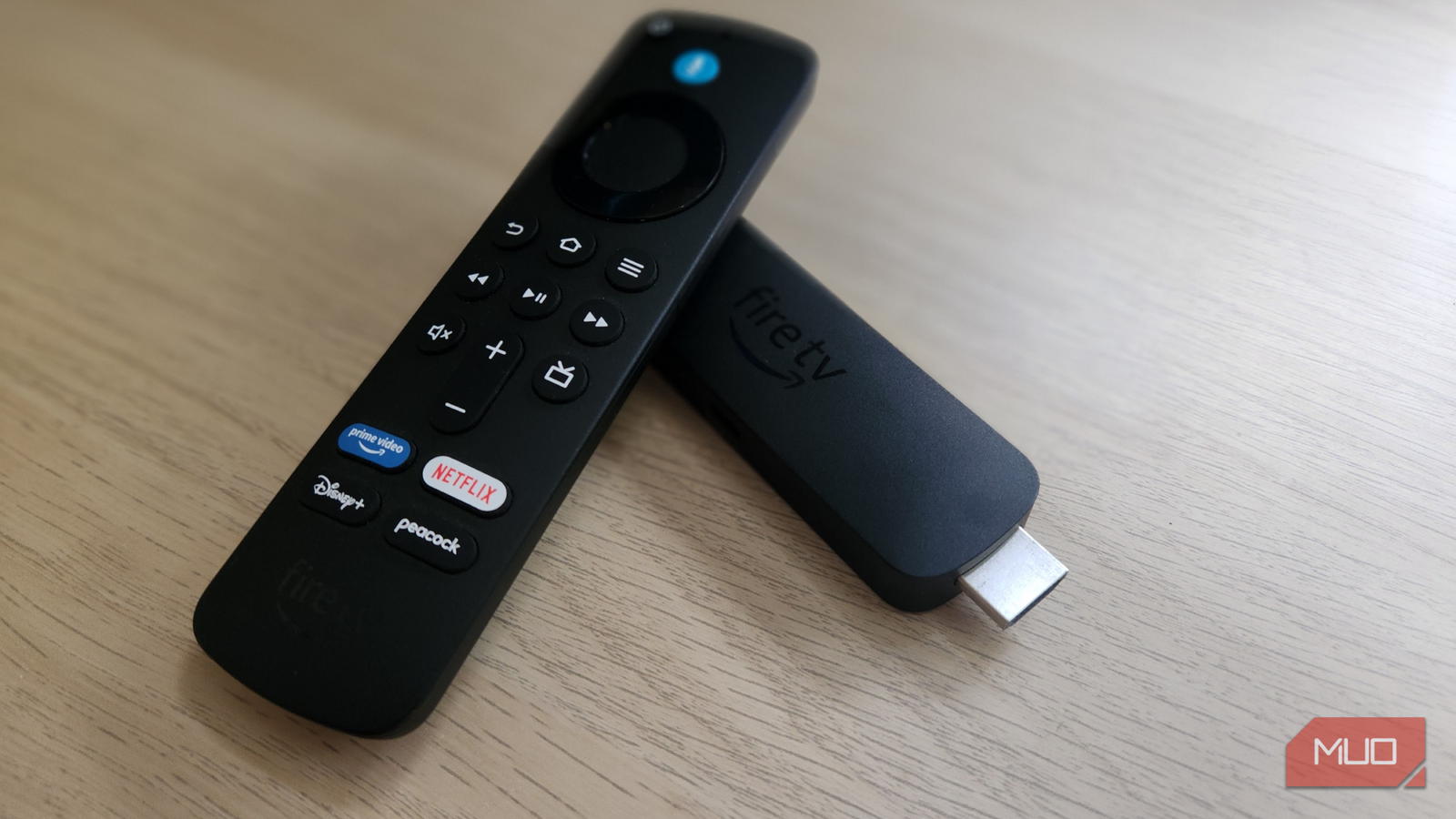








Smart TVs can do just about everything. I can stream my favorite movies and shows, rearrange the home screen to suit my mood, and even browse the internet when I feel like treating a TV as a giant tablet. They’re versatile in all the right ways. That said, I’ve always appreciated how flexible Fire TVs are, in particular. The interface feels clean, it’s easy to understand even for my parents, and finding something to watch and personalizing my profile feels quite fun.
Even so, I can’t shake the feeling that most people aren’t really tapping into what their Fire TV can do. Beyond the obvious streaming and scrolling, there are a few lesser-known tricks that completely change the way you interact with it. It really upgrades the whole experience once you start using them.
A personal viewing experience
The art of watching without waking anyone
My Fire TV is mounted in the bedroom, which is perfect when I want to curl up and watch something in comfort. But it can quickly become inconvenient when my partner decides to turn in early, and I’m still in the mood for a late-night binge. That’s exactly where this setup starts feeling less ideal. Thankfully, Fire TV has come to my rescue more than once.
I simply connect a pair of Bluetooth headphones to the TV and enjoy a completely private movie night without disturbing anyone. It’s an easy fix that turns a potential compromise into a win for both of us. If you want to take things even further, you can also pair Bluetooth accessories like a keyboard, remote or even a mouse for easier navigation. For watching movies, though, none of that is necessary. Headphones alone do the job beautifully, keeping the experience personal and distraction-free.
To connect your Bluetooth headphones to your Fire TV, just follow these simple steps:
- Turn on your Fire TV and open Settings from the home screen.
- Scroll and select Remotes & Bluetooth Devices.
- Go to Other Bluetooth Devices, then select Add Bluetooth Devices.
Your Fire TV will start scanning for nearby accessories. Before you proceed, make sure the device you’re trying to connect to is powered on and set to pairing mode so it shows up in the list. Once it appears, select it to complete the connection, and you’re good to go.
Disable featured content autoplay for good
No more surprise trailers shouting at you

The autoplay feature can be genuinely frustrating. You switch on the TV just to have it running in the background while you’re on a call, and suddenly the featured content starts blaring without warning. On top of that, it often cycles through ads and recommendations you didn’t ask for. And if you left the volume high the last time you used the TV, prepare for an instant jump scare when those previews kick in at full blast.
Turning this off has honestly been one of the simplest quality-of-life tweaks I’ve made. It keeps the experience calm and distraction-free, and I’m no longer greeted by loud promos for shows I have zero intention of watching.
Disabling it is pretty straightforward, too. Head to Settings, go to Preferences, and then select Featured Content. From there, you can independently turn off both video and audio autoplay. Once it’s done, your Fire TV stays quiet until you decide otherwise, and that makes a big difference.
Refine your TV’s sound quality
When your TV finally learns to enunciate

If you’ve ever struggled to catch what characters are saying because explosions, music, or background noise are drowning them out, your Fire TV has a handy fix. Enabling the AC4 Dialogue Enhancer can make speech easier to follow by bringing voices forward in the mix, so they don’t get lost in everything else happening in a scene.
At home, this turned out to be surprisingly useful. My mum often complains that movie dialogue becomes impossible to hear when the soundtrack gets dramatic. Sure, booming effects make things immersive, but not when you’re glued to subtitles just to keep up. Switching this feature on solved that frustration. Voices now sound more distinct, and she doesn’t have to keep adjusting the volume or miss half the conversation.
AC4 Dialogue Enhancer is a part of the Dolby AC4 audio system. Instead of raising the overall loudness, it specially emphasizes the frequencies where human speech sits. The result is clearer dialogue without blasting the rest of the audio.
Here’s how to enable it on your Fire TV:
- Turn on your TV and open Settings.
- Go to Display & Audio.
- Select Audio Output.
- Scroll down to AC4 Dialogue Enhancer.
- Choose between Low, Medium and High.
Each level adjusts how strongly voices are prioritized:
- Low gives a subtle lift. It works when dialogue is already fairly clear but could use a small boost.
- Medium applies a balanced enhancement and suits most movies or shows with busy sound design.
- High pushes speech forward the most. It is useful for noisy environments or for viewers who need stronger clarity.
My mother and I have settled on Medium, and it strikes the right balance for everyday viewing. Dialogue sounds sharper without flattening everything else, and more importantly, subtitles are no longer the only way to follow what’s happening.

Just Bought a Fire TV Stick? Change These Settings Immediately
These tiny tweaks can give your device a nice little performance boost.
The rabbit hole worth falling into
I love using my Fire TV. It does pretty much everything it promises, and then more, it doesn’t even advertise. What keeps me hooked is the room for personalization. I’m always tinkering with settings or discovering small tweaks that make everyday streaming more polished.
Beyond the basics, there’s quite a bit you can do as a regular user. Installing some game-changing apps can transform your Fire TV into a powerhouse, adjusting settings can cut down on distractions like ads or unwanted recommendations, and fine-tuning audio, display, or accessibility options can really improve how content feels to watch.
At its core, Fire TV makes streaming simple and comfortable, but the real appeal lies in how it evolves with your preferences. The more you explore, the more you realize that it’s a platform that rewards curiosity.