


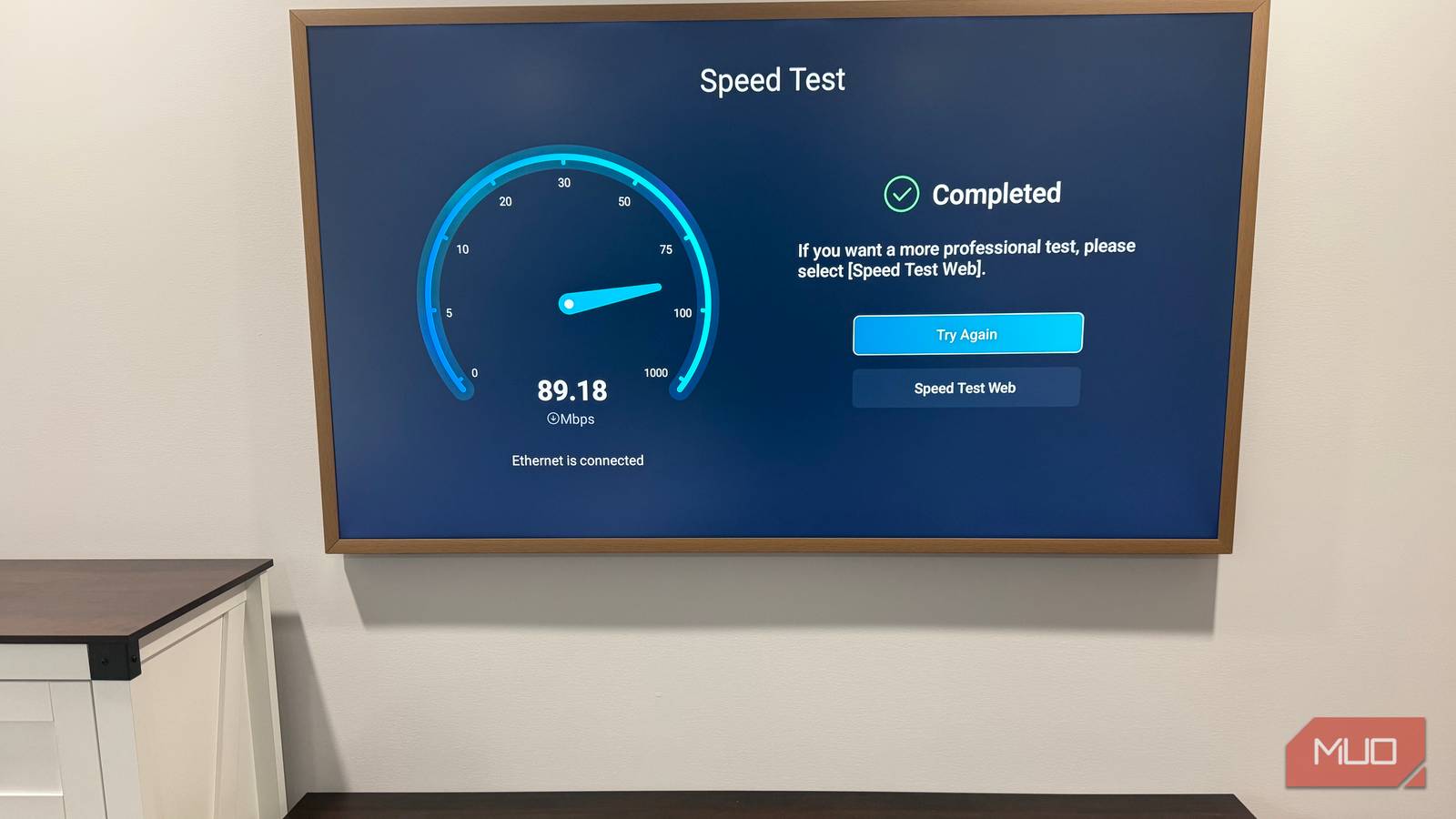
I wired every TV in our house to Ethernet and figured that was that—full speed, done. Then I pulled up my Ubiquiti controller one afternoon and saw a number I didn’t expect. Every TV in the house had negotiated at 100Mbps. My Mac Mini had Gigabit, but the smart TVs? Every one of them was at or near 100Mbps. I went down a rabbit hole after that and learned something I wish I’d known sooner—most smart TV manufacturers use 10/100 Ethernet ports. Whether you have a premium model or a budget one, it doesn’t matter.
They justify it because major streaming services cap their 4K bitrates well under that threshold anyway, so the thinking goes that nobody will notice. And honestly, most people don’t—until they check. Here are three ways to figure out whether your TV has the same limitation mine do.
Check your router or switch dashboard
The fastest way to confirm without touching your TV

If you run a managed network, this takes about 10 seconds. The client details panel on my Ubiquiti Dream Machine lists the negotiated link speed for every wired device, and that’s where I caught it. Every TV showed 100Mbps. My desktop and NAS, plugged into the same switch, both showed a full Gigabit handshake.
Ubiquiti isn’t a requirement, though. Most managed switches from TP-Link, Netgear, or really any brand with a web interface will display port negotiation speeds somewhere in the settings. Even plenty of unmanaged switches give you a clue through their LED indicator colors—green typically means Gigabit, while amber or orange points to a 10/100 connection. It’s a quick visual check that takes zero configuration. Ubiquiti’s UniFi app also uses “FE” (Fast Ethernet) for 100Mbps speeds and “GbE” designations for devices with Gigabit Ethernet (1000Mbps).
This method is the most definitive option because it shows the actual hardware handshake between your TV and the network equipment. There’s no server variability, no app overhead, and no guessing involved. The switch knows what speed the port negotiated, and it reports exactly that. If you don’t have a managed switch or router dashboard that shows this kind of information, though, the next best option is testing directly from the TV.
Run a speed test directly on your TV
Your streaming apps can reveal the bottleneck
Netflix actually has a network test tucked inside its settings. Open the app on your TV, go to Get Help, and select Check your network. It runs a quick speed check and gives you a number. Some smart TVs also have a web browser buried in their app list somewhere—open it up and go to fast.com or speedtest.net for a similar result.
You want to pay attention to where that number lands. If it keeps hitting somewhere around 90–95Mbps and won’t go higher, that’s your 10/100 port showing its ceiling. Network overhead eats into the theoretical 100Mbps max, so TVs with these ports tend to plateau right around 94. That’s around where my Hisense CanvasTV landed. The Samsung Frame? Identical results, test after test.
Now try the same thing on your phone or a laptop using the same network. If your phone pulls 300Mbps and the TV won’t budge past 94, that tells you everything you need to know. One thing to keep in mind, though—this tests your full internet path, not just the port. If your ISP plan maxes out below 100Mbps, the speed test won’t expose the TV’s hardware limitation because your connection itself is the ceiling.

Please stop using the wrong Ethernet cables
Using the wrong Ethernet cables can throttle the speed from your ISP.
Look up your TV’s spec sheet
The answer is buried in the specs, but good luck finding it quickly

Go to the manufacturer’s website and search for your TV’s exact model number. Find the connectivity section and look for the Ethernet listing. “10/100” or “100BASE-TX” means 100Mbps is your max. “10/100/1000” or “1000BASE-T” means you’ve got Gigabit. Fair warning—not every manufacturer calls it “Ethernet.” Some label it “LAN” or “Wired Network,” which slows down the search if you’re skimming.
Tracking down a clear answer is harder than it should be. Samsung, LG, Hisense, TCL—all of them have put 100Mbps ports on TVs that retail for well over $1,000. Some of their spec sheets don’t mention the Ethernet speed at all, and others hide it in a PDF manual buried three clicks deep on a support page. If the official specs leave you guessing, search your model number along with “Ethernet speed” or “Gigabit” on Reddit or forums like AVS Forum. Someone has almost certainly tested it and posted results. That’s how I confirmed the limitation on a couple of my own TVs before the UniFi dashboard made it obvious across the board.
This next part genuinely confused me at first. My TVs have Wi-Fi 6 and Wi-Fi 6E radios in them—wireless chips that can theoretically blow past 1Gbps—but the Ethernet port on the back of the same TV maxes out at 100Mbps. The wireless radio can actually outperform the wired connection on these models, which feels completely backwards until you understand the cost-cutting logic. A faster Ethernet chip costs more per unit, and since 100Mbps covers the streaming bandwidth most people need, manufacturers skip the upgrade.
Your TV doesn’t need Gigabit to stream well
I still prefer wired over wireless for every TV in my house, even at 100Mbps. Plug in a cable, and the Wi-Fi congestion that bogs everything down on a Friday night stops being your TV’s problem. The cap only becomes a real problem with local media servers like Plex or Jellyfin, and game streaming tools like Steam Link—both can push bitrates hard enough to max out a 100Mbps port when the content gets heavy.
External streaming devices like the Apple TV 4K come with Gigabit Ethernet if the cap is a dealbreaker. Pair one with a clean in-wall cable setup, and you bypass the TV’s built-in port entirely. For everyone else, knowing the limitation exists puts you ahead of most people—and at least now you won’t spend an afternoon troubleshooting a “speed problem” that’s actually just how your TV was built.