



Most smart TVs have an Ethernet port on the back panel that nobody uses. Mine collected dust for years. Then I upgraded my whole Wi-Fi system and router, and I grabbed an Ethernet cable and plugged in the living room TV. The difference was so obvious that I wired up every other TV in the house that same week. Buffering vanished during peak hours, and the smart TV interfaces themselves felt like they woke up. Wi-Fi feels “good enough” until you experience what a wired connection actually delivers, and the best part is that most people already have the port sitting unused on the back of their TV right now.
Wi-Fi creates problems you’ve learned to live with
Why wireless streaming isn’t as reliable as you think
Wi-Fi works well enough that most people never bother questioning it. But smart TVs are in a rough spot on your wireless network. Your TV never moves. It stays bolted to the wall or parked on a console, pulling bandwidth from the exact same spot every single day while competing with every phone, tablet, and laptop your family owns. And where do most TVs end up? Living rooms and bedrooms—surrounded by walls, furniture, and appliances that weaken the Wi-Fi signal well before it reaches the TV.
4K HDR streaming needs at least 25Mbps, and it needs that speed consistently. Some Wi-Fi can’t really promise that. Interference from neighboring networks, congestion from your own devices, even someone microwaving popcorn in the next room—all of it causes dips. Your TV probably streams fine on a quiet Tuesday afternoon. Friday night with the whole family online is a different story, and that’s when resolution drops mid-show or the buffering wheel shows up at the worst possible moment.
I didn’t realize how much my TVs were dragging down the rest of the network until other devices started suffering. My Echo speakers got sluggish in the evenings. My Philips Hue lights lagged or flat-out ignored commands. Once I traced it back to the TVs pulling heavy bandwidth over Wi-Fi during peak streaming hours, the whole pattern clicked. Mesh systems help with coverage, sure, but they still force every wireless device onto a shared connection—and when that connection gets crowded, your TV loses right alongside everything else.
Ethernet gives your TV a dedicated fast lane
The stability difference you’ll actually feel
Here’s what changes when you plug in a cable: all of those Wi-Fi headaches go away. Your neighbor’s network can’t interfere. The router doesn’t have to push a signal through two walls and a hallway. Your TV isn’t waiting in line behind 30 other wireless devices. It gets its own direct path to the router, and nothing else touches that connection.
The practical difference surprised me more than the speed tests did. Smart TV menus that used to hang for a beat or two while loading thumbnails now snap into place. Streams lock into full resolution immediately—no more watching the picture start muddy and slowly sharpen over the first few seconds. The whole interface just feels like it’s working the way the manufacturer intended, which is not something I could say when those same TVs ran on Wi-Fi.
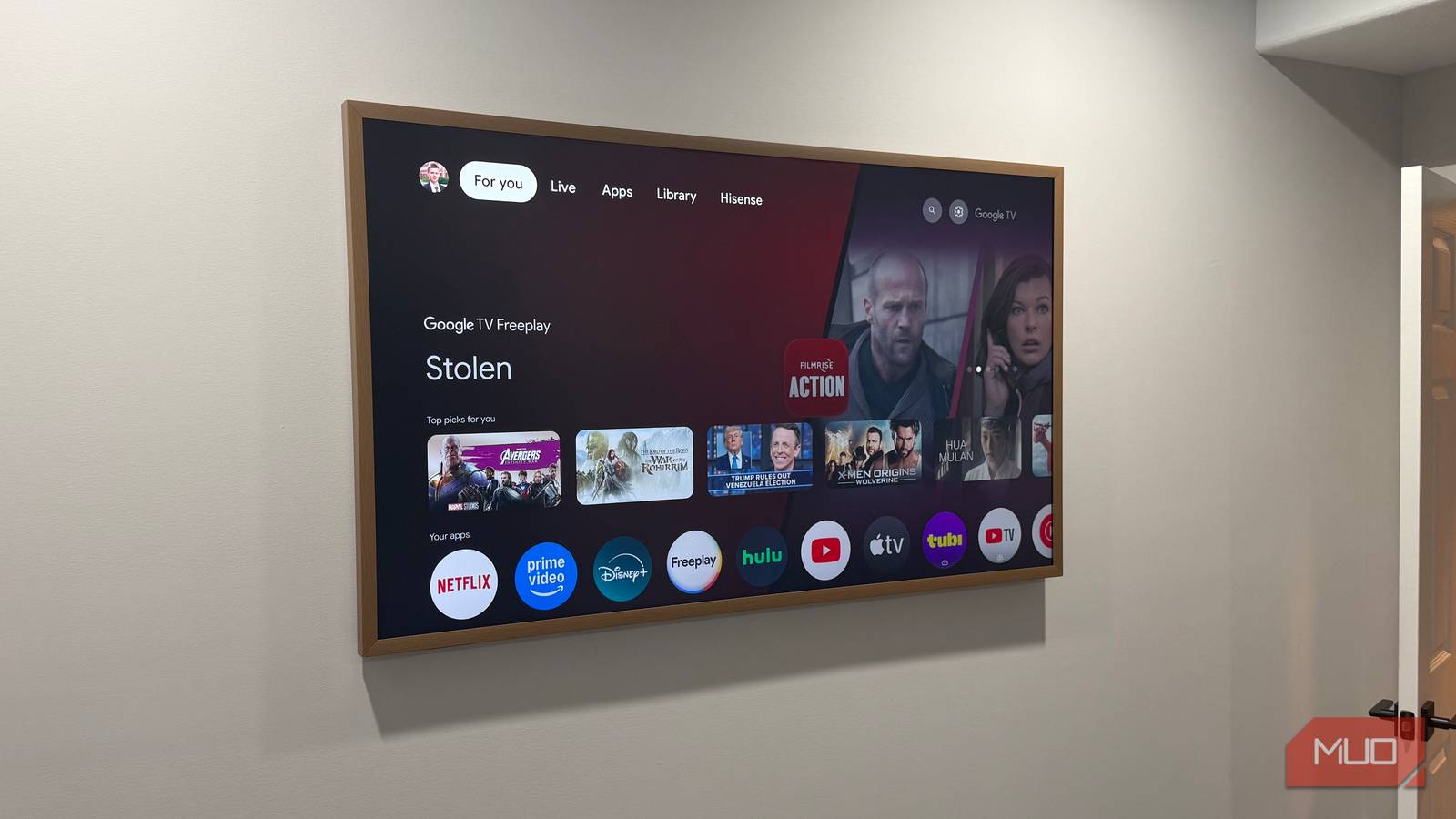
I connected the Hisense CanvasTV in our basement guest bedroom right away with a wired connection, since I’d already run Ethernet to that wall during the basement finishing project. Navigating Google TV on that thing felt completely different from the Wi-Fi-connected TVs I had upstairs at the time. Menus loaded instantly, streaming apps responded without hesitation, and the whole experience felt polished in a way the wireless TVs simply couldn’t match until I switched those over too. The latency improvement matters for gaming as well—anyone using a smart TV as a display will notice tighter input response over a wired connection.
Please stop using the wrong Ethernet cables
Using the wrong Ethernet cables can throttle the speed from your ISP.
Running a cable doesn’t mean ruining your walls
Clean solutions that keep the aesthetic intact
The biggest pushback I hear about Ethernet on a wall-mounted TV is the cable situation. Nobody wants a blue Cat6 cable dangling down their freshly painted wall, and that’s a fair concern. But hiding cables is cheaper and easier than most people realize, and there are options for every living situation.
I ran Ethernet through the walls in my basement and used Legrand recessed in-wall enclosures to hide the cables. The whole process ran me about $60 per TV and wrapped up in half an hour each time. Considering that professional quotes came back between $200–$400 for each location, the DIY route saved us a fortune across all four spots. Everything routes behind the drywall and terminates at wall plates that blend right in with the rest of the room.
For renters or anyone who doesn’t want to cut into drywall, flat Ethernet cables along a baseboard paired with an adhesive raceway are barely noticeable and still deliver the full speed advantage. And if the TV sits on a media console instead of the wall, routing becomes a non-issue entirely—the cable disappears behind the furniture. Planning Ethernet drops during construction or renovation makes things even simpler. We had the builder run cables to every TV location in our new house, and connecting everything after move-in took minutes per room.
Stop letting your TV fight for bandwidth it doesn’t need to share
Ethernet is one of those upgrades that costs almost nothing but changes how you feel about your entire streaming setup. Most smart TVs already have the port, most routers have open Ethernet jacks, and a basic Cat6 cable runs $5–$15 depending on length. If you’re dealing with buffering during peak hours, apps that take forever to load, or resolution that can’t seem to hold steady, a single cable plugged into the back of your TV is the easiest fix available. Your TV was never meant to fight for wireless bandwidth alongside every other device in your house—so stop making it.