


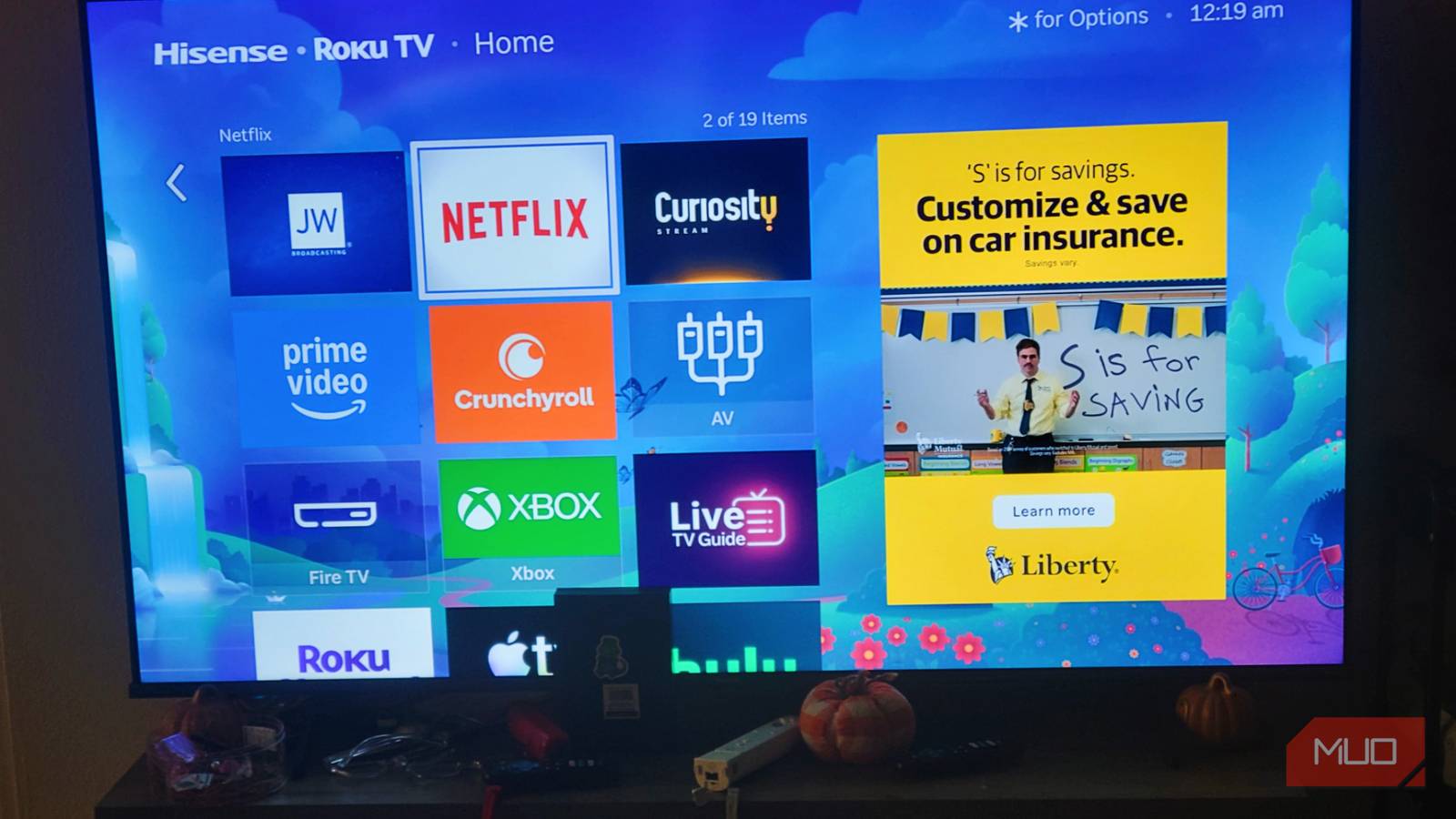
I love Roku because of the clean layout it used to have, but it’s getting harder to keep this affection going. This latest mandatory operating system update is another big blow, adding massive ads directly to the home screen and cluttering it up. It feels like the company is treating my attention as the actual product it sells to advertisers. If you’re tired of navigating a maze of sponsored rows just to find your applications, you can do some things to fight back.
Roku’s new home screen promises less clutter, but I’m not convinced
Promotional content is still everywhere
The Roku interface update is part of a trend
The mandatory home screen redesign on Roku feels like it was already on the way
I have loved Roku because of its clean app grid that lets you launch streaming services without any distractions. However, this latest mandatory operating system update has changed the platform’s layout by adding a large, permanent display advertisement directly onto the home screen.
It feels like it was only a matter of time before an ad dominated the right side of the screen. I noticed that the amount of promotional content keeps growing, and Roku today is nothing like it used to be. Ads make it more crowded and slower.
The redesign brought in many new promotional rows that are there just to get you to watch something you may like. However, I’ve noticed that many picks feel like any other recommended feed, where it’s not about my likes but about making money from my viewing time.
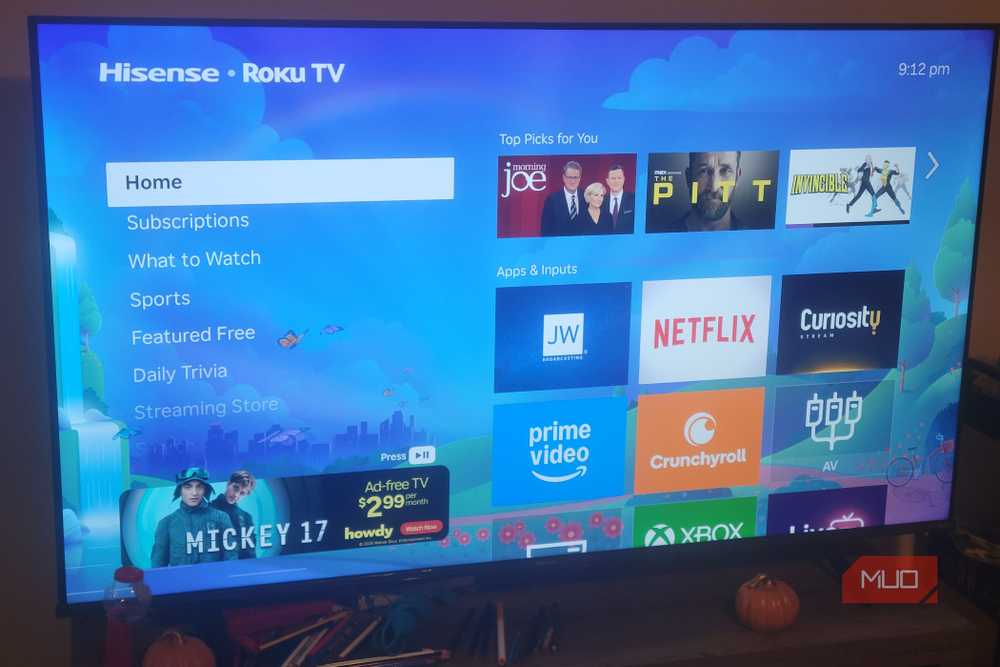
The worst offender is the expanded Top Picks for You section, which has grown from a summer three-tile layout to a pretty big five-tile row with larger icons that blend your personal recommendations with sponsored ad placements.
Also, Roku has injected a Quick Access panel that shifts the order of the apps. I now have to deal with this and Your Daily Scoop. That row is just trending shows, which I don’t care about at all. Instead of a straightforward path to Netflix or Hulu, you’re now forced to navigate through an obstacle course of genre-based destinations, interactive screensavers, and live TV guides.
This might be how it focuses more on making money, prioritizing advertisers over users, and treating our time and data like real products for sale. This is common, and Roku is probably the least annoying one I’ve seen.
Even with the ads, you can get rid of them with some tricks. Amazon Fire is a huge offender that feels incredibly forced on you, while Roku isn’t so bad.
Make the ad smaller or switch it out
Adjust your display settings to stop ads from eating space
If the recent Roku operating system update has made your television more cluttered, you should dive into the TV’s config menus. While Roku isn’t giving a simple way to fully turn off the new UI design or remove the permanent ad, you can minimize or limit it. The first thing you can do to stop the main ad is adjust your core display settings by changing the app tile size to Large.
Go to your Settings, select Home Screen, and change the Tile Size option to Large. You make the UI change its layout right away. This adjustment shifts the default view that puts five app icons in one row back to a cleaner, traditional three-icon grid.
An option I like is changing it entirely. You can switch it out to a regular Roku ad instead of a targeted one.
- Press Home five times.
- Then up, right, down, left, and up.
From there, you can change it. This will take you to Secret Screen 2, and you can switch it to something like Demo 3 for a duller ad.
Other than adjusting the visual dimensions of your app grid, an important step is looking through the recommendation rows in your settings to turn them off, which removes a lot of the noise Roku puts on your screen. While still in the Home Screen settings menu, you can find the option for Recommendation Rows and set it to Hide.
Also, you can find the Quick Access setting and switch it to Hide, too. This turns off the changing app row that tries to guess what you’ll watch, putting your custom App Grid back at the top of the home screen where it should be.
Make sure to go to your settings to turn off both Seasonal Themes and Sponsored Wallpapers. These are basically banner ads disguised as colorful UI.
Sometimes, you’ll have to get into your DNS

If you’re truly fed up with the constant promotional content and want to make more aggressive moves, you can use custom DNS settings to block ad servers at the network level. This is a technical way to kill these trackers and stop your device from fetching banner ads. It only sounds scary at first, but it is pretty easy.
While many other TVs let you configure DNS in the settings, Roku does not. To block Roku ads at the network level, you must use a custom DNS service. First, you need to set up a cloud-based filtering service like NextDNS or a local server like Pi-hole, and then log into your home Wi-Fi router’s admin panel to replace your default DNS addresses with the new custom addresses.
In the DNS dashboard, you should add roku.com, display.ravm.tv, and roku.com to your blacklist to stop the home screen banners and screensaver ads from loading. Finally, because Roku hardcodes Google’s public DNS to bypass your network settings, you must log into your router’s firewall settings to block outbound traffic to 8.8.8.8 and 8.8.4.4 on Port 53, or create a port forwarding rule that forces all Port 53 traffic to route through your local filtering server before restarting your Roku.
Roku wants to make advertising dollars
Using a custom domain name system server or blocking firewall ports to stop television advertisements isn’t for everyone. You can use these simple tricks to clean things up, but there is no way to fix everything. Unfortunately, we’re going to have to watch Roku advertise wherever and whenever it can. At least these steps let you clean up the screen and take back your living room.

- Brand
-
Roku
- Operating System
-
Roku OS