




Do you ever get the feeling that your headphones aren’t quite right? That they could sound better?
It’s a fairly common feeling, and as someone who tests and reviews headphones, it happens to me all the time. Some headphone manufacturers offer an app you can use to tweak your EQ settings, which is handy, but what if you don’t really know where to start?
That’s where you need an EQ app like Wavelet. It’s a free Android app that sets the best possible EQ configuration for your headphones or earbuds, working towards the Harman curve as much as possible.
On more than one occasion, it’s helped me find a much better EQ for my headphones, making everything sound instantly better. But more than that, it lets you import custom EQ curves if your headphones aren’t listed — which is exactly what I’ve done with the Nothing Headphone (1), and it was a surprisingly simple experience.
Wavelet is your easy ticket for custom headphone audio
Simple and free
Wavelet, on its own, is a great app. It features custom EQ curves for over 5,000 different headphones and earbuds, using AutoEQ profiles. You can actually head to AutoEQ and find the custom EQs there if you’d prefer, as they’re transferable to other custom EQ apps.
It’s great because it takes the hassle out of finding the perfect EQ settings for your headphones.
Every pair of headphones has a frequency response — a measure of how loud each frequency is reproduced relative to others. Most consumer headphones aren’t flat. They boost bass, roll off treble, scoop mids, or do all three at once in ways the manufacturer thinks will sound good to the average buyer. Whether that matches what you want is a different question entirely.
The Harman Curve that I mentioned is the “target curve” that most headphones aim to match. Well, I say that, but that’s not entirely true. It’s considered a very good representation of what will sound good for most folks, and there is a huge amount of data to back this up. And that’s what Wavelet does: moves your headphones EQ closer to that curve so everything sounds wonderful.
Wavelet’s EQ settings apply across Android, meaning that they’ll work in Spotify, YouTube, Netflix, and anywhere you use your headphones. It’s one of those apps that makes you wonder why it isn’t built into Android by default.

- OS
-
Android
- Price model
-
Free (with in-app purchases)
Find your headphones in Wavelet’s custom EQ database
Instant audio excellence

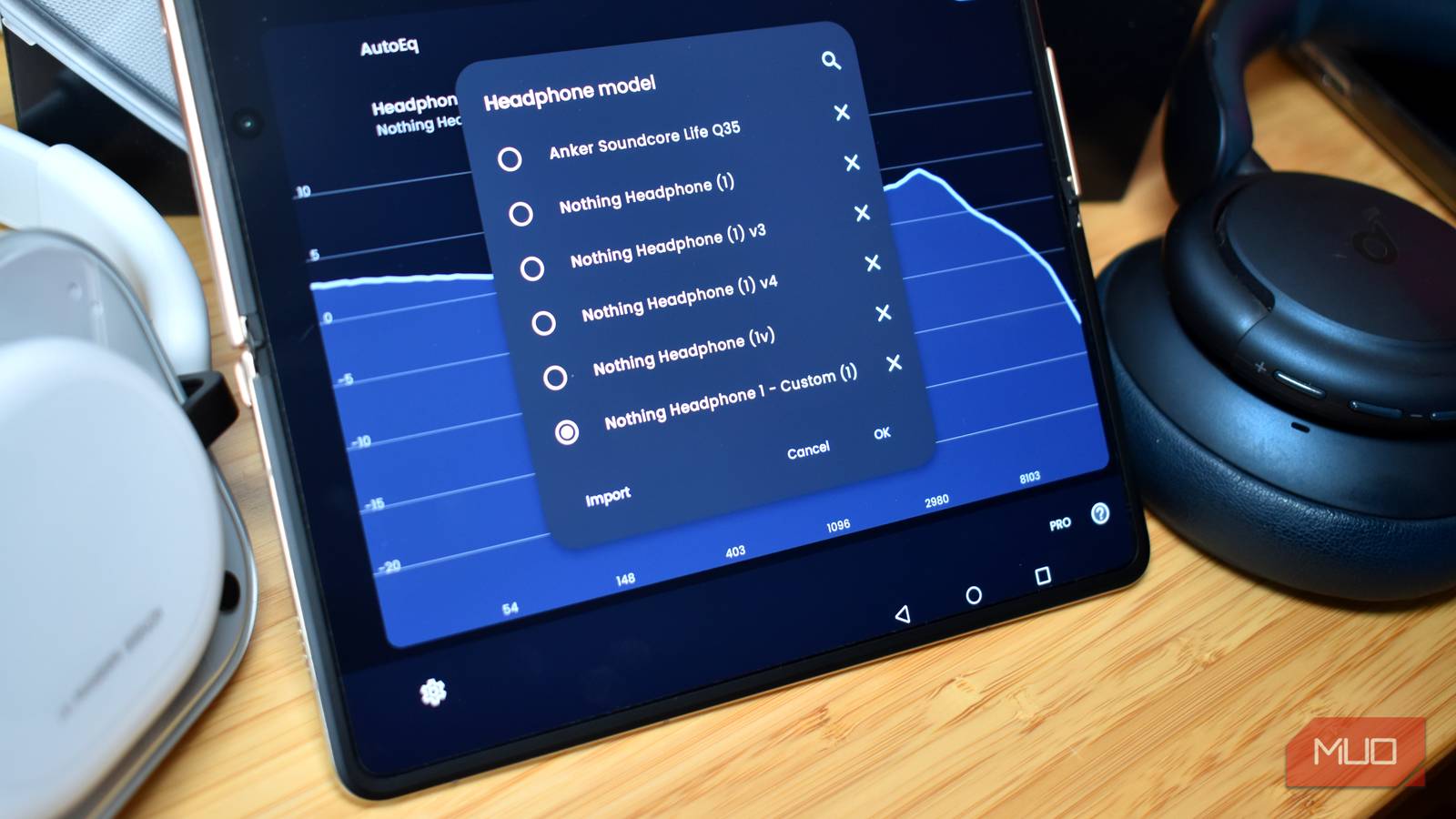
I’m amazed at how easy Wavelet is to use. I grabbed a pair of Soundcore Life Q35 cans from my desk as they happened to be nearby, started playing some music, and fired up Wavelet.
You scroll through the list until you find your headphones, select them, and apply the custom EQ curve — then sit back and relax.
Now, these headphones launched a good few years ago. I reviewed the Soundcore Life Q35 back in 2021, but given their LDAC support and quad-mic ANC, they’re still a great pair of headphones even now.
Wavelet’s EQ curve for the Soundcore Life Q35 reduces the bass, raises the mids, and tones down some of the treble, for a more balanced listening experience. I noticed a huge increase in the clarity of the vocals, which was really impressive and a different listening experience.
The catch is that AutoEQ only knows about headphones that have been measured. If yours hasn’t been, you’re not in the database. And if you’re not in the database, Wavelet can’t help you.
Wavelet’s EQ database is extensive but not perfect
Create your own custom EQ

That’s what happened to me with the Nothing Headphone (1) and Nothing Headphone (a) — neither is in the AutoEQ database, meaning they don’t feature on Wavelet.
But all is not lost. Wavelet is all about customization, and you can import your own graphic EQ settings into the app in the form of a text file. The file looks like a long string of numbers that, on face value, don’t make much sense. However, on closer inspection, you’ll note that they all correspond to a specific frequency and its gain value. So, in the image below, the value 20 5.0 means increase the 20Hz frequency by 5dB, while 4058 3.0 means increase the 4058Hz frequency by 5.6dB.

Wavelet requires each of the 127 frequencies to be present, even if you’re not making a change to them. In that, you can only make changes to the frequency gain values, not the frequencies themselves. However, the range of customizable frequencies is plenty enough for most folks, myself included.
That’s because while I understand audio, test headphones, and can talk about the differences in sound quality and what I hear, tuning headphones across 127 different frequencies isn’t something I’m skilled at.
I paired Wavelet with Claude to make a unique EQ
Iterate and customize

To help, I turned to Claude for some AI assistance. An AI chatbot can’t listen to music in the same way that we can, obviously. But AI is exceptionally good at parsing data, so that’s what I opted for. I gave Claude a copy of SoundGuys Nothing Headphone (1) review, and its projected EQ curve, and asked Claude to make improvements, then give me a custom Wavelet EQ file.
It worked surprisingly well. Claude didn’t deviate too far from the SoundGuys EQ curve, as I expected, but made some smaller tweaks, splitting the low-end between the two curves, more closely tracing the SoundGuys curve in the high-end. It even made me a nice chart plotting the changes.

Once the custom EQ was ready, I downloaded it, copied it to my phone, imported it into Wavelet, and started listening. You can copy the file I used below. Just open a new text file, copy and paste it in, and save it. It’s then good to go.
From there, it’s completely up to you if you want to customize your EQ further or stick with what you’ve got. That’s the beauty of Wavelet: you can really do what you want.

Nothing Headphone (a) review: You don’t need to spend $400 for good ANC
The only real difference is the price, and that’s just excellent.
Take your custom EQ everywhere
I really like that you can take your custom EQ wherever you go. Wavelet is available on Android, but the custom EQ will work in any app that accepts it, such as Equalizer APO on Windows or eqMac on macOS. “But what about iOS?”, I hear you cry.
Well, unfortunately, iOS doesn’t expose the settings required to make an app like Wavelet work. This means outside the official headphone apps from companies like Bose, Soundcore, and Nothing, you won’t find a third-party alternative with custom EQ loading.
However, if you know of a different solution, please let me know in the comments, as I’m sure there are other headphone and audio lovers who would love to hear your suggestion.