


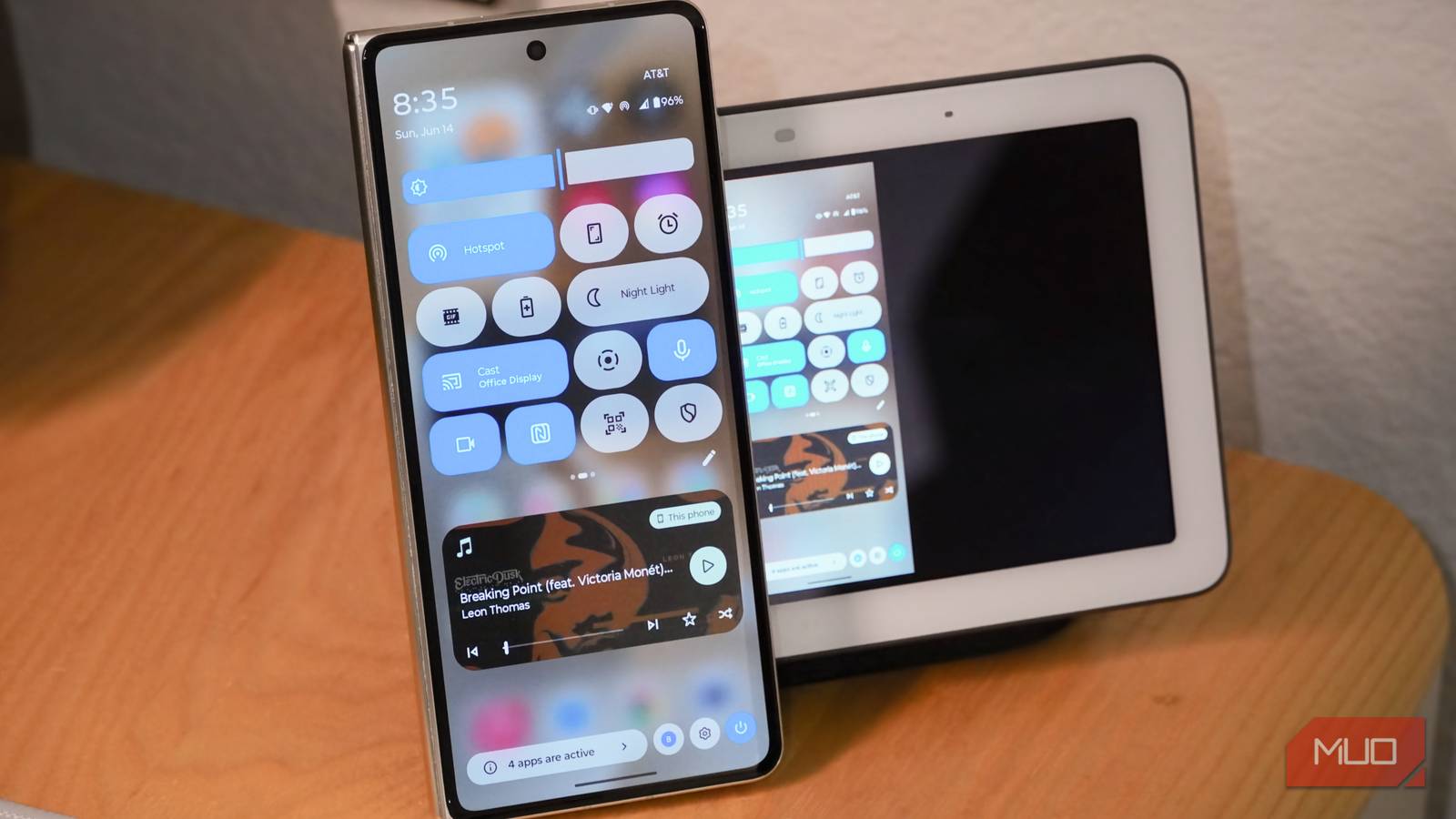
I live in a household split between the Apple and Google ecosystems, and that should make casting and screen mirroring difficult. The reality is much different, as AirPlay and Google Cast are robust and widely supported by streaming apps, streaming boxes, and TVs. Chances are, a streamer or TV you already have in your home supports AirPlay, Google Cast, or both. Android users can mirror their screen on a TV or display using only Google Cast. The feature is built right into the Android 16 operating system, and no third-party apps are required.
Instead of paying for a USB-C to HDMI cable or an unnecessary third-party app, I tried out Google Cast’s screen mirroring mode. It made me realize I didn’t need anything else to mirror my Android phone screen to every display in my setup.
I found 5 Google TV features hiding in plain sight that completely changed how I use the platform
The default experience leaves out some of its best features.
Don’t pay for apps when Google Cast exists
Apps with ads or in-app purchases have millions of users
There are hundreds of screen mirroring apps on the Google Play Store, with ratings and pricing models that vary. If you don’t believe me, fire up the Play Store on your Android phone and search “screen mirror.” You can scroll for minutes and still not reach the end of the list. The most popular Android screen mirroring apps have over 50 million downloads, and they typically feature in-app purchases, ads, or a mix of both.
People are paying for these apps, and it’s not hard to see why. They need to mirror their Android phone screen to a TV or another display, and don’t realize this capability is built into Android 16. Third-party apps seemingly fill the gap, but they are essentially unusable. Take the Cast for Chromecast and TV Cast app, for instance. The app looks decent on paper, with a 3.9-star rating and over 50 million downloads. Look a little deeper, and you’ll find reviews that claim ads pop up every time a user presses a button.
They’ve already downloaded the app, encountered a barrage of ads, and probably need to mirror their screen quickly — such as for an important work presentation or school project. So, people pay for third-party apps that are likely worse than the Google Cast function included with their Android phone right out of the box.
Mirror your screen to TVs, displays, and streamers
Google Cast works with the biggest and smallest screens in my home

Google Cast is the protocol that enables Android users to beam content from their smartphones to a slew of other devices. Your TV, set-top box, or streaming stick might support Google Cast. If you own a Chromecast or a Google TV Streamer, these devices can natively receive Google Cast media shared from a smartphone, too. Mirroring your phone screen to a TV using Google Cast is as easy as tapping a few buttons in the Android control panel.
To start mirroring my screen, I swipe down to open the control panel. Look for the Cast toggle on the control panel — you may need to swipe between pages or add the toggle to your control panel to see it. Tap it, and I can see all the nearby Google Cast-enabled displays on my network. In my setup, I can choose from the JBL A/V receiver connected to my TV, the Google Nest Hub Max in my kitchen, or the Nest Hub in my office.
I’d also see my TV itself if I connected it to Wi-Fi or Ethernet, but I’ve elected not to hook it up to a network and make my smart TV “dumb.” Instead, I use my A/V receiver, Apple TV 4K, and Chromecast to handle “smart” features on my TV.
After selecting a device to receive my Google Cast screen mirror, I can choose whether to share one app or my entire screen. If I only need to mirror one app on my smartphone, I’ll choose that option. By avoiding sharing my entire screen, I can ensure I don’t accidentally mirror sensitive information on the big screen. If I need to multitask or walk people through using the Android operating system, I’ll share my entire screen, being careful not to view personal data.
Once I initiate a Google Cast screen mirroring session, a persistent live notification appears in my Android phone’s status bar and notification shade. In the status bar, there’s a big green bubble that shows how long my screen has been mirrored. The notification shade offers more detail, showing the exact device that is receiving my screen via Google Cast. It also has a Disconnect button that lets me immediately end the screen mirroring session from anywhere on my phone.
The idea is that you’ll never forget your screen is being mirrored using Google Cast. It’s private and secure, whereas third-party apps may not have the same intentions as Google and Android.
This is why mirroring won’t always work
Android apps can block Google Cast mirroring for security and privacy

If you’ve used the built-in Google Cast feature before, you’ve probably encountered a situation where your Android phone screen couldn’t be shared. This is because certain apps block the screen mirroring function in Google Cast for privacy or copyright protection reasons. Streaming apps might block Cast to prevent piracy, while banking apps could block Cast to keep your sensitive data private.
The alternative is to use Google Cast directly within streaming apps, rather than sharing your entire screen. Google says over 3,000 apps, like Netflix and Spotify, support Cast natively. So, consider whether mirroring your entire screen with Google Cast or using Cast within a specific app is the best option situationally.
Many smart TVs and streaming accessories already support Google Cast, but buying a Google TV Streamer or Chromecast device is a way to add Cast support to anything with an HDMI port. It’s better to invest in quality streaming hardware than to pay for sketchy screen mirroring apps on the Play Store — especially when Android already offers Cast support by default.

- What’s Included
-
Google TV Streamer device, Voice Remote (with 2 included AAA batteries), Power adapter, Power cable (1.8m), Quick start guide, Safety & warranty document
- Audio outputs
-
Dolby Digital, Dolby Digital Plus, Dolby Atmos
- Integrations
-
Dolby Vision, HDR 10, HDR 10+, Hybrid Log-Gamma (HLG)
- Ethernet
-
Gigabit
The Google TV Streamer is a 4K streaming box with a fast processor, 32GB of storage, and Gigabit Ethernet. It runs Android TV OS, and you get access to a large app library. This device is an affordable way to add the latest Google Cast technology to virtually any TV.