




I’ve always leaned towards Android Auto over CarPlay because it tends to offer many features that Apple still hasn’t quite caught up with. Over time, that’s made me more curious about what else is hiding beneath the surface. So, I started exploring. Digging through settings, trying out different apps, tweaking things just to see what sticks. It’s become a habit at this point, and more often than not, it actually pays off.
This time was no different, either. While going down one of those rabbit holes, I stumbled upon a feature that changed the way my infotainment screen looks. I’m sure most drivers would never come across this on their own.
These 4 quick Android Auto games make every wait bearable
Waiting at a charger or drive-in? These quick Android Auto games make time fly effortlessly.
The feature every driver should know
Fixing the blur you thought you had to live with

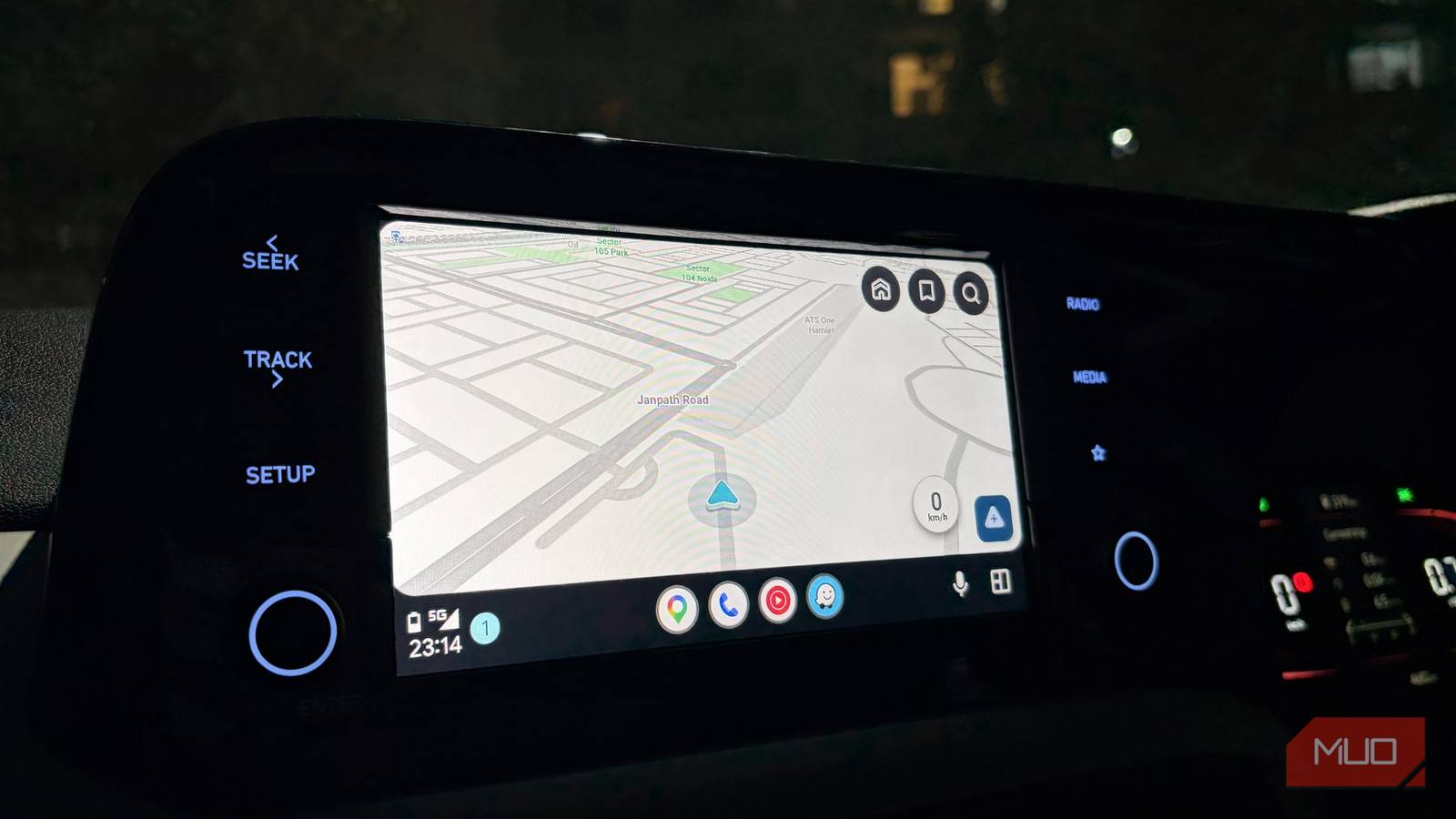
You know how satisfying it is to see crisp, high-resolution displays. But for some reason, certain cars still come with screens that look blurry or pixelated, and it’s hard not to notice. I had the same issue with my own screen, and I just assumed I’d have to live with it. But while poking around in the settings, I discovered that I could actually force the screen to run at a higher resolution, instantly sharpening both text and images. Doing this made everything look cleaner, clearer, and much more enjoyable to use.
How to get this running on your dashboard
Giving your dashboard the clarity it deserved all along
This feature is tucked away inside Android Auto’s Developer Options, which is probably why most people never even realize it exists. But once you get there, you can manually push your dashboard to a higher resolution to improve its appearance. Here’s how to find it:
- Open the Settings app on your Android phone.
- Go to Connected Devices.
- Tap on Android Auto.
- Scroll all the way down and repeatedly tap on Version until Developer Settings are enabled.
- Now tap the three-dot menu in the top-right corner.
- Select Developer Settings.
- Head to Video Resolution.
- Pick a resolution from the available options.
I’ve made these changes on a Samsung phone, so your steps might not look exactly the same. Different Android skins tend to shuffle things around a bit, even for something as specific as Android Auto settings. If you don’t see the exact path I’ve mentioned, the easiest way to get there is to simply search for “Android Auto” in the Settings app. It should take you straight to the right section. From there, the process remains more or less the same, even if the layout looks slightly different on your device.
Once you’re in, it’s all about choosing what works best for your car’s display. I went with 1920 x 1080 or 1080 x 1920, and the difference was noticeable. The text looked sharper, the icons felt more defined, and the whole interface just seemed more polished.
That said, it’s not a one-size-fits-all setting. Some older infotainment systems might struggle with higher resolutions and could even throw up a black screen. If that happens, don’t panic. Just dial it back to something like 720p, and you should be good to go. It takes a minute or two to set up, but once you see the improvement, it’s hard to go back.
There’s one more thing
A little order for your everyday drive
When I first got my car, the dashboard came pre-loaded with a bunch of default apps. At the time, I didn’t think much of it. But over time, my usage changed, and those defaults started to feel irrelevant. So I reshuffled things to match what I actually use. Now, apps like Phone, YouTube Music, Google Maps, and WhatsApp sit right at the top, exactly where I need them.
This is just as important as the clarity of your infotainment screen — put your most-used apps front and center, so you’re not scrolling around or getting distracted when you should be focusing on the road. Here’s how you can customize it:
- Head to Android Auto in your phone’s Settings.
- Scroll down to Customize Launcher under the Display section.
- You’ll see a list of apps currently available on your dashboard.
- Use the six-dot icon next to each app to drag and rearrange them.
- Move your most important apps to the top so they show up first.
- Push less-used apps further down the list.
Once you set it up, everything you need is right there, exactly where you expect it. Also, it’s a good idea to restart Android Auto, so everything reflects properly.

Planning a trip in your EV just got a lot easier with this Android Auto update
Google continues to add useful AI features to Maps
When everything just clicks into place
Making these changes to Android Auto transformed how my dashboard feels day to day. What started as a small attempt to fix a slightly underwhelming screen turned into a much cleaner and sharper setup. The display looks better, the apps I actually use are right where I need them, and everything just feels a lot more in sync with how I drive.
If you’re planning to try this, take a few minutes to go through each setting carefully. It’s not complicated, but understanding what you’re changing does make a difference. Once you’ve dialed everything in, you’ll notice the improvement almost instantly.