


We need to talk about the traffic cone in the room. For almost 20 years, VLC media player has been my go-to “install this first” app, especially given its top-secret features. It’s the digital Honda Civic of media players. It’s not particularly sexy, and the dashboard is a bit cluttered, but it will get you from point A to point B without breaking down, regardless of what file format you throw in the trunk.
However, if you care about how the drive actually feels—if you want frame-perfect video screenshots and playback, near-instant launch times, and an interface that doesn’t look like it wandered in from the Windows XP era—it might be time to move on. You need to start using MPV.
- OS
-
Windows, Android, macOS, Linux
- Price model
-
Free (open-source)
Play almost any audio or video format with MPV Player. This lightweight, open-source media player delivers smooth playback with powerful controls.
Let’s get MPV on your PC first
Installation is straightforward once you know where to look

There is a lingering misconception that MPV is only for hackers or Linux wizards who live in the command line. While it is true that MPV has deep roots in that world, installing it for regular desktop use is surprisingly straightforward. You don’t need a degree in computer science to get it running; you just need to know where to look.
-
On Windows: The easiest method is to use a package manager. You can check out our guide on how to install Scoop in Windows to run (
scoop install mpv), or use Chocolatey to run (choco install mpv). If you prefer the old-school way, you can download a ready-made build from mpv.io (look for the “shinchiro” builds), unzip it, and run the mpv-install.bat file in the installer folder. -
On macOS: The best way to get pure MPV is via Homebrew by opening your terminal and typing
brew install --cask mpv. However, if you want the power of MPV wrapped in a more “Mac-like” interface, you should check out IINA. It made our list of the best free universal video players for your Mac because it uses MPV as its core backend while adding the native design language of macOS. -
On Linux: It is available in almost every distribution’s repository. Once you understand the basics of how to install software on Linux, a simple
sudo apt install mpv(or your distro’s equivalent) usually does the trick.
Once installed, there is no setup wizard or “scanning for library” phase. You open it, and it works.
MPV makes playing any video or stream quite easy
The playback experience is fast, fluid, and distraction-free
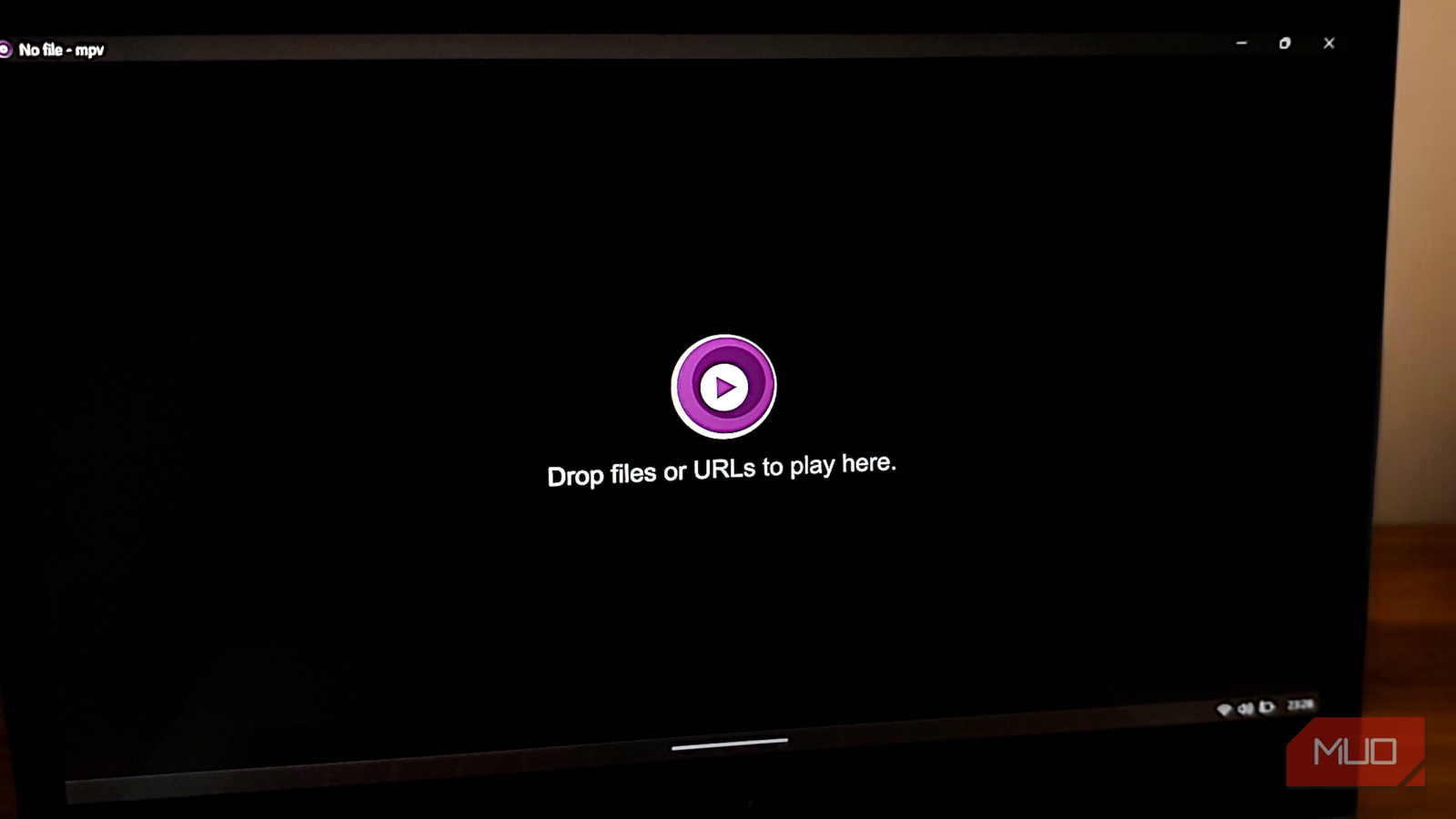
The first time you launch MPV, the difference is jarring. You might even think something is missing. There is no library sidebar, no playlist window, and no title bar cluttering the top of the screen. Instead, you are greeted by a clean, black slate with a simple logo and an invitation to “Drop files or URLs to play here“.
You can launch videos from your file manager by right-clicking and selecting MPV as your player, or open MPV first and drag files directly onto its window. If you’re comfortable in the terminal, it gets even more elegant. Type mpv followed by a file path or a link, and you’re off to the races. For example, this is what a terminal command would look like:
-
Local File:
mpv "C:UsersNameVideosmovie.mp4" -
Online URL:
mpv "YouTube link"
The player supports hundreds of streaming sites beyond YouTube —Twitch, Vimeo, Dailymotion, and countless others work well. For radio streams or podcasts, paste the stream URL. MPV treats network streams exactly like local files, with the same controls and capabilities.
Online streaming typically requires yt-dlp to be in your system path. If you installed MPV using the recommended methods, you shouldn’t have any issues.
The interface itself exemplifies a strict “Content is King” philosophy. When you start playing content, you see your video with a subtle control bar that appears when you move your mouse, offering the bare essentials like a seek bar, volume, and subtitle toggles. The moment you stop moving the mouse, the interface vanishes, leaving you with nothing but the video. This pushes you toward using keyboard navigation, which quickly becomes second nature.
Press spacebar to pause, arrow keys to seek (left/right skip 5 seconds, up/down skip 1 minute), and the number keys 9 and 0 adjust volume. Hit f for fullscreen, s to capture a screenshot, and j to cycle through available subtitle tracks. Press m to mute, [ and ] to adjust playback speed, and l to set A-B loop points. The i key reveals technical statistics about your video stream, showing codec information, bitrate, dropped frames, and rendering details.
If you want to dive deeper, learning how to use MPV on Windows will reveal that you can customize nearly every one of these keys to your liking.

I tried a command-line music player — and it made Spotify feel bloated
Here is a fast, distraction-free music experience that makes Spotify feel overwhelming
Once you taste the speed of a minimalist player, you won’t need the traffic cone anymore
VLC will always be a fantastic piece of software for troubleshooting or playing broken files on an old computer. But for your daily driver, MPV offers a cleaner, faster, and higher-fidelity experience. Getting started requires a modest investment of time to understand the basics, but the return on that investment compounds quite fast.