


VLC is undoubtedly one of the best apps ever built, not just in the media player category. Almost everyone who has used a computer has probably used VLC at some point. But if I had one complaint about VLC, it would be the interface. It feels basic and hasn’t changed in years. This is what made me look for alternatives, and that search eventually led me to Screenbox.
It’s a free and open-source app that packs the power of VLC in a modern interface. This means you still get the legendary file compatibility VLC is known for, but wrapped in an interface that looks more in line with what you’d expect from a Windows 11 app. It’s essentially the best of both worlds.
- OS
-
Windows 10 & 11
- Price model
-
Free (open-source)
Play any video or audio format smoothly with Screenbox Media Player. It offers a clean interface, fast playback, and powerful controls for all your media on the go.
Screenbox brings VLC’s power in a prettier interface
Familiar performance in a design you’ll love
Screenbox keeps everything that makes VLC legendary. It is powered by LibVLC, the very engine behind the VLC media player. That means it can handle HEVC, FLV, MKV, and other formats effortlessly. Even large 4K HDR videos play smoothly, and you don’t need to install any extra codecs. In other words, nothing changes under the hood.
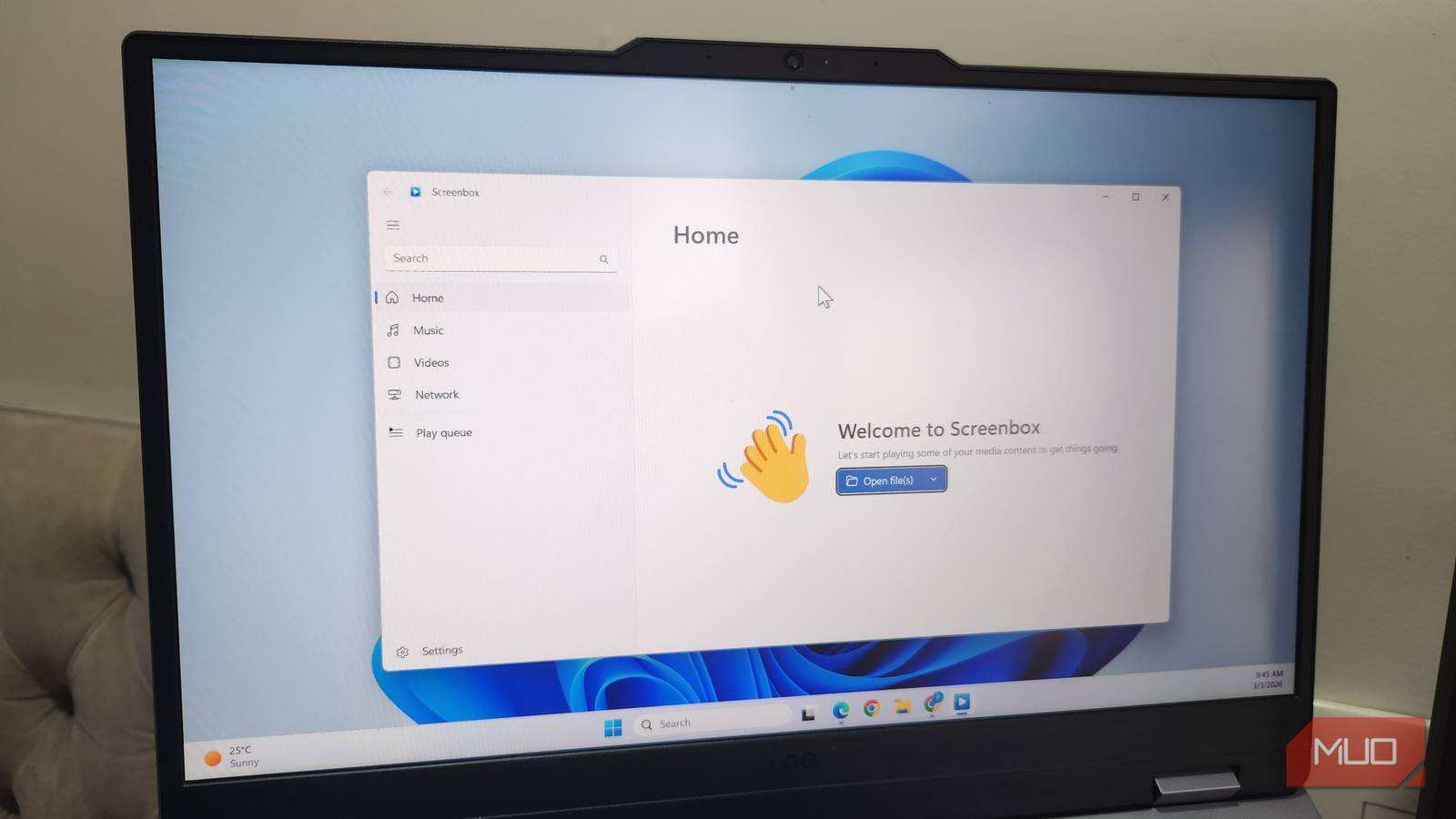
When you open Screenbox, you’re greeted with a clean interface featuring tabs on the left side along with a search box. It almost feels like an app designed by Microsoft for Windows 11, and that’s because it follows Microsoft’s Fluent Design language.
Its modern interface is even more noticeable once you play any video. The window automatically resizes to match your video’s native resolution, and the on-screen controls hide automatically so you only see the video. When you move your mouse, they glide back into view. Screenbox doesn’t have everything VLC offers, and that works in its favor. It keeps the overall interface minimal and straightforward to use.
A Home tab, a PiP mode, and audio visualizers
Features you’ll love

Screenbox also shines when it comes to everyday usability. When you open it, the Home tab is the first thing you see. This is where you see all your recently played files, so you can jump right back into whatever you were watching earlier. Head to the Music or Videos tabs on the left, and the app shows any songs or videos saved in your library. Having all these tabs accessible means, unlike VLC, you don’t have to go through menus to find what you need.
My favorite is the picture-in-picture mode. With it, your video shrinks into a small floating window that stays on top of other apps. You can keep watching your lecture or podcast while doing other things.
And if you enjoy listening to music, Screenbox adds a bit of flair there too. Instead of staring at a static album art, you’ll see dynamic visuals that move and pulse with the beat. By default, the app only has one visual, but you can download more from its GitHub page. The collection is quite cool, so you’ll surely find something you like.

This Hidden Setting in Windows Will Make Videos Play More Smoothly
Say goodbye to stuttering videos.
Volume boost, intuitive gestures, and keyboard shortcuts
Control everything, effortlessly

Again, Screenbox may not have every VLC feature, but it does have the ones we all love and actually use. And one of them is the volume boost, which lets you go beyond the standard 100% limit. Unlike VLC, though, this feature isn’t enabled by default, so you’ll need to switch it on from the settings menu.
Once enabled, Volume Boost is quite handy for videos that are too quiet. Instead of relying on other apps or tweaking audio settings, you can simply boost the volume right inside the app.
Then there are the gestures. I don’t know about you, but I love using touchpad gestures on my laptop, and Screenbox supports quite a few of them. Swiping vertically with two fingers adjusts the volume, while swiping horizontally lets you seek through the video timeline. Tapping anywhere on the touchpad plays and pauses the playback.
If you prefer using a keyboard instead, Screenbox supports the same keyboard shortcuts that YouTube uses. Spacebar plays and pauses, M mutes audio, and F enables full screen. This is a solid touch. If you’re already familiar with YouTube’s keyboard shortcuts, there’s nothing new to learn.
It’s not perfect, but that’s fine
If you are a power user who’s familiar with all the cool features VLC offers, you’ll probably notice a few missing features right away. For instance, Screenbox doesn’t have a built-in audio equalizer, so if you enjoy fine-tuning things like bass, treble, or vocals, you’ll miss that control.
It also can’t convert your video files, and lacks the basic editing tools VLC offers. One of the biggest omissions, though, is the support for streaming online videos. This can be a deal-breaker for some.
Still, you can’t deny that Screenbox is one of the best-looking media players out there. More importantly, if you only care about playing videos in a fast and beautiful media player, Screenbox hits a very sweet spot.