



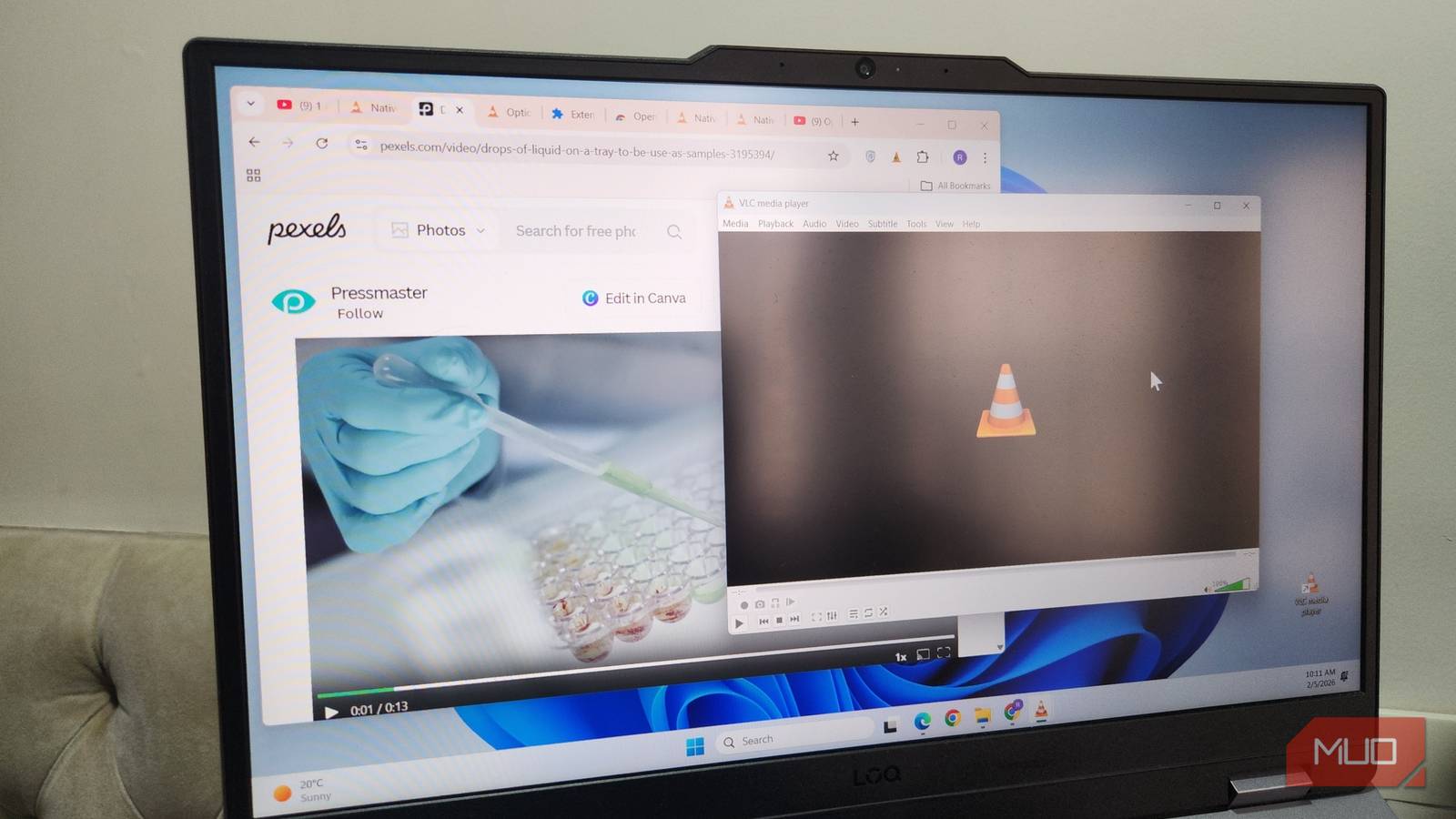
One of VLC’s best features is its ability to play online videos just as easily as local files. Yet most of us never bother to use that feature, simply because it takes far too many steps to actually move the video from your browser to VLC.
Open in VLC is a free extension that solves this problem. Once you install it, sending videos from your browser to VLC only takes a single click. That’s it. One click, and you’re all set to watch the video in a clean, distraction-free player with full control over playback.
Why I prefer watching online videos in VLC
Familiarity and a distraction-free viewing experience
Watching online videos with a browser is convenient, but that convenience comes with compromises. Switching to VLC removes many of those trade-offs.
The most obvious benefit is the distraction-free environment. Once you hand the video off to VLC, there are no annoying mid-video popups or autoplay suggestions to pull you away. The video is the only thing on screen, which lets you enjoy what you’re watching.
You also get VLC’s familiar interface where you can control the playback with on-screen controls and keyboard shortcuts you’re used to. This is especially useful on sites that use clunky custom video players with missing controls or awkward timelines. In VLC, everything works the way you expect it to.
Don’t get me wrong. I don’t open every online video in VLC. But when I’m settling in to watch something longer, like a lecture, a documentary, or a live stream, sending it to VLC feels like an upgrade.
Setting up Open in VLC extension
It only takes a couple of minutes
While VLC already lets you play online videos, the built-in method involves far too many clicks to be practical. You first need to copy the video link manually. Then, you must open VLC on your PC and head to Media > Open Network Stream. Finally, you need to paste the link and hit Play. It works, but it feels clunky. The Open in VLC extension solves this by turning all of that into a single click.
Installing Open in VLC isn’t much different from adding another to your browser. Head to the chrome web store, search for the extension, and click Add to browser. The extension won’t work right away, though. There are a couple of requirements your PC needs to meet before everything works smoothly.
The first one is obvious. You need to have a VLC media player installed on your PC. The extension simply hands video links to VLC, so the player itself needs to be available.
Next, you need to install Open in VLC’s native client, which allows your browser and VLC to talk to each other. Installing it is easy. Simply open any video in your browser and click the Open in VLC extension. It’ll then show you the steps to install the native client. Once done, click the Check Connection button to make sure everything is set up correctly.
After the initial setup, using Open in VLC is as easy as it gets. You just need to open the video in your browser and click the Open in VLC extension. For easier access, you can even pin the extension. Once you click it, it’ll open the video on your current page in VLC. And if there are multiple videos, it’ll ask you which one you want to play.

How to Watch Plex in VLC (and Why It’s Worth Doing)
As if I really needed another reason to love VLC.
More reasons to love Open in VLC

Open in VLC isn’t limited to just videos. It also works with audio. So if you come across an audio file, like a podcast, an online radio stream, or even a standalone music track, you can send that straight to VLC and listen to it there.
The extension also supports incognito mode in case you prefer to watch your videos without saving them to your browsing history. For that, right-click the extension, choose Manage Extension, and turn on Allow in Incognito.
Another handy feature is the ability to copy media links to your clipboard. If you don’t want to watch something immediately, or if the page contains multiple videos, you can right-click the Open in VLC extension and choose Copy Media Links to the Clipboard. This saves all the video links to your Windows clipboard, which is handy if you want to save the link, share it, or use it with another media player or downloader.
Finally, Open in VLC isn’t actually locked to VLC alone, and this is what surprised me the most. Besides VLC, it can also send media to PotPlayer and QMPlay2. Right-click the extension icon, go to Change Media Player, and then pick your default video app from there.
If you already love VLC, Open in VLC feels like something that should have existed all along. It removes friction from a powerful feature that most people ignore. And this is just one extension. VLC itself also supports plugins, and there are plenty of useful ones that can improve your experience.