





Streaming is supposed to be easy and fun. But if you have an Android TV or Google TV device, the home screen can make it feel like a chore before you even hit play. You turn on your TV hoping to relax, only to get bombarded by recommendations and ads. Even finding the app you want can turn into a scrolling marathon.
FLauncher is a free Android TV launcher that solves this problem. It lets you bring all my favorite streaming apps at the top in one easy section, so you can get straight to the entertainment you came for.
- OS
-
Android TV
- Price model
-
Free
FLauncher is a free Android TV launcher that solves this problem. It lets you bring all my favorite streaming apps at the top in one easy section, so you can get straight to the entertainment you came for.
The problem with the default Android TV interface
Too much noise and not enough streaming
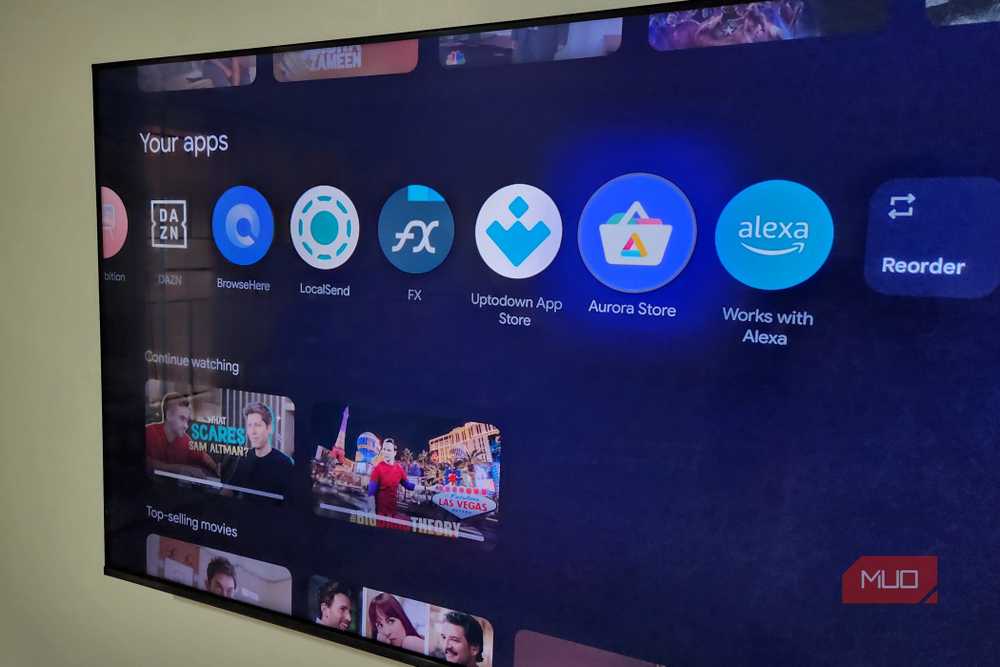
The default Google or Android TV interface can be quite overwhelming. You’re hit with trending movie trailers that autoplay before you blink, rows of content recommendations from streaming services you probably don’t even subscribe to, and of course, those giant ads that demand your attention.
Also, while the idea of surfacing new content on the home screen sounds great, it’s mostly unnecessary. That’s because every streaming app you use already studies your viewing habits and curates recommendations for you.
Another major issue with the interface is that it makes getting to your favorite apps frustratingly difficult. Since Google TV lines up all your apps in a single horizontal row, you have to move a lot just to get to the app you want.
Google TV does offer an apps-only mode, which hides all those recommendations and switches to a simple grid layout. However, this mode still shows ads, disables live TV channels, and hides Play Store, which means you can’t download apps directly.
FLauncher offers a clean browsing experience
Just your apps and nothing else

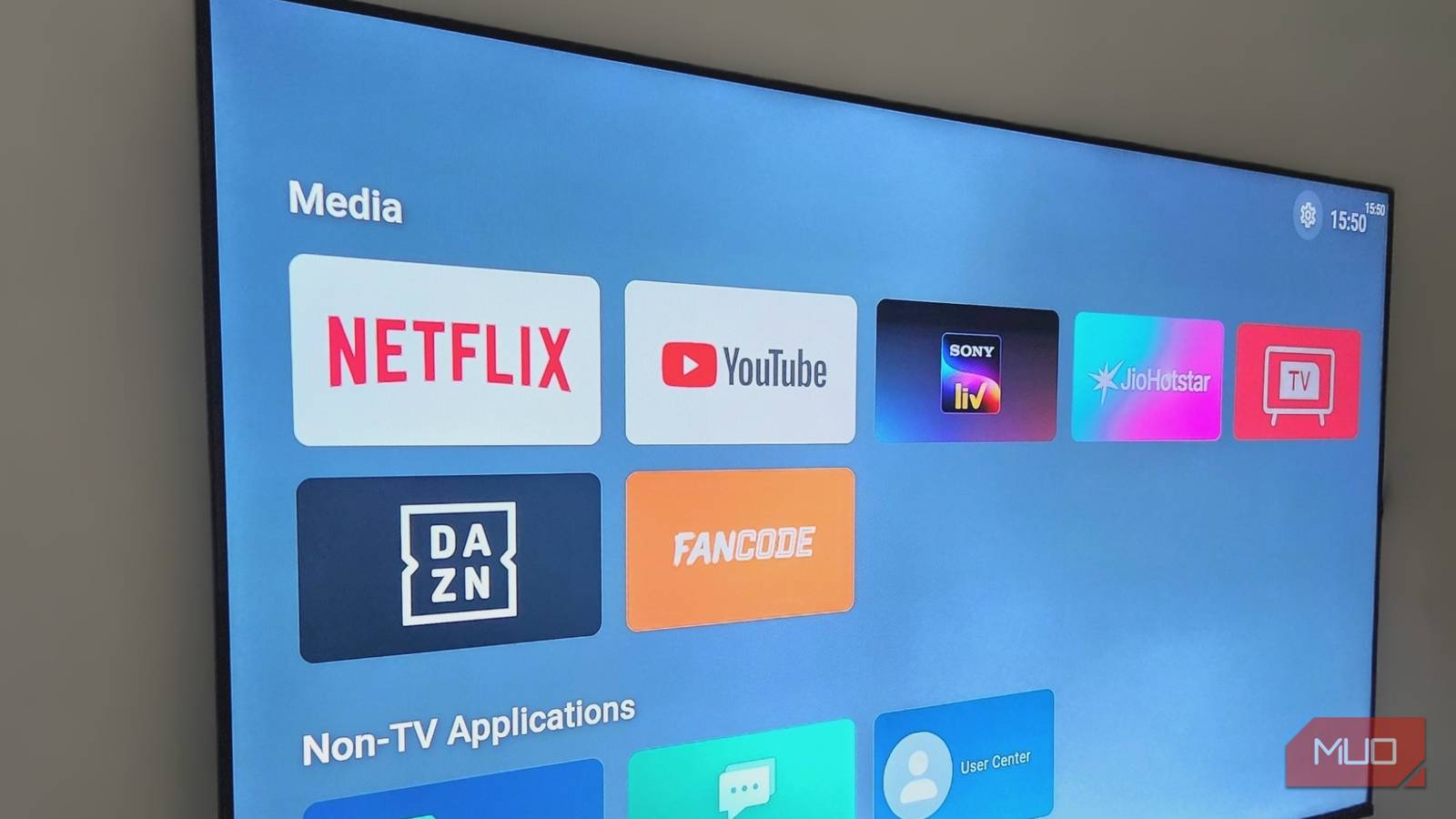
FLauncher is a free, open-source launcher that fixes some of the biggest headaches with the Google TV home screen. Once you open it, you get a clean, customizable grid showing only the apps you actually have.
FLauncher keeps things beautifully simple. It lets you organize your apps into custom categories like Movies, Live TV, or Kids, so navigation becomes effortless. Inside each category, you can arrange apps however you like. And if there are pre-installed apps that you never touch but can’t uninstall, it lets you hide them with just a couple of clicks. All of this makes getting to your favorite streaming apps incredibly easy.
Best of all, FLauncher doesn’t block anything. The Play Store remains accessible, live TV still works, and nothing gets hidden behind a mode switch. It’s just a straightforward launchpad that lets you get to the good stuff faster.
Organize apps in categories for easy access
Sort your way to a smoother watch experience
By default, FLauncher only shows two categories: TV Applications and Non-TV Applications. To create a custom one, click the gear icon in the top right corner, select Categories, and choose Add Category. Give it a name like Sports, Movies, Games, or anything you want.
Once you have created a category, you can click the gear icon next to it to customize it. Here, you can specify whether you want apps to line up alphabetically or be placed manually. You can also choose between a single row or a grid layout. Finally, the Row Height menu lets you specify the size of the app icons in this category. This is handy if you want larger icons for media apps without making everything look oversized.
You can repeat this to create as many categories as you like. Then, use the up and down arrows next to each name to arrange them as you like.
Once your categories are ready, you are all set to fill them. Head to FLauncher Settings > Applications to add apps in your category. Hit the plus icon next to the app you want to move, and pick the category you want it in.

6 Google TV features you’re not using (but should)
Your Google TV can do way more than you think.
Clean up your layout with app hiding and custom wallpapers
Style your home screen your way
Sometimes the biggest improvement comes from removing things you never use. FLauncher makes this incredibly simple. If there are apps that you never touch, you can hide them from view by long pressing them and selecting Hide. They’ll still remain installed, so nothing breaks behind the scenes, but your home screen will feel a lot cleaner and personal.
If you want to unhide an app later, you can head to FLauncher Settings > Applications and switch to the hidden apps tab. Then, select the app and choose Unhide.
Speaking of personal, FLauncher also lets you switch up your wallpaper, so your home screen doesn’t look boring. You can head to FLauncher Settings > Wallpapers to choose from the built-in gradients, pick a picture from your TV’s local storage, or even add Wallpapers directly from Unsplash.
Watching TV should feel relaxing, not like you’re wading through menus and ads just to reach your favorite app. FLauncher gives you a chance to take back control. So go ahead, simplify your TV’s home screen and get back to enjoying your favorite TV apps.