


Amazon’s Fire TV devices used to be among the better streaming sticks you could buy, partly because of the flexibility they offered under the hood. Vega OS changed most of that while making it work better on old Fire Sticks. Even so, the new operating system strips out the Android foundation that made those things possible and replaces it with something that works better for Amazon than for you.
Just Bought a Fire TV Stick? Change These Settings Immediately
These tiny tweaks can give your device a nice little performance boost.
Installing apps from other websites
Traditional sideloading is dead; stick to what you have

The biggest change with Amazon’s newest Fire TV streaming sticks is that you can’t download apps onto your stick, which is a loophole that I’ve come to rely on for over a decade.
Even the Downloader application itself, which used to download third-party installers, no longer works for that. It can still display web pages, but Vega OS blocks it from executing any download that would touch the system directory.
Fire OS ran on the Android Open Source Project, which natively supports the Android Package Kit. That lets you install third-party software, such as custom launchers or niche media players, that Amazon never carried in its own store.
With the Fire TV Stick 4K Select and the newer Fire TV Stick HD, the Install Unknown Apps toggle has been removed entirely. These devices run on Vega OS, a proprietary Linux-based operating system built on a React Native framework that doesn’t recognize Android files at all. It’s harder to replace your streaming setup with a Fire TV Stick now because of this loss.
Media centers won’t run on the new system

Tools like Kodi and Stremio made it much easier to make your streaming stick more than an ad player, and I bought a Fire TV stick specifically to make adjustments like this. With Vega OS, that’s over. Since Amazon built the new operating system from scratch on a Linux foundation rather than on the Android Open Source Project, the underlying architecture that those applications depend on no longer exists.
Kodi is probably the biggest casualty of this shift. It was built for the Android runtime, so getting it to work on Vega OS would require developers to rewrite it from the ground up to fit the React Native environment.
On top of that, Vega has iffy support for local network access and USB playback, which are two things a media center like Kodi can’t really function without. Vega focuses more on running things in the cloud than running apps. Stremio users are in the same position.
Even though Stremio recently landed an official application in the Fire OS store, that build is Android-based and doesn’t run on Vega devices like the Fire TV Stick 4K Select. SmartTube Next is also completely blocked, since it relies on Java and Kotlin APIs that Vega OS doesn’t support.
Using the browser like a real browser
Browsers are only for passive viewing
You used to be able to use the built-in web browser or third-party browsing apps to download files directly from the internet for local storage or installation. Sometimes, it would be much easier than the regular way. On older Android-based Fire OS devices, getting to a website and downloading an APK file to the local file system was a quick trick that gave you a lot of flexibility. With Vega OS, that’s gone.
Amazon rebuilt how web browsers interact with the hardware, and browsers can no longer touch the device’s local file system. Whether you use Amazon’s own Silk browser or the Downloader app, you can no longer grab files from the web to store or install locally.
Sure, it is dangerous to download files from the internet, but you can’t even get pictures for your backgrounds anymore. You are more of a passive internet user than anything else.
The full-screen app grid is gone
Amazon quietly replaced the grid with a billboard

The grid showed you everything you had installed, laid out in one place. I still liked Roku’s version better, but I absolutely hate where this went. You used to be able to see dozens of apps at a glance, scroll through them without thinking too hard, and get to what you wanted in a few seconds.
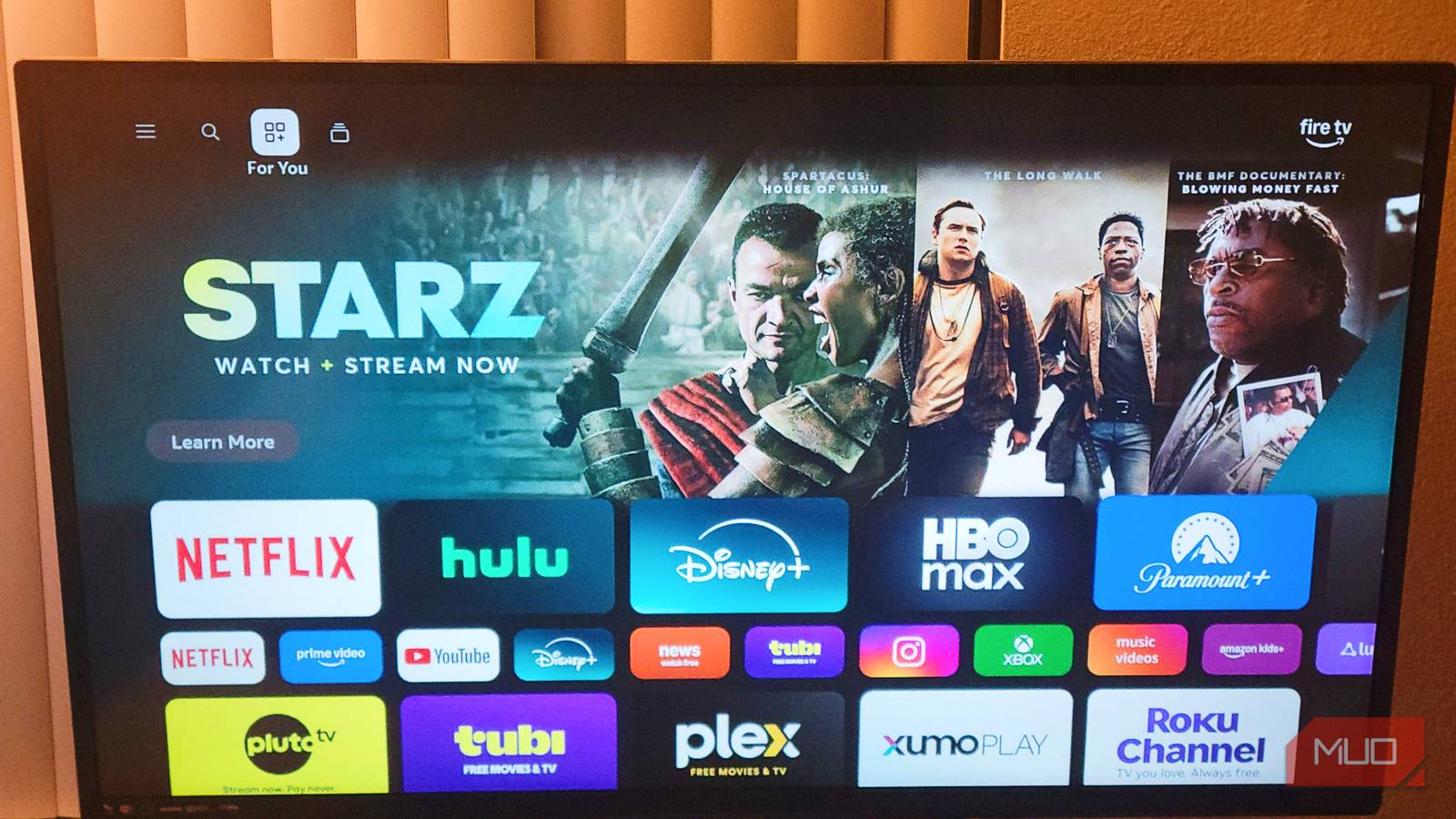
Now you have a row on the home screen that you have to scroll horizontally through like ticker tape. The rest feels like a bunch of advertisements. There are content recommendations, sponsored rows, and Amazon’s own picks just to find the thing you actually opened the remote to use.
I noticed this immediately when I turned on the device after the change. It really feels like a billboard that happens to have your most-used apps and shows. A home screen should put your content first, not Amazon’s.
Hiding the application grid behind a horizontal scroll row is insulting and makes me feel like Amazon prioritizes its own gains through ads more than my own comfort.
Hiding apps from your library
Your app list is no longer yours to manage

Amazon used to give you a simple way to clean up your interface without having to uninstall anything. If you had a pre-installed application you never touched, like Amazon Kids or Freevee, you could highlight it, press the Menu button on your remote, and hide it.
The icon would disappear from your list while the application stayed on the device. It wasn’t a necessity, but it’s a noticeable loss. If you press the Menu button on an application now, you’ll see options like More Info and sometimes Move, but rarely Uninstall. Even with those limited options, the Hide option is completely gone.
Since you can’t hide system applications and can’t uninstall them, icons for apps like Freevee, Amazon Music, Amazon Kids, and Live Shopping are permanently stuck in your app list, whether you want them there or not.
That’s the biggest issue I see with this. Basically, Amazon is forcing us to accept being advertised to without any real consent. It gets worse if you have multiple profiles on one device. Before this change, you could at least keep certain applications out of a child’s view. Now, every installed application appears to every user on that device, with no way to separate what each profile sees in the main library.
Don’t buy into an ad stick
All of these changes follow the same pattern. Sideloading is gone, media centers no longer run, browsers can’t save files, the app grid has been replaced with a scrollable row full of recommendations, and you can no longer hide apps you didn’t ask for. Each change on its own might seem minor, but together they add up to a device that feels a lot more like a storefront than a streaming stick. If you bought a Fire TV because of what it lets you do, the newer Vega OS hardware is worth avoiding until Amazon gives users back some of what they took away.

- Brand
-
Amazon
- Dimensions
-
99 mm x 30 mm x 14 mm
The Amazon Fire TV Stick 4K Max is a compact streaming device that plugs directly into your TV’s HDMI port, delivering fast, responsive 4K Ultra HD streaming with support for Dolby Vision, HDR10+, and Dolby Atmos. Powered by Wi-Fi 6 and Alexa Voice Remote, it offers smooth performance and hands-free control.