



It’s quite a little baffling that in 2026, Windows still doesn’t come with a proper, system-wide equalizer. While you might stumble across some bare-bones sliders hiding in apps like Realtek Audio Console, those are hit-or-miss, wildly dependent on your hardware, and may even vanish after major updates.
So many people have no other option but to live with it. Weak bass. Ear-fatiguing treble. Mids that sound like they’re trapped in a cardboard box. Not because they want to, but because they don’t realize there’s a better option. That’s where Equalizer APO, paired with the Peace GUI, comes in. It’s free, open-source, and frequently tops the list of the best Windows sound equalizers because it grants you, as a Windows user, the granular audio control you deserve.
- OS
-
Windows
- Developer
-
Jonas Thedering
- Price model
-
Free (open-source)
Take full control of your PC audio with Equalizer APO. Customize sound with a powerful system-wide equalizer for crisp, balanced, and immersive listening.
Why Windows audio needs Equalizer APO
And how Peace makes it effortless

Equalizer APO hooks into Windows at the system level as an Audio Processing Object (APO), which basically means it grabs your audio before it ever reaches your headphones or speakers. As a result, any adjustments you make apply everywhere. YouTube videos, games, video calls, system sounds, all of it. This is very different from the equalizers baked into apps like Spotify or VLC, where tweaks are locked inside a single app.
With it, you can implement various filter types, including peak, high/low shelf, bandpass, and notch filters, enabling precise frequency manipulation that rivals professional audio software. You’re not constrained to presets or limited bands, as Equalizer APO supports unlimited virtual filters with almost zero latency.
Now, here’s where Peace earns its place. On its own, Equalizer APO relies heavily on text-based configuration files. Powerful, yes, but also intimidating. Peace Equalizer, created by Peter Verbeek (peverbeek), adds a clean graphical interface that removes that friction.
The combo of these two apps gets you near-professional audio control without a studio background. Fifteen minutes of setup, and you’ve basically turned Windows into a high-end sound studio.

Windows 11 is ‘enhancing’ your audio, and you should probably turn it off
Audio enhancements in Windows 11 can cause a variety of issues, from audio delays to worse sound quality. It’s time to turn them off.
Setting up your audio liberation
The step-by-step guide to performing open-heart surgery on your PC sound
Getting started requires installing both programs, with Equalizer APO forming the foundation. Begin by downloading Equalizer APO from its official SourceForge page. The latest version as of the time of writing (1.4.2, released November 2025) includes dark mode support, improved Windows 11 compatibility, and enhanced Bluetooth device troubleshooting. During installation, you’ll select which audio devices should use the equalizer — typically your primary speakers or headphones. A system restart completes the process.
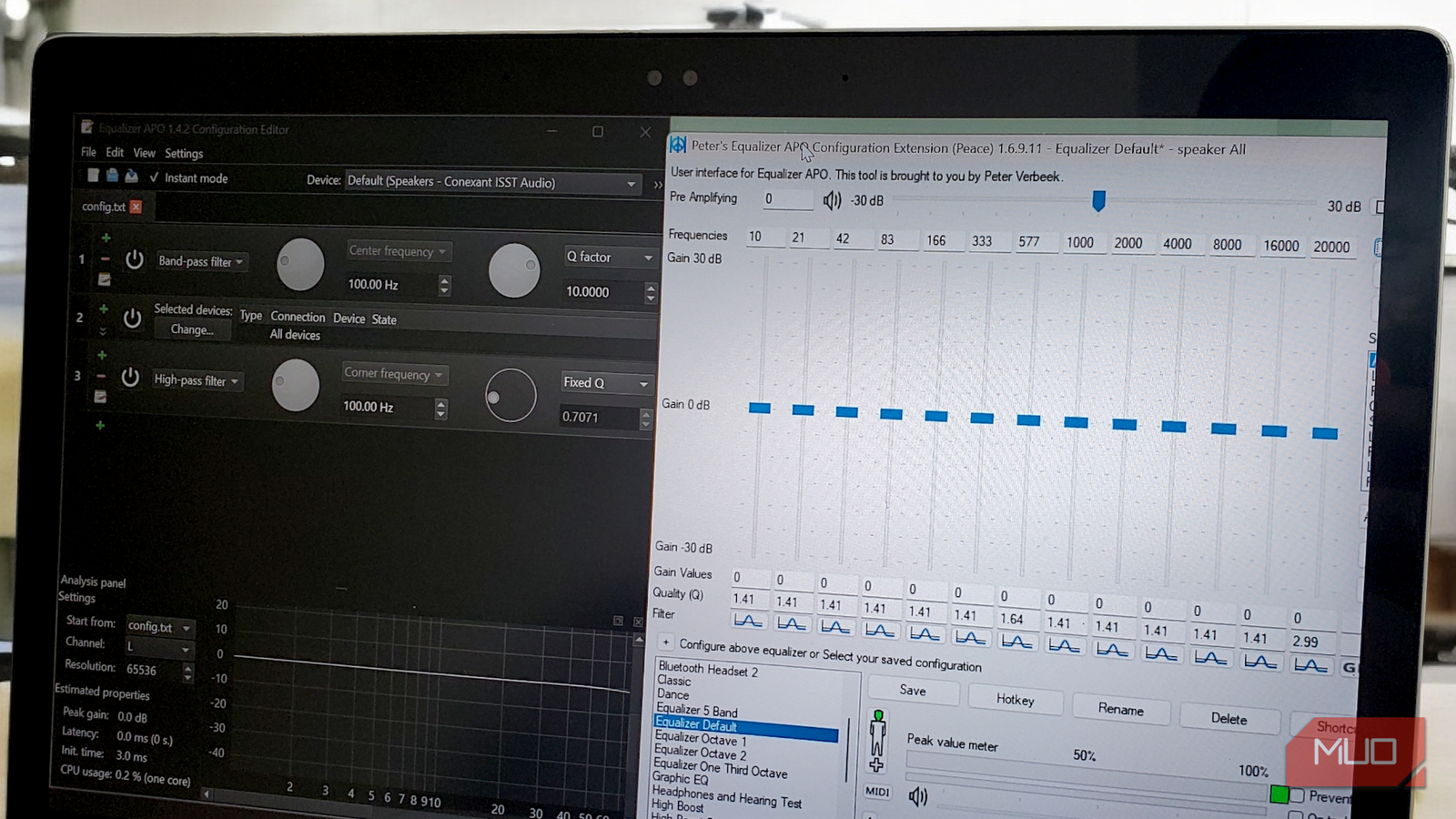
After restarting, Equalizer APO is technically functional, though you may find its native interface daunting. As I mentioned earlier, the program operates primarily through text-based configuration files. You can open the Configuration Editor to see cascading filter commands, frequency values, and gain adjustments presented as raw code. While audiophiles might appreciate this granular control, it demands familiarity with audio engineering terminology and mathematical precision. You could manually type “Filter: ON PK Fc 1000 Hz Gain 3 dB Q 1.41” to boost midrange frequencies, but one typo renders the entire filter useless. This is exactly why you would want to install Peace.
Next, download Peace Equalizer from SourceForge, and be careful here, since the developer has warned that many lookalike sites are scams often disguised as fake download buttons. Peace can be run as a portable app by extracting the folder and launching the executable, or installed system-wide using the setup file. When you open Peace for the first time, it will ask you to point it to your Equalizer APO configuration file. This usually lives in the default Equalizer APO config folder inside Program Files (C:Program FilesEqualizerAPOconfig). If you encounter an error stating “config.txt wasn’t found,” Equalizer APO likely isn’t installed correctly, or you need to run the Device Selector again to enable it on your audio device.

- OS
-
Windows
- Developer
-
peverbeek
- Price model
-
Free
Fine-tune your PC audio easily with Peace Equalizer. It adds a friendly interface to Equalizer APO, making advanced sound customization simple and precise.
You can now tweak your sound to your liking
As long as you understand the interface
Once configured, you will find that Peace’s interface has a great depth without being overwhelming. The main window displays frequency sliders spanning 10 Hz to 20,000 Hz, a pre-amplifier control to prevent clipping, and a configuration dropdown to switch between audio profiles. The interface operates in real time. Whenever you drag a slider, you hear the change immediately, without having to save or apply settings.
The first and most important feature is the AutoEQ button, which is small and easy to miss, located near the bottom right of the main dashboard. Clicking that button opens the AutoEQ interface, which is essentially a cheat code for making your music sound Hi-Res. It connects you to a massive open-source database of headphone measurements curated by Jaakko Pasanen. You don’t need to know what a “parametric equalizer” is; you just need to type your headphone model into the search bar — for example, a specific model like “Sennheiser”.
Once you select your model from the list, you will see a complex list of filters populating on the right side of the window. These are mathematical corrections designed to flatten the specific peaks and dips inherent to your hardware, aligning them with the Harman Target, widely considered the gold standard for balanced sound. All you have to do is click the Use button, and the muddiness in the bass clears up while the piercing treble is smoothed out.
If you want to get more hands-on and customize the physics of your sound, you should click the Effects button on the main screen to open the Effects panel. This is where you can solve real-world listening fatigue. For instance, if you listen to older music with extreme stereo separation — think of tracks where the drums are 100% in the left ear and the vocals are 100% in the right ear — it can be dizzying on headphones. You can fix this by turning the Crossfeed channels knob. This effect bleeds a tiny amount of the left channel into the right ear, and vice versa, mimicking how speakers naturally interact with a room, making long listening sessions much more comfortable.
This panel is also where you can make broad adjustments without messing up your detailed EQ curve. If you are watching a movie and want the explosions to rattle your skull, you don’t need to mess with the frequency sliders; just crank the Bass gain knob in the Effects panel. However, you have to be careful with power. If you boost the bass significantly, keep an eye on the Pre Amplifying slider at thetop of the main window. If that peak meter starts hitting red, you are digitally clipping the audio, which sounds terrible. The fix is to dial the pre-amp slider down into the negatives (like -5 dB) to create headroom for your new bass boost.
Once everything is done (selecting presets and adjusting the sliders or knobs to your liking), you will obviously want to save your hard work. On the main dashboard, located centrally below the sliders, there is a dedicated Save button. Clicking this lets you give your configuration a descriptive name. Peace stores these as .peace files in the Equalizer APO config folder and generates all the text-based commands Equalizer APO needs to function. You never have to look at the math unless you want to.
Once you hear the difference, you can never go back
The combination of Equalizer APO and Peace is probably one of Windows’ best-kept audio secrets. While commercial alternatives like Boom 3D offer slicker interfaces, nothing matches the unfettered control this free pairing provides.