


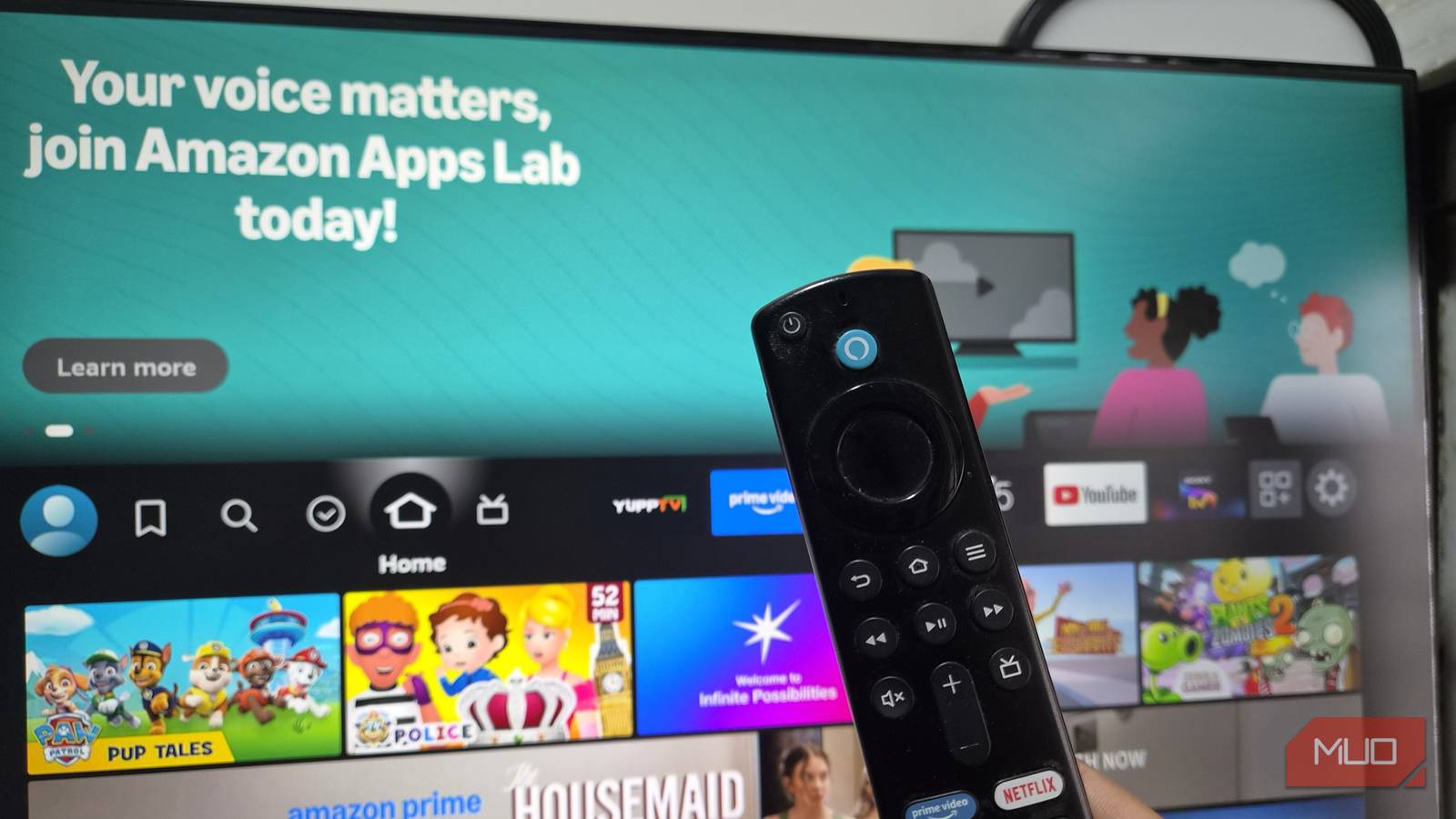
Streaming video isn’t supposed to be a frustrating process — until it is.
For months, I blamed several culprits, including my ISP, my router placement, my video service, and even the weather outside. Additionally, I restarted the router more times than I can count, moved the useful Fire TV Stick around the cabinet, and canceled and re-subscribed to Prime Video to see if it made a difference. None of it did.
My Fire TV Stick 4K would play fine for the first 10 minutes of a show, then the dreaded spinning wheel would appear right when things got good, usually at the least opportune moment. I’d pause, wait, unpause, and watch it happen again ten minutes later. Eventually, I stopped trusting the stick for anything I actually cared about watching.
Turns out the fix was a cheap, five-minute setup, and it had nothing to do with any of the things I’d spent months blaming.
Why your Fire TV Stick buffers in 4K even with fast internet
Wi-Fi speed tests don’t tell the whole story
I run a 300 Mbps connection at home, which should be more than enough for 4K streaming. Netflix recommends 25 Mbps for 4K content, and Amazon’s own guidance for Prime Video is similar. On paper, I had ten times the bandwidth I needed.
But raw router speed doesn’t always translate to speed on your TV. My Fire TV Stick sits in a media cabinet in the living room, two rooms away from my router. Between the walls, the microwave, my neighbor’s Wi-Fi network, and every other device competing for the same 2.4GHz and 5GHz bands, the signal reaching the stick was nowhere near what my modem was putting out.
I ran a speed test directly on the Fire TV Stick using a network testing app, several times in a row, and the pattern told the real story. It wasn’t that my speeds were consistently too low. It’s that they swung wildly from one test to the next: 150 Mbps the first time, just 60 Mbps the next, 280 Mbps another time. You won’t catch those erratic drops on a single speed test, but they are exactly what triggers that mid-scene spinning wheel.
- Brand
-
Amazon
- Operating System
-
Fire OS
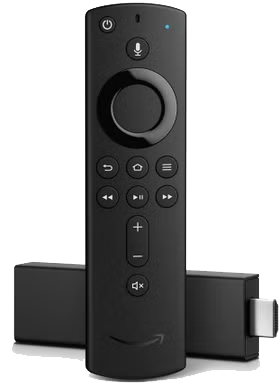
A compact, affordable 4K streaming stick that turns any HDMI TV into a voice-controlled smart hub.
How to set up the Fire TV Stick Ethernet adapter
Setup takes about five minutes

The Fire TV Stick doesn’t have a built-in Ethernet port, which makes sense given how small it is. But Amazon sells an official Ethernet adapter that plugs into the stick’s micro-USB power port, letting you run a wired connection while still powering the device through the same cable.
Setup took about five minutes:
- Plug the Ethernet adapter into the Fire TV Stick’s micro-USB port.
- Connect an Ethernet cable from the adapter to your router or a nearby switch.
- Plug the included USB power cable into the adapter and into the wall outlet.
- Go to Settings -> Network on your Fire TV, then select the wired connection.
Once connected, the Fire TV automatically recognized the wired network, and I didn’t have to change anything else in the settings.
Does a wired Fire TV Stick connection actually stop buffering
Who does this fix work for

Here’s the part that surprised me: the wired connection wasn’t necessarily faster on paper. Running the same speed test five times in a row over Ethernet, the numbers barely moved: consistently 90 to 95 Mbps every single time. Compare that to the swings I was seeing on Wi-Fi, and the difference isn’t about top speed at all. It’s about consistency — in fact, Amazon caps this adapter’s maximum speed at 100 Mbps.
But that steady floor is what actually killed the buffering. I played the same episode I’d struggled with before during the same peak evening hours, and it played straight through for a full 30 minutes without a single buffering wheel, compared to four interruptions over the same stretch on Wi-Fi.
Wi-Fi is inherently prone to interference. Every time your microwave runs, a neighbor logs onto their network, or another device in your house spikes in data usage, your Wi-Fi signal takes a microscopic hit. A speed test might look fine on average, but those split-second drops force the Fire TV Stick to pause and catch its breath. With a wire, there’s no competing for airspace. It just stays steady.
Who does this fix work for
This won’t help everyone. If your Fire TV Stick is nowhere near your router and running an Ethernet cable isn’t practical, a mesh Wi-Fi system or a Wi-Fi extender near the TV might be a better option. But if you can run a cable, even a longer one tucked along a baseboard, it’s the most reliable way to get the rock-solid connection that 4K streaming demands.
Before you spend money on a mesh router system or call your internet provider to upgrade your plan, it’s worth ruling out the simplest explanation first. In my case, the problem was never my internet. It was the last ten feet between my router and my TV.