


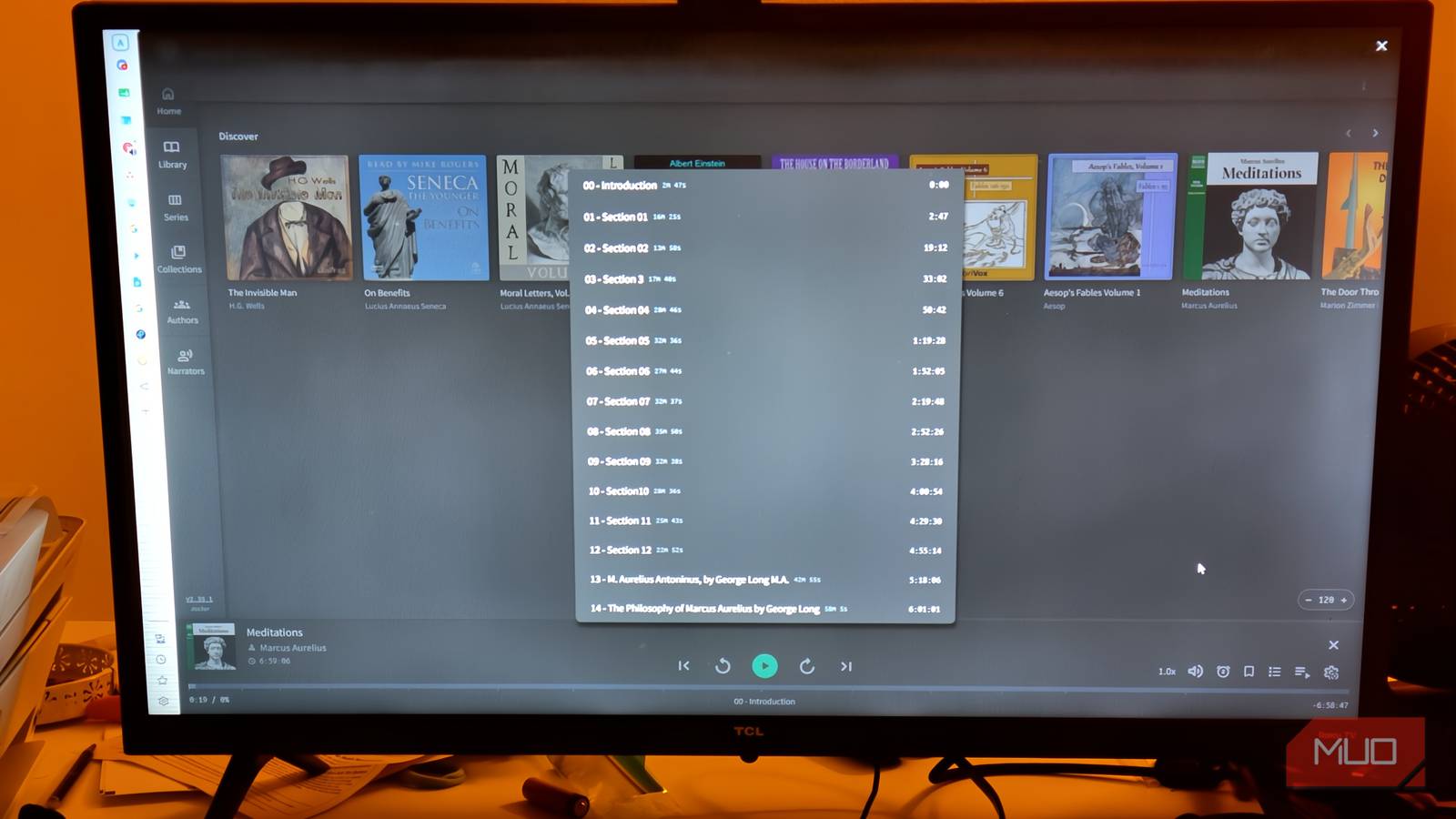
Most people assume their existing media server can handle audiobooks the same way it handles music. Since the files are audio, the app has a library view, and everything seems fine right up until you try to actually listen. Unfortunately, if a server is not built for audiobooks, it tends not to handle them well. It’s hard to find a good Audible alternative, but one exists that I love.
I get full-length audiobooks for free legally — here’s the site I use
I found the most generous corner of the internet for book lovers.
Plex doesn’t really know what a chapter is
When you start building a digital library at home legally, Plex is usually the first thing people try. It’s very easy to get into, but it’s not that good with audiobooks. The problem is that Plex, like most media servers, was built around music and similar media. Everything gets sorted into Artist, Album, and Track, which makes sense for songs but falls apart completely for a 12-hour audiobook (free or paid) split across 40 chapter files.
I absolutely love audiobooks; they are so much easier to digest than a regular book. The Plex scanner doesn’t really know what to do with them, though. The playback experience is missing everything that makes listening to spoken words actually comfortable. It doesn’t have features like fine-tuned speed control, silence skipping, or an easy-to-reset sleep timer.
These are things that an audiobook player should focus on. The bigger headache, though, is resuming where you left off. Music players are built to remember which track you were on, not the exact second within a three-hour file.
So when you come back to an audiobook, there’s a good chance it dumps you back at the beginning. That is one of my biggest gripes with Plex, and it is the bare minimum for any audiobook player. People work around this by bolting on third-party apps like Prologue or Plappa to handle playback on the frontend, but the server underneath still doesn’t understand what a book actually is, so you’re just papering over the cracks.
Audiobookshelf was built to fix exactly this. Instead of cramming books into a music-shaped box, it treats the book as its own thing from the ground up. So you have your chapters, narrators, and series information all stored properly as related pieces of the same object.
This matters a lot when it comes to multi-file audiobooks. When Audiobookshelf scans a book split across multiple individual MP3s, it measures the duration of each file, stacks them into a single continuous timeline, and presents the whole thing as one smooth listening experience. There’s also a built-in tool that lets you permanently merge those separate files into a single M4B with all the metadata baked in, right from the web interface.
Audiobookshelf was clearly made for audiobooks
It was built for this from day one

Audiobookshelf is one of the few apps that looks like a library when dealing with audiobooks. Most media servers treat audiobooks like an afterthought; this one pulls in metadata, author info, and cover art automatically, sorting everything into series and collections without you having to lift a finger.
When you drop a new book into your folder, it scans the directory structure, filenames, and any embedded tags. If those don’t provide enough information, it reaches out to sources such as Audible, Google Books, iTunes, Audnexus, and Open Library to fill in the gaps. So you’re going to get narrators, publication years, cover images, and genre tags, all without much effort.
It also recognizes that books belong to a series and keeps them in the correct order, so you don’t have to build playlists manually. If you get something slightly wrong, you can fix it right from the web interface, whether that’s matching a title by hand or correcting chapter markers.
The whole thing runs on surprisingly low-end hardware. Audiobookshelf is fully self-hosted, meaning your files stay on your own machine, and you’re not handing anything off to a cloud service. It runs through Docker, which keeps the setup clean without any complicated installs or software piling up on your host system.
You just point it at your folders, map your volumes for config files and your audiobook directories, and Docker handles the rest. It’s light enough to run on a Raspberry Pi 3, an old laptop, or a cheap mini PC sitting in a closet somewhere. My $200 computer runs like a dream.
Where it really earns its place, though, is on your phone. The Android and iOS apps are built specifically for listening, so you get things like sleep timers, adjustable playback speed, silence skipping, and volume boosting right out of the box. You can download books to your device and listen to them offline on a commute, a road trip, or a flight, with no connection needed. Any progress you make offline gets cached locally and synced back to your server the moment you’re back on Wi-Fi or cell service.
Getting it running when you’ve never self-hosted before
Docker looks intimidating, but this is a one-time hurdle

If you’re used to just downloading an installer and clicking through a setup wizard, getting Audiobookshelf up and running can feel like a lot at first. It doesn’t come packaged as a typical application. Get comfortable with Docker and write a configuration file called docker-compose.yml.
That sounds scarier than it is. Specifically, you need to correctly map folders on your actual computer to folders inside the container, so your media and database don’t disappear every time the container restarts. Getting the paths right, like /config, /metadata, and /audiobooks, is all you’re really doing.
On top of that, you’ll need to set a couple of environment variables, PUID and PGID, which tell the container which user on your system it should run as. Skip that step, and you’ll likely run into permission errors when the server tries to read or write your files.
That said, none of this is as bad as it sounds. It’s a one-time setup, and there’s no shortage of guides, documentation, and real-world config examples out there to walk you through it. Once the container is running and your ports are set up, the rest of the experience is genuinely easy.
You log in for the first time, create an admin account, head into settings, point the software at your audiobook and podcast folders, and that’s pretty much it. The built-in scanner takes it from there: it scans your directories, pulls metadata from your files’ ID3 tags, and automatically grabs covers, descriptions, and narrator info from online sources. You barely have to touch anything.
Get Audiobookshelf as soon as possible
The Docker setup is the one honest barrier here. If you’ve never touched a compose file or mapped a volume before, expect to spend an hour or two getting your head around it. However, if you do push through that initial hurdle, what you get on the other side is worth it.