


I’ve mostly lived in the Apple ecosystem, so CarPlay has always been my default in the car. My iPhone connects instantly. Everything looks familiar, and I don’t have to think much about it. It’s quite comfortable for me. But because my partner uses an Android phone, there are days when Android Auto ends up taking over the dashboard instead. That’s exactly where my mixed feelings began.
The older version of Android Auto never fully won me over. It wasn’t bad, but it didn’t feel polished or particularly cohesive. The layout felt slightly weird, and the experience wasn’t as fluid as CarPlay. It worked reliably, but it lacked that smoothness. I used it when I had to, not because I was excited to. Still, over time, I realized I was being a bit unfair. Android Auto had strengths that were hard to ignore. In certain areas, especially multitasking, it actually felt more practical than CarPlay. While the interface wasn’t its strongest point, the features themselves were smart and useful. Now, though, the balance has shifted.
The updated Android Auto feels far more refined and cohesive. The design is cleaner, better organized, and much easier to glance at while driving. After using it consistently for a while, I no longer feel the initial resistance. It finally feels polished enough to match its functionality, and for the first time, it’s something I’m comfortable using.
3 reasons why I’ll never use Wireless Android Auto again
I’ll take wired Android Auto over wireless any day.
What truly makes it better
A glow-up your car screen desperately needed

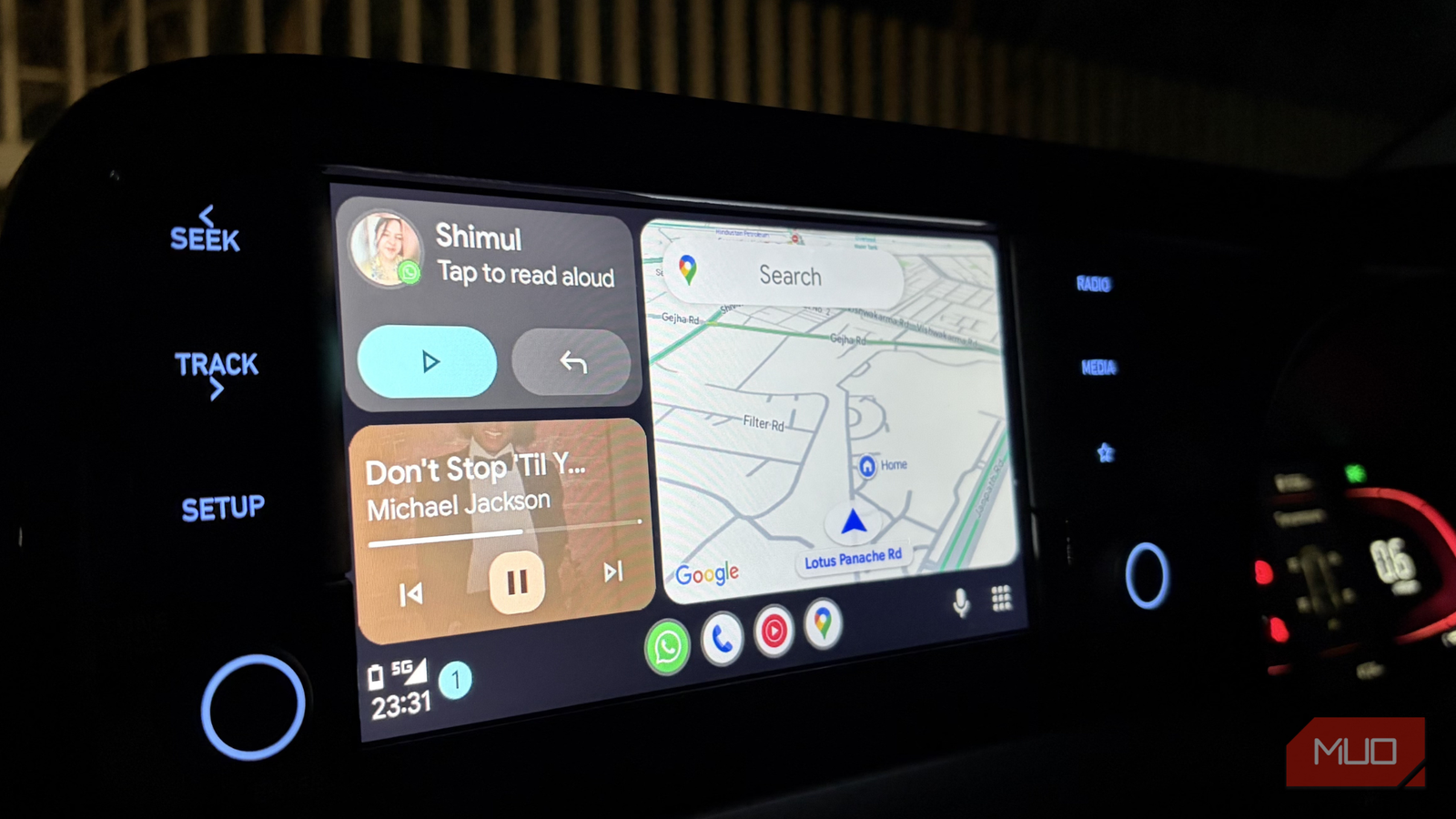
The new UI resembles the simplicity and structure of CarPlay. The layout feels more balanced; the transitions are smoother, and everything is easier to glance at while driving, which is the whole point. It doesn’t feel chaotic anymore. Instead, it feels streamlined and modern. What I appreciate most about the new layout is how intelligently the screen is used. Google Maps now takes up the larger portion of the display, which makes complete sense because navigation is the one thing you’re constantly glancing at while driving. Directions are clearer, the maps feel far more prominent, and you’re not squinting at a tiny window trying to figure out your next turn.
The remaining space isn’t wasted either. It’s neatly split between your music app and messaging notifications, like WhatsApp or whatever app you use. So, while maps stay front and center, you can still see what’s playing or quickly catch incoming messages without switching screens. It feels practical and well-thought-out.
Interestingly, everything has its place. Nothing feels cramped, and nothing feels hidden. More importantly, the screen finally feels purposeful. When I look at my dashboard, I want it to handle navigation, music and communication all at once without making me jump between menus. That’s exactly what the new UI manages to do.
If the older version leaned heavily on functionality and ignored visual polish, this update strikes a much better balance. It not only works well but also looks clean and modern. And that combination makes a bigger difference than I expected.
A quick way to verify your Android Auto version
A much-needed pit stop for your software


There’s a good chance your Android Auto is already updated, and you haven’t noticed. Updates often happen quietly in the background, so it’s easy to miss. On the other hand, automatic updates might be turned off on your phone, which means you could be running an older version without realizing it. Instead of assuming either way, it’s better to quickly check and be sure. Here’s the easiest way to do that.
Start by opening the Google Play Store on your Android phone. Tap the search bar at the top and type Android Auto. Once you open the app’s listing page, look at the main button displayed. If the button says Update, it means a newer version is available, and you haven’t installed it yet. In that case, just tap Update and let it download. It usually takes only a minute or two, depending on your internet speed.
If the button says Open or Uninstall, that means you’re already running the latest version available on the Play Store. There’s nothing more you need to do. This ensures you’re getting the newest features, improvements, and fixes. This is especially useful if you’re expecting a redesigned interface or any recent changes.

These 4 quick Android Auto games make every wait bearable
Waiting at a charger or drive-in? These quick Android Auto games make time fly effortlessly.
The screen finally looks as good as it works
Android Auto has always been strong where it truly matters: functionality. The range of supported apps and how they integrate with the car’s screen is impressive. For example, I use an app on Android Auto to track and manage my car expenses, and it keeps everything neatly organized. So, in those terms, Android Auto has never disappointed me.
Where it used to fall short was in how everything looked and felt. The design didn’t quite match the capability. With the new update, that gap has finally been addressed. So, if I’m being honest, if I were given the choice today, I wouldn’t hesitate to use Android Auto. It now combines strong features with a design that feels just as good to use.