






I’ve really gotten into running LLMs locally lately, and after seeing all the cool things you can with MCP tools, I figured it was time to upgrade my own setup a bit.
I initially jumped on the hype train when DeepSeek R1 launched, but since then, a ton of new models have come out. With how quickly everything is changing, I thought it only made sense to refine my workflow as well.
LM Studio is the best local LLM app I’ve used (yet)
Ollama is good, but I like this better
I first started experimenting with local LLMs last year using Ollama. It worked well enough, but my poor MacBook Air with just 8GB of unified memory definitely wasn’t built to handle that kind of workload. I still wanted to try something different, partly out of curiosity and partly to see if I could squeeze out more performance.
That’s why I decided to give LM Studio a shot. It’s an app that lets you download and run LLMs locally on your machine, and has a clean UI to go along with it too. Since I am on a Mac, MLX support for me was a big deal. If you’re unfamiliar, MLX is Apple’s machine learning framework designed specifically for Apple silicon.
It essentially allows models to run more efficiently using the GPU. But still, I wanted to put these words into numbers, so I compared Ollama to LMStudio head-to-head, with the same model.
I was getting higher tokens per second with LM Studio, but the difference was small enough that it didn’t really change the overall experience. Still, I’ll take any extra performance I can get.
That said, I don’t think it makes a huge difference whether you choose Ollama or LM Studio, especially since both rely on similar underlying frameworks to run models locally.
My main complaint when I first started was the lack of multimodal support. But that’s no longer really an issue. Both Ollama and LM Studio now support multimodal models, and there are a few solid options out there that can handle text and images surprisingly well on local hardware.

I now use this offline AI assistant instead of cloud chatbots
Even with cloud-based chatbots, I’ll always use this offline AI assistant I found.
Choosing the right model can be a bit tricky
It can be an expensive hobby

When you first install LM Studio, the very first thing you’ll need to do is pick a model. That can feel a bit overwhelming if you’re new to this, because there isn’t a clear-cut “just use this one” answer. The right choice really depends on your hardware.
If you open the Model Search menu in LM Studio, you’ll see a list of the most popular models. A simple way to understand how demanding a model will be is to look at the number right before the “B” in its name.
That “B” stands for billions of parameters. In general, the higher that number, the more capable the model tends to be. This also means it will require more resources. On a Mac with 8GB of Unified Memory, I feel like anywhere from 3 to 4B parameters is the sweet spot. Things can get a little more confusing on a PC. Instead of regular system RAM, the amount of VRAM you have matters more.
If you have 8GB of VRAM, you can comfortably experiment with 7B parameter models, especially in lighter quantizations. In my experience, the best approach is to start with a smaller model and gradually move up until you find the sweet spot.
Personally, I have gravitated more towards the Gemma 3 4B model, which is built on the same foundation as Google’s Gemini models. That said, I would still recommend trying the Qwen models as well. Depending on what you’re doing, they might be much better for you.
You can even add web search to your local LLM
DuckDuckGo comes to the rescue

One of the biggest complaints I’ve seen about local LLMs is how limited they can feel compared to cloud ones like ChatGPT when it comes to web search. It’s not very helpful if you ask about the latest iPhone, and the LLM starts yapping about the iPhone 14. That’s one area where cloud models have usually had the upper hand.
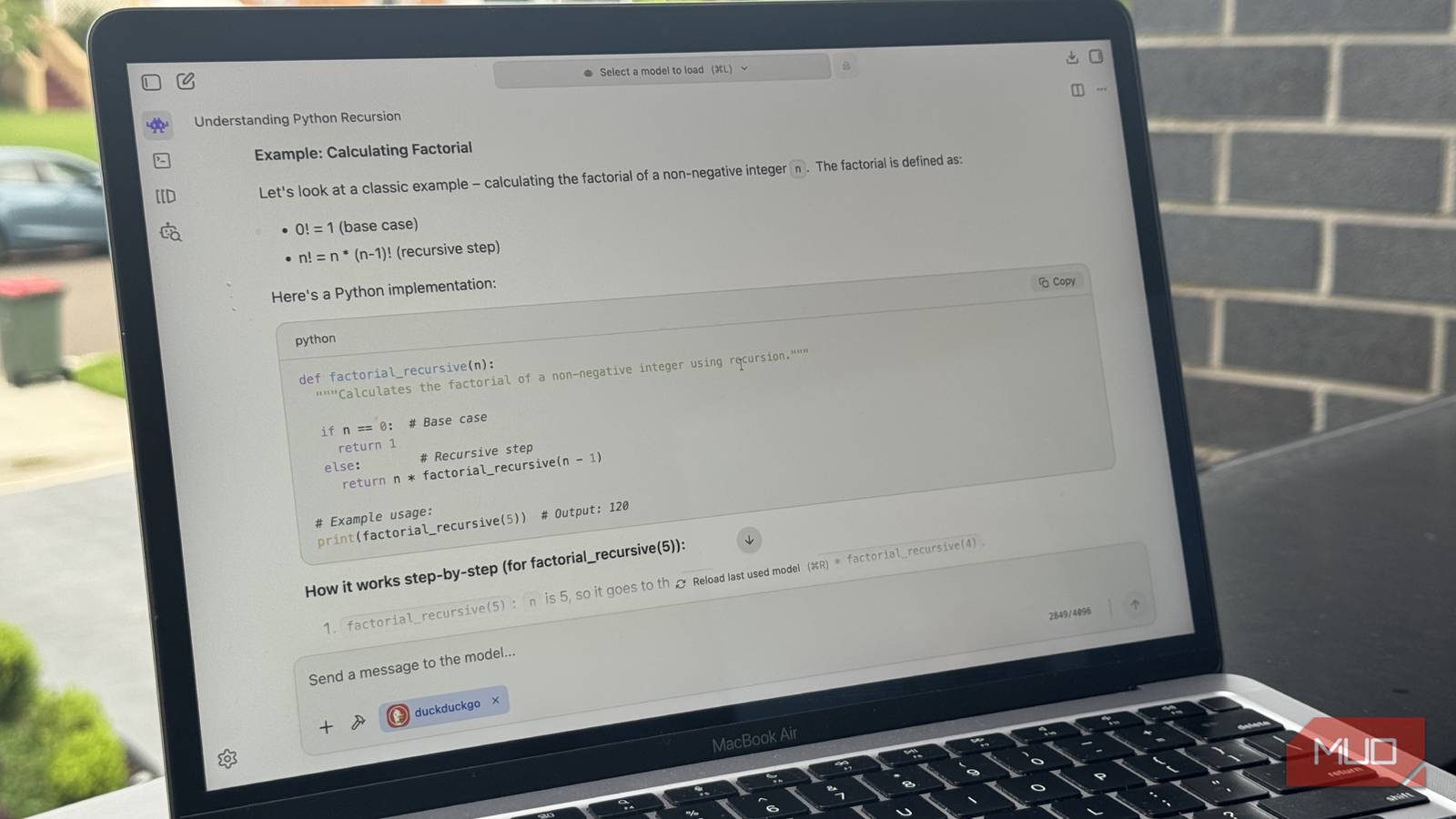
LM Studio has a built-in plugin system, and adding web search is pretty straightforward. Just head over to the DuckDuckGo plugin page, and select Run in LM Studio.
Once enabled, whenever you run a model, you’ll see an option below the chat box asking whether you want to invoke DuckDuckGo for your query. If you toggle it on, LM Studio will fetch live search results and feed them into the model before it generates a response.

That’s not all you can do with plugins, though. The LM Studio team has built a few plugins which are super useful too. For example, they have a Wikipedia plugin which allows your LLM to read and search for articles from Wikipedia (duh).
There is also a JavaScript Sandbox plugin, which can be super helpful if you’re into vibe-coding and want to get a rough idea quickly built. But I wouldn’t say it is worthwhile enough to create something production-ready.

I’ll never pay for AI again
AI doesn’t have to cost you a dime—local models are fast, private, and finally worth switching to.
Ditch the corporations
You can set up LM Studio so you can access your LLM from your phone, but if you want to move all the inference directly onto your phone, that’s possible too. You can run smaller LLMs on an Android phone, although they won’t be as powerful as what you’d get on your Mac.
Still, these lightweight models are improving at a crazy rapid pace. And with hardware costs expected to rise, I wouldn’t be surprised if companies like OpenAI or Google increased their subscription prices. It feels reassuring to have a setup that isn’t affected by any of that.