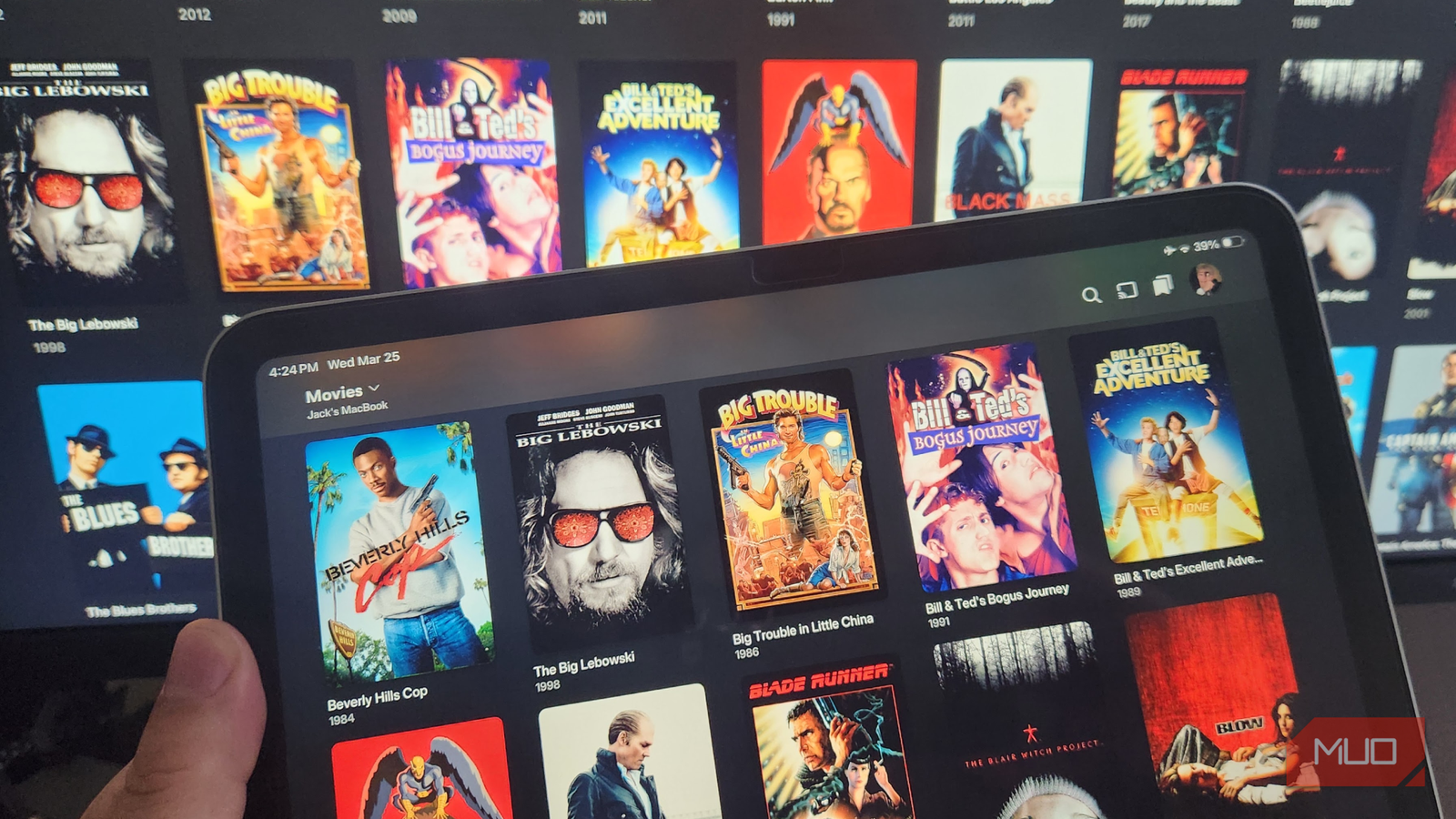



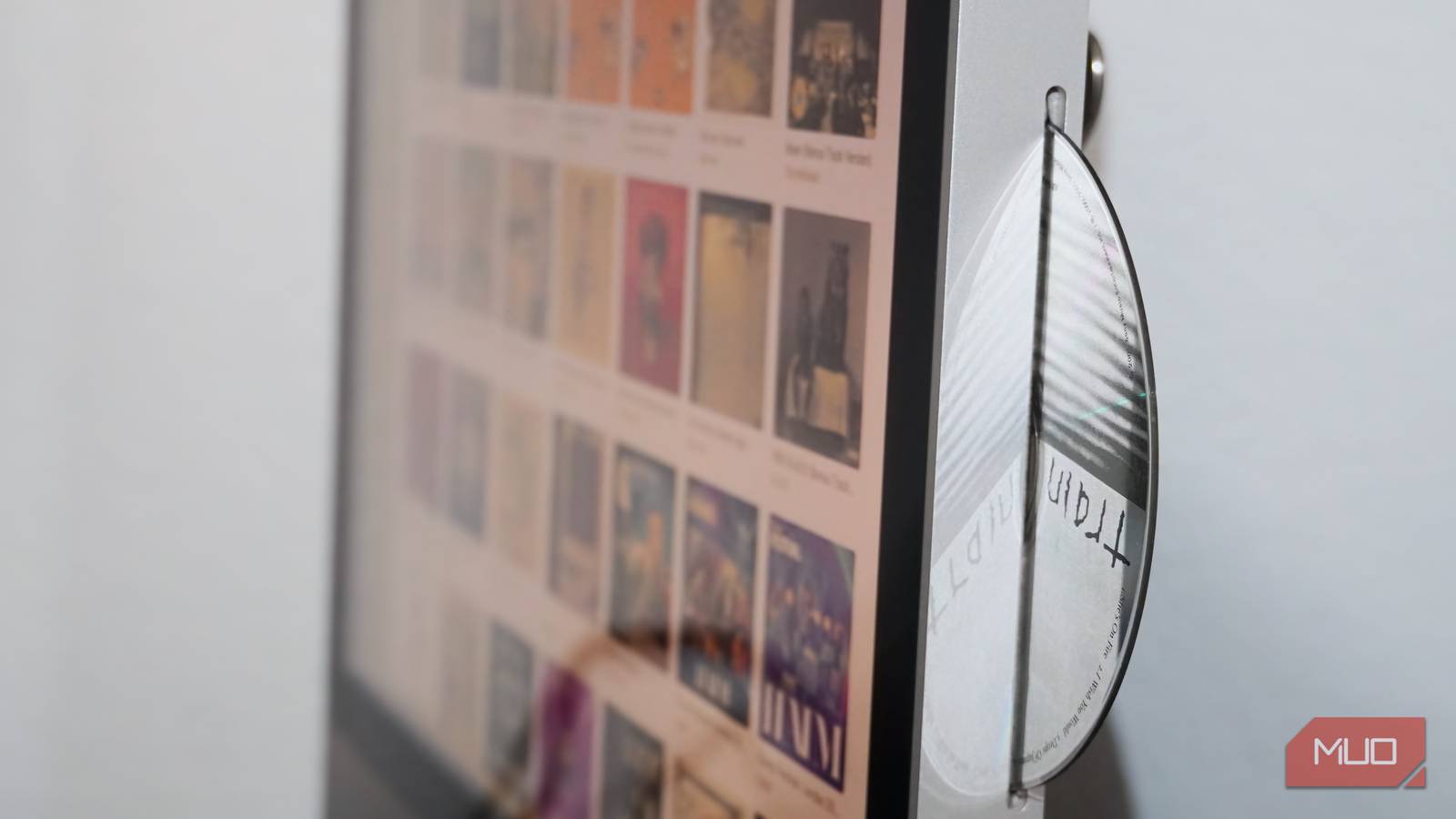
While not the most exciting audio format, the CD is still an excellent way to keep a physical media collection and cheaply acquire lossless digital music files. It’s much cheaper to track down the physical CD for the album you’re looking for than pay full price for a FLAC download. If you have a Mac or Windows PC with access to an optical drive — either an internal one or USB drive — you can rip lossless digital files from your physical CDs. You just have to find the right software.
For very infrequent rips, I like to use my Fiio DM13 CD player to digitize albums directly to a USB drive, eliminating the need for a computer or dedicated software. Bulk digitization, however, requires a quicker solution. Those that need error-checked rips might use a program like Exact Audio Copy, XLD, or dbPoweramp. Despite all the newer and more advanced options for CD ripping, I still swear by iTunes for ripping, library management, and more for these three reasons.
iTunes is a simple and fast lossless CD ripper
You can even queue up multiple optical drives for constant rips
iTunes is a quick CD ripper that streamlines the process of digitizing physical media. When you insert a CD into an optical drive connected to a Mac or PC running iTunes, a few things can happen. Users can tell iTunes to automatically show the CD, play the CD, ask to import the CD, automatically import the CD, or automatically import and eject the CD. There are options for every workflow, with the latter coming in handy for bulk CD ripping sessions.
The iTunes default audio encoder uses AAC, but users can manually change it to either AIFF, Apple Lossless Audio Codec (ALAC), MP3, or WAV. Notably, it doesn’t support FLAC, although ALAC and WAV serve as alternative lossless file formats. The app also supports custom bitrates for certain encoders. There’s an error-correction toggle that instructs iTunes to reread sectors with errors during the import process, limiting gaps or glitches in your CD rips.
You can still use iTunes on macOS Mojave and earlier or Windows 7 and later. On newer versions of macOS, iTunes’ CD-ripping features are available in the Music app.
With support for ALAC ripping and optional conversions to the more-efficient AAC format after the initial rip, iTunes offers everything I need. The program also supports queued ripping to digitize multiple CDs in rapid succession if you have multiple optical drives connected to a computer.
iTunes Match lets you stream your library for cheap
For $25 per year, you can store your entire collection in the cloud
For listeners that want to rip CDs as an alternative to traditional music streaming, iTunes’ seamless integration with iTunes Match is a key advantage. iTunes Match is a paid service that uploads your music library to the cloud for internet-based streaming and downloads. It tries to match songs in your library to songs on the iTunes Store, making them available anywhere. Using this service, you can download songs you’ve ripped from CDs on your iOS devices or computers seamlessly.
This is excellent for streaming or remotely downloading songs that do not exist on major streaming services. If iTunes Match can’t find the same track on iTunes or Apple Music, the service will simply upload your original source file, hosting it in the cloud. The cool part about iTunes Match is that it operates DRM-free. You can rip a CD on a Mac, download it on a Windows PC, and drag the files from that computer to a connected Android phone — all without running into DRM restrictions.
A notable limitation of iTunes Match is that cloud downloads are only available in up to 256kbps AAC. Be sure to keep your master ALAC files saved to retain lossless quality on your computer and synced devices. Subscribing to Apple Music upgrades matched content from your library to lossless and enables ALAC cloud downloads.
The service costs $25 each year and supports cloud storage for 100,000 songs, making it a stellar option for those with gigantic digital libraries. I pay for it annually, and it’s the best-value subscription service I use.

What Is iTunes Match and How Does It Work?
If you still have songs ripped from CDs and other sources on your computer, you can now sync them with iTunes Match across all your Apple devices.
iTunes is a solid library organizer
Get metadata, album artwork, and organized file structures instantly
Best of all, I use iTunes for how well it organizes music in a simple file structure that can be managed, shared, or backed up with ease.
There’s an iTunes media folder on your Mac or PC containing all of your saved music, sorted in folders by artist and album. This makes transferring iTunes libraries to other devices painless. To listen to my iTunes library on an Android phone, I simply connect the device over USB to my computer and drag-and-drop the contents of the iTunes media folder to Android’s music folder. Any music player app can immediately scan and index my media library thanks to the organized file structure — and I didn’t have to do any of the work.
It’s also easy to manually edit the metadata associated with songs or albums by using the Get info tool in iTunes. You can manually adjust data fields like the album name, album artist, artist, composer, release year, or genre, for example. There’s also a Get album artwork feature that instantly pulls cover art from the web after you finish ripping a CD.
When not to use iTunes for CD ripping in 2026
iTunes isn’t for everyone. I like using the classic application for its ability to import in AAC, AIFF, ALAC, MP3, and WAV file formats, easy-to-use library management features, and simple cloud streaming integration with iTunes Match. Rather than using a separate program for CD ripping, music playback, or library management, I can do all three with iTunes.
But we know what they say about jacks of all trades — they end up being a master of none. That’s true of iTunes. It’s an excellent and versatile option for most people, but it’s not going to beat a combination of specialized apps for CD ripping, music playback, or library management. Those that need database error-checking, support for file formats like FLAC, or a different metadata provider will have to look elsewhere. For the rest of us, iTunes is still solid, even in 2026.