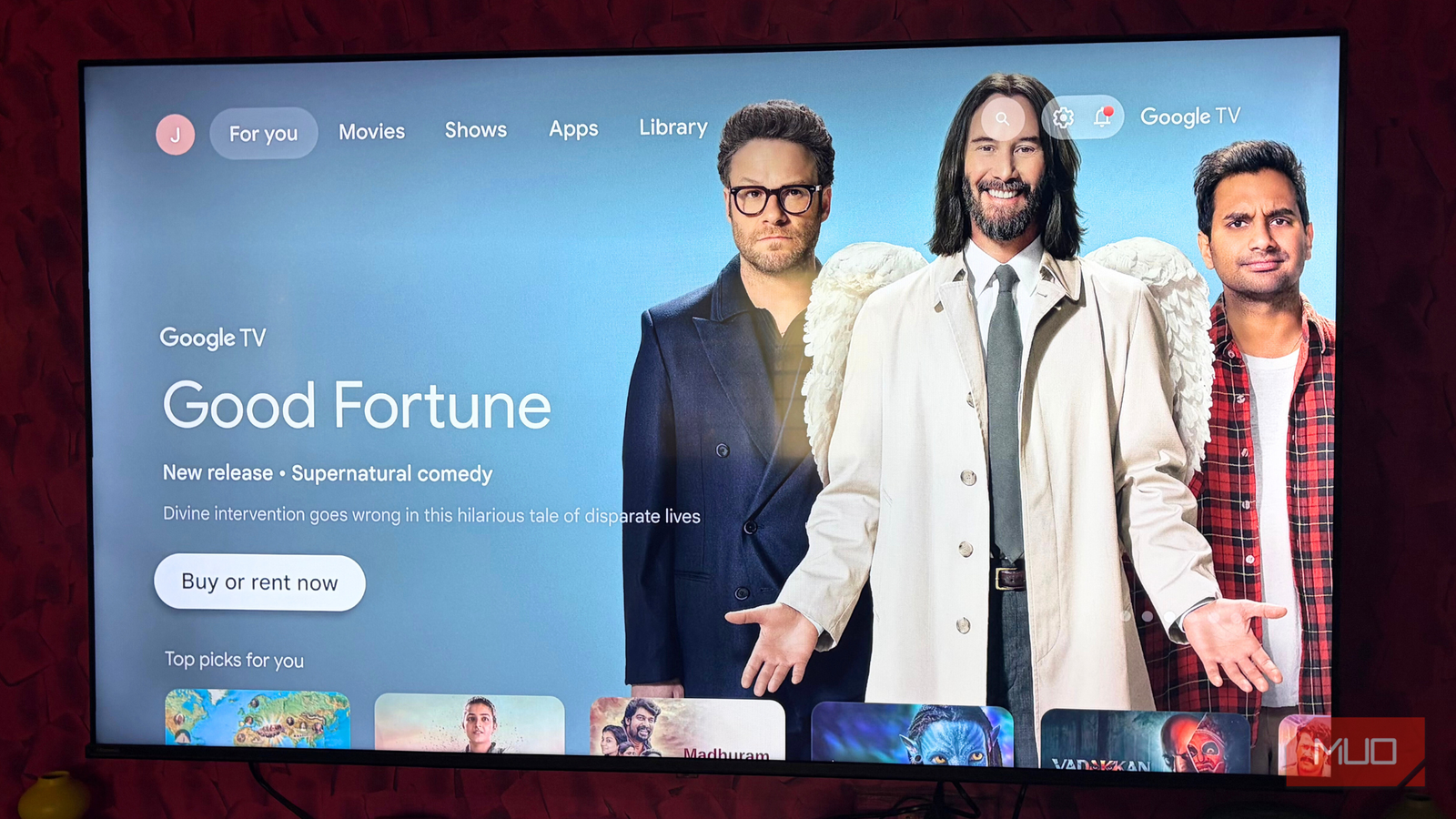





If you’ve ever dug through the apps list on your Google TV, you’ve probably noticed apps you never installed, never opened, and never asked for. Yet there they are. These pre-installed apps may not seem like a big deal at first, and some of them can be genuinely useful when you’re setting up your TV.
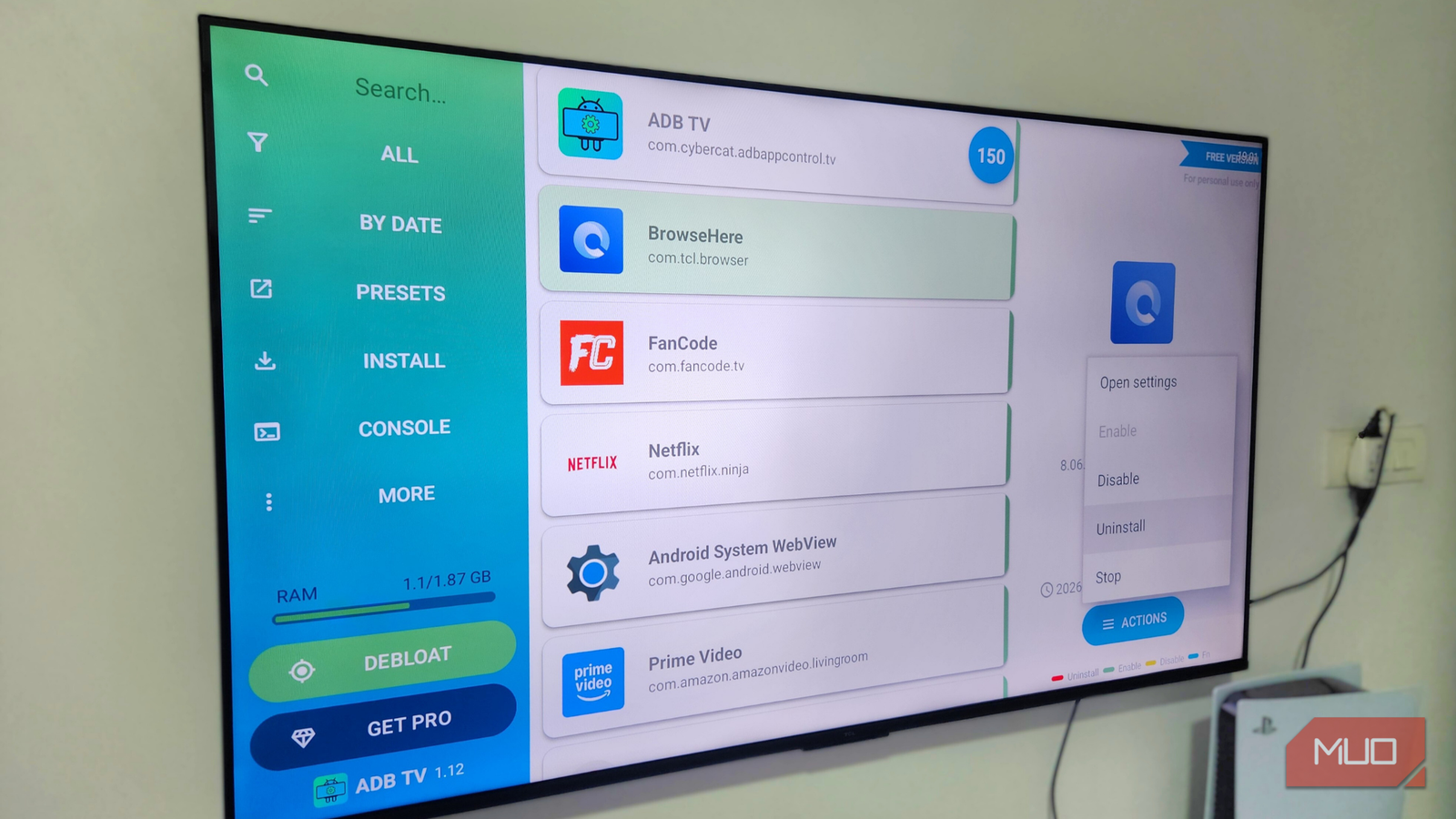
But the problem is, Google TV doesn’t give you the option to uninstall the apps you don’t use. So if there’s a specific streaming app you don’t use, like Prime Video, you can’t remove it and use that storage space for something else. ADB TV is a free app that solves this problem. It lets you remove all the unwanted pre-installed apps from your TV safely without using a PC or any complicated commands.
- OS
-
Android TV OS
- Price model
-
Free, Pro version available
ADB TV is a free app that lets you remove pre-installed apps on your Android TV or Google TV.
Too many preinstalled apps, too little control
Clean out the hidden clutter slowing down your TV

What makes bloatware so annoying is that it comes from both Google and your TV manufacturer. While non-removable streaming apps like Prime Video and Netflix are still fine, the bigger issue is the extra apps added by the manufacturer.
For instance, my TCL Google TV has apps like MagiConnect, Message Box, T-Exhibition, and TCL Channel, none of which I use. There’s no option to remove them either. The best I can do is disable them and hide them from sight, but that doesn’t stop them from taking up storage space.
This is a major issue because TVs don’t have much internal storage space to begin with. And once that storage fills up, everything slows down. Apps take longer to open, the interface becomes less responsive, and the TV starts to feel older than it actually is.
Typically, removing system apps requires connecting your TV to a computer, installing developer tools, and typing commands into a terminal. It works, but it’s not exactly user-friendly. ADB TV is a free app that brings the power of Android Debug Bridge into a simple interface. It shows a list of apps installed on your Google TV, including system ones, and lets you remove them with a few clicks.
What you need before you get started
A quick setup you only need to do once
Using ADB TV is simple, but before you can do that, you need to enable a couple of settings first. The most important one is Developer Options, which is hidden by default on Google TV. It’s where your Google TV hides some of its most advanced controls.
To enable it, head to Settings > System > About and scroll down to the Android TV OS Build entry. Then, press the OK button seven times and as you do, you’ll see a countdown. Once you see “You’re now a developer!” message, you’re done.
Next, you need to find the USB Debugging option in the Developer Options menu and enable it. This is what allows your TV to accept commands via ADB TV and remove preinstalled apps. Don’t worry, despite the name, USB Debugging also works over your network. Head to Settings > System > Developer options and turn on USB Debugging.
Finally, download the ADB TV app on your TV and head to Settings > Apps > Special app access > Usage access. Then, turn on the toggle next to ADB TV. This permission allows the app to see the full list of apps on your system.

It took 10 minutes to make my Google TV less annoying
A few quick tweaks can turn your Google TV from frustrating to fabulous.
The easiest way to cleanup your Google TV
A simple interface that does all the work
Once everything is set up, cleaning your Google TV with ADB TV is as easy as it gets. You don’t need a PC, you don’t need to type commands, and there are no complicated steps. Open the app, select the Connect button, then allow USB debugging for the app. Next, you’ll see a list of apps installed on your TV. From there, you just need to select the app you want gone and hit Uninstall.
The app also includes a few filtering options. You can sort the app list by app size, which is handy if you want to target the biggest storage hogs. And if you want to play it safe, there’s also an option to exclude system apps so you don’t accidentally remove anything important.
The free version of the app has almost all the features you need, and the best part is that it has no ads. Still, if you want to support the developer and unlock a few extra features, there’s a Pro version available for around $6. It lets you remove multiple apps at once and also gives recommendations about which apps you should remove.
Smart TVs are supposed to make things easier, but pre-installed apps often do the opposite. Removing them from my TV freed up much-needed space on my TV and made room for the apps I actually use. Even if you don’t need that extra storage, removing bloatware can still help your TV run smoothly and de-clutter the apps menu.