



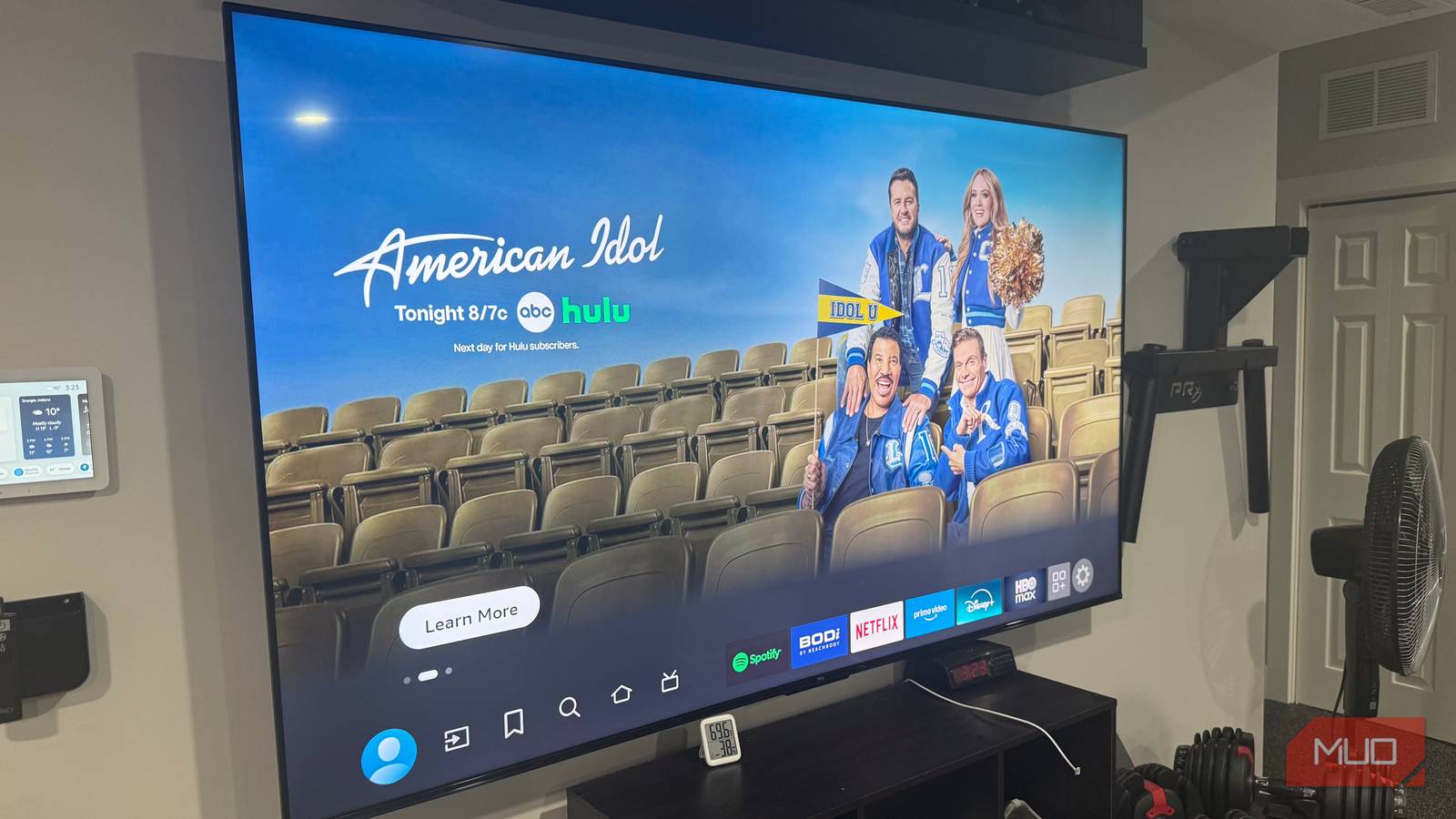
Amazon doesn’t exactly advertise the privacy controls buried in Fire TV’s settings menus. After months of being greeted by promotional video clips every time I powered on my TCL 75-Inch S5 4K Fire TVs, I finally sat down and dug through every submenu I could find.
The tools to reclaim your home screen have been there all along—they’re just not obvious. I’d already customized other aspects of my Fire TV setup across both basement TVs, one in the main living area, and another in my home gym. But the constant advertising assault deserved its own focused session. Ten minutes later, my Fire TVs finally felt like devices I owned rather than storefronts with a streaming feature tacked on.
Silencing the home screen’s loudest offender
Nobody wants to get yelled at by their television before coffee. That’s essentially what was happening every morning in my gym. I’d grab the remote, power on the TV to start a workout playlist, and some trailer for a reality show would immediately blast through the speakers. It was loud and unwanted at 5:30 in the morning.
The fix exists, but Amazon tucked it away under Settings > Preferences > Featured Content. Two toggles live here, and both deserve your attention. Allow Video Autoplay controls whether those promotional clips run automatically when your cursor lands on the top banner. Allow Audio Autoplay handles the sound separately, which means you could technically watch silent promos if that appeals to you for some reason.
I turned both off. The promotional banners still appear—Amazon isn’t giving up that real estate—but they’re static images now. No sudden audio and no movement demanding attention. The difference hit me the next morning when I powered on the TV and heard nothing but silence. It was just the home screen, waiting for me to decide what I wanted.
Double-tap the Home button when you first turn on the TV. The first press wakes the device, and the second immediately jumps past the banner area. Get the timing right, and you’ll skip the promotional zone entirely before it even has a chance to load.
Opt out of Amazon’s tracking and targeted ads
Reducing the algorithm’s grip on your recommendations
Fire TV watches what you watch. Every app you open gets logged. Time spent in each one is tracked. Amazon feeds all of this into its ad-targeting engine, and the result is a home screen that seems to know a little too much about your habits. Some people find personalized recommendations genuinely useful. I found them unsettling. The third time my Fire TV promoted a show that mirrored something I’d casually browsed on my phone earlier that day, I decided enough was enough.
The privacy controls hide under Settings > Preferences > Privacy Settings. Some Fire TV versions label this Privacy & Compliance instead, but the options inside are the same. You should change three toggles here.
Device Usage Data tracks general behavior patterns across your Fire TV. Collect App Usage Data monitors specifically which applications you launch and your time spent in each. Interest-Based Ads controls whether Amazon uses all that collected information to personalize the promotions you see.
I disabled all three. The tradeoff is real—recommendations become more generic without your viewing history informing them. But generic suggestions feel less invasive than ones that seem to peer into your browsing habits across devices. For users wanting even more aggressive filtering, network-level ad blocking takes things further. These native settings require nothing extra, though. There’s no router configuration, and you don’t need additional hardware. These are just toggles Amazon would prefer you never found.
5 things you can do with a Fire TV that aren’t advertised
Your Fire TV has features that can replace multiple devices in your home.
Stopping the nudges you never asked for

Most people focus on the home screen ads and forget about notifications entirely. But Fire TV also pushes alerts promoting new content, suggesting apps you should download, and reminding you about Amazon services you haven’t subscribed to yet. They pop up mid-show, mid-game, and mid-everything. Annoying doesn’t begin to cover it.
Two paths need attention here. Start with Settings > Preferences > Notification Settings, where you’ll find every app that has permission to send you alerts. Go through the list. Be honest with yourself about which ones actually need that access. Streaming services? Probably not. You open Netflix when you want Netflix. It doesn’t need to tap you on the shoulder.
Second, head to Settings > Applications > Appstore > Notifications and flip that toggle off. This specifically kills the “you might like this app” promotions that Amazon loves to push. The Appstore has opinions about what you should install, and disabling notifications means keeping those opinions to itself.
Fair warning: major Fire TV software updates occasionally reset these preferences. I’ve had to revisit these menus a couple of times after firmware updates rolled through. It’s worth checking every few months, especially if promotional notifications suddenly reappear. Down in the basement, the TV is for gaming nights and catching up on shows I’ve been meaning to finish, not for Amazon to pitch me new subscriptions mid-movie.
Your Fire TV can finally just be a TV
Let’s be honest about what these settings accomplish. Fire TV won’t transform into an ad-free sanctuary. Amazon built the platform, and Amazon intends to use it for promotion. But the daily experience shifts noticeably once you’ve worked through these menus. You’ll have fewer audio interruptions when powering on and less sense that your viewing habits are being cataloged and monetized. Plus, quieter notification behavior overall.
You can work through every menu in about ten minutes. Ten minutes of menu diving bought me a home screen that responds to my choices instead of pushing Amazon’s agenda. Combined with the input naming and app organization I’d already configured, both basement TVs now work the way I expected them to when I first unboxed them.