


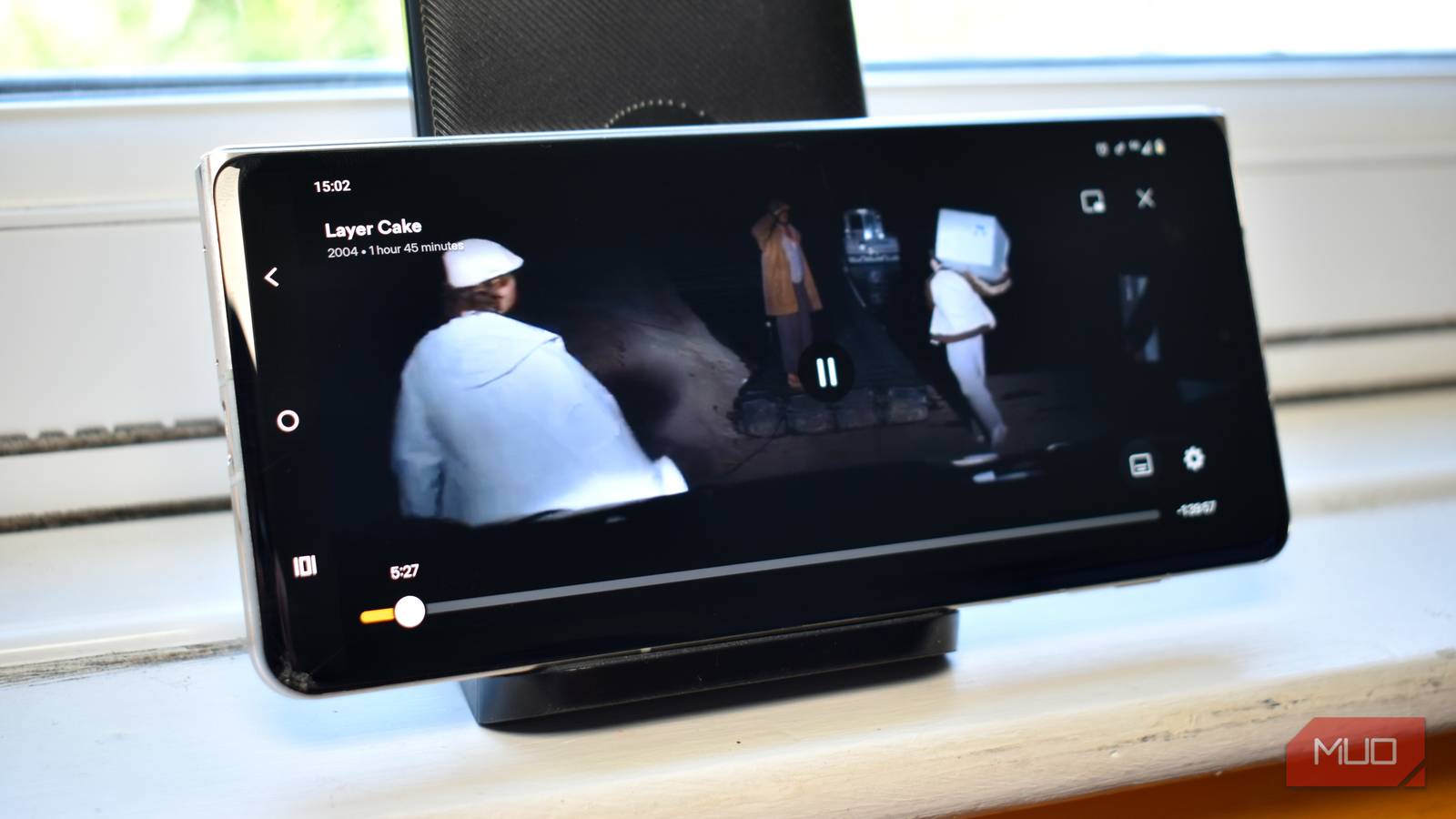
In 2026, Plex ramped up its remote-access Plex Pass from $250 to $750 for new subscribers, which is an unconscionable rise. I’ve never been a remote-access subscriber, and now, I never will be, even if that’s a lifetime license.
But the good news is that there is a fantastic workaround using Tailscale, a free VPN service that helps connect you to your home devices, which requires barely any effort to get running.
I access my home server from anywhere in the world without port forwarding
Homelabbing made real easy.
How to access your Plex remotely with Tailscale
No need for the Plex Pass
I’d pondered setting up Tailscale for a while, thinking it might be confusing, as remote access software often is. But what I found was a wonderfully simple solution that basically involved downloading a couple of apps, connecting the dots, and hitting play.
- Download Tailscale and install it on the same PC as the Plex Media Server
- Create your Tailscale account. There are options for Google, Microsoft, Apple, GitHub, and OIDC. You’ll use this account to sign in on your viewing device, too.
- Now, follow the Tailscale tutorial to walk through adding your first device.
With Tailscale installed on my Windows 10 PC and the tutorial open, it automatically detected my device and offered to connect it to my tailnet. Next, the tutorial moves on to adding a second device, in this case, my smartphone.
- Download Tailscale on your smartphone. It’s available for Android and iOS.
- Sign in to the same email address you used on the PC hosting Tailscale and your Plex Media Server.
- Once you’re signed in, connect to the tailnet previously created.
All being well, you should see the Tailscale admin panel on your smartphone showing that your PC and smartphone are now connected on the same tailnet.
Next up is to actually try connecting and accessing your Plex Media Server with Tailscale enabled.
With Tailscale enabled on both devices, and the Plex Media Server up and running, fire up the Plex app on your smartphone (or other remote device). All being well, you should now be able to connect to your Plex Media Server remotely without issue and start watching your favorite movies and shows without issue.
If you get the Remote Access required message, try this
Tailscale has some pretty nifty features built in, such as the ability to route all your tailnet traffic through one IP, and the option to set all traffic to match your network subnet (making it appear local).
When remote Plex viewing didn’t unlock for me immediately, this was how I fixed it.
The exit node routes your phone’s entire internet connection through your home PC, so anything checking your public-facing IP address sees your home connection instead of your mobile carrier. On paper, that should be enough to convince Plex you’re on your own network. In practice, I needed to pair it with a subnet router before it actually worked.
- On your PC, right-click the Tailscale icon in your system tray.
- Select Run as Exit Node.
- Now, on the same PC, open a browser and go to http://100.100.100.100 — this is Tailscale’s own local device interface.
- Go to Settings, find the Subnet router field, and enter your home network’s range. Mine’s 192.168.1.0/24 — check your own by running ipconfig in Command Prompt and looking at the IPv4 address and subnet mask for your Ethernet or Wi-Fi adapter.
- Next, click Advertise routes
From here, you’ll see that the new route is Awaiting approval. This means it’s in place, but needs confirmation.
- Head back to the Tailscale admin panel and select the PC.
- Now, select the three-dot settings menu followed by Edit route settings.
- Check the Use as exit node and Subnet routes you just added and select Save.
This enables both of the new settings to jump into action on your PC. The final step is to enable your smartphone Tailscale installation to use your PC as the exit node, completing the network.
- In the Tailscale app, select Choose an exit node.
- Select the host PC. The section should now highlight the device you’re using as the exit node.
Restart the Plex app and Plex Media Server, and try again — this is what worked for me!
But I do have issues, and it won’t work
Yes, I had them too
Of course, for all the wonderful, magical auto-connection, there is a chance it doesn’t all work as it should; there are a few extra steps you can take to address some fairly common issues.
“Server Offline” when it isn’t

This one got me for a period, and was really frustrating. Plex apps find your server by asking plex.tv for a list of known addresses, and by default, that list doesn’t include your Tailscale IP — so even though the connection works fine, the app never tries it and just reports the server as down.
The fix is in Plex rather than Tailscale. In the Plex web app, head to Settings > Network, then toggle on Show Advanced. Then, in the Custom server access URLs section, add your Tailscale IP address with its port.
You can find the Tailscale IP address for your device in the Tailscale web app or mobile app, and the port is 32400. So, the address will typically read 100.x.x.x: 32400.
Also, make sure to use HTTP rather than HTTPS, as Plex is known to create other issues when presented with secure Tailscale traffic.
Restart both the Plex Media Server and your Plex app, and give it a minute, then try reconnecting.
Windows Firewall thinks Tailscale is a public network
Windows tends to classify the new Tailscale adapter as “Public” rather than “Private,” and Public-profile firewall rules block inbound connections to Plex’s port even when your normal home network is set correctly.
Check Settings > Network & Internet, find the Tailscale adapter, and switch it to Private if it isn’t already.
Your device is no longer registered in Tailscale

This shouldn’t really affect you during your first setup, but Tailscale devices are given a limited-time key to access your network. Once that key expires, your device will no longer be able to access your tailnet, making the remote access fail.
The easiest way to fix this is in the Tailscale web app. Highlight the device, and select the three-dot settings menu. When the dropdown appears, select Disable key expiry.
I can’t run my regular VPN and Tailscale
Unfortunately, most devices don’t allow you to run two VPN services simultaneously, particularly smartphones on Android and iOS. In most cases, the second VPN will interfere with Tailscale and mean you can’t access your tailnet, so it’s typically one or the other.
It just stopped working
I can’t deny that Plex isn’t aware of this workaround. It’s tightening the enforcement of the Tailscale-Plex remote viewing workaround, which means that it could just work altogether without warning.
If that seems like it’s happened to you, I’d suggest switching to Jellyfin instead, as it has most of the features we love from Plex without the subscriptions and payment tiers.
This is well worth the hour it took to set up
I’m not going to pretend this is a permanent fix, because it isn’t one — it’s a workaround, and workarounds have a shelf life that depends entirely on how much Plex wants to close them. There are reports of it being patched out for some folks in 2026, which does mean it could all come falling down tomorrow.
On that, it’s still very much worth giving the Plex-Tailscale remote viewing workaround a try, because when it works, it’s excellent. And, as said, if it does stop working, you always have Jellyfin as an excellent alternative.

Please don’t use the free movie hack that everyone’s sharing
I’d skip this if I were you.