




Google TV is like any other smart TV where you can install your favorite streaming apps, play a few lightweight games, and enjoy screensavers when you’re not watching anything. And for the longest time, I used my Google TV for only these things.
But Google TV is full of useful features that can improve navigation, make better use of those remote buttons, and even turn your TV into a second screen for your phone or computer. All of these features together have simply changed the way I use my smart TV.
Use apps-only mode
Enjoy a distraction-free home screen
I don’t know about you, but I find the Google TV home screen pretty cluttered. It’s full of endless recommendations, trending shows, and personalized picks you never asked for. And all of these distractions make it harder to get to your favorite apps. I also find these recommendations mostly useless, especially when they come from streaming services I don’t even use.
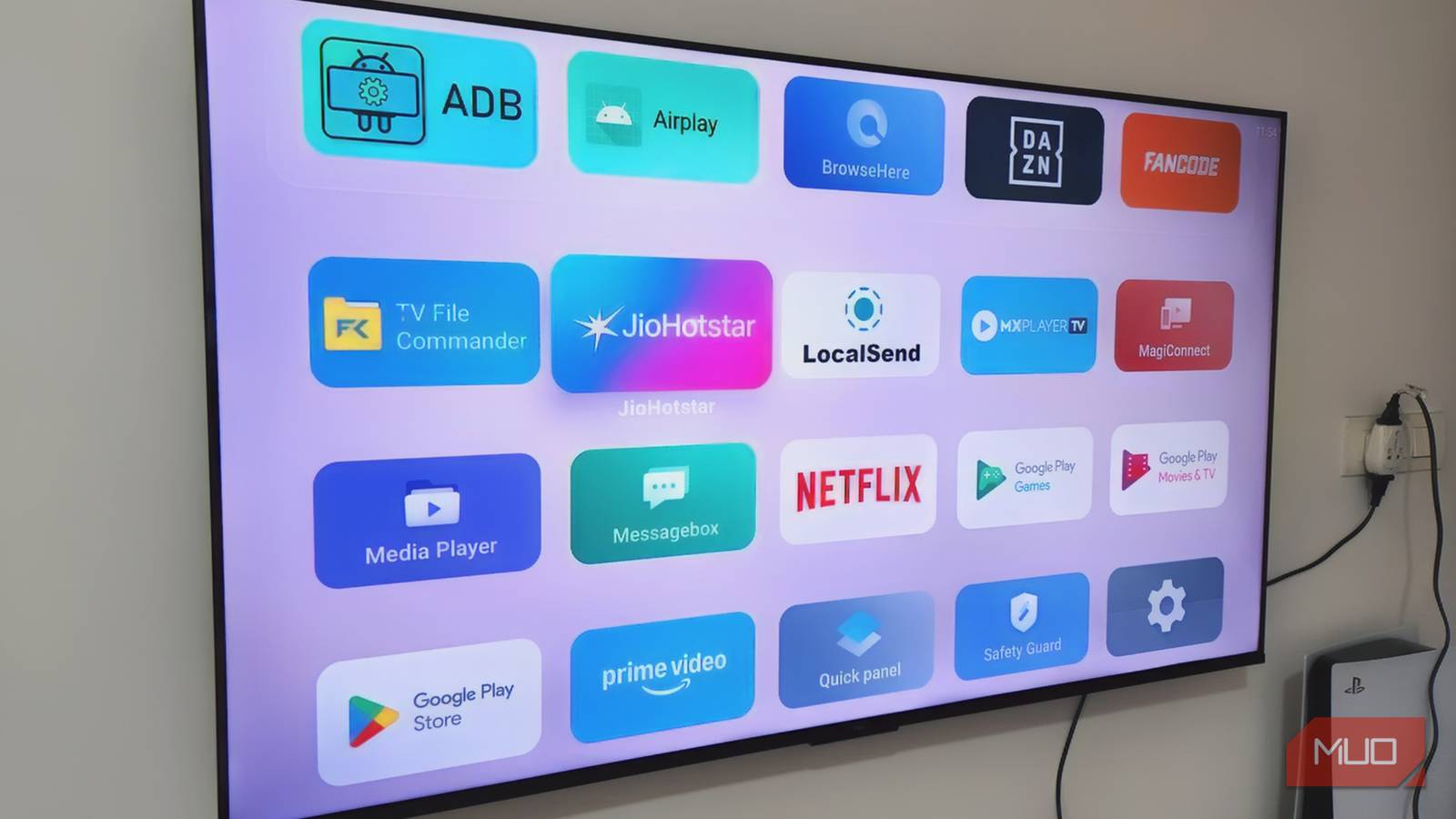
Enabling Apps-only mode in Google TV is an easy way to fix this. It strips the Google TV home screen down to the essentials. Instead of endless recommendations, you see your apps in a clean grid layout. This means you can turn on your TV, select your app and start streaming. To enable it, head to Settings > Accounts and profile > Apps only mode > Turn on.
The only downside is that Apps-only mode hides the Play Store. That means every time you want to install an app, you have to switch the mode off, download what you need, and then turn it back on.
Remap buttons with Button Mapper
You’re not using those buttons enough

Your Google TV remote probably has at least one button you never touch. Mine has several. My TCL TV came with one of those large, old-school remotes with dozens of buttons, including six dedicated shortcuts for streaming services, a browser, and live TV.
Button Mapper is a handy third-party app that lets you decide what those buttons actually do. You can remap buttons to open apps, bring up settings, or even trigger specific actions. And even if you already use all the buttons on your remote, the Button Mapper app is still useful. That’s because it lets you assign those different actions to a double press or a long press.
For instance, the button you use to open Netflix could bring up Google Assistant when you double press it and launch the search box when you press and hold it. If you use it right, this can make navigating your Google TV ten times better.

- OS
-
Android
- Price model
-
Free
Speed up navigation
Make your TV feel fast again
The Google TV interface looks smooth, and that comes from the little animations that play every time you open an app or access a menu. They look nice, but on older or slower TVs, those same animations can make everything feel sluggish.
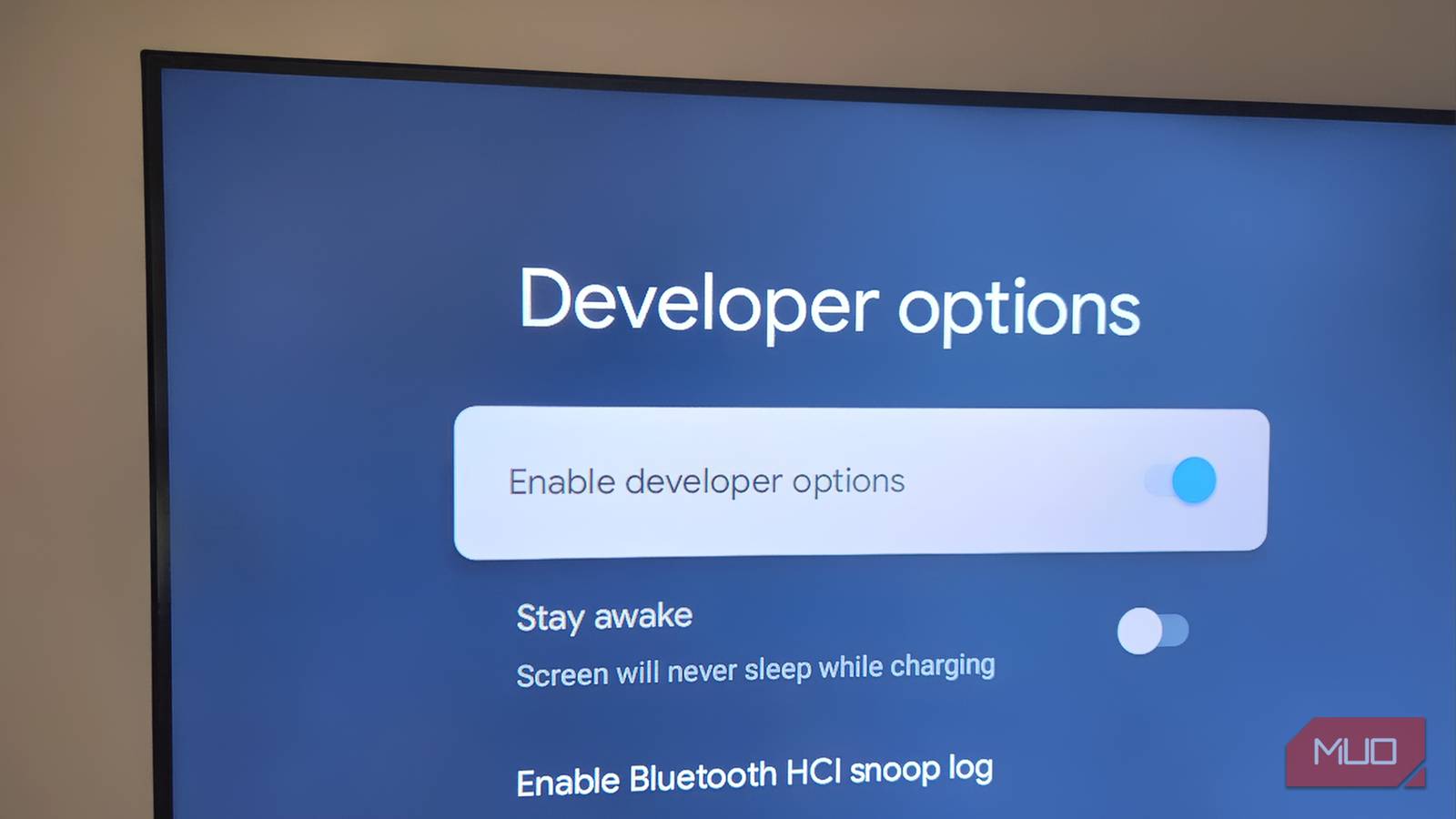
One way to speed things up is to simply reduce or disable these Google TV animations. To do this, you first need to unlock the Developer Options menu by heading to Settings > System > About and clicking the Android TV OS Build entry several times.
Once done, head to Settings > System > Developer options. Then, look for the Window animation scale, Transition animation scale, and Animator duration scale. By default, all of these are set to 1x, but you can change them to 0.5x to make the Google TV interface feel much snappier. You can also turn them off entirely if you want to make everything feel as fast as possible.
If you’re still not satisfied, the developer options menu also has an option called Limit background processes, which reduces the number of background apps and processes. This can also make your TV more responsive.

6 Google TV Settings I Always Change Immediately
Changing your Google TV settings is a simple way to make your viewing experience much better.
Mirror phone or PC wirelessly
No cable, no apps, just simple screen sharing

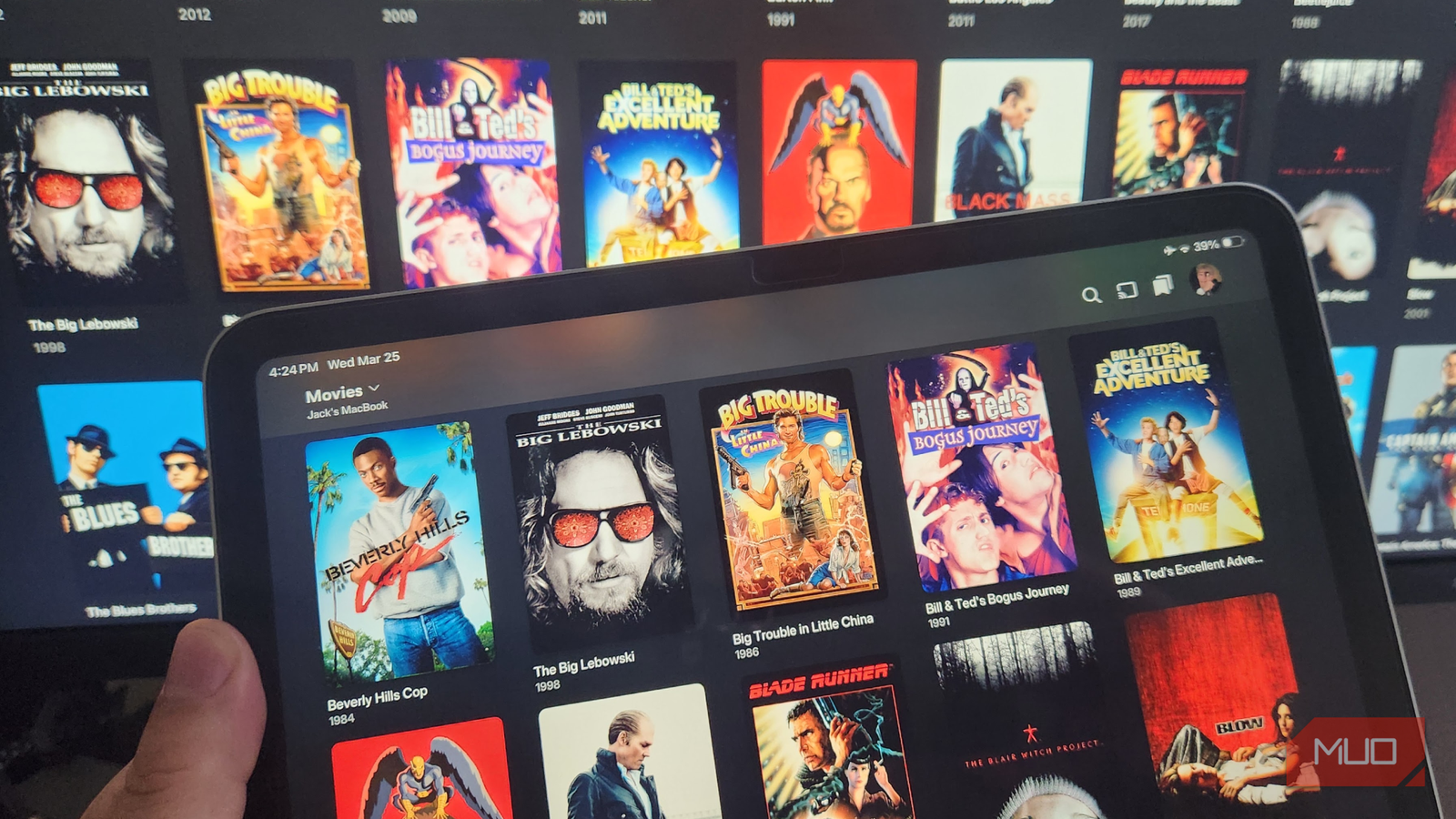
One of my favorite Google TV features is also the one most people overlook. Google TV has long supported wireless screen mirroring for Android phones and tablets. What I didn’t realize is that you can also mirror iPhones and Windows PCs without any third-party apps. This means I can mirror just about any device I have as long as everything is on the same Wi-Fi network.
On Windows, you can do this by pressing Win + K and selecting your TV from the list. This is great if you want to use your TV as a second monitor. On Android, you can open the Google TV app and choose Cast my screen. It’s that quick. And since Google TVs now also support AirPlay as well, you can mirror the entire screen or even specific content, such as music and videos.
The best thing about smart TVs is that you’re not only tied to streaming content. And the above list is just scratching the surface. With the right apps, Google TV can help you do so much more, like browse the internet, control smart home devices, and even mirror your phone’s notifications.