





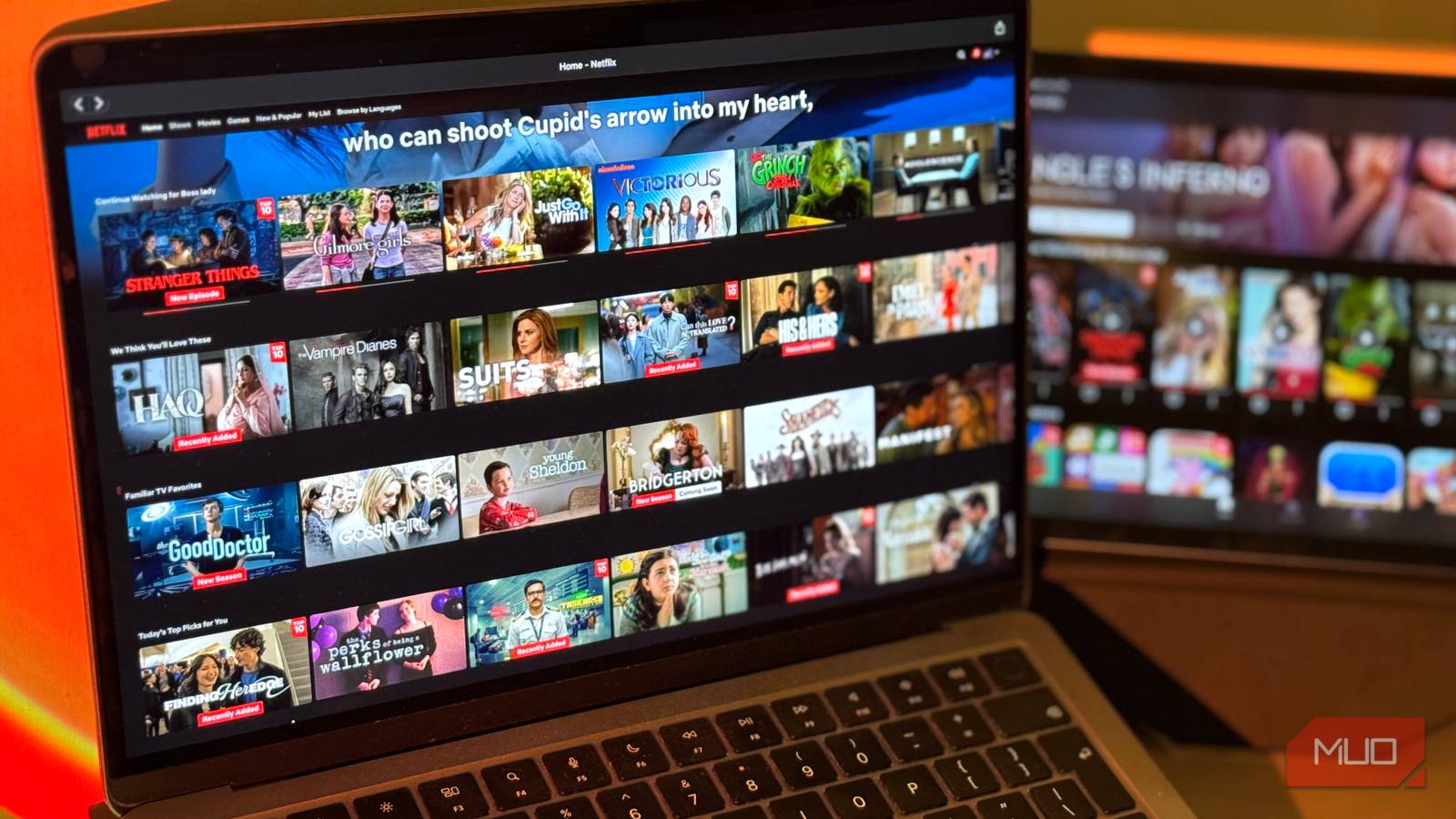
When you’re fully settled in with your favorite drink, a pile of snacks, and a show you’ve been waiting for months to watch, nothing kills the vibe faster than your screen turning into a pixelated mess the minute the bandwidth drops.
While buffering once in a while is something you can deal with, the quality taking a hit (with no obvious way to force it back up) is what really ruins the experience. With Netflix, this is an issue I’ve found myself running into more often than I’d like (even on a stable connection). Turns out, there’s a hidden Netflix setting that gives you more control over streaming quality (and I wish I found it earlier).
Netflix doesn’t let you lock video quality
Netflix decides for you, whether you like it or not
On YouTube, when the playback quality of the video you’re watching suddenly drops, the fix is usually extremely straightforward. Provided you have a stable internet connection, you simply hit the settings icon and select your preferred quality.
While this does mean YouTube will pause the video to buffer the high-quality chunks if your internet is slow, your quality will remain consistent for the video (unless you picked the Auto option, which adjusts the quality to your internet speed to prevent buffering).
Netflix uses the same technology as YouTube at its backend, called Adaptive Bitrate Streaming (ABR). However, the difference between the two is that Netflix doesn’t let you manually override it within the player. Instead, its algorithm prioritizes uninterrupted playback above all else.
The second your internet speed drops, Netflix will immediately reduce the quality to keep the video moving rather than pausing to buffer. It’s said that they believe a pixelated video that keeps moving is better than crystal-clear quality (which you’re paying for) that pauses to load.
Netflix hides the setting that controls video quality
But it isn’t something you should ignore
Fortunately, while Netflix doesn’t let you pick the quality directly in the player, there’s a hidden setting in your account that lets you control how much data each screen uses. By extension, this gives you control over the video quality you actually get.
Netflix sets the data usage per screen to Auto by default, meaning it automatically adjusts the video quality based on your internet speed to prevent buffering. While this keeps playback smooth, it also means your video can drop to 720p or lower even if your connection is capable of handling higher quality.
But you can change this by heading to Netflix, selecting your profile picture in the top-right corner of the screen, and then hitting Account. Then, select Edit Settings, and click Playback Settings on the following page. From there, you’ll see the Data Usage per Screen options: Auto, Low, Medium, and High. Simply select the setting that matches the quality you want.
The Low option caps your Netflix data usage at 0.3 GB per hour. While it’s great for saving data and definitely an option you should enable when you’re using cellular data, it does lead to grainy quality. The Medium option raises the cap to 0.7 GB per hour, giving you decent quality without burning through a lot of data.

I didn’t realize these tiny tweaks would make Netflix so good
It only takes a few small changes to massively boost your Netflix viewing experience.
The High option, though, is the one you should enable if you want the best possible video quality. It allows up to 3 GB per hour for HD, and 7 GB per hour for Ultra HD. This effectively tells Netflix to prioritize video quality over conserving data and ensures you get the best quality your plan and device can support.
Once you’ve set the data usage to High, your shows and movies will consistently stream in the highest quality possible without sudden drops. If your connection can’t sustain the bandwidth, Netflix will pause to buffer until enough data is loaded rather than automatically dropping the quality. This is significantly different from the Auto setting Netflix defaults to, which lowers the quality instead of pausing to keep playback smooth.
Keep in mind that the maximum quality you can receive is strictly limited by your Netflix subscription plan. The Standard with Ads and Standard plans both cap the video quality at 1080p, while the Premium plan lets you stream in Ultra HD (4K) on supported devices. So, the steps above will effectively make sure you get 1080p rather than 720p when you’re watching on a Standard plan, and 4K resolution if you’re on a Premium plan, ensuring you always stream at the highest quality your plan allows.
However, if you’re on either of the Standard tiers and are hoping to get Ultra HD, you’ll be out of luck — the highest resolution available is 1080p, no matter how high you set the data usage per screen.
Get the quality you’re paying for
While this setting isn’t exactly hidden, most users don’t realize it exists and even fewer know how much control it gives over video quality and data usage! So, if poor streaming quality is one of the reasons why you’re avoiding subscribing to Netflix, adjusting this single setting could change the entire experience.