


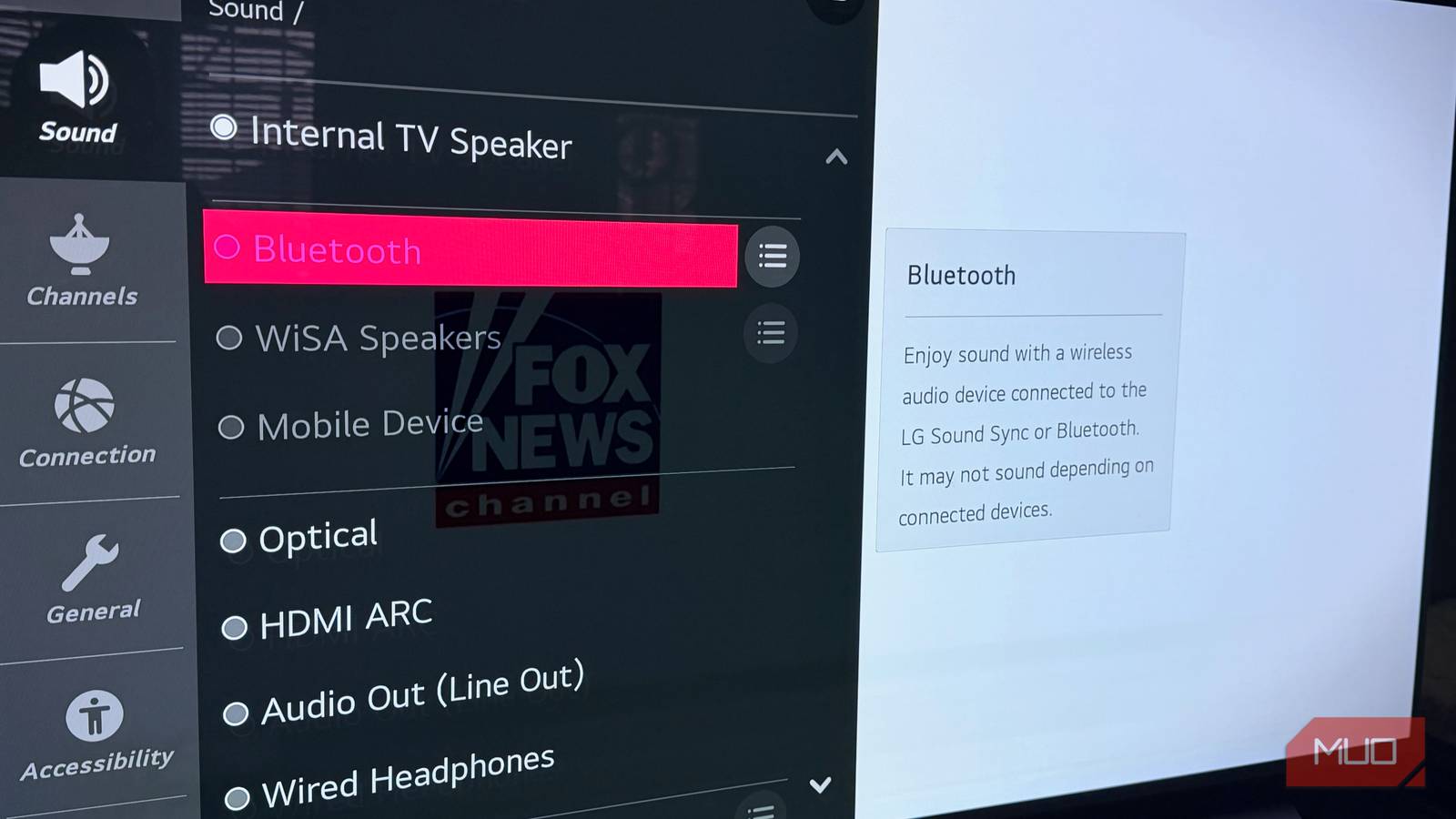
While watching a new episode of The Pitt on HBO Max, I noticed a half-second lag between the actors’ mouths and what I heard through my Bluetooth headphones, which took me completely out of the story.
At first, I thought it was a settings glitch. I restarted everything, re-paired my headphones, and dug through my LG TV’s menus. Unfortunately, nothing helped. It took me longer than I’d like to admit tracking down the actual cause, and once I discovered it, the fix became obvious.
Here’s what’s really going on, and how to actually solve it.
These Sennheiser headphones fixed my biggest problem with watching TV
I watch a lot of TV late at night, and this Sennheiser headphones bundle is designed specifically for use while watching TV.
Why Bluetooth headphones lag on your TV
Bluetooth codecs and latency: Why audio falls behind

Bluetooth audio isn’t instant. Unlike a wired connection, wireless audio involves a multistep process that happens behind the scenes. This includes your TV encoding the audio into a digital signal, transmitting it wirelessly, and your headphones receiving and decoding it before playing the audio back. That entire chain takes time, which we know as latency.
Latency depends almost entirely on the Bluetooth audio codec your devices use. This codec is essentially the compression method used to package audio for wireless transmission. Here’s how the many codecs stack up:
SBC, or Subband Coding, is the universal fallback supported by every Bluetooth audio device. It’s reliable, but it’s slow. Latency with SBC can range from 100ms to over 200ms, which is easily perceptible as lip-syncing drift. AAC, Apple’s code, is common on iPhones and AirPods and can drop to 60ms in ideal conditions, though it’s inconsistent on non-Apple hardware like every television on the planet. By contrast, Qualcomm’s aptX codec was designed to improve on SBC in both quality and speed, and it largely does. However, it’s still not truly low-latency.
The codec that actually solves the problem is aptX Low Latency (aptX LL), which targets delays under 40ms, well below the threshold most people can perceive. There are also high-resolution codecs like aptX HD and LDCA, but they are optimized for audio quality, not speed, and won’t help with lag.
When your TV and headphones connect, they automatically negotiate the best codec they both support. However, there’s a catch: most televisions have very limited support for Bluetooth codecs, and they usually default to SBC.
Why most TVs default to high-latency Bluetooth (SBC)
Smart TV Bluetooth vs. smartphone Bluetooth: A key difference

Even budget smartphones handle Bluetooth audio exceptionally well. That’s because phones have been optimized for it for over a decade. They also support multiple codecs, manage connections efficiently, and often default to AAC or aptX when available.
Your living room TV is a different story. Most manufacturers treat Bluetooth as an afterthought. Even expensive models from companies like Samsung, LG, and Sony often ship with Bluetooth implementations that support only SBC, the oldest and highest-latency codec. Some newer models support aptX or aptX LL, but it’s far from universal, and manufacturers rarely advertise it clearly.
There’s an additional layer to this problem: even if your headphones support aptX LLL, your TV doesn’t. Both ends of a connection must be compatible for a better codec to kick in. If your TV maxes out at SBC, it doesn’t matter how capable your headphones are.
How to fix Bluetooth audio lag on your TV
5 ways to fix Bluetooth audio sync on your TV

To solve Bluetooth headphone lag on your TV, follow these steps based on your budget and setup. Each step helps get closer to a fix.
First, check your TV for an audio delay, audio sync, or lip-sync adjustment in Settings -> Sound or Settings -> Audio Output. Add a video delay to align it with the lagging audio. This tweak is a workaround, and your Bluetooth headphones may need to be readjusted if you change audio outputs.
Another solution is to use an aptX low-latency Bluetooth transmitter. This transmitter replaces the TV’s Bluetooth and handles the audio transmission. You plug it into the TV’s optical output or headphone jack, then pair it directly with your headphones. Under this scenario, make sure both the transmitter and headphones support aptX Low Latency. With both, the audio lag becomes undetectable.
When choosing a transmitter, there are a few things to look for:
- Explicit aptX Low Latency support
- An optical input, which provides the cleanest connection
- The ability to pair two headphones simultaneously when watching with a partner.
Brands like Avantree and 1Mii make well-regarded transmitters in the $30 to $60 range that check all the boxes.
You also need to check whether your TV supports a better codec in the first place. Some newer TVs, especially OLEDs from the big three, Samsung, LG, and Sony, have added aptX or aptX LL support via firmware updates, along with higher-end product lines. It’s worth checking your TV’s specifications or support documentation to confirm which Bluetooth codecs it supports.
If your TV does support aptX LL, make sure your headphones do too. If you don’t have a codec-compatible pair of headphones (or a dedicated transmitter that handles the codec negotiation), it is the next step.
Perhaps a wired connection is the way to go
Is it time to ditch your wireless connection altogether?

You should also consider switching to a wired or optical connection. If you only occasionally use headphones for TV viewing, a simple wired solution may be all you need. Most TVs have a 3.5mm headphone jack, and a long cable will eliminate latency entirely. If your TV doesn’t have a jack, an optical-to-headphone adapter works well and maintains high audio quality. Although it’s not as elegant as wireless, a wired connection is the most reliable zero-latency option.
Another solution is to use your TV’s built-in apps instead of external devices like an Apple TV or Google TV. This solution is somewhat counterintuitive, but worth knowing, as lag can sometimes vary depending on your content source. When audio passes through an external device, such as a streaming stick or game console, before reaching the TV, it adds additional processing steps. Some users find that using an app directly on the TV reduces latency, since the TV handles both audio and video processing natively.
Why an aptX Low Latency transmitter is the best fix
What to look for when buying an aptX LL transmitter

In my case, the best solution was a Bluetooth transmitter with aptX Low Latency. My TV’s Bluetooth maxed out at SBC, and no amount of fiddling with settings would change that. By plugging a transmitter into the optical output and pairing my headphones to it, latency dropped significantly enough that I no longer detected it.
My advice: start with the free A/V sync setting. If that doesn’t solve the issue, an aptX LL Bluetooth transmitter is a worthwhile fix. And if you’re in the market to buy new headphones, make sure they support aptX Low Latency; again, the Low Latency version.
Once you understand the problem, the fix is clear. Too bad TVs rarely explain this.
Stop fighting your TV and start fixing the real problem
Bluetooth audio lag on your TV isn’t a mystery once you understand what’s actually happening under the hood. Your TV is almost certainly defaulting to SBC, the slowest and most outdated Bluetooth codec available, and no amount of restarting or re-pairing will change that.
The good news is that the fix is straightforward: start with your TV’s built-in A/V sync adjustment, and if that falls short, a relatively aptX Low Latency transmitter will likely solve the problem entirely.
If you’re shopping for new headphones, make aptX Low Latency support a non-negotiable on your checklist. A wired connection remains the simplest zero-latency fallback if wireless just isn’t working for your setup. Whatever route you take, you shouldn’t have to let a half-second audio delay pull you out of a great show.