


VLC is clearly the best media player out there, with tons of features and support for 100s of media formats. So when I got my 4K HDR monitor, I naturally tried to play the few 4K HDR movies in my collection, and it was, honestly, meh. The colors looked washed out, the HDR tone mapping was all over the place, and there were noticeable micro-stutters. I’d already dialed in the HDR settings on Windows 11, so I knew my display wasn’t the problem.
My attempts at tweaking VLC’s settings were futile. So I went looking for an alternative and found mpv, a free, open-source media player. Since then, the only thing that bothers me is the laptop fans spinning up, because pushing 4K HDR is genuinely demanding work. Everything else VLC got wrong, mpv quietly fixed.
This lightweight Android video player is better than VLC
Next Player is a snappy, ad-free alternative.
What’s the mpv player?
A tiny, no-frills player you install yourself

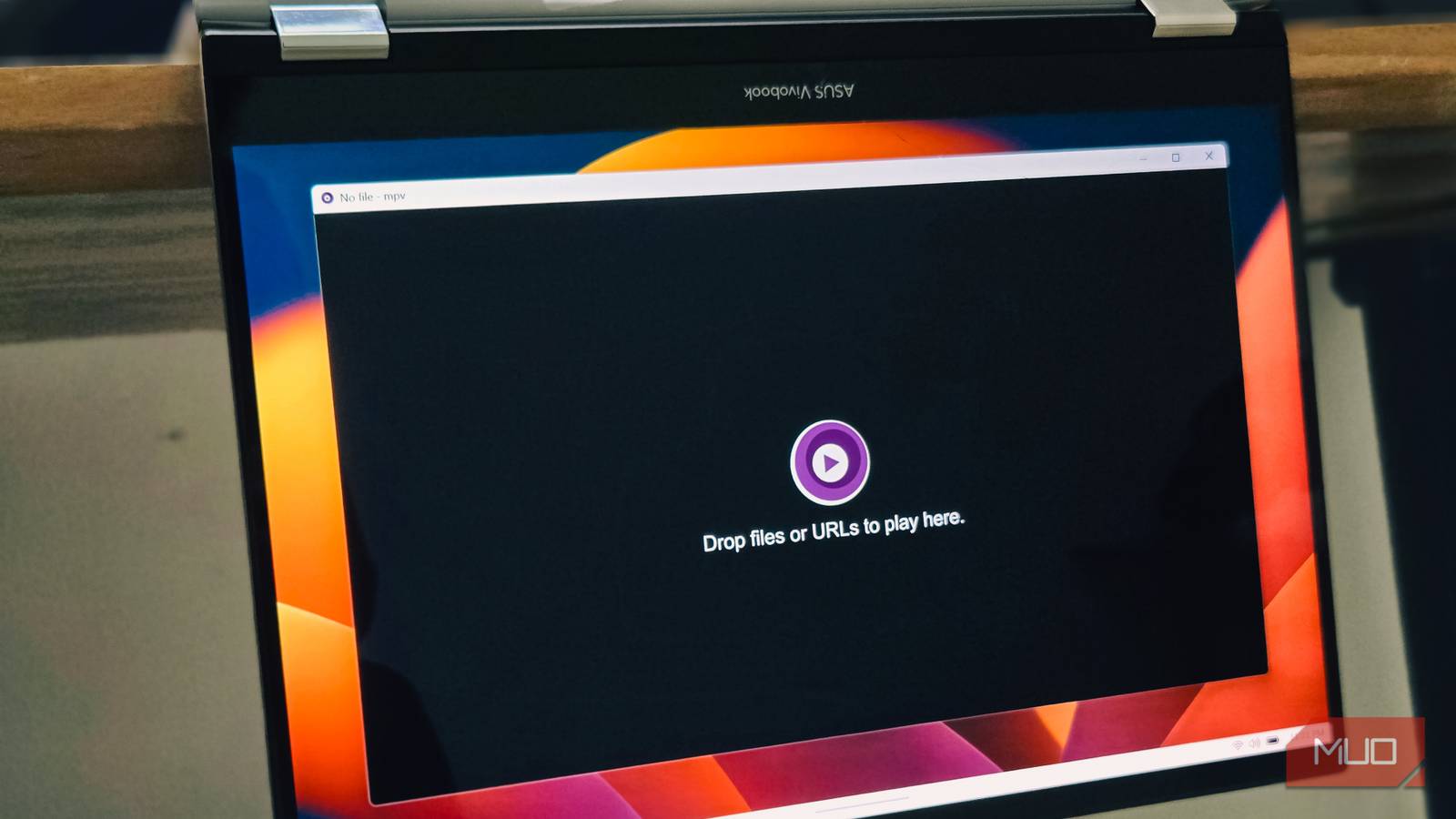
mpv is a free, open-source media player that runs on Windows, macOS, and Linux, and it behaves the same on all three. There’s no skin, no media library, and no setup wizard. You launch it and get a black window that says “Drop files or URLs to play here.” That’s the whole interface.
The catch is getting it installed, which is a bit more involved than the usual download-and-click routine, even if you’re comfortable grabbing apps off GitHub. On Windows, the cleanest path is a package manager: run scoop install mpv or choco install mpv, and it handles the download, future updates, and PATH setup for you. If you’d rather do it by hand, grab a prebuilt shinchiro build from mpv.io, unzip it, and run the mpv-install.bat file to add the right-click “Open with mpv” option.
On macOS, brew install –cask mpv gets you the raw player. Or you can grab IINA, which wraps the same engine in a proper Mac interface and is one of the best free video players for the Mac. Linux is the easiest of the three. mpv sits in nearly every distro’s repository, so sudo apt install mpv, or whatever your package manager uses to install software, is all it takes.
You can set up mpv for smoother HDR playback
Turning on proper HDR passthrough in the config

Straight out of the box, mpv already looked better than VLC. But HDR needs a couple of config lines to get it fully right. mpv keeps its settings in a plain text file called mpv.conf, and that’s where the HDR fix lives.
These are the three lines that cleared up my washed-out colors:
vo=gpu-next
target-colorspace-hint=yes
hwdec=auto
Here’s what each one does. vo=gpu-next switches to mpv’s newer video output, which has far better color handling. target-colorspace-hint=yes tells your display to flip into HDR mode and passes the movie’s HDR metadata straight through, instead of mpv guessing at a conversion the way VLC seemed to. And hwdec=auto hands decoding to your GPU, which is what keeps 4K playback smooth and stops the stutters.
To check if it’s working, hit Shift + I during playback to bring up the stats overlay. It shows the resolution, codec, frame rate, and color space, so you can see HDR being passed through rather than just hoping it is.
mpv shines with custom keybinds and scripts
Bending the player to your own muscle memory
That same plain-text approach runs through the rest of mpv. Right next to mpv.conf sits input.conf, the file that controls every key and mouse button in the player.
The defaults are sane to begin with. Space pauses, the comma and period keys step one frame back and forward, the brace keys drop playback to 0.5x or push it to 2x, and L sets an A-B loop to repeat a clip. After about a week, I’d stopped reaching for the mouse entirely.
Where it gets fun is rewriting those binds. In input.conf, you can map zoom, rotation, window scaling, or even “close every open mpv window” to whatever keys or spare mouse buttons fit your hands.
Then there’s scripting. mpv runs small Lua scripts, and the ecosystem around it is huge. A few lines of Lua gave me a one-key zoom reset with an on-screen message. Pairing mpv with yt-dlp lets it open YouTube, Twitch, and other links directly, no browser needed.
Light enough to leave running all day

All of this would be academic if mpv were a chore to live with. It isn’t. The minimal UI that looked stark at first is the exact reason I now leave it as my default for everything, not just HDR demos.
Because there’s no chrome eating screen space or CPU, I can run two or three mpv windows side by side without the machine breaking a sweat, important if you prefer to watch your content in HDR. It doubles as a serious image viewer, too. So, you can open images at native resolution, scale oversized ones to fit the screen, and it lets you zoom and pan with the mouse.
What’s more, point it at a folder, and it builds a playlist on the spot, so I can jump to the next file with a single key and have it loop back at the end. Compared with VLC’s busy, slightly dated window, mpv stays out of the way and puts every spare cycle into the actual video, which is exactly what you want when you’re decoding 4K HDR. It’s the leaner player that a lot of longtime VLC users have quietly switched to.
mpv is the MVP of media players
mpv isn’t flawless. There’s no library to organize your films, the install is fussier than double-clicking an installer, and that bare config-file approach means you’ll spend an evening reading docs before it feels like yours. VLC still wins for DVDs with menus and the odd broken file you just need to limp through.
But for the one thing I bought a 4K HDR monitor to do, watching HDR movies the way they’re meant to look, mpv has been the clear winner. Three lines of config bought me accurate colors and smooth playback that hours of fighting VLC never did. The fans still spin. I’ve made my peace with that.