




While the era of online shopping reigns supreme in most cases, I won’t purchase a new TV without seeing how it looks in person first. I want to absorb the picture quality, see the major differences in color and image, and see if I think it would be the one I want. But, even at most big-box stores, displays suffer from one of the worst advancements in modern technology — motion smoothing.
In some situations, motion smoothing can be an okay thing to have on. Sports, for example, look a little smoother. But anything else? It looks like a soap opera, running at way too high of a framerate, and ruining the overall look and feel of your fancy new display. And you may not even know that you can turn it off.
What is motion smoothing on a TV?
It may be the reason why everything looks just a little “off”
Have you ever watched a display that makes everything look too fast and unnatural? Then you’ve likely found yourself a victim of motion smoothing. I joke, but motion smoothing was initially introduced as a way to combat stuttering or judder that may have occurred during filming and make video appear clearer. But, more often than not, it just produces an uncanny effect that things are moving too quickly, and makes TV shows and movies look more amateur than anything. This results in a picture that looks “cheap” rather than more visually appealing.
Seeing as most programs and movies are filmed at 24 frames per second, having your TV bump them up to 60Hz or higher doesn’t look or feel right. It results in visual artifacts, a picture that doesn’t show the true capabilities of the TV, and just an unnatural look that may ruin the vibe. It’s just not a good look, no matter what you’re watching or playing.

Gaming on a Smart TV Is So Much Better With These Settings Tweaks
Your smart TV has a heap of features that make gaming much better—you just need to know where to look.
How to turn off motion smoothing on your display
Manufacturers love to add their own clever names to this technology
If you or a loved one have been diagnosed with motion smoothing, know that I’m here to help make things a little better. Depending on the manufacturer of your display, it may be hiding under a different name. Auto Motion Plus, TruMotion, Smooth Motion Effect; no matter the name, they all result in the same thing. Terrible picture quality. Turning it off is typically simple, but knowing where to search is half the battle. For this example, I’ll be using a Samsung display that I have set up in our master bedroom.
Bring up the Settings menu, and search for Picture. From here, you’ll want to head into Expert Settings, and search for either Auto Motion Plus, or Picture Clarity Settings. Here, I’ll typically find options for things like judder reduction, LED clear motion, or noise reduction. Rather than messing around with those, I’m just going to turn Picture Clarity Settings to Off, and experience a better picture almost instantly. If you have a Samsung display, there’s also a hidden menu that you can access to give you even more picture quality tweaks, but change these at your own risk.
Why is motion smoothing on by default?
You may be surprised, but some people genuinely like this feature

If you can’t tell, I’m not the biggest fan of motion smoothing by any means. But if you’re walking through a store, it may be one of the first things that catches your attention. While the graphics that they typically show on a TV in a store like Best Buy are going to be tailored for motion smoothing to give it the best looking and performing picture of the bunch, these typically don’t translate as well to regular shows and movies. But for displays with 120Hz or 240Hz refresh rates, it’s a quick and effective way to show a potential buyer what the display is capable of doing.
Home consoles, like the PlayStation 5, are capable of using these higher-quality displays with variable refresh rates, giving better graphical quality at an enhanced framerate. But even when it comes to this setting on your favorite console, you won’t need to have motion smoothing enabled. If anything, motion-smoothing may be causing you more issues while you’re gaming than anything. It’s a great way to showcase what your display can do in a storefront, but it should be turned off as quickly as possible if you’re planning on watching movies or TV shows on it, or you want to play faster-paced games.
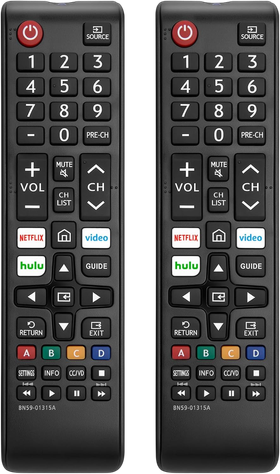
- Power Source
-
AAA Battery x2
- Dimensions
-
6.9″L X 1.65″W X 0.9″H
- Brand
-
LOUTOC
- Voice Control
-
No
Some programs may benefit from it
They’re few and far between, but maybe try it to see if you like it?

If you’re planning on testing anything with motion smoothing, I would say to try it with something faster than your typical TV show. Live sports may actually benefit slightly from motion smoothing, as it may reduce the amount of “ghosting” that is shown when something is moving incredibly fast. Or, as often displayed in stores, shows about nature typically don’t abide by the 24 frames-per-second rule and can look fantastic with something like motion-something turned on.
The setting is typically customizable to your exact specifications, so you could always experiment with the setting and see if your favorite program may benefit from it. While I’m not a fan of it in any capacity, some people absolutely love it. Seeing as motion smoothing looks more like “real life” than cinematic, sports and nature may be the best use case for it.
Motion smoothing isn’t my jam
I hope that manufacturers start to phase this out eventually
There are a lot of different TV technologies that have gone the way of the dodo over the years. 3D technology was all the rage for a while, but now? TV manufacturers have pushed that off to the side in favor of UHD and 4K technology. I’m hoping that either they find a way to improve motion smoothing, or just get rid of it entirely in future displays.
Some people may love it, but the majority of people I know turn this setting off faster than anything. While it may have its uses, I think that it’s more of a headache than helpful, and I hope that we can brush this one under the rug sooner than later. Tweak your settings, and reclaim the device you spent a ton of money on.