


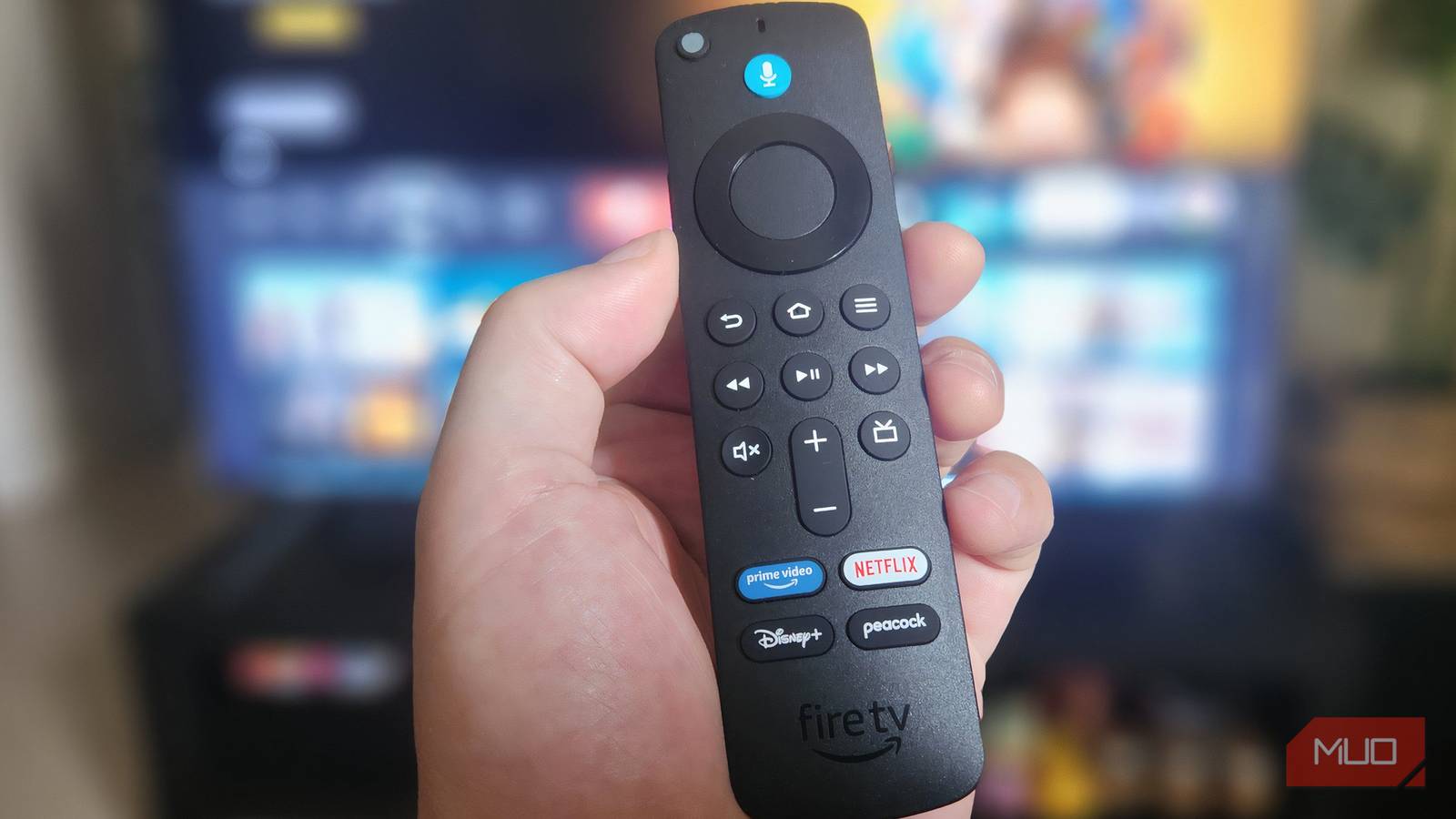
The Fire TV remote doesn’t come with too many buttons. While that’s great for simplicity, it also means you have to go through multiple button presses to access simple things like changing the display resolution, switching Wi-Fi networks, or even a quick restart. However, that’s not exactly true.
The Fire TV remote hides several useful shortcuts that can save time and make navigation quicker. I regret learning some of these too late, but now that I have, I find myself using these shortcuts constantly.
Cycle through display resolutions
Find the best visual setting instantly
If you have ever found yourself watching a show and thinking the picture looks a bit off, the set screen resolution may be to blame. The good news is that your Fire TV remote has a handy shortcut that lets you quickly cycle through available resolutions without getting lost in the display settings menu.
Hold Up and Rewind for 5 seconds, and your Fire TV will show you the current resolution and the refresh rate. It will then cycle through all the available resolutions, like 480p, 576p, 720p, 1080p, and 4K, and you can select the Use Current Resolution button once you find the resolution you want to keep.
Open quick settings
Get to essential tools without leaving apps
Sometimes, you want to access settings like Wi-Fi, profiles, and mirroring without leaving what you’re watching. In that case, simply long-press the Home button for 5 seconds. This will open a menu over your current stream.
From here, you can adjust Wi-Fi, enable screen mirroring, swap profiles, or change the sleep settings. Once you’ve made your changes, press the Back button once to go right back to your streaming session.
For those who like to tweak everything

Fire TV hides several useful options behind the Developer Options menu. And similar to that, there’s a Developer Tools menu that most people never discover. It’s mainly for developers, but it includes a couple of settings that anyone can take advantage of. To open it, you need to hold the Select button and the Down button for 4 seconds. Then release both and press the Home button once.
In this menu, System X-Ray shows system information at the top of the screen. Record and Share stores system metrics for deeper analysis, while the Clear Credential Store lets you remove all your saved accounts without fully resetting the Fire TV.
Toggle accessibility features quickly

Like every other smart device, Fire TV has a bunch of accessibility features that anyone can benefit from. The Text Banner option, for instance, detects what’s on the screen and describes it in large text. To turn it on or off, hold Rewind and Fast-Forward for 2 seconds.
VoiceView is a feature that reads the text on your TV as you navigate. To toggle it, hold down the Back and Menu button for 10 seconds. Finally, the Screen Magnifier option does exactly what it sounds like. It lets you zoom into parts of the screen so you can inspect details without changing your TV’s display settings. To toggle it, press and hold Back and Fast-Forward for 10 seconds.

Just Bought a Fire TV Stick? Change These Settings Immediately
These tiny tweaks can give your device a nice little performance boost.
Reset and pair the remote
Fix the remote fast

If your Fire TV remote ever starts ignoring you and won’t respond even after you replace the batteries, it may need resetting. Thankfully, there’s a shortcut built right into the remote. For that, press and hold the Left, Menu, and Back button for 12 seconds. When the timer is up, wait for 5 seconds, and then remove the batteries. Finally, pop them back in and you’re done.
If your remote has lost its connection with the Fire TV, pairing it is just as easy. Press and hold the Home button for 10 seconds, and you should see the LED light flashing. Once it does, confirm the pairing on your TV.
Reboot or reset the Fire TV with just buttons
The last resort that always works

Sometimes, the issue is not with the remote but the Fire TV itself. In such instances, a quick reboot can usually fix things. For that, press and hold the Select and Play/Pause buttons for 5 seconds. Your TV will turn off and then turn back on automatically.
If things are really messed up and a restart doesn’t cut it, you can also factory reset your Fire TV using the remote. For that, press and hold the Back and the Right button for 10 seconds. Since this wipes all your apps, accounts, and custom settings, you should only use this as a last resort when nothing else works.
While Amazon doesn’t allow remapping the buttons, the built-in options are more than enough to get around. With them, things that typically require several menu hops only take a second or two.