


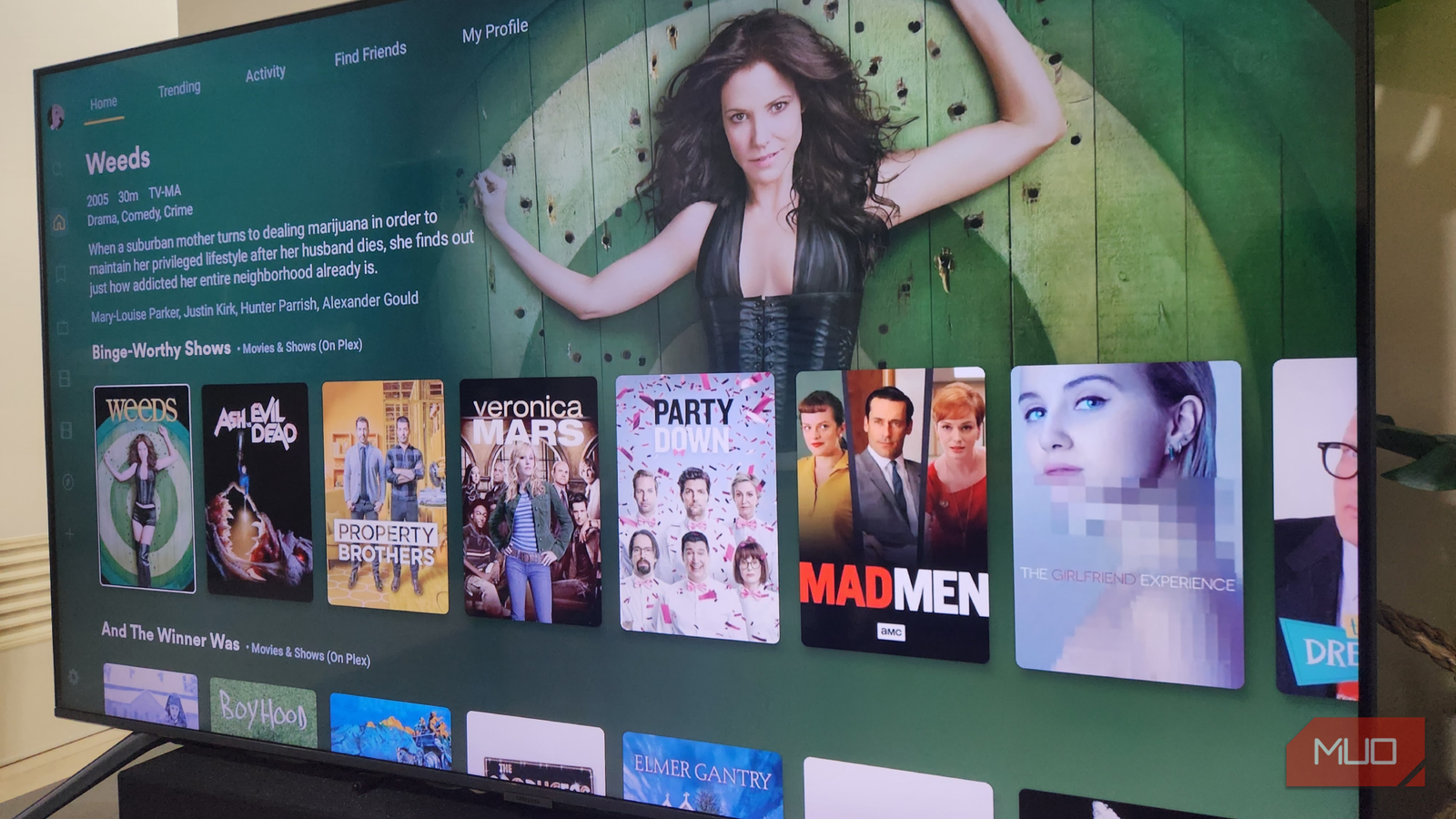
Setting up a media server feels straightforward until you import your first batch of files and Plex or Jellyfin hands you back a wall of missing posters, wrong titles, and episodes scattered across five different shows. The problem isn’t the software. Both platforms work exactly as designed, but you still have to put in your part. When your files don’t follow the naming patterns those scanners expect, the whole process falls apart, and so you should fix it before doing your first scan.
This Plex plugin made my library perfect
It’s all about the finishing touches, and this app is the one that’ll get your Plex library over the line.
Plex and Jellyfin aren’t guessing at your files; they genuinely need help
I am probably one of the laziest people around when it comes to doing menial tasks, but I never mess around with file organization if I know it is important. When you import media into Plex or Jellyfin, you’re going to have a horrible time if you don’t take it seriously. These platforms are smart, and the latter is good for camping, but they’re not made to sort through a messy folder of randomly named video files on their own.
Both platforms use scanners to pull titles, release years, and episode numbers directly from your file names. They look up that information with online databases like TMDB or TheTVDB to grab descriptions, cast info, and artwork. But a script or program must follow what it is told to a T.
When your file names don’t match what the software expects, the whole process falls apart. The software cannot decipher the names on its own. It is incredibly annoying to see missing posters replaced with random video screenshots, incorrect episode names, duplicate movie entries, and TV seasons that refuse to group properly.
If you leave the release year out of a movie’s filename, you’re asking the scanner to guess between the original and a remake. You never want a program to decide that. If it is wrong, it means more work for you.
Things will only get worse if you mix your movies and TV shows in the same root folder. Either they are unsorted and in the wrong seasons, or they get mixed into the wrong categories.
While I may sound lazy for not wanting to fix it after the fact, the built-in manual correction is slow and sometimes reverts if it scans again and messes up. I’ve wiped cached metadata, cleared broken database links, and done a full re-scan from scratch just to try to fix this. It’s not worth the effort when you can just do it right the first time.
Both platforms expect a folder and a filename structure
Movies go one way, TV shows go another

Before you move a single file into Plex or Jellyfin, get your naming conventions sorted out first. For movies, each film gets its own folder, and both the folder and the file inside it need to include the title and the release year in parentheses.
So something like ‘Movies/Inception (2010)’, then inside, name the file ‘/Inception (2010).mp4’, and you’re done. The year matters because the software might confuse a film with a remake or another title that shares the same name. I like keeping things in folders so it knows that there is a difference between what they are getting. A new folder means a new show or movie.
It also gives you a clean place to drop in extras later, like custom posters, subtitles, or bonus content. TV shows are a little more annoying because they need more structure. This is thanks to how seasons and episodes work. You can’t organize them the same way you would movies.
The top-level folder should be the show’s title, and inside that, you create a sub-folder for each season. Those season folders should be named with the full word “Season” followed by a two-digit number. So you’re writing Season 01, Season 02, and so on.
Don’t shorten it to S01, and don’t drop episode files directly into the main show folder. Either of those will confuse the scanner and break how episodes are grouped in your library.
Within each season folder, your files must follow the SxxExx format. This is what tells Plex and Jellyfin exactly where an episode falls in the show’s run. So if it were “Breaking Bad”, you’d have the first folder called TV Shows, then “Breaking Bad”, then Season 01, and the file inside as ‘Breaking Bad – S01E01.mkv’.
The scanner looks specifically for that SxxExx string to match the file against episode databases, so it has to be there, and it has to be clean. You can add the episode title or other details after it if you want, but don’t mess with the numbering itself.
Don’t do this inside the app
Fix the files, not the app

You could just fix your files after you put them in Plex or Jellyfin. It doesn’t violate any rules, and it’s easy to do. This isn’t a permanent solution, though, because it will cause problems later. When you use those manual corrections, you’re not touching the files on your hard drive.
So every time you manually correct a title, fix a poster, or re-link a misidentified episode, you’re quietly stacking up entries in a single SQLite database file. Your library starts to look great on screen, but its accuracy now depends entirely on that one file staying healthy.
This all seems fine until you hit an unexpected shutdown, a power outage, or a network hiccup during a database write. If your files are corrupt, then you’re out of luck because you didn’t actually change the real file.
Also, if you ever want to move your library to a new machine, the database doesn’t always come with it cleanly. Either way, every manual correction you made is gone, and the server re-scans your messy raw files from scratch. So you’re back to the original mismatch all over again.
All you have to do is correct the files on your hard drive, and this won’t be an issue.
It’s a bad idea to be lazy
Fixing straight in the app feels faster at the moment and usually works, but it isn’t worth it. Naming your files correctly from the start takes more effort up front, but it’s the kind of effort you only have to do once. Database corruptions won’t get in your way anymore, and you can go about your business without any fear of glitches.

- OS
-
MacOS, Linux, Windows, iOS, Android
Plex is a powerful media management and streaming service that centralizes your personal media—like movies, music, photos, and TV shows—into one easy-to-access library. It also offers free streaming of movies, TV, and live channels, making it a versatile entertainment hub for all your content.