


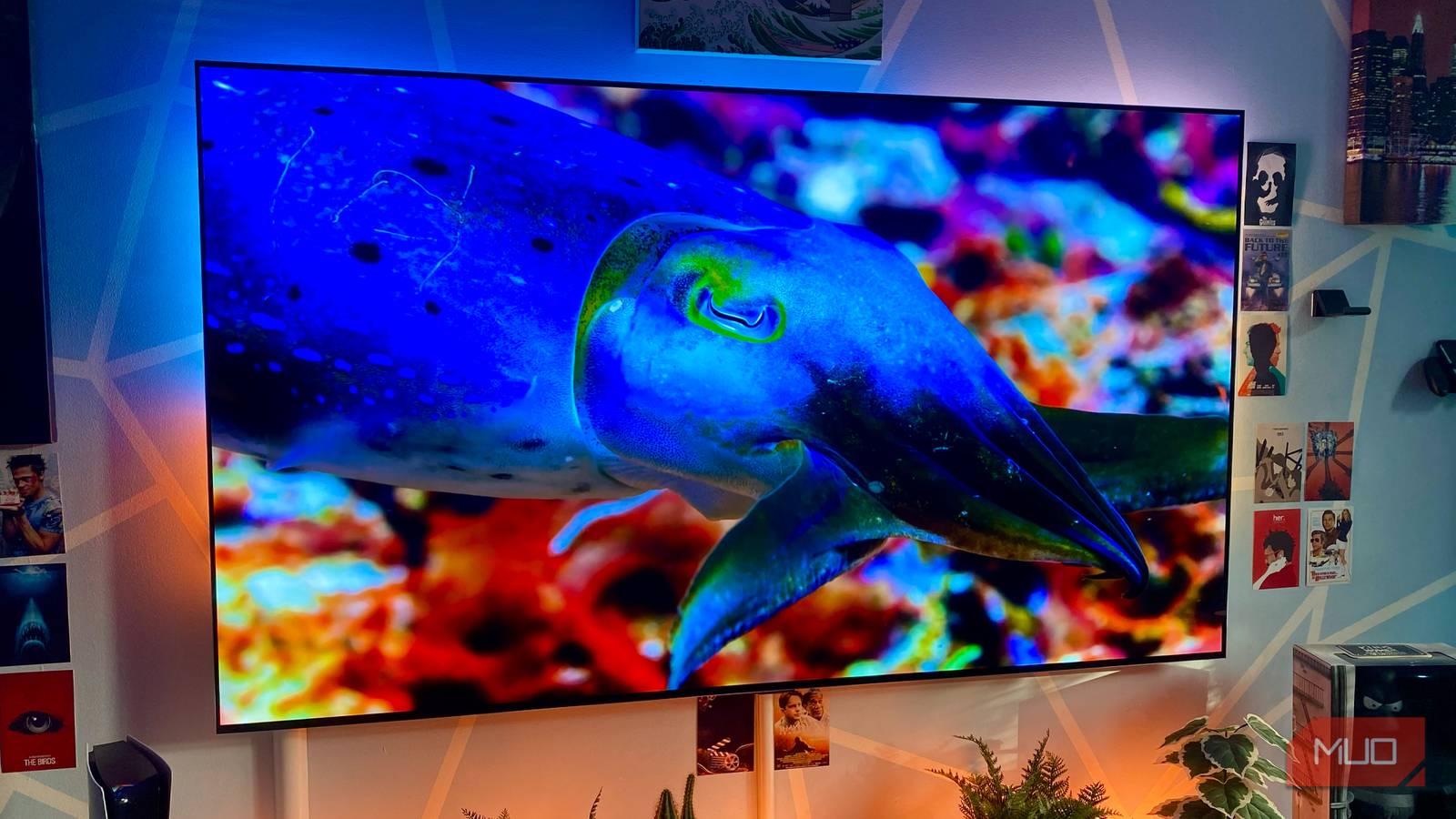
If I had to choose between my OLED TV and oxygen, I’d have to give the matter serious thought … before reluctantly opting for O₂. Even though I adore “Light-Emitting Diode” displays, I have to admit this television tech has its flaws. As much as I worry about dreaded screen burn, there’s an equally annoying defect that can befall all manner of TVs, OLED or not.
Said defect is the possibility of stuck pixels popping up. The threat of temporarily frozen pixels has loomed over many displays I’ve owned in the past, from smart TVs to the various iPads I’ve picked up throughout the years. Indeed, several of my televisions have been actively struck by stuck pixels, and it was only when I started looking for solutions to this irritating phenomenon that I learned how to (occasionally) fix it.
OLED Burn-In Hits Laptops Hard—Here’s How to Avoid It
Your gorgeous laptop display is at risk of losing its shine.
Stuck pixels explained
What they are and why they happen

So what exactly is a stuck pixel? In simple terms, it’s an on-screen pixel that becomes frozen on a certain color, refusing to change hues regardless of what’s happening on your display. Large TVs are most at threat of stuck pixels manifesting, but this defect can easily occur on smartphones, too.
Stuck pixels can often be hard to spot from normal viewing distances, but if you sit very close to a TV, they can be incredibly difficult to ignore once your eyes have clocked them. I’ve also owned monitors that have been affected by this pixel problem. That’s proven to be incredibly distracting, particularly because I normally sit mere inches away from a super ultrawide monitor I didn’t know I needed until I worked from home.
As for why stuck pixels appear on TVs, there can be a number of factors. On a basic level, the tiny transistors that control sub-pixels get frozen, constantly providing power only to a certain color. Pressures put on the panel during the manufacturing process can cause such deficiencies, as can added heat stress. Displaying static images on your television (like HUD elements in video games or scoreboards with sports) can also lead to stuck pixels in rare cases.
It’s important to note that stuck pixels aren’t the same as dead pixels. Thankfully, in most cases, they’re less serious. While the former can sometimes be reversed by methods I’ll shortly talk you through, dead pixels have no power and are therefore permanent. Whereas stuck pixels are normally either blue, green or red, dearly departed ones are black, and will never change color. If you’re cursed with obsessive eyes and your phone or tablet gets a dead pixel, your peepers are likely going to be mighty sad.
Use a color cycling stuck pixel fixer
YouTube videos can help to repair your TV
Mercifully, stuck pixels can be remedied. While there’s no hard and fast rule to guarantee you’ll be able to unfreeze that tiny on-screen dot on your TV, methods do exist that can help. The techniques I’ve had some success with won’t cost you a dime, and provided you’re careful, nor will they cause further damage to your display.
The first thing you should try is running YouTube on your TV and searching for the type of pixel-fixing video above. There are a ton of stuck pixel guides on the platform, and many of them work in a similar fashion. Whether a specific video is 10 minutes or 10 hours long, it will normally flash a number of colors across your screen in ultra-speedy style. In theory, such rapidly shifting hues should encourage that teeny dot to unfreeze itself.
Though I have managed to “unstick” the odd pixel with such videos, I’d say the failure to success rate is probably 70/30. So yeah, by no means a magic bullet. With monitors, I’ve had a little more luck with Pixel Fixer Pro, a free app on the Microsoft Store that runs an effect that resembles TV static. This will obviously work on televisions too, if you happen to have your PC or laptop hooked up to a big screen display.
If you own an LCD TV, there’s a physical technique which is also worth giving a try. Take a microfiber cloth before slowly and gently applying very light pressure to the area around the stuck pixel for a minute or so. Power your TV off, wait a few minutes, then when you boot your display back on the stuck pixel will hopefully be operating properly again. It’s obviously far easier to spot a stuck pixel if your TV is displaying a static color, which is where those YouTube videos above can come in handy.
A pixel refresh cycle may also help
Many modern TVs boast panel refresh features

As for OLEDs, they’re generally less prone to stuck pixels than their backlit counterparts, but they’re definitely not immune to them. Sadly, the rubbing technique above won’t work on an OLED panel, but there are built-in features your screen might be able to lean on.
Many modern OLED TVs have a panel refresh function, often also known as a “pixel cleaning cycle”. I was terrified of OLED burn-in until I found these three settings, and one of these trio of fixes just happened to be running a quick panel refresh on my LG G3 OLED. This setting can not only help get rid of temporary image retention, it may also help remove pesky frozen pixels.
All the LG sets I’ve owned over the past seven years would run a pixel refresh cycle automatically as soon as they’d been switched off for four subsequent hours (and provided they were still connected to my mains). If you’re an OLED owner and are unsure of whether your panel’s pixel cleaning features run in auto mode or not, you should be able to start one manually through your TV’s display settings. In the case of my LG model, the panel refresh tab lives under the OLED Care menu.
Stuck pixels are annoying, but they can be fixed
Although you may not notice them if you sit well back from your PC, should you spot one, stuck pixels can be incredibly distracting. While there’s no guarantee a pixel will become unfrozen with the methods above, at least they have a chance of ridding you of the defect. As for dead pixels, there’s unfortunately no way to revive them.