


My TCL Google TV is four years old, and it doesn’t perform anywhere near as well as it did on day one. And it’s not like I didn’t try anything to fix it. I did the usual bit of installing updates, clearing the cache, removing pre-installed apps, and even freeing up storage. All of this would work for a while, but then I’d be right back where I started after a week or two.
It wasn’t just about the speed either. The picture quality was worse too, especially compared to what I was seeing on newer TVs. That’s when I started digging into some default settings, and disabling a few of them made all the difference. And yes, it was enough to hold off buying a new TV.
Turn off autoplay
Stop letting your TV decide what’s next

Autoplay is something almost every TV has. And it’s honestly annoying when you’re simply browsing the home screen to get to your favorite app and your TV starts autoplaying a movie or TV show trailer you didn’t ask for. It’s even worse when those suggestions are for services you don’t subscribe to.
Even if you manage to ignore them, all that autoplaying can make the interface feel slower and create unnecessary cached data. The good news is that most TVs let you disable it pretty easily. Once I turned it off on my Google TV, browsing the home screen felt quicker and, more importantly, a little less annoying.
Turn off energy saving features
A few cents isn’t worth a worse picture
By default, most TVs come with a few energy-saving features pre-enabled. These obviously promise to reduce electricity consumption, but they still aren’t worth it. For instance, this mode can automatically reduce the brightness depending on the content, which can sometimes make your TV’s picture quality feel dull.
Every-saving mode can also reduce the refresh rate, which, of course, is not ideal for gaming. Most importantly, the amount of energy you actually save from all these compromises is pretty small. We’re talking about a few cents a month in most cases.
Every TV brand calls this something different — Eco Mode or Energy Saver — but they generally work in much the same way. Once I disabled them on my Google TV, the picture looked better than it ever had.
Disable ACR
Stop your TV from spying on you
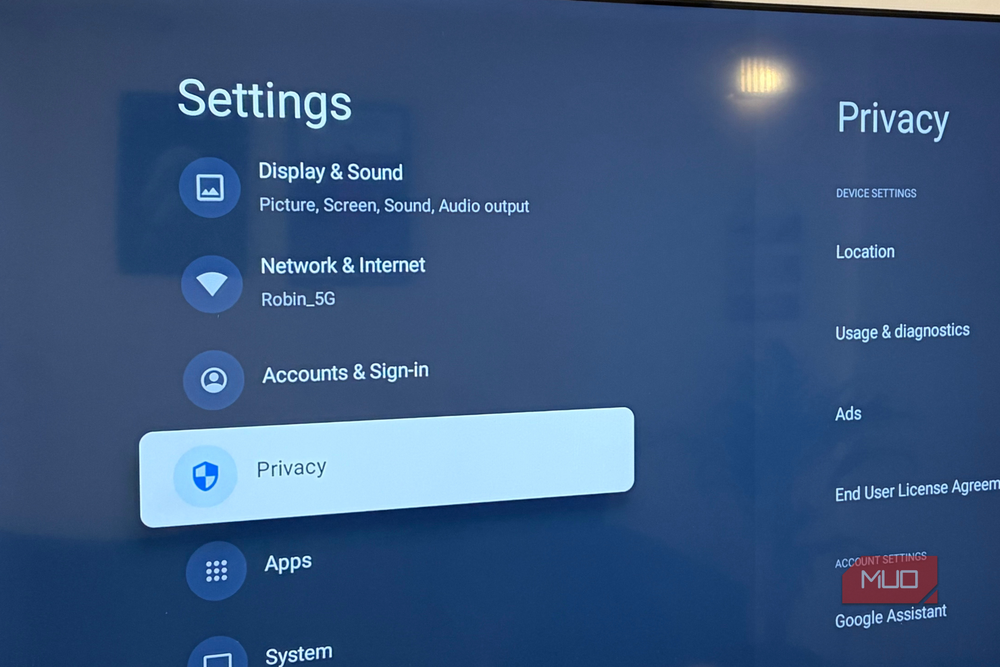
ACR (Automatic Content Recognition) is a feature that constantly captures what you’re seeing on your TV. This data is then referenced against the TV manufacturer’s own database to understand your interests and viewing habits. All this information can be used or even shared with third-party advertisers. It’s just one more way for manufacturers to make some profit, and there’s nothing useful this feature does for you.
ACR runs in the background, but it still requires some processing power. Disabling it can put a stop to that, which is not only good news for your TV’s performance but also your own privacy. This feature is also named differently on every TV, so look for Viewing Information Services, Live Plus, ACR, Interactive TV, or something similar. I regret knowing about this a little too late, but it’s now the first thing I suggest turning off to anyone setting up their new TV.
Turn off motion smoothing
It’s not as helpful as it sounds

This one wasn’t affecting my TV’s performance, but rather the picture quality. Motion smoothing is one of those features that promises to make your movies look great but ends up doing the opposite.
Most movies are shot at 24 fps. That’s just how it’s been for decades. Meanwhile, most modern TVs are capable of showing 60 frames per second or more. Motion smoothing tries to fill those gaps by creating missing frames. Since these are still computer-generated frames, they often end up creating the infamous “soap opera effect,” where everything looks unnatural. This feature can also mess up your gaming experience.
The only time those extra frames are actually useful is when you’re watching sports. But for everything else, it’s best to turn off motion smoothing off entirely. As with most TV settings, the feature goes by different names depending on the brand, so you might need to look for TruMotion, Auto Motion Plus, MotionFlow, or something similar and disable it.
Get rid of those animations
The upgrade my TV desperately needed

This one thing made a bigger difference than anything else. Smart TVs are usually packed with animations and transition effects designed to make the interface feel smoother. That’s fine on newer, more powerful TVs, but on my older one, those same animations were actually slowing things down. My TV was spending resources rendering animations it simply wasn’t powerful enough to handle smoothly, which made the whole interface feel more sluggish.
To disable these, I first had to unlock the developer options menu. I then went into Settings > Developer options and turned off Window animation scale, Transition animation scale, and Animator duration scale.