


We’ve all heard the advice that a wired Ethernet connection is better than a wireless one. Even if you’re using the latest Wi-Fi 7 gear, direct Ethernet cables will win in speed, reliability, and bandwidth every time. Understanding this concept is one thing, but actually implementing it in your home is another. There are many obstacles to wiring devices to Ethernet that stop people from taking entire rooms off Wi-Fi.
I used to connect my main computer and Apple TV to Ethernet, and leave everything else on Wi-Fi. As an apartment dweller, I only had a single RJ45 jack available on my router and couldn’t run cables through my walls. I still can’t bring Ethernet to every room in my home, but a cheap networking switch helped me take my entire living room off my wireless network, improving speeds in the process.
Connecting one streamer to Ethernet isn’t enough
Take as much of your streaming hardware off Wi-Fi as possible
The days of a single cable box powering an entire living room setup are long gone. Now, you probably have a smart TV capable of connecting to the internet for streaming. You could have an Apple TV, Google TV, Fire TV, or Roku streaming box or stick — perhaps more than one. There might be a gaming console, Blu-ray player, or AV receiver in your media arsenal, too. All these devices connect to the internet, and they all could be bogging down your wireless network.
Running living room streamers on Wi-Fi could make for a noticeable speed hit. A basic 4K video stream only uses about 25Mbps of bandwidth, but it requires that data stream consistently. A single blip in bitrate could cause stutters or buffering in your stream. Moreover, the device streaming 4K content wirelessly will often take priority, forcing other devices to wait. This is why a 4K stream in your living room could impact network speeds throughout your entire home.
If you have an Ethernet cable and a nearby router, you can easily take one streaming device off Wi-Fi. My router is set up in my living room, not too far from my desktop workstation and home theater gear. This made it easy for me to connect my Apple TV to Ethernet, but what about everything else? I also have a Fiio K15 desktop DAC, a JBL MA710 receiver, a Chromecast with Google TV HD, and an Xbox that all need network connections in my living room.
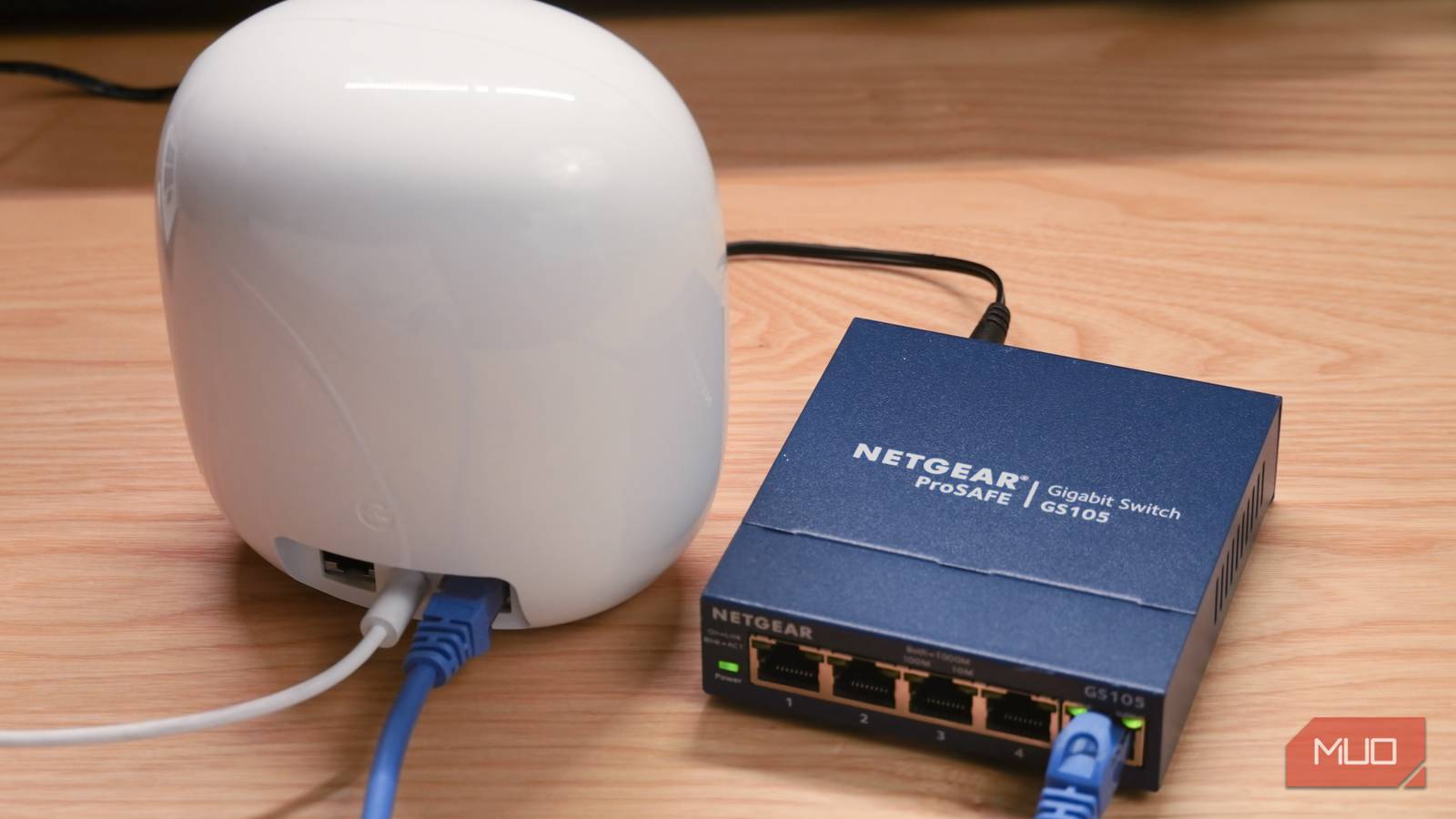
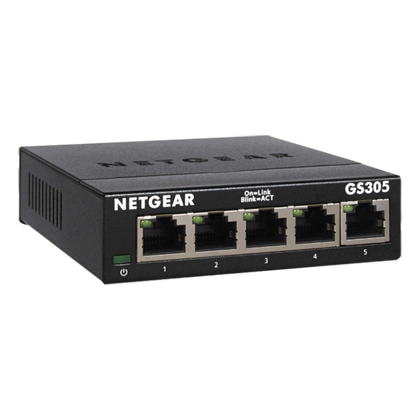
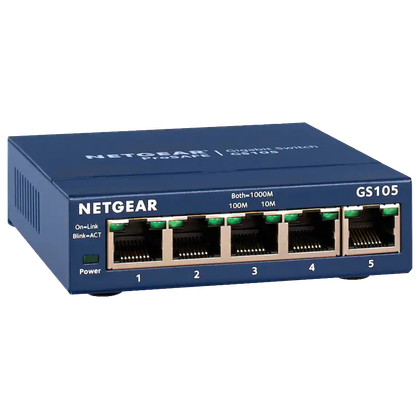
Simply wiring your smart TV or primary streamer to Ethernet isn’t enough. If you can get one cable to your living room setup, you can turn that Ethernet connection into a bunch more using an affordable unmanaged switch. I used the Netgear GS105 unmanaged switch, which costs around $40 new and less than $15 on the secondary market. If you’d prefer to buy a brand-new switch for cheap, the similar Netgear GS305 fits the bill for only $15. It helped me take every device with an Ethernet jack in my living room off Wi-Fi.
With an unmanaged switch, one becomes many
Turn one of your router’s Gigabit Ethernet jacks into four more
If you have a basic consumer-grade router, a modem/router combo, or a router provided by your ISP, you might only have one or two spare Ethernet jacks to work with. I use the Google Nest Wi-Fi Pro, a mesh router system with one extra. One is all you need to connect an unmanaged Ethernet switch like the Netgear GS105 or GS305.
Setting up an unmanaged Ethernet switch is dead simple. Unlike a managed switch, you don’t have to deal with software setup, network management, or anything of the sort. Connect an Ethernet cable between your router and the unmanaged switch. In my case, I used a five-port switch — one for the router connection, and four for connecting other devices to your network. Plug the switch’s power cable into the wall, and that’s it. Your main router still handles network management, the switch is just turning one Ethernet jack into four more.

I connected it to my Nest Wi-Fi Pro, and dropped the switch behind my media console. Instead of having a single Ethernet cable running to my Apple TV, I now have enough ports to connect my receiver, Xbox, and smart TV as well. I choose to keep my smart TV off my network on purpose, but it’s nice that I have the ports necessary to take everything in my home theater setup off Wi-Fi.
The results were well worth the effort. When I streamed 4K movies and Dolby Atmos audio over Ethernet, the rest of my Wi-Fi network didn’t suffer. Wireless connections didn’t grind to a halt when my partner downloaded tens of gigabytes of Xbox game updates, because the data was transferred over Ethernet. The devices in my living room felt faster and more stable, but so did all the other wireless devices in my home.
It’s the best cheap upgrade you can make
Taking my entire living room off Wi-Fi boosted speeds and reliability

It’s understandable if you can’t wire Ethernet connections throughout your entire home. I know I can’t. However, taking just a single room off Wi-Fi — especially one that strains your network as much as your living room — can make a big impact. Instead of using the spare Ethernet jack on your router to connect one device with a cable, throw an unmanaged switch in the middle to add more ports where you need them most. Your home network will thank you.
-
- What’s Included
-
GS305, power adapter
- Type
-
Unmanaged
- Coverage
-
5 x 1Gbps Ethernet ports
- Materials
-
Metal
Netgear’s GS305 is a basic home networking switch that turns one Gigabit Ethernet input into four Ethernet outputs. You can use it to add Ethernet jacks to your router, and since the switch is unmanaged, your router still handles network management functions. It’s a plug-and-play switch anyone can use to streamline their wired networking setup.
-
- What’s Included
-
Wall mount included
- Type
-
5-Port 10/100/1000 Gigabit Ethernet Unmanaged Switch
- Manufacturer
-
Netgear
Netgear’s five-port unmanaged networking switch expands Gigabit Ethernet speeds to four additional ports. It has a small form factor and supports wall mounting. Additionally, the switch senses and adjusts for network speed and cable type without any manual configuration.

