


Plex’s recent push toward subscriptions and remote ad-supported streaming has many people looking for a way out, but the idea of running your own media server still scares them off. The word server makes it sound like you need a closet full of blinking lights and a computer science degree to keep it running. If you’ve been waiting to use Jellyfin, you should try it out. You can build something that plays your library on any device in the house, transcodes on the fly, and never asks you for a credit card.
You can use hardware you already have
Linux and Docker make things much easier
Choosing your hardware is really the first big decision you’ll make when trying to move away from Plex. You don’t need anything like an enterprise server rack to make this work. A lot of people just dig up an old desktop and use it instead, which is great because it keeps those older machines out of a landfill and frees up more of your budget for storage drives.
If you’d rather keep things small and tidy, pairing a mini-PC with a DAS enclosure is a nice, compact option that doesn’t use much power. You could also just grab a consumer NAS box with one of the same Intel chips, which gives you a solid all-in-one setup with low power consumption and drive bays already built in.
Whatever machine you end up going with, though, try to steer clear of AMD graphics for this, because their encoders just don’t hold up quality-wise, and their driver support isn’t as good compared to Intel or NVIDIA. That’s my opinion, though, and I know some people would disagree.
Once you’ve got the hardware sorted, it’s time to get the software up and running. Windows will technically work fine if you really want to use it, but switching over to Linux is the better move for a dedicated media server. It uses less of your system’s resources, it’s more stable, and setting up Intel’s graphics drivers is way less of a headache.
As for actually getting Jellyfin installed, running it through Docker is probably the cleanest way to go. Setting it up with a Docker Compose file means the whole thing runs in its own little isolated container, so it won’t clash with anything else on your machine, and updating or backing things up later becomes a lot simpler too. When you’re setting it up for the first time, you’ll also point it to your local media folders by configuring the volume mounts.
Getting the server running takes just a few steps
Let your graphics card handle the heavy lifting
It’s actually pretty easy to set up Jellyfin once you’re ready to dive in. To set up Jellyfin through Docker, you’ll first need Docker and Docker Compose installed on your machine. You don’t need a NAS, and if you just want one, install it on your regular computer.
Make a dedicated folder for it and create a docker-compose.yml file inside, which is what tells Docker how to run the service. You’ll point it to the official Jellyfin image and set the network mode to “host.” In that same config file, you’ll need to map your local media folders to volumes inside the container, set the right user permissions (UID/GID), and pass through your Intel GPU so it can handle hardware transcoding.
Once that’s all in place, just run docker compose up -d to fire up the server, then head over to your browser and finish the setup wizard by going to the server’s IP address on port 8096.
There are other options, but I like Jellyfin because it can handle a mess of formats like old H.264 files, HEVC 10-bit rips, and newer AV1 files. Since not every device can handle all of that, Jellyfin steps in and converts the file into something the device can play, usually H.264, since pretty much everything supports that.
The problem is that transcoding is rough on hardware. The fix is to let your GPU handle it instead of your CPU. Most modern graphics chips have dedicated media engines built specifically for this kind of work, so they chew through video way more efficiently. Something like Intel Quick Sync on an N100 chip, for example, can handle three or four 4K HEVC streams at once without even breaking a sweat power-wise.
If you’ve got a real Nvidia card with NVENC, you can push that up to six, twelve, or more streams running at the same time, which is plenty for a big household.
Log in to the Jellyfin dashboard as admin, go to Playback, then Transcoding. There’s a dropdown where you pick whatever hardware acceleration matches your setup. After picking that, check the boxes for hardware decoding on the codecs you actually use, so the GPU actually takes over instead of your CPU still doing the work.
Jellyfin keeps your data local
You give up a few conveniences from Plex

Jellyfin is a free, open-source alternative to the big-name media center platforms, and it stands out for its commitment to your privacy. You get multiple user profiles and DVR features right after installing it. So don’t worry about it being a platform that hides its best features behind a paywall.
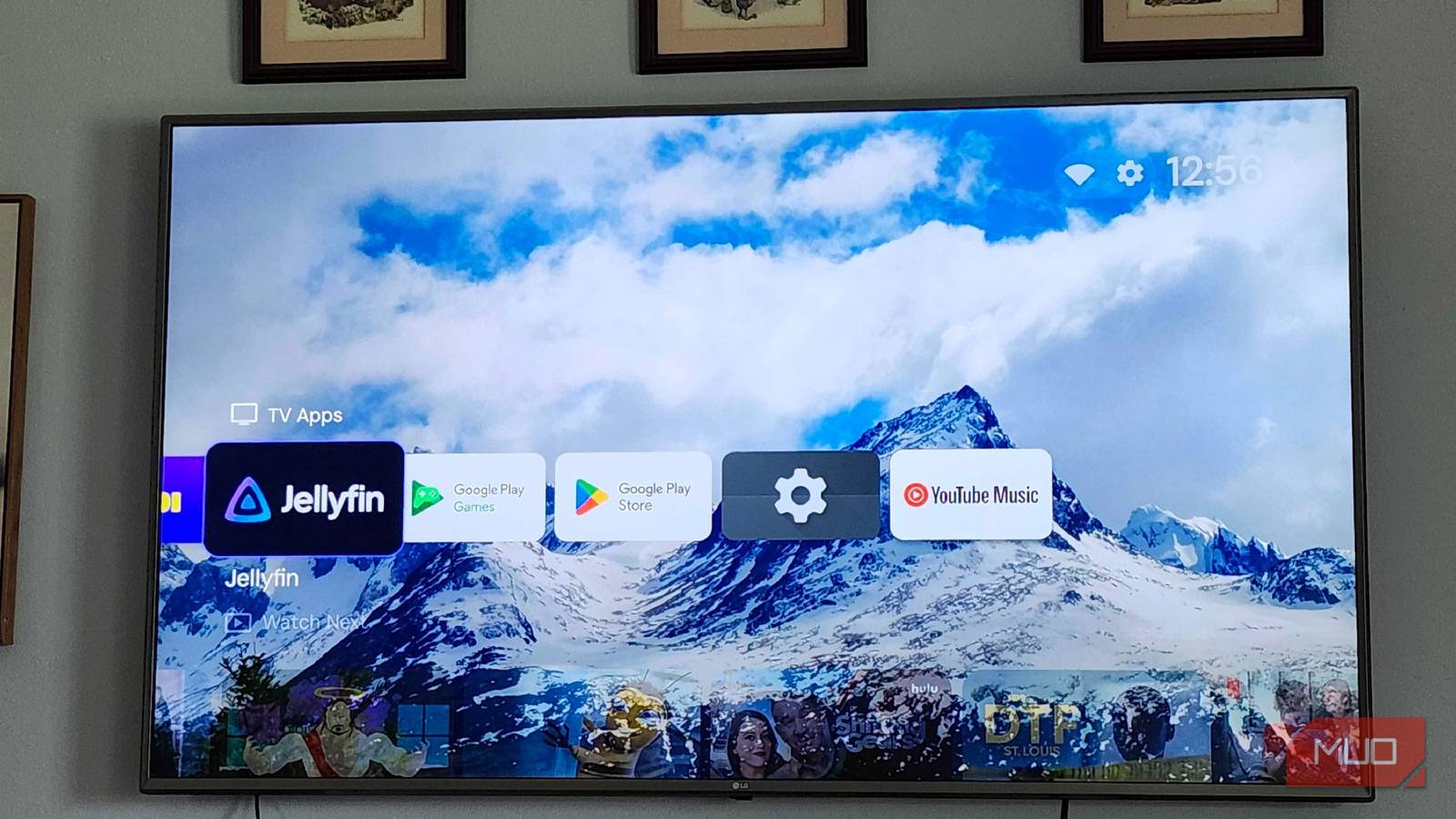
You don’t even need an internet connection, nor do you need to pay a licensing fee. It handles authentication locally, so your media library still works even if your connection drops. If you want the best playback experience, it’s worth using the official apps for platforms like Android TV or Apple TV, since they’re built to maximize direct play, which takes a lot of the load off your server.
It also helps to stick with external subtitle formats like SRT rather than image-based ones, since that avoids unnecessary video conversion, which means even weaker devices can stream high-bitrate 4K without choking. If you want your server to stay organized and run well, it’s worth setting up automated media management and sticking to consistent naming conventions, since that’s what lets Jellyfin pull accurate data. This is the same thing you’d do for Plex.
Jellyfin is not the perfect replacement
Switching away from Plex does mean giving up some conveniences, like its slicker remote-streaming setup and the metadata polish it’s spent years refining. If you want that experience without doing any of the setup yourself, sticking with Plex is still a fair choice. If you’d rather own your library and stop worrying about a company changing the rules on you later, Jellyfin gets you most of the way there with hardware you might already have sitting in a closet.

- OS
-
Android, iOS/iPadOS, Android TV, Fire TV, Web browsers
- Developer
-
Jellyfin Community
Jellyfin is a free-and-open-source media-server system that lets you self-host your movies, music, TV shows, photos and more and stream them to any device without subscriptions or third-party tracking.