


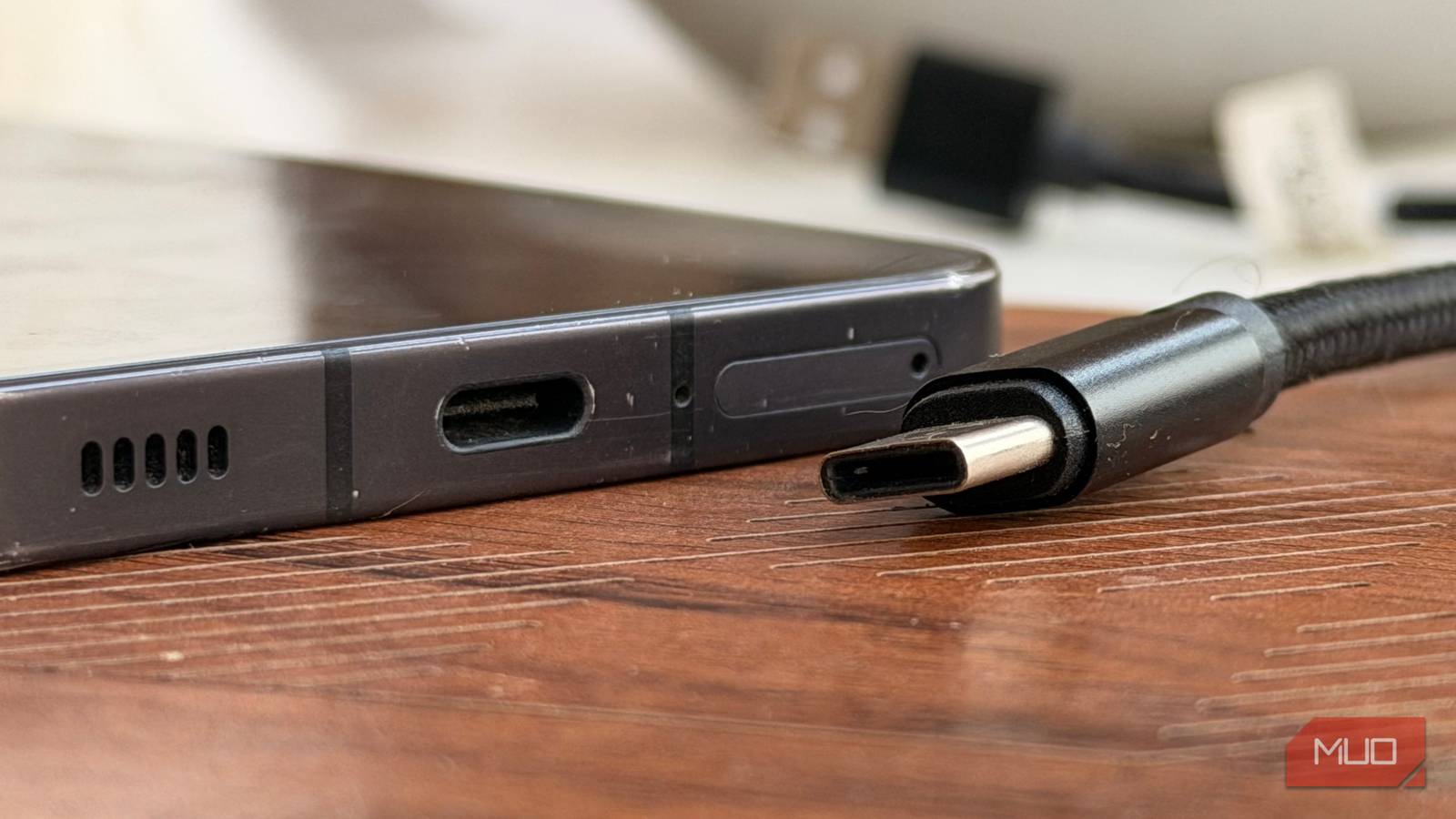
I’m always fixing bits of tech for friends and family, and I had a real noodle-scratcher recently. Despite plugging their smartphone into their TV using a USB-C port, nothing happened, despite having a USB-C port, cable, and input on the TV.
It turns out that the port on their smartphone was actually running USB 2.0, even though it was bought in 2023, and that comes with a whole host of problems: no video output, no DisplayPort Alt Mode, and no fun.
I finally learned why my TV needs HDMI while my PC needs DisplayPort
DisplayPort is the go-to standard for gamers, while HDMI is preferred by home theater buffs — have you ever stopped to ask why? This is the reason.
Your phone’s USB-C port might actually use USB 2.0
It’s not USB-C’s fault
USB-C is a physical standard. What’s running through it is a different question entirely. A USB 2.0 port in a USB-C housing gives you charging and basic data transfer (capped at 480Mbps), but not much else. And while you can stream video over USB 2.0, it doesn’t support DisplayPort Alt Mode, which means plugging directly into a monitor or TV won’t work.
Most folks, myself somewhat included, assume that Type-C USB 2.0 ports have been phased out, as Type-C USB 3.x has superseded the older standard. But it’s still alive and kicking, and on more devices than we think.
A prime example is the Samsung Galaxy A16 5G that launched in October 2024. It’s less than two years old at the time of writing, and according to Counterpoint Research, it was one of the world’s best-selling devices in 2025, and it ships with a Type-C USB 2.0 port.
It shows that even on one of the most iconic global brands, you still find older, nearly outdated tech.
Your cable isn’t up to the job
Not all USB-C cables are created equal, either

Even if your phone supports DisplayPort Alt Mode, the cable between it and the TV has to be capable of carrying a video signal. A lot of the time, those bundled USB-C cables with earbuds or the cheap-and-cheerful, grab-and-go cables at the gas station can only charge, sync, and transfer data.
For display output, you need a cable rated for USB 3.1 Gen 1 or higher, or one explicitly marked as supporting DisplayPort or Thunderbolt. When it comes to cables, quality is important!
Your phone doesn’t support DisplayPort Alt Mode at all
This is separate from the USB version
USB-C Alt Mode is what allows the port to carry non-USB signals like DisplayPort, HDMI, and Thunderbolt. A phone can have a perfectly respectable USB 3.2 port and still not support Alt Mode if the manufacturer didn’t include the necessary hardware.
But, with that said, it’s not a given. Some manufacturers route around it entirely in favor of wireless casting. Others support it on flagship models and drop it on mid-range variants from the same year; the Google Pixel 9 and 9a are a prime example of this, with the main series supporting DisplayPort Alt Mode but not the “a” series.
You’ll need to check the manufacturer specs for “DisplayPort Alt Mode” under the USB/connectivity section. If it’s not listed, it’s not supported, and no cable or adapter will fix that.

- Brand
-
Google
- SoC
-
Tensor G4
- Display
-
6.3-inch Actua display, 1080 x 2424 OLED with 120Hz and 2,700 nits of peak brightness
- RAM
-
12GB
- Storage
-
128 or 256GB
The TV or monitor isn’t set up for it
Sometimes the other end is the problem

USB-C display input on a TV or monitor isn’t universal, and even when it exists, it doesn’t always work the way you’d expect out of the box. Sometimes, you’ll need to manually select the USB-C input source, while others only support video over USB-C on specific ports.
Similar to smartphones, you’re best off heading to the manufacturer’s website to find a spec sheet for your TV or monitor, and find out what video inputs and sources it supports. On monitors, you’re typically looking for a port marked as DP (for DisplayPort) or with a lightning bolt (for Thunderbolt).
Most monitors will also accept USB-C to HDMI, but again, that’s also dependent on your smartphone port outputting the correct signal.
TVs are definitely a bit murkier, and don’t generally have a USB-C video input. Some newer models are rolling out with USB-C, but it’s still rare. In those cases, you’re looking at HDMI or DisplayPort via an adapter or cable.
Connection works, but the picture doesn’t?
It could be the software instead
Assuming you line up all the right hardware, there are still software reasons your smartphone won’t play nice. Android’s DisplayPort Alt Mode sometimes needs switching on in the phone settings, while other modes, like Samsung DeX, Motorola Smart Connect, and Android Desktop Mode, have their own workflows.
There is always the classic problem of Android defaulting to a charging mode or data transfer mode rather than video output, too.
On Windows laptops with USB-C video output, display settings sometimes need a nudge, as the secondary display might be set to extend or mirror but not actually detected until you go into display settings and hit Detect.
It’s worth running through the software side before concluding the hardware is at fault. The port, the cable, and the TV can all be fine — and a single setting buried three menus deep is still the actual culprit.
USB-C is the shape — check the spec sheet, not the connector
Frustratingly, USB-C doesn’t give you an easy way to figure out problems at a glance. Without knowing already or looking at a specs sheet, you’re in the dark. It’s the same problem with most USB-C cables.
That’s the way for devices you own already. When it comes to buying a new device, and especially if video output is important to you, it’s effectively the same process. Head to the spec sheet and check for “Type-C USB 3.x” and “DisplayPort Alt Mode” before reaching for your bank card. It’s not always listed by default, but sites like GSMArena typically have the exact information you need.
5 USB-C tricks that feel wrong until you try them
Turns out USB-C can do much more than you think.