


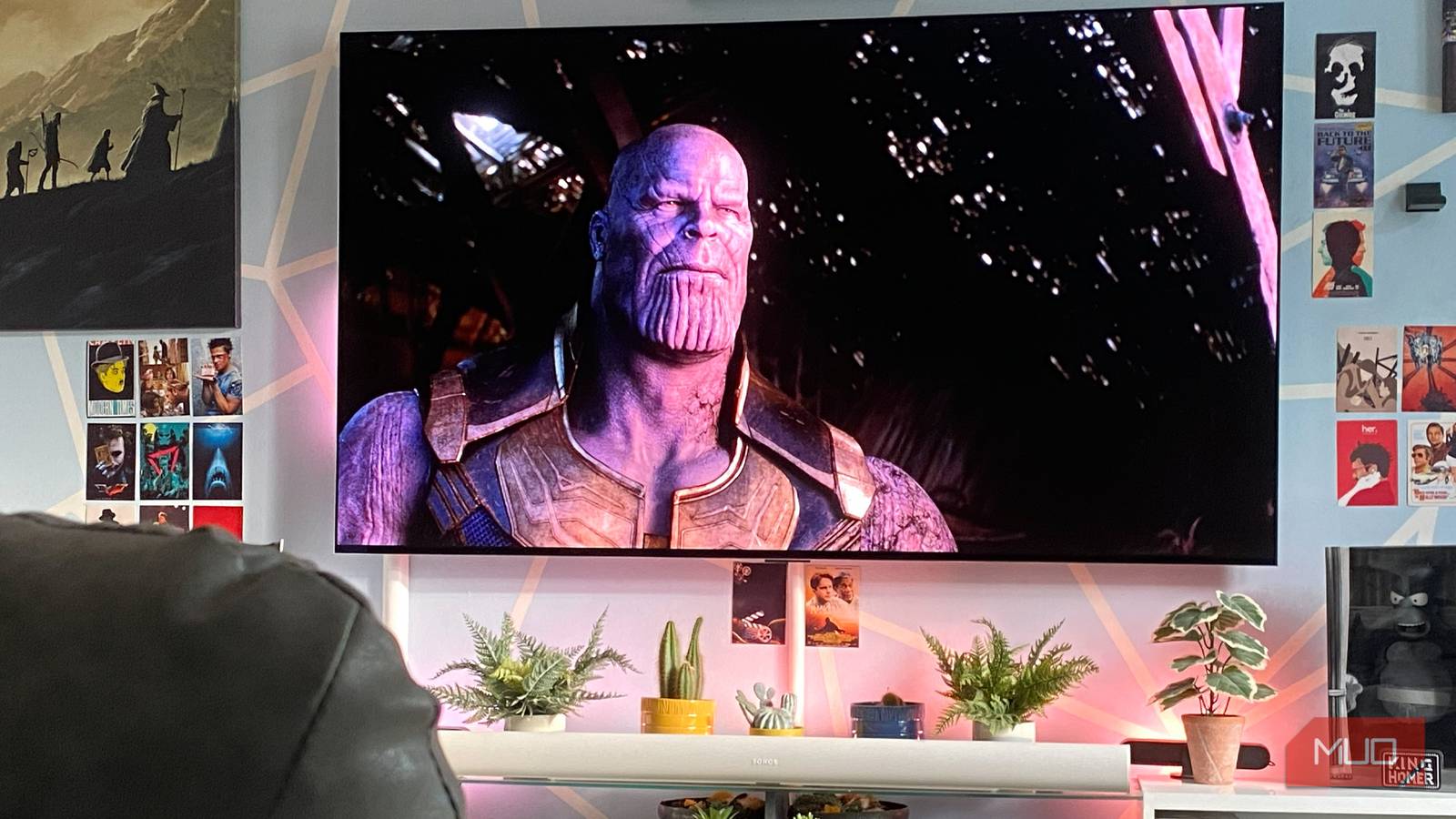
So, you bought a new TV. It looked great in the store, and you were excited to get it set up in your living room in time for the big game or to binge-watch that hot new streaming show. But it doesn’t look as good as it did in the store, and you’re disappointed. Before you angrily call the shop to complain or repackage the TV to send it back, there’s a single setting you probably need to tweak to improve the picture. In fact, you might need to adjust a few settings.
The main setting in question, however, is brightness. It’s typically set to a vivid or dynamic mode by default. In the industry, this is referred to as “torch mode,” and it’s turned on by default in many TVs for the purposes of retail display. A store typically has ultra-bright fluorescent lighting. To compensate, a TV’s brightness is cranked up before it’s packaged so it looks brighter and more vivid when set up as a demo model in the store. When you get home, you need to adjust this setting to get a more natural, cinematic view.
My OLED TV looked washed out until I found this one picture setting
Dynamic Tone Mapping is the display feature you might not know you needed.
What “torch mode” does
Tone it down
In a retail setting, the vivid, dynamic, or other high-brightness “torch” mode pushes the TV’s backlight, contrast, and color, making the screen look incredibly bright. It’s a way to make the TV stand out while it’s on display, versus looking dull and washed out. Who wants to buy a TV that looks like that, after all? However, your living room or any other room of your home likely doesn’t have these same conditions. While you might have some ambient light coming in from a window, a lamp, pot lights, or a ceiling light, it’s nothing compared to a store.
Thus, with a TV in this mode, colors will look distorted once you set it up in your environment with more natural lighting. You may find that your eyes strain to view the picture, as if a torch were shining on the screen. Colors may look unnatural, and the beefed-up contrast results in a loss of detail. Beyond these visual issues, this mode consumes more power, increasing your electricity bills and shortening the display’s lifespan. Turning down brightness is a setting that can help double the lifespan of your TV as well as make the picture look better.
How to adjust
A few simple fixes
Where you find the right settings and what you can adjust will depend on the brand and model of your TV. But there should always be a main Picture Settings menu, and brightness is always one of the options. Once you tone down the brightness, check the contrast and color as well. If they are pushed to the max, too, adjust accordingly. You can usually still see the picture in the main part of the screen while making these adjustments, or you can go back and forth until things look more natural. You can also leverage features like adaptive brightness, which automatically adjusts based on room conditions, and a TV setting that can make your picture look better with almost no effort.
Many TVs have pre-defined modes you can use as well, like Standard/Natural, Movie/Cinema, and even Filmmaker Mode. You can try choosing one of these, which will auto-adjust brightness, contrast, and other settings to specific parameters. That one simple switch will have you breathing a big sigh of relief that there isn’t anything wrong with the TV. You may also find that you prefer to adjust settings based on what you’re watching, leveraging different modes for an action movie or sports, for example, versus a sitcom or news. Some of the latest TVs have AI that can intelligently analyze what’s on-screen and make on-the-fly adjustments, and additional dedicated content modes like sports and gaming that tweak other settings like refresh rate and sound, too. If you want to go all out, hire a TV calibrator to run professional adjustments.
Don’t use your TV out of the box
Adjust settings immediately

The biggest mistake you can make with a new TV, once you’ve mounted it and powered it up at home, is leaving the picture settings as is, especially when it comes to brightness. The factory default mode is meant for retail settings, not for home use. Virtually every TV you buy will be set to these default settings to accommodate quick, easy setup in a store if the TV is unboxed for display. This “torch” mode looks great in a store but horrible in your home. So, it’s not the TV that’s the issue; it’s the settings.
Calibration is an art, and there are people who do it for a living, helping you get the best possible experience from your TV at home. But if you don’t have a fancy home theater or the budget for a professional calibrator, and you simply want a better picture, you can improve it yourself with a few tweaks. Along with adjusting brightness, contrast, and color, turn off features like motion smoothing, which can lead to the annoying soap opera effect that makes content look artificial.
Make the picture your own.
Continue making adjustments
Tailor to your content

While you can usually settle on a pretty good selection of settings that work for most content, don’t be afraid to continuously adjust settings based on what you’re watching. I was recently reviewing a new Micro RGB TV, for example, and found that Standard mode was better for some content, but Filmmaker mode brought back more detail and natural tones with others. So, it may come down to personal preference as well as adjustments based on whether you’re watching an action movie, a sitcom, or a soccer game. If you paid a hefty sum for a fancy new big-screen TV, it’s worth the extra few minutes out of the box to adjust settings like brightness. This way, you can fully benefit from the TV’s great picture quality without feeling like a flashlight is shining on the screen.